
Are you tired of the same old look of your WordPress site? Do you want to give your website a fresh and vibrant appearance but aren’t sure where to start?
Changing your theme colors can make a world of difference. It’s like giving your site a makeover, and the best part is, you don’t need to be a tech wizard to do it. In this guide, you’ll learn how to easily modify your WordPress theme colors, breathing new life into your online presence.
Imagine capturing more attention and creating a memorable first impression with just a few clicks. Let’s dive in and discover how you can transform your website’s aesthetic effortlessly.
Choosing The Right Theme
Theme compatibility is important for your website. Some themes may not work well with your plugins. Always check if a theme is up to date. This helps prevent bugs and issues. Themes should be easy to customize. Look for themes with good support and updates. Read reviews from other users. This can help you choose the right theme.
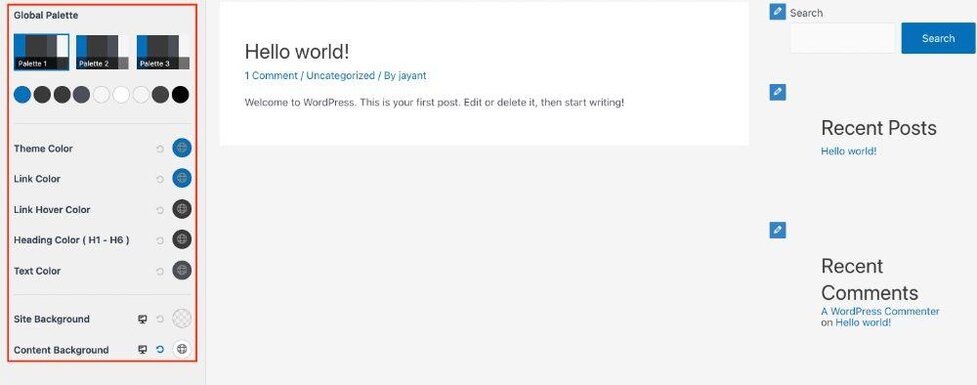
Changing theme colors can make your site unique. Most themes offer a color picker. This tool lets you choose any color. Some themes have pre-set color schemes. These are easy to apply with one click. You can change text, background, and link colors. Make sure to save changes often. This keeps your work safe. Experiment with colors to find what looks best.
Credit: wpastra.com
Accessing The Theme Customizer
First, log into your WordPress dashboard. On the left, find the menu. Click on Appearance to open new options. This is where you manage themes.
The Customizer will appear here. It helps you make changes. From there, you can change colors, fonts, and more. The options are easy to explore.
The Customizer is like a toolbox. It shows your site on the right. On the left, you see settings. Click each setting to make changes.
Find the Colors section. Here, you can change theme colors. Choose new colors that match your style. Preview changes before saving.
Changing Theme Colors
Many themes come with preset color schemes. These schemes make it easy to change the look. Go to your WordPress dashboard. Click on “Appearance.” Then select “Customize.” Look for “Colors” or “Color Scheme.” Choose a scheme that you like. It will change the colors for you. No coding needed.
Want to change specific parts? You can do that too. In the customizer, find settings for individual elements. This might include headings, backgrounds, or links. Click on the element you want to change. Pick a new color from the palette. Save your changes. Your theme will update instantly.
Advanced Color Customization
Changing theme colors is easy with CSS. Use the WordPress Customizer to access CSS settings. Add your custom CSS in the box provided. This changes colors site-wide. Want more control? Use a Child Theme for deeper changes. Always preview changes before saving. This ensures everything looks good.
Plugins can help change theme colors too. Install a color plugin from the WordPress Plugin Directory. Look for plugins with good reviews. They offer more options than default settings. Easy to use, with no coding needed. Popular choices include Colorlib or SiteOrigin CSS. Always update plugins for best performance.
Preview And Save Changes
Always check your new colors. Preview helps you see changes before saving. Look at the site in the preview window. Make sure everything looks good. Check if the text is easy to read. Make sure colors match your style.
Click the Save button when ready. Your changes are now live. Don’t forget to publish updates. This makes changes visible to all visitors.

Credit: doc.seatheme.net
Troubleshooting Common Issues
Explore how to easily change theme colors in WordPress. Navigate to your theme settings, select colors, and save changes. Refresh your website to see the new look instantly.
Color Not Updating
Sometimes, theme colors don’t change as expected. This happens due to cache issues. Clear your browser cache and check again. Another reason might be incorrect CSS settings. Ensure you have saved changes properly. Always preview before saving to avoid mistakes.
Compatibility Problems
Some themes don’t work well with certain plugins. They might cause color problems. Check theme documentation to see if your plugins are compatible. Conflicts arise from outdated plugins. Keep them updated for smooth operation. If issues persist, contact the theme support team.
Tips For Effective Color Choices
Colors can change how we feel. Bright colors like red and yellow make us happy. Dark colors like blue and green make us calm. Pick colors that match your blog’s mood. This helps people like your site.
Colors should make text easy to read. Use dark text on light backgrounds. Light text works on dark backgrounds. This contrast helps eyes. Too many colors can be confusing. Use two or three main colors. They should fit together well. This makes your site look neat.

Credit: qodeinteractive.com
Frequently Asked Questions
How Do I Change Theme Colors In WordPress?
Go to WordPress Dashboard, click on “Appearance” then “Customize. ” Select “Colors” or “Theme Options” to change colors. Adjust settings and preview changes. Save your customizations by clicking “Publish. ” Make sure your theme supports color customization for best results.
How Do I Change The Color Of My Theme?
To change your theme color, navigate to your website’s settings or customization panel. Select the color section and pick your desired shade. Save changes to apply the new color. Check your theme documentation for specific instructions, as they vary by platform.
Always preview before finalizing updates.
How Do I Change The Whole Website Color In WordPress?
To change website color in WordPress, navigate to Appearance > Customize. Select ‘Colors’ to adjust your site’s palette. Use a theme that supports color customization for best results. Save changes to apply. Consider using additional CSS for more precise adjustments.
How Do I Manually Change The Theme In WordPress?
Access your WordPress dashboard. Go to Appearance > Themes. Click “Add New” to install a new theme. After installation, click “Activate” to apply it. Always backup your site before changing themes to prevent data loss.
Conclusion
Changing theme colors in WordPress is straightforward and fun. It personalizes your site, making it unique. Follow the steps outlined, and you’ll see instant results. No need for advanced skills. Just a bit of creativity and patience. Experiment with different shades.
Find what suits your brand best. Remember, color affects mood. Choose wisely for a great user experience. A well-designed site attracts more visitors. Happy customizing!


