
Are you ready to host your own website using Windows Web Server 2008? Imagine having complete control over your online presence, with the ability to manage every aspect of your site right from your own server.
This guide is your ticket to achieving that. You don’t need to be a tech wizard to get started—just a willingness to follow some straightforward steps. We’ll walk you through the essentials of setting up your server, installing necessary components, and ultimately hosting your own website.
By the end, you’ll have the confidence and knowledge to maintain your site on Windows Web Server 2008, potentially saving you money and giving you more autonomy over your digital space. Are you ready to dive in and transform your hosting experience? Let’s get started!
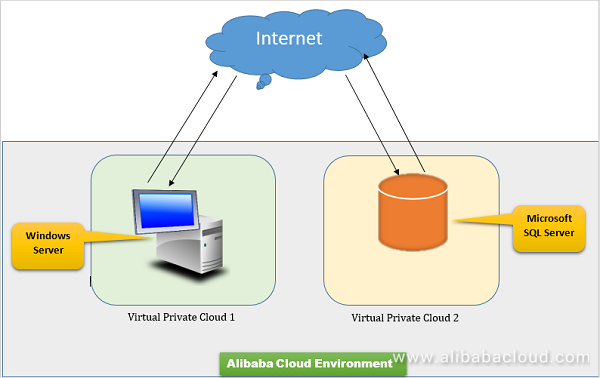
Credit: www.alibabacloud.com
Setting Up Windows Web Server 2008
Before starting, check if your computer meets the system requirements. Your system needs at least 1 GHz processor and 512 MB RAM. Make sure you have 10 GB of free disk space. The server works best with Windows Server 2008 installed. A stable internet connection is needed for hosting.
Get the installation disc or download the Windows Server 2008 package. Open the setup file and follow the on-screen instructions. Choose the custom installation option. This lets you pick features you need. Wait for the process to complete. After setup, restart your computer.
After installation, configure your server settings. Start by setting up the network. Check if the IP address is correct. Use the Server Manager to enable roles. These roles include Web Server (IIS). Add features like FTP and DNS if needed. Save changes and test the server.
Configuring Internet Information Services (iis)
Open the Control Panel on your computer. Find “Programs” and click. Select “Turn Windows features on or off.” Look for Internet Information Services and check the box. This will enable the basic features of IIS. After that, click “OK” to save changes. It may take a few moments to apply.
Open the IIS Manager from the Start menu. Expand the list to find “Sites.” Click on Default Website. You can edit settings here. Change the home directory or add a new binding. This lets your site work with different domains or ports. Don’t forget to click “Apply” after making changes.
The IIS Manager is your control panel. It helps manage your website. You can start or stop your site easily. View logs to understand site activity. Add new websites or change existing ones. Make sure to explore all options available. This will help in running a smooth website.
Preparing Your Website Content
Begin with sorting your website files neatly. Use folders for different types of files. For instance, keep images, scripts, and styles in separate folders. This helps in easy access later. Always name files clearly. This way, you know what each file contains. Neat organization saves time.
Use an FTP client to upload your files. FileZilla is a popular choice. Connect to your server by entering the server address. Drag your files from your computer to the server. Ensure all files are uploaded correctly. Double-check for missing files.
After uploading, set the right permissions for each file. Permissions control who can see or change files. Use numbers like 755 or 644 to set permissions. This keeps your files safe. Wrong permissions might cause errors. Always ensure correct settings.

Credit: www.youtube.com
Setting Up Dns And Domain
Choose a name for your website. This name is your domain. Find a registrar online. Many websites offer domain services. Register your chosen name. Ensure it’s not taken. Pay the fee. Now the domain is yours. Remember to renew it yearly.
Log in to your registrar’s site. Find the DNS settings panel. Enter your server’s IP address. Save the changes. This links your domain to your server. Changes may take time. Be patient. Check settings after a while.
Open your server’s control panel. Enter the domain name. This links your server to the domain. Make sure the server is online. Test the website from a browser. If it opens, you’re done. Ensure everything works well. Fix any errors you see.
Configuring Firewall And Security
Protecting your website on Windows Web Server 2008 starts with configuring firewall and security settings. Block unwanted access by setting rules and monitoring traffic. Ensure your server’s security through regular updates and vigilant management.
Setting Up Firewall Rules
Firewall rules help protect your server. Always choose rules that allow only safe traffic. Block all unknown connections. This keeps your data safe from harm. Use strong passwords. Keep them private and never share. Regular checks help in spotting problems early. Update rules often for better security.
Implementing Ssl Certificates
SSL certificates secure your website. They encrypt data between the server and user. This keeps information safe from hackers. Always use a trusted certificate provider. Install the certificate on your server. Check its validity regularly. Renew it before it expires. This ensures continued protection.
Managing User Access
User access management is crucial. Allow access only to trusted users. Use usernames and passwords for login. Keep passwords strong and secret. Regularly review user access levels. Remove permissions from users no longer needed. This keeps your server safe and secure.
Testing And Launching The Website
It’s important to test your website on your computer. This helps find any errors before others see them. Use a local server to check how your website works. Make sure all links and images show up. Your pages should load quickly. This will make users happy.
Sometimes, things go wrong. Pages may not load or show errors. Check your internet connection first. Ensure your server is running. Look for typos in code. Fix broken links by checking the URL. Clear your browser cache to see changes. These steps can solve many problems.
Ready to show your website to the world? First, choose a hosting provider. Upload your files to the server. Ensure your domain name points to your server. Now, your website can be seen by everyone online. Enjoy sharing your work!
Monitoring And Maintenance
Regular backups keep your data safe. Use automated tools for this. Schedule them daily. This avoids losing important files. Store backups in a secure location. You can use cloud storage or external drives. Check backup files often. Make sure they work properly.
Watch your server’s performance. Use monitoring tools. They help track CPU and memory usage. Keep an eye on network traffic. Look for any issues. This helps maintain smooth operations. Make sure your server is not overloaded. Adjust settings if needed.
Update software regularly. It keeps your server secure. Check for new updates often. Install them quickly. This fixes bugs and improves features. Always update your security patches. They protect against threats. Keeping software current is important.

Credit: serverfault.com
Frequently Asked Questions
Can I Host A Website On Windows Server?
Yes, you can host a website on Windows Server. It supports IIS, which is ideal for ASP. NET applications. Windows Server provides a robust environment for hosting websites, ensuring scalability, security, and compatibility. Utilize built-in tools for efficient website management and enjoy integrated support for various web technologies.
How Do I Host My Own Website On My Server?
To host a website on your server, install web server software like Apache or Nginx. Configure DNS settings to point your domain to your server’s IP address. Upload your website files to the server. Ensure your server has adequate security measures and regularly update software for optimal performance.
Where Is The Host File In Windows Server 2008?
The host file in Windows Server 2008 is located at C:WindowsSystem32driversetc. Access it using a text editor to modify IP addresses and domain names. Always back up the host file before editing to prevent system errors.
What Version Of Iis Is On Windows Server 2008?
Windows Server 2008 features IIS 7. 0. This version offers improved security, performance, and management capabilities. It includes a modular architecture, allowing administrators to customize components. IIS 7. 0 also supports ASP. NET, PHP, and media streaming enhancements, making it ideal for web hosting environments.
Conclusion
Hosting a website on Windows Web Server 2008 is straightforward. Follow the steps, and your site will be live. Check your server settings regularly. Ensure your software is updated for security. Backup your data often to avoid loss. Explore more features as you grow.
Troubleshoot issues promptly to maintain uptime. Now, you’re ready to manage your own web server. Keep learning and improving your skills. Happy hosting!


