
Have you ever found yourself staring at your website, wondering why it’s not working as expected? You might have uploaded files correctly, done everything you were supposed to do, but still, your web host isn’t reading your files.
Frustrating, right? You’re not alone. Many website owners face this issue, and it can be a significant roadblock, especially if you’re trying to launch a new feature or update content. Imagine the relief of knowing exactly what went wrong and how to fix it.
Picture a seamless website experience where everything runs smoothly. This is what you’ll discover here. We’ll dive into the common reasons why your web host might not be reading your files and provide straightforward solutions to get your site back on track. Understanding these issues can save you from headaches and ensure your website operates flawlessly. Keep reading to unlock the secrets and gain control over your site’s performance.

Credit: www.youtube.com
Common Reasons For Inaccessibility
File permissions control access. Incorrect settings can block your web host. Files need proper permissions. Read and write permissions are important. Without them, files stay hidden. Check permissions using your control panel. Adjust settings if necessary. This can solve access problems.
Servers need correct configuration. Errors in configuration can cause problems. Hosts may not read files. Check server settings carefully. Settings should match file requirements. Check logs for any error messages. Fix errors found in logs. Contact support for help.
File paths guide servers to files. Mistakes in paths cause issues. Files can become inaccessible. Paths must be correct and precise. Check paths in your code. Ensure they match actual file locations. Fix any path errors you find. This helps your web host find files.
Understanding File Permissions
File permissions tell who can do what with a file. There are three main types. The first is Read. It lets users open and read the file. The second is Write. This allows users to change the file. The third is Execute. It lets users run the file like a program. Each permission is important. If one is wrong, your web host might not read the file. This could be why your site has problems.
Permissions are shown as numbers. They might look like 755 or 644. Each number means something. The first number is for the file owner. The second is for the group. The third is for others. A 7 means full permission. A 5 means read and execute. A 4 means read only. Knowing these numbers helps in setting files right.
Changing file permissions can be tricky. Use caution to avoid mistakes. Always back up your files first. Then, use a trusted tool. Many use FTP clients like FileZilla. These tools make changing permissions easy. Look for the file, right-click, and select “Permissions.” Set numbers carefully. If unsure, ask someone who knows. This will keep your site safe.
Server Configuration Checks
.htaccess files control many aspects of a website. They can block access or allow it. If files are not read, check this file first. Look for any deny rules. Such rules might stop files from loading. Change the rules if needed. Make a backup before you edit. This helps if mistakes happen.
Server logs show errors and warnings. They help find issues fast. Open the logs from your server dashboard. Look for any error messages. These messages often give clues. They may point to the exact problem. Fixing the errors might solve the file reading issue. Check the logs regularly to keep things smooth.
Credit: learn.microsoft.com
Correcting File Path Errors
Paths need correct syntax for files to open. A missing slash can break the path. Ensure all letters are right. Even one wrong letter can cause errors. Check for extra spaces in paths. Spaces confuse the server.
Absolute paths start from the root directory. They are longer and show the complete path. Relative paths start from the current folder. They are shorter and easier to use. Choose the right path type for your file. The wrong type confuses the server.
Impact Of File Naming Conventions
File names are like addresses for your web host. They tell the host where to find your files. Using the wrong names can confuse it. Always use clear and simple names. Keep them short and to the point. Avoid using special characters like %, &, or @. These can cause errors. Spaces in names can also be tricky. Use underscores or dashes instead. This keeps things neat and tidy.
Many people make mistakes with file names. Common pitfalls include using spaces or special symbols. These can confuse your web host. Always check your file names twice. Make sure they follow the right rules. This helps your web host read your files easily.
Did you know file names are case sensitive? This means “File.txt” and “file.txt” are different. Always remember this when naming files. Use the same letters each time. This avoids confusion and errors. Keep it simple. Use lowercase letters for all your files. This is a good habit to follow.
Role Of Content Management Systems
CMS tools help you build websites easily. But sometimes, your files don’t show. This may be due to permissions or settings. Check who can see your files. Permissions should allow access. Sometimes, files are blocked by mistake.
Look at your CMS settings. They must be correct for file access. Ensure settings match your file needs. Wrong settings can hide your files. Adjust them to fit your needs. This way, files will show correctly.
Start by checking if files are in the right folder. Sometimes files are misplaced. Check file names too. Names must match exactly. Even one wrong letter can cause issues.
Check your internet connection. A bad connection can stop files from loading. Restart your computer if needed. It can fix many problems. Don’t forget to clear your browser cache. This can help files load correctly.
Seeking Professional Support
Your web host should help. Contact them when files won’t load. Quick fixes might be available. They can check server issues. File permissions might be wrong. Hosts can guide you on this. Ask for help if confused. They know their systems well. Support teams can solve problems fast. Don’t wait too long. Reach out when needed.
Experts can help with tricky issues. Hire them for complex problems. They understand web hosting well. Experts can find hidden errors. They make websites run better. Consult them for big changes. Web problems can be tough. Experts make things easy. They save time and fix errors. Get help when you can’t fix it.
Credit: blog.purestorage.com
Frequently Asked Questions
Does Chrome Respect Hosts Files?
Yes, Chrome respects hosts files. It uses them to resolve domain names to IP addresses. This allows you to block or redirect websites by editing the hosts file on your system. Ensure the hosts file is correctly formatted for changes to take effect.
How Do I Read Hosts File?
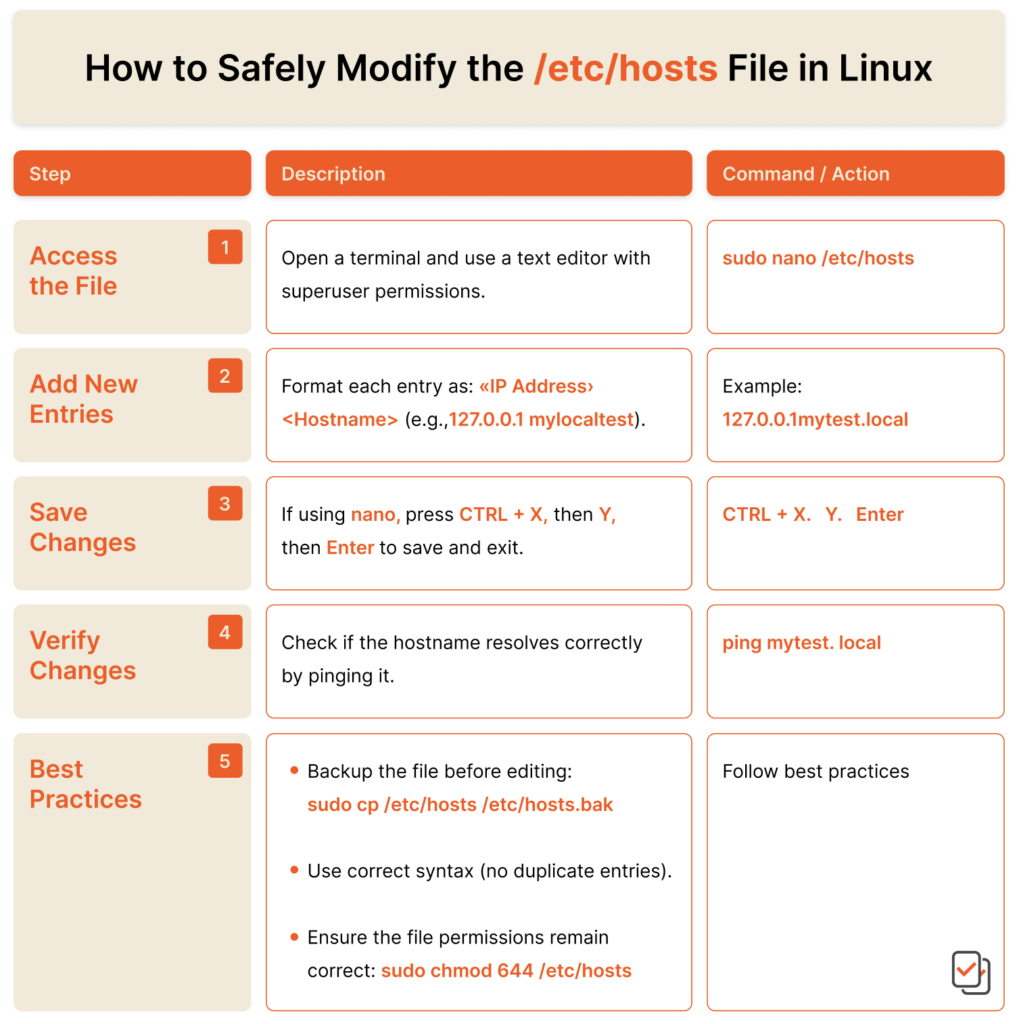
To read the hosts file, open it with a text editor. On Windows, find it at C:WindowsSystem32driversetchosts. On macOS or Linux, the location is /etc/hosts. Ensure you have administrative privileges. This file maps hostnames to IP addresses, aiding in network management.
How To Check If A Host File Is Working?
Open Command Prompt and type `ping example. com`. Confirm the IP matches the host file entry. Check for errors.
How Do I Access My Local Host File?
Access your local host file by navigating to C:WindowsSystem32driversetc on Windows. Use a text editor. On macOS or Linux, open /etc/hosts via Terminal. Editing requires administrator privileges. Make sure to save changes for them to take effect.
Conclusion
Understanding why your web host isn’t reading your files is crucial. Often, simple misconfigurations cause this issue. Incorrect file permissions can block access. The file path might be wrong too. Ensure your files are named correctly. Double-check server settings for accuracy.
Reach out to support when needed. They can guide you through technical hurdles. Regular updates can prevent future problems. Remember, a proactive approach saves time. Keep your website running smoothly with these checks. A little attention goes a long way in maintaining performance.
Address these concerns promptly for seamless hosting.


