
Are you struggling to find your sitemap in WordPress? Your sitemap is a powerful tool that helps search engines understand your website better.
Without it, your site might miss out on valuable traffic and ranking opportunities. You’ll discover exactly where to locate your sitemap in WordPress and how to make the most of it. Keep reading to unlock simple steps that can boost your site’s visibility and bring more visitors right to your doorstep.
Credit: wpengine.com
Sitemap Basics
Sitemaps help search engines find and understand your website’s pages. They act like a map showing where every page lives. This makes it easier for search engines to crawl your site. Knowing the basics of sitemaps is important for managing your WordPress website effectively.
What Is A Sitemap
A sitemap is a file that lists all important pages on your website. It tells search engines which pages to index. This file usually comes in XML format, designed for search engines, not humans. It helps search engines discover new and updated content quickly.
Why Sitemaps Matter For Seo
Sitemaps improve a website’s visibility in search results. They guide search engines through your site’s structure. This ensures no important page gets missed during crawling. Sitemaps are especially helpful for large sites or new websites with few links. They make SEO efforts more effective by improving site indexing.
Credit: make.wordpress.org
Default WordPress Sitemap
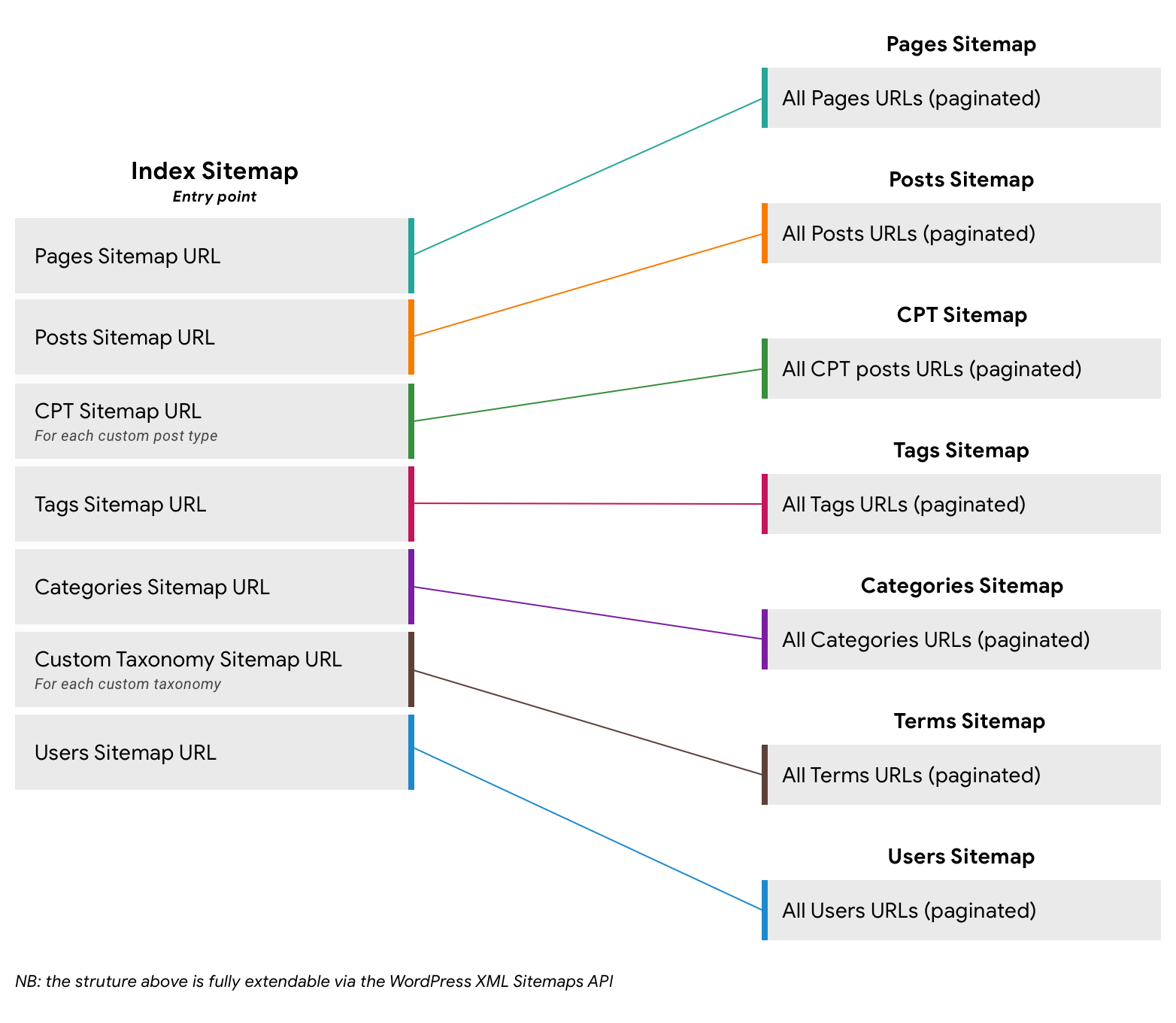
WordPress has a built-in sitemap feature that helps search engines find your website’s pages easily. This default sitemap is simple to use and does not require extra plugins. It updates automatically as you add or change content. This makes it a useful tool for improving your site’s SEO without extra effort.
How WordPress Generates Sitemaps
WordPress creates sitemaps using its core system. It scans your posts, pages, and custom content types. Then, it organizes these into a sitemap file. This file is in XML format, which search engines can read quickly. The sitemap updates every time you publish or change content. This process runs quietly in the background.
Locating The Default Sitemap Url
The default sitemap URL is easy to find. Add /wp-sitemap.xml after your website address. For example, https://yourwebsite.com/wp-sitemap.xml. Open this link in your browser. You will see a list of all your site’s sitemaps. This URL works for most WordPress sites without extra setup.
Using Seo Plugins
SEO plugins make managing your sitemap easy. They create and update sitemaps automatically. This helps search engines find your pages faster. You do not need to write or upload any file yourself. Just install a plugin and it works in the background.
Popular Sitemap Plugins
Several plugins are trusted by WordPress users. Yoast SEO is one of the most popular. It creates a sitemap without extra setup. All in One SEO Pack is another good option. It offers a simple sitemap feature too. Rank Math is growing fast with many features. It also includes sitemap creation by default.
Finding Sitemaps Via Plugins
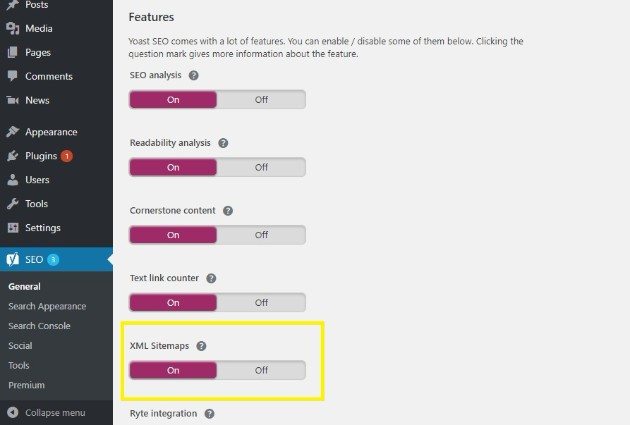
Once the plugin is active, you can find your sitemap URL. Usually, it is yourdomain.com/sitemap_index.xml or sitemap.xml. Check the plugin’s settings page for the exact link. Some plugins show the sitemap URL clearly. You can copy this link and submit it to Google Search Console. This helps your website get indexed faster.
Credit: kinsta.com
Custom Sitemap Solutions
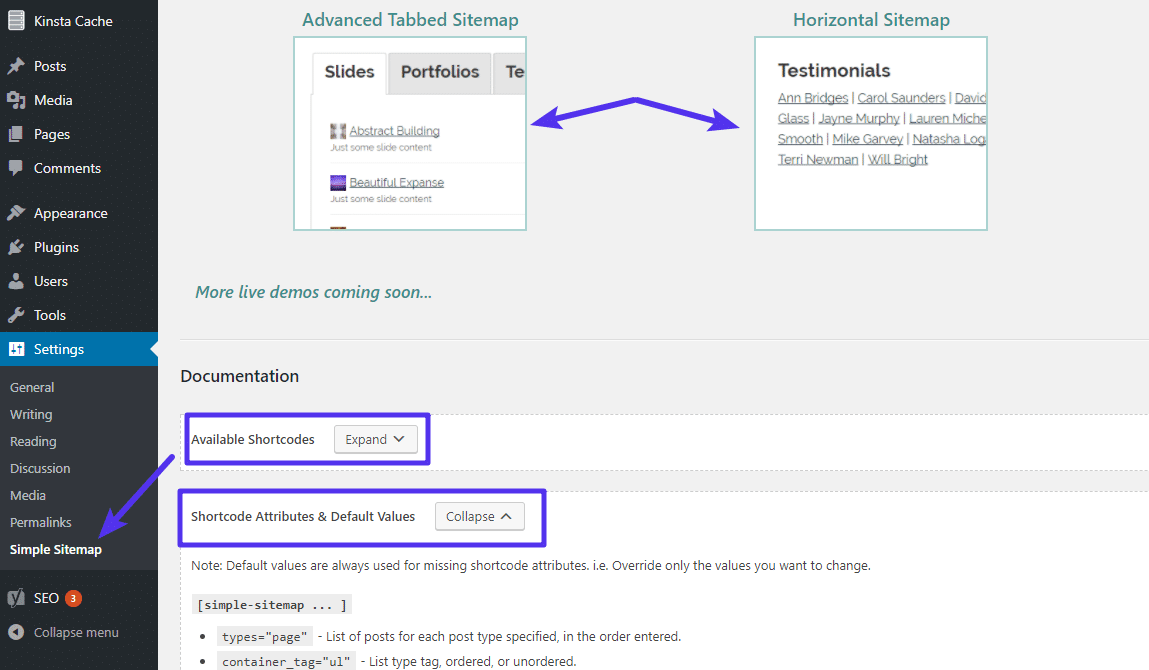
Custom sitemap solutions help you control how search engines see your website. They let you choose which pages to include or exclude. This way, your sitemap matches your site’s unique structure and needs. Custom sitemaps improve your site’s SEO and help search engines find important content faster.
Creating Custom Sitemaps
Start by using a plugin that supports custom sitemap creation. Plugins like Yoast SEO and Rank Math offer easy options. You can select specific posts, pages, or categories to include. Some plugins also allow you to set priority and update frequency. This control helps search engines understand your content better.
For advanced users, coding a custom sitemap file is possible. Use XML format and list URLs manually. This method needs some technical knowledge but offers full control. Always validate your XML sitemap to avoid errors.
Accessing Custom Sitemap Files
Access your custom sitemap through your website’s root directory. Use an FTP client or your hosting file manager. The file usually has a name like sitemap.xml or custom-sitemap.xml. Some plugins provide a direct URL to your sitemap in their settings.
Make sure your sitemap URL is submitted to Google Search Console. This helps Google find and index your pages faster. Regularly check your sitemap for updates and errors to keep it effective.
Troubleshooting Sitemap Issues
Sometimes, sitemaps in WordPress do not work as expected. This can hurt your site’s SEO and make it hard for search engines to find your pages. Troubleshooting sitemap issues is important to keep your site visible and easy to navigate.
Problems with sitemaps often come from simple errors. Knowing common issues helps you fix them fast. Also, fixing missing or broken sitemaps ensures your site stays healthy.
Common Sitemap Errors
One common error is a sitemap that won’t load. This can happen due to wrong URLs or server problems. Another issue is outdated sitemaps that do not include new pages. Some sitemaps may have syntax errors, making them unreadable by search engines. Lastly, permission settings can block access to your sitemap.
Fixing Missing Or Broken Sitemaps
Start by checking your sitemap URL in a browser. If it shows an error, verify your sitemap plugin settings. Clear your site’s cache to remove old data. Update your sitemap manually if it misses new pages. Make sure your robots.txt file allows search engines to access the sitemap. Finally, check file permissions and server status to ensure the sitemap is reachable.
Submitting Sitemaps To Search Engines
Submitting your sitemap to search engines helps them find and index your website pages faster. This process improves your site’s visibility in search results. Each search engine has its own tool to add your sitemap URL. Below are the main platforms to submit your sitemap.
Google Search Console
Google Search Console is a free tool for website owners. It shows how Google views your site. To submit your sitemap, log into your account. Go to the “Sitemaps” section. Enter your sitemap URL, usually yoursite.com/sitemap.xml. Click “Submit” to finish. Google will then crawl your pages more quickly.
Bing Webmaster Tools
Bing Webmaster Tools helps you manage your site on Bing. After signing in, select your website. Find the “Sitemaps” option in the menu. Add your sitemap URL in the box provided. Press “Submit.” Bing will use this sitemap to better understand your site structure and content.
Frequently Asked Questions
Where Is The Sitemap Located In WordPress?
WordPress sitemaps are usually found at yoursite. com/sitemap. xml. This URL displays your sitemap automatically if you use the default WordPress feature or SEO plugins like Yoast.
How To Find Sitemap Using Yoast Seo Plugin?
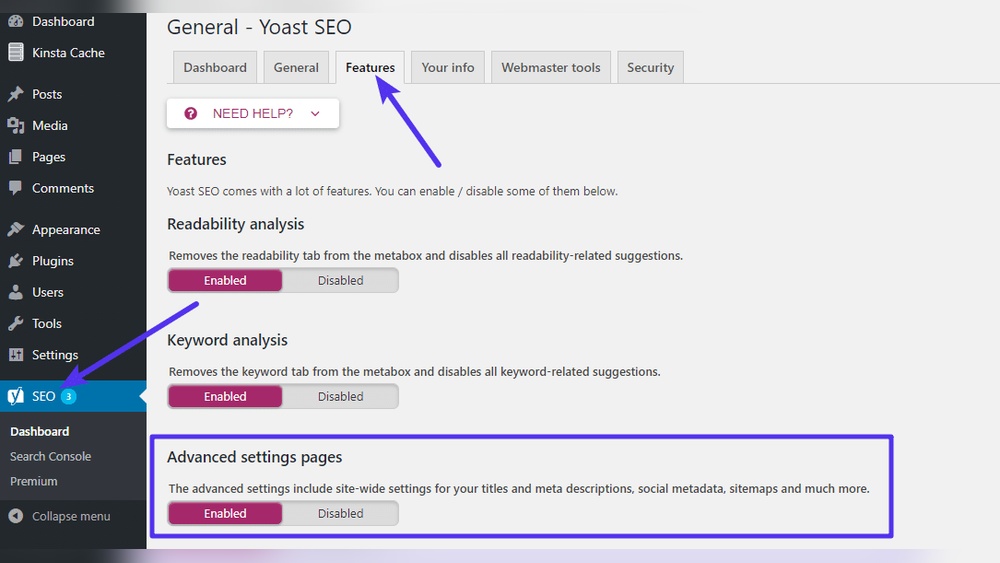
In Yoast SEO, go to SEO > General > Features. Enable the XML sitemaps option and click the question mark icon to view your sitemap link.
Can I Access Sitemap Without Plugins In WordPress?
Yes, WordPress 5. 5+ includes a built-in sitemap at /wp-sitemap. xml. No plugins are needed to find this default sitemap URL.
How To Verify If My Sitemap Is Working?
Open your sitemap URL in a browser. Check if it loads without errors and lists your site’s pages and posts properly.
Conclusion
Finding your sitemap in WordPress helps search engines find your pages faster. You can locate it easily using plugins or built-in tools. A clear sitemap improves your website’s visibility and ranking. Keep your sitemap updated as you add or remove content.
This simple step supports your site’s growth and user experience. Now, managing your sitemap won’t feel confusing or hard. Just follow the steps, and your site will be ready for search engines.


