

If you want to understand how visitors interact with your WordPress site, adding Google Analytics is a must. But where exactly do you place the Google Analytics code to start tracking your traffic effectively?
Getting this step right can unlock powerful insights about your audience, helping you grow your site smarter and faster. You’ll discover the simplest and most reliable ways to add Google Analytics code to your WordPress site—no technical headaches, no guesswork.
Keep reading, and you’ll be tracking your visitors like a pro in no time.
Why Add Google Analytics To WordPress
Adding Google Analytics to your WordPress site helps you understand your visitors better. It shows who visits your site, what pages they like, and how long they stay. This information helps you improve your site and grow your audience.
Without Google Analytics, you only guess what works. With it, you get clear facts. You can see which posts get the most views and which ones need work. This data guides your content and marketing choices.
What Google Analytics Tracks On WordPress
Google Analytics collects data like visitor numbers, location, and devices. It tracks how users find your site, such as from search engines or social media. It also records which pages they visit and their actions on your site.
How Analytics Improves User Experience
Knowing visitor behavior helps you fix problems. You can find slow pages or confusing menus. This makes your site easier to use. Better experience means visitors stay longer and return more often.
Benefits For Content And Marketing
Analytics shows which content attracts visitors. You can focus on popular topics and drop weak ones. It also measures results from ads and campaigns. This helps you spend money wisely and reach the right audience.
Credit: www.monsterinsights.com
Get Your Google Analytics Tracking Code
Getting your Google Analytics tracking code is the first step to track your website visitors. This code helps you collect data about how people use your site. You need this code to connect your WordPress website with Google Analytics.
Finding and copying the tracking code is simple. It only takes a few steps inside your Google Analytics account. Once you have the code, you can add it to your WordPress site to start gathering useful insights.
Access Your Google Analytics Account
Sign in to your Google Analytics account. Use the email linked to your website’s analytics. After logging in, select the property for your WordPress site.
Navigate To Tracking Info
Look for the Admin section at the bottom left. Click on it to open settings. Under the property column, find “Tracking Info” and click on it.
Find The Tracking Code
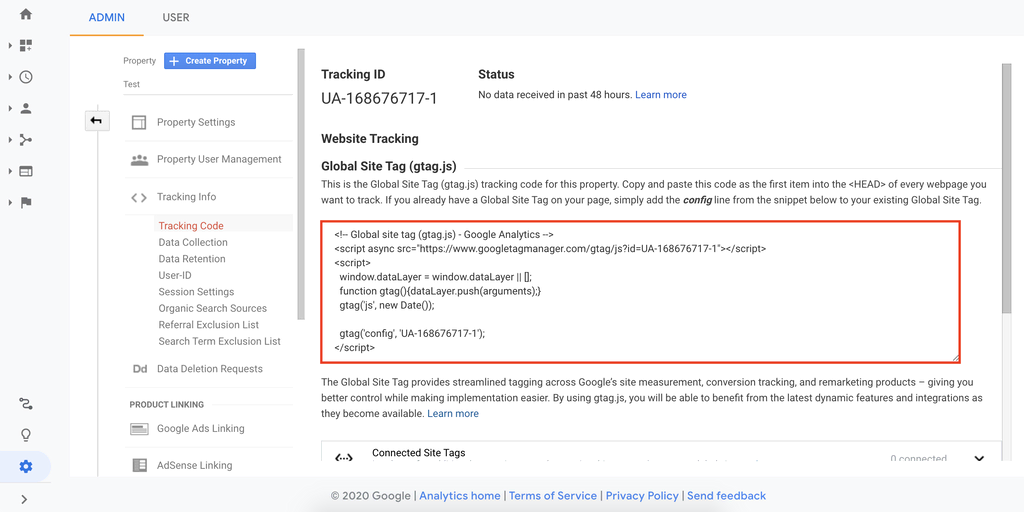
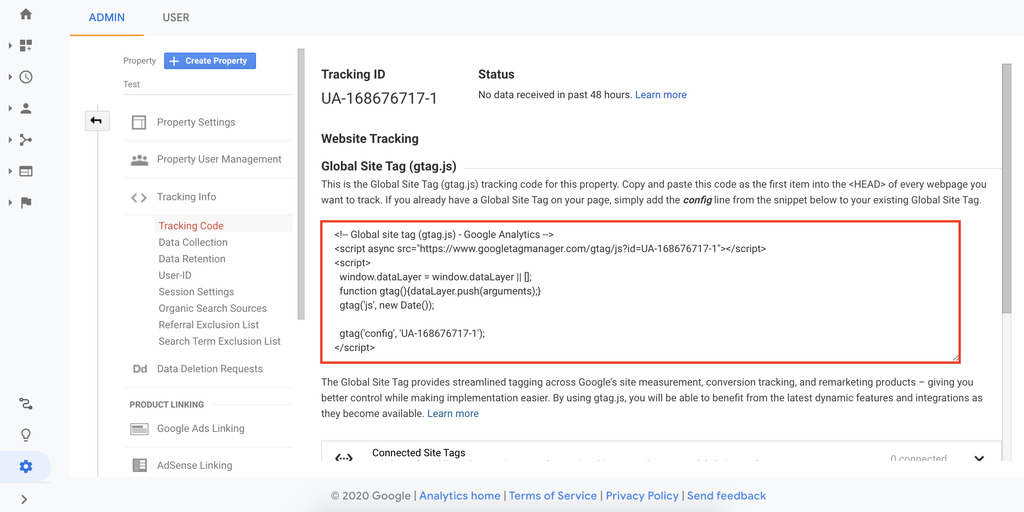
Click on “Tracking Code” under the Tracking Info menu. You will see a block of code starting with “
Copy The Tracking Code
Select the entire code. Right-click and choose “Copy” or press Ctrl+C (Cmd+C on Mac). Keep it ready to paste into your WordPress site.
Add Code Using WordPress Theme Editor
Adding Google Analytics code using the WordPress Theme Editor is a direct way to track your website traffic. This method places the tracking code right into your site’s theme files. It helps Google Analytics start collecting data immediately. The process is simple but requires caution to avoid errors. Editing theme files can affect your website’s design and function if done incorrectly.
Locate Header.php File
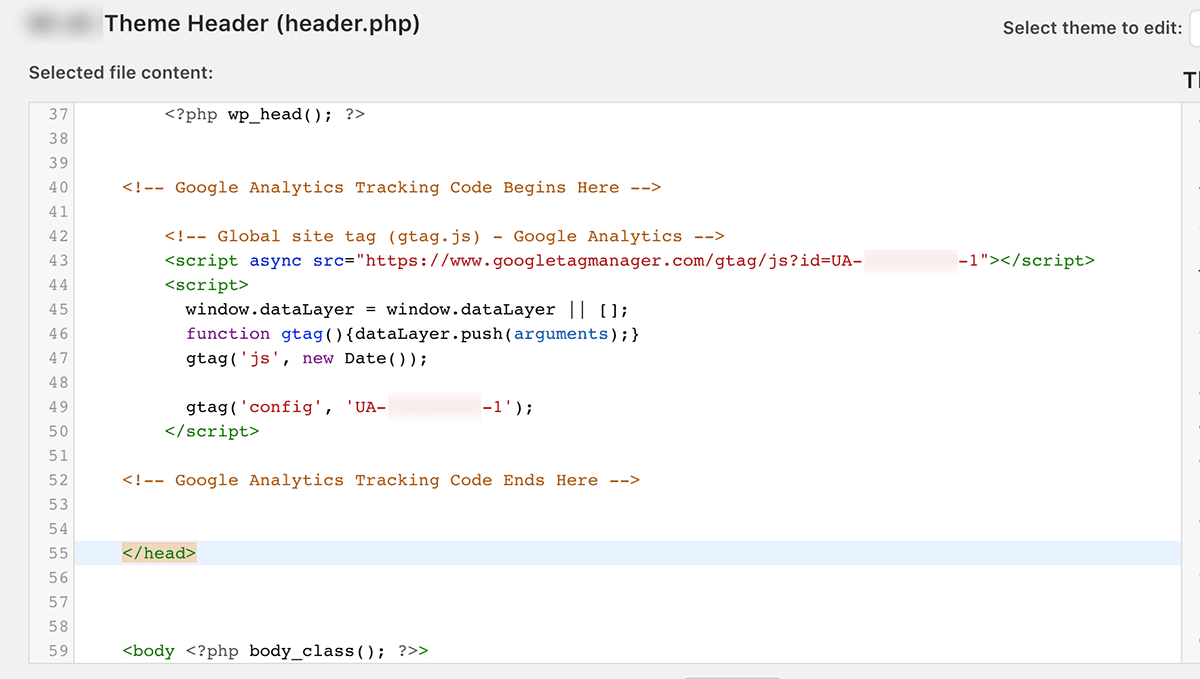
First, log into your WordPress dashboard. Go to Appearance > Theme Editor. On the right side, find and click the header.php file. This file controls the header section of your website. It loads on every page. The Google Analytics code must go here to track all pages.
Insert Tracking Code Before Closing Head Tag
Find the closing tag in the header.php file. Paste your Google Analytics tracking code just before this tag. This places the code in the correct spot to load early. Make sure not to change other code lines. Only add the tracking script.
Save And Verify Changes
Click the Update File button to save your edits. Check your website to ensure it loads correctly. Visit Google Analytics and use the Real-Time report to confirm tracking works. The new data should appear within minutes. If errors occur, remove the code and try again carefully.
Credit: www.hostinger.com
Use A Plugin To Insert Analytics Code
Using a plugin to insert Google Analytics code in WordPress is simple and safe. Plugins help add the tracking code without editing theme files. This method reduces errors and keeps your site secure. Even beginners can handle this process easily. Plugins also make managing and updating the code faster.
Choose A Reliable Plugin
Select a plugin with good ratings and many installs. Check for recent updates and positive reviews. Popular plugins include “Site Kit by Google” and “GA Google Analytics.” A reliable plugin ensures smooth integration and support.
Install And Activate Plugin
Go to your WordPress dashboard. Click “Plugins” and then “Add New.” Search for the chosen plugin by name. Click “Install Now” and then “Activate.” The plugin is now ready to use.
Add Tracking Code Via Plugin Settings
Open the plugin settings from the dashboard menu. Find the field to enter your Google Analytics tracking ID. Paste your tracking ID or code snippet there. Save the changes and verify the connection. Your site will start sending data to Google Analytics.
Add Code With Functions.php File
Adding Google Analytics code using the functions.php file is a neat way to include tracking on your WordPress site. This method keeps your code organized and works across your entire website. It avoids editing theme template files directly, which can be risky for beginners.
This approach runs the tracking code in the header section of your site. This helps Google Analytics collect data as soon as a visitor loads your page. Let’s see how to do this step by step.
Access Functions.php In Theme Folder
First, log into your WordPress dashboard. Go to Appearance, then Theme Editor. Find the functions.php file in the right sidebar under Theme Files. Click on it to open.
Be careful here. Editing this file can break your site if done wrong. Always back up your site before making changes.
Add Custom Function To Insert Code
Scroll to the bottom of the functions.php file. Add a new function to insert the Google Analytics script. Use the wp_head action hook to place the code in the header.
Here is a simple example:
function add_google_analytics() { ?> php } add_action('wp_head', 'add_google_analytics'); Replace YOUR_TRACKING_ID with your actual Google Analytics ID.
Test Implementation
Save the changes in functions.php. Clear your browser cache and reload your website. Use the Google Tag Assistant Chrome extension or view the page source to check if the script appears in the header.
Verify if Google Analytics is tracking visits by checking your Analytics real-time reports. This confirms the code works correctly.
Credit: www.hostinger.com
Verify Google Analytics Setup
Verifying your Google Analytics setup is a key step after adding the tracking code to your WordPress site. This ensures your data collection works correctly. Without verification, you might miss important visitor information. Two simple methods help confirm your setup quickly and accurately.
Use Google Tag Assistant
Google Tag Assistant is a free Chrome extension. It checks if your Google Analytics code is installed properly. Open your website with the extension active. The tool shows if tags fire correctly or have errors. Fix issues based on the feedback to ensure tracking works.
Check Real-time Reports
Log in to your Google Analytics account. Open the real-time reports section. Visit your WordPress site in a new tab or device. You should see your visit appear live in the report. This confirms the tracking code sends data successfully. If no activity shows, recheck your code placement.
Common Mistakes To Avoid
Adding Google Analytics code to WordPress can be simple. Yet, many make mistakes that stop it from working right. These errors can cause data loss or slow your site. Avoiding these common mistakes helps you track visitors correctly and keep your site fast.
Placing The Code In The Wrong File
Many put the Google Analytics code in the wrong theme file. The best place is the section of your site. Adding it elsewhere can stop it from loading on all pages. Always check that the code is inside the tag for proper tracking.
Using Multiple Tracking Codes
Some users add more than one Google Analytics code. This causes duplicate data and confusion. Only one tracking code per site is needed. Check your site to remove any extra codes to avoid errors in reporting.
Not Using A Child Theme
Directly editing your theme can cause problems after updates. Updates may overwrite your changes and remove the code. Using a child theme keeps your Google Analytics code safe during updates. It also keeps your site organized.
Forgetting To Publish Or Save Changes
After adding the code, some forget to save or publish it. This stops the tracking code from activating. Always double-check that your changes are saved and live on your site. This simple step ensures Google Analytics works correctly.
Ignoring Plugin Conflicts
Some plugins can block or interfere with Google Analytics code. This stops tracking from working properly. Test your site after adding the code to find conflicts. Deactivate plugins one by one to see if tracking improves.
Frequently Asked Questions
Where Should I Add Google Analytics Code In WordPress?
Add the Google Analytics code in the header.php file of your active theme. Place it just before the closing tag for accurate tracking.
Can I Insert Google Analytics Code Using A WordPress Plugin?
Yes, plugins like “Insert Headers and Footers” or “MonsterInsights” allow easy Google Analytics code insertion without editing theme files.
Is It Safe To Add Google Analytics Code In WordPress Footer?
It’s better to add the code in the header for early loading. Adding in the footer might delay tracking page views.
How Do I Verify Google Analytics Code Is Working On WordPress?
Use Google Tag Assistant or real-time reports in Google Analytics to confirm your tracking code is properly installed and active.
Conclusion
Adding Google Analytics code to WordPress helps track your website’s traffic. Place the code in the header or use a plugin for easy setup. This lets you see visitor behavior and improve your site. Regularly check your data to make smart decisions.
Start tracking today and watch your site grow step by step. Simple, effective, and important for every website owner.


