
Have you ever found yourself searching for the URL of your WordPress blog, only to end up feeling lost in a maze of settings and options? You’re not alone.
Knowing your blog’s URL is essential, whether you’re sharing it with friends, promoting it on social media, or analyzing your traffic. Imagine the peace of mind and confidence you’ll feel when you can effortlessly locate and share your blog’s address.
We’ll guide you step-by-step to uncover your WordPress blog URL, ensuring you never have to wonder about it again. Stay with us, and let’s simplify this process together.
Locating Your Blog Url
Accessing your WordPress blog URL is simple. First, log in to your WordPress account. Once logged in, you will see the dashboard. The dashboard is your main control panel. Look at the left side menu. Find “Settings” and click it. This will help you locate your blog URL.
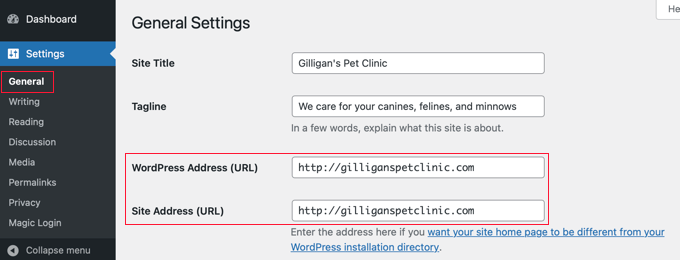
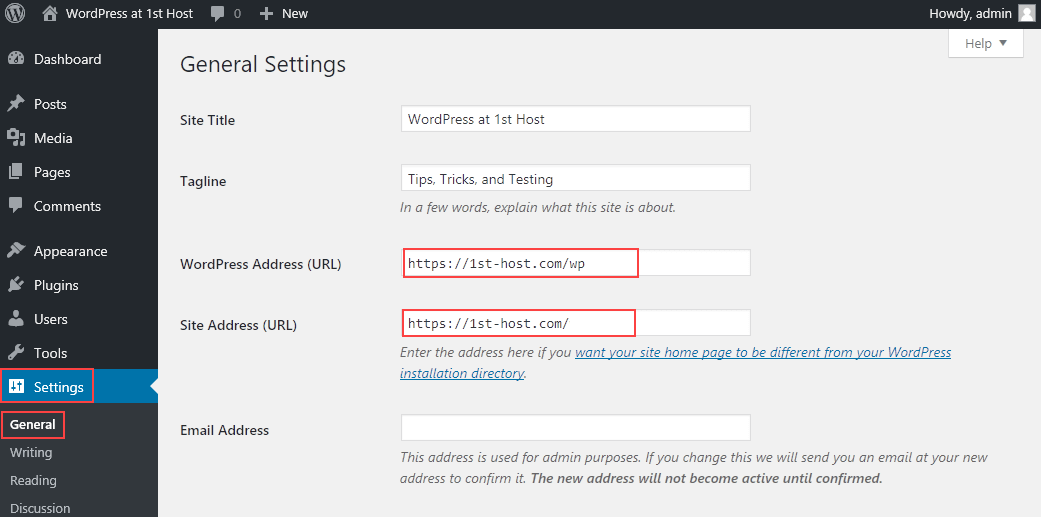
In the “Settings” menu, click on “General”. You will see the site title and tagline. Below these, you will find the “WordPress Address (URL)” and “Site Address (URL)”. These show your blog URL. The “WordPress Address” is where your files are. The “Site Address” is where visitors find you.
Using WordPress Admin Panel
Login to your WordPress site first. Enter your username and password. The login page is usually at yoursite.com/wp-admin. This page lets you manage your blog. You can change settings or add new posts here. Make sure you remember your login details.
Finding your blog’s URL is easy. Go to Settings in the admin panel. Then click on General. You will see two boxes. One is WordPress Address (URL). The other is Site Address (URL). These boxes show your blog’s main URL.
Public View Of Your Url
To see your blog URL, open any web browser. Enter your blog’s name. Press enter. You will see the homepage. The web address at the top is your URL. This URL is what people type to visit your blog. It’s like your blog’s address on the internet. Always check it carefully. Make sure it is correct. If there are mistakes, people can’t find your blog.
A custom domain makes your blog unique. It looks more professional. Like “www.myblog.com”. Not the default “myblog.wordpress.com”. Think about buying a custom domain. It can make your blog stand out. People remember it easily. It also helps in building trust. Check if your desired domain is available. Then register it. Use it for your WordPress blog.
Credit: www.wpbeginner.com
Troubleshooting Common Issues
Sometimes, your WordPress blog URL might be wrong. First, check the WordPress settings. Go to your dashboard. Find the Settings option. Click on General. Here, you will see two fields for URLs. Ensure both URLs are correct. They should match your domain.
If the URLs are wrong, correct them. Save your changes. You may need to log in again. This step often fixes the problem. Always ensure your domain is typed correctly. It can prevent many issues later.
Your domain settings can affect your blog URL. Access your domain registrar’s website. Check if the domain is pointing to the right server. It should direct to your hosting provider. Use the correct DNS settings.
If unsure, contact your hosting provider. They can confirm your settings. Correct domain settings ensure your blog is visible. It helps visitors find your site easily. Always keep your domain information updated.
Tips For Url Management
A custom URL makes your blog look unique. It’s easy to remember. Choose words that match your blog’s topic. Short URLs are better. They are easy to type. Avoid using numbers or special characters. They confuse readers. Use dashes to separate words. It helps in reading the URL.
Clean URLs help with search engines. They improve your blog’s visibility. Search engines like simple and clear URLs. These URLs tell what your blog is about. Using keywords in URLs is smart. It helps people find your blog. Clean URLs also improve user experience. People trust them more.

Credit: help.memberspace.com
Credit: www.hostpapa.com
Frequently Asked Questions
How Do I Find My WordPress Blog Url?
Your WordPress blog URL is the address where your site is accessible online. It usually follows the pattern “https://yourdomain. com” or “https://yourdomain. com/blog. ” You can find it in your WordPress dashboard under Settings > General, labeled as “Site Address (URL).
“
Can I Change My WordPress Blog Url?
Yes, you can change your WordPress blog URL. Go to your WordPress dashboard, then navigate to Settings > General. Update the “Site Address (URL)” and “WordPress Address (URL)” fields. Ensure your domain points correctly to your hosting server to avoid errors.
Why Can’t I Access My WordPress Blog Url?
If you can’t access your blog URL, check your internet connection first. Ensure your domain name is registered and points to the correct server. Verify that your hosting service is active. Check for any plugin conflicts or errors in your WordPress settings.
How Does Domain Affect My WordPress Url?
Your domain is the main part of your WordPress URL. It represents your site’s name and identity. A custom domain makes your site look professional. Ensure your domain is registered and linked to your hosting account. This way, visitors can easily access your blog.
Conclusion
Finding your WordPress blog URL is simple and essential. It connects readers to your content. Always check your settings for accuracy. A clear URL helps search engines find you. This boosts your blog’s visibility. Remember to share your URL widely.
With friends, social media, and directories. This increases your reach. A memorable URL attracts more visitors. It also builds your online presence. Keep creating valuable content. Engage your audience with interesting topics. Your blog’s success depends on your efforts. Happy blogging and best of luck!


