
Are you new to managing a WordPress site or looking to enhance your skills? Understanding the WordPress Admin Screen is crucial for effectively running your website.
This hub of activity is where you control everything, from content creation to site customization. But what exactly is the WordPress Admin Screen, and why is it essential for you? By the end of this article, you’ll gain valuable insights into its features and functionalities, empowering you to navigate your site with confidence.
So, if you’re ready to unlock the potential of your WordPress site and optimize your workflow, keep reading to discover what makes the WordPress Admin Screen the backbone of your website management.
WordPress Admin Screen Essentials
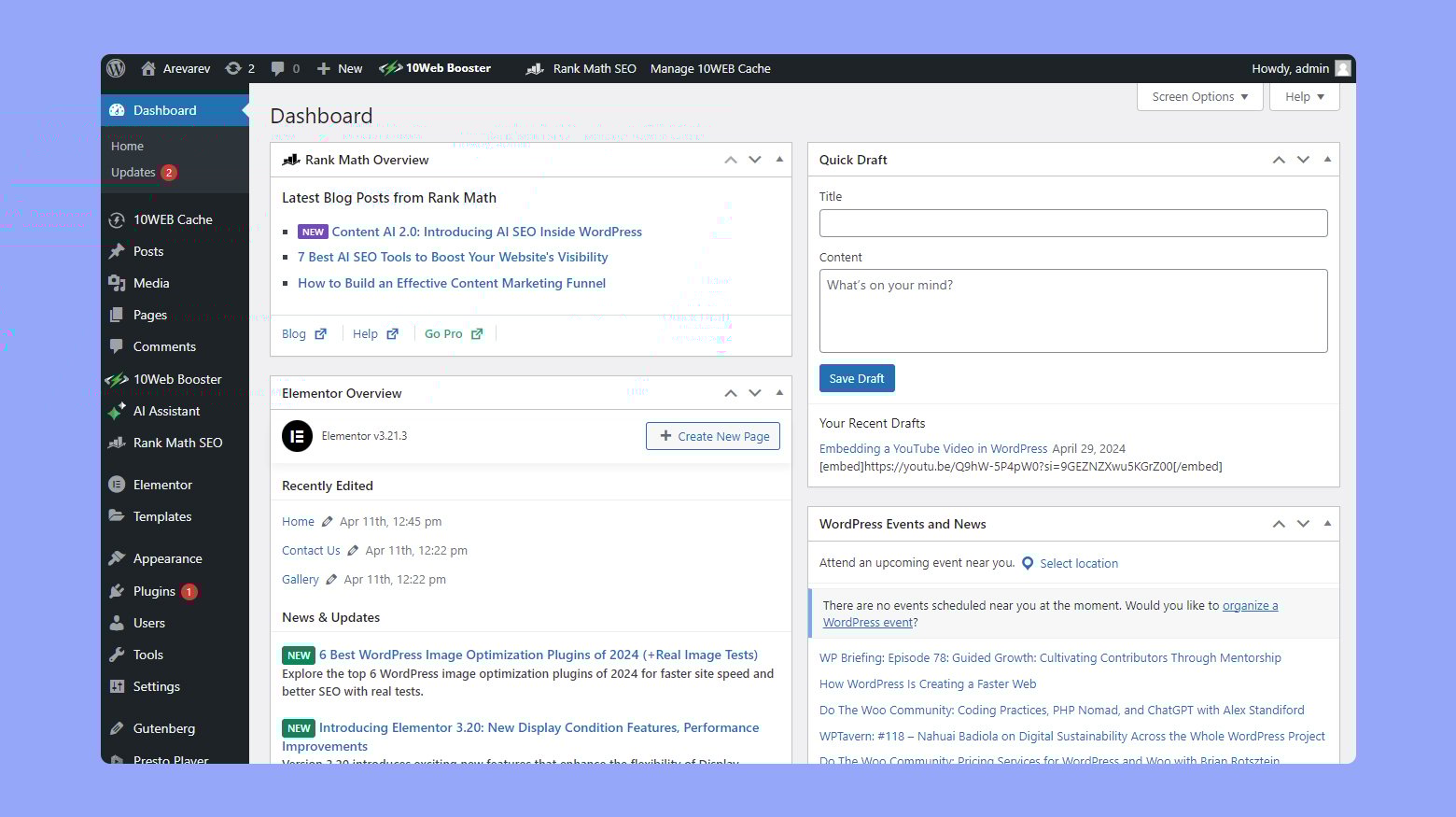
The WordPress Admin Screen is the heart of your website. It lets you manage everything. You can add new posts or edit old ones. Change settings with ease. Update themes and plugins with a click. It’s simple.
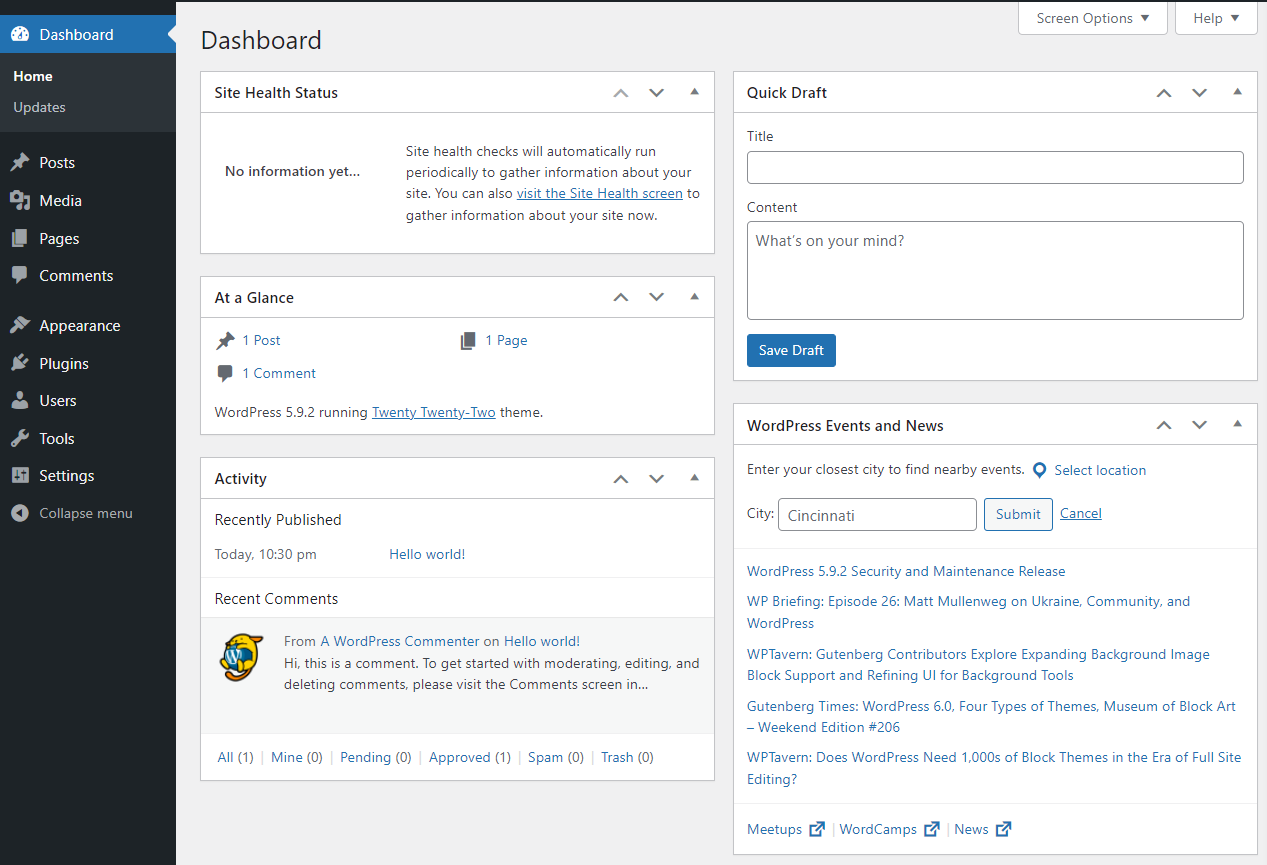
Your dashboard shows important updates. Keep your site secure. Check your site’s stats. Know your audience. Manage comments from visitors. Approve or delete them. It’s all in one place.
The menu on the left side is key. Find settings quickly. Navigate between pages. Easy to use. Customize your site. Change design and layout. Use widgets and menus. Make your site unique.
Credit: 10web.io
Dashboard Overview
The WordPress Admin Screen is like a control room. It helps you manage your site. There are many key features to explore. You can add new posts easily. Updating your site is simple. See site traffic with just one click.
Manage comments in one place. The admin screen keeps everything organized. Customize your site design. Add plugins for extra features. Users can be added or removed. It’s a user-friendly tool for everyone.
Finding what you need is easy. The left menu shows all options. Click the “Dashboard” for a quick overview. Use the “Posts” section to write or edit. “Media” is where images and videos are stored.
Want to change site appearance? Go to “Appearance”. For settings, click “Settings”. Each option is clear and simple. Explore each menu at your own pace. The admin screen is your new best friend.
Posts And Pages Management
Create new posts easily. Click “Add New” in the menu. Write your ideas in the big box. Add a title at the top. Use the toolbar to make text bold or add links. Add images using the “Add Media” button. Hit “Publish” to share with the world.
Organize posts with categories and tags. Click on the “Categories” tab. Choose the right category for your post. Tags help find similar posts. Use them wisely. Use the “Edit” option to change your content later. Keep your site neat and tidy.
Themes And Customization
Themes change your website’s look. There are many free themes available. Choose a theme that suits your site. Some themes are simple. Others are colorful and vibrant. Make sure the theme is responsive. It should work on phones and computers. The right theme gives your site a unique feel.
WordPress lets you change your site’s appearance. You can modify colors, fonts, and layouts. Use the customize option in the admin screen. This feature is easy to use. Change the header image for a fresh look. Adjust the sidebar to fit your needs. Make your site special with personal touches.
Plugins And Extensions
Plugins and extensions enhance the functionality of WordPress admin screens. They allow customization and improve user experience. Simple tools can add new features or optimize existing ones, making website management easier.
Installing Plugins
Plugins are like small programs you add to your site. They help you do more things. First, find the plugin you want. Click on “Add New” in the admin screen. Type the plugin’s name in the search box. Press “Enter”. You will see a list of plugins. Pick the one you need. Click on “Install Now”. Wait a few seconds. Then click on “Activate”. Your plugin is now ready.
Managing Extensions
Extensions help you control extra features on your site. Go to the “Plugins” menu. You will see all your active and inactive plugins. To stop a plugin, click “Deactivate”. This will turn it off. To remove it, click “Delete”. Be careful, this action cannot be undone. If a plugin needs an update, you will see a message. Click “Update Now” to keep it fresh.
Credit: jetpack.com
User Roles And Permissions
WordPress lets you give different roles to users. Each role has its own powers. Admins can do almost anything. Editors can change posts. Authors can write posts. Contributors suggest posts but can’t publish them. Subscribers only read posts.
Choose roles carefully. They help keep your site safe. Make sure users have right roles for their tasks. It’s like giving keys. Only the right people should have them.
Permissions control what users can do. They are like rules. They help keep things organized. Users should have permissions that fit their role. Admins can change permissions. They decide who can write, edit, or delete. It’s important to keep permissions updated. Always check if users have the right access.
Settings And Configuration
WordPress General Settings are important. They let you change site name and tagline. You can set your email address. Email is used for admin messages. You can choose your time zone. This helps with post times. Date format is also set here. Pick how you want the date to look. Simple choices make your site unique. These settings shape your website’s basics.
Advanced Options give more control. You can set permalinks. These are your URL links. Choose link style that suits you. You can enable or disable comments. Control who can register on your site. Security settings are crucial here. They keep your site safe. Advanced settings offer extra features. They help manage your site better.

Credit: wordpress.org
Tools And Utilities
WordPress makes it easy to import and export site data. Use these features to move posts or pages. It’s simple to switch between sites. Import brings in data from another source. Export helps you save your site’s content. Both are found in the Tools menu. They help keep your site organized. You won’t lose important details. These tools save time and effort. They are essential for site management.
The Site Health Check tool shows how well your site works. It checks for problems. A good site is fast and safe. This tool finds issues quickly. It helps fix them too. Look in the Tools menu to access it. It shows a score for your site. Higher scores mean better site health. Regular checks keep your site running smoothly. It’s important for user experience.
Frequently Asked Questions
What Is The WordPress Admin Screen?
The WordPress Admin Screen is a user interface for managing your website. It allows you to control content, settings, and appearance. Accessible only to authorized users, it includes tools for posts, pages, plugins, and more. This dashboard simplifies website management for beginners and experts alike.
How Do I Access The WordPress Admin Screen?
To access the WordPress Admin Screen, enter your website’s URL followed by “/wp-admin”. Log in using your username and password. Once logged in, you can manage your site’s content and settings. Ensure your credentials are secure to prevent unauthorized access.
What Features Does The Admin Screen Offer?
The WordPress Admin Screen offers various features for managing your site. You can create posts, pages, and manage media. It also provides tools for customizing themes, installing plugins, and adjusting settings. This comprehensive dashboard simplifies website management, making it user-friendly for all skill levels.
Can I Customize The WordPress Admin Screen?
Yes, you can customize the WordPress Admin Screen to suit your needs. Use plugins to add or remove features and widgets. Customize the layout and functionality to improve your workflow. Tailoring the admin screen enhances usability and efficiency in managing your website.
Conclusion
Understanding the WordPress Admin Screen is crucial. It keeps your site organized. You can easily manage posts, pages, and comments. The dashboard helps track site activity. It offers a user-friendly interface. Make updates and changes with ease. Customize settings to fit your needs.
The admin screen is essential for smooth operation. Familiarize yourself with its features. It saves time and enhances productivity. With practice, navigation becomes second nature. Your website thrives with efficient management. A well-managed site attracts visitors. It keeps them engaged and returning.
Explore the admin screen to maximize your site’s potential.


