

If you’ve ever thought about creating a website or blog, you’ve probably heard the name WordPress. But what exactly is WordPress, and why do millions of people around the world choose it?
Whether you want to start a personal blog, build an online store, or showcase your portfolio, WordPress can be the tool that makes it happen. You’ll discover what WordPress really is, how it works, and why it might be the perfect fit for your website needs.
Keep reading to unlock the secrets behind this powerful platform and find out how it can help you bring your ideas to life—without needing to be a tech expert.
WordPress Basics
WordPress is a popular tool used to create websites. Millions trust it for blogs, business sites, and online stores. It offers a simple way to build and manage websites without deep coding skills.
This section explains what WordPress is, how it works, and the difference between WordPress.com and WordPress.org.
What WordPress Is
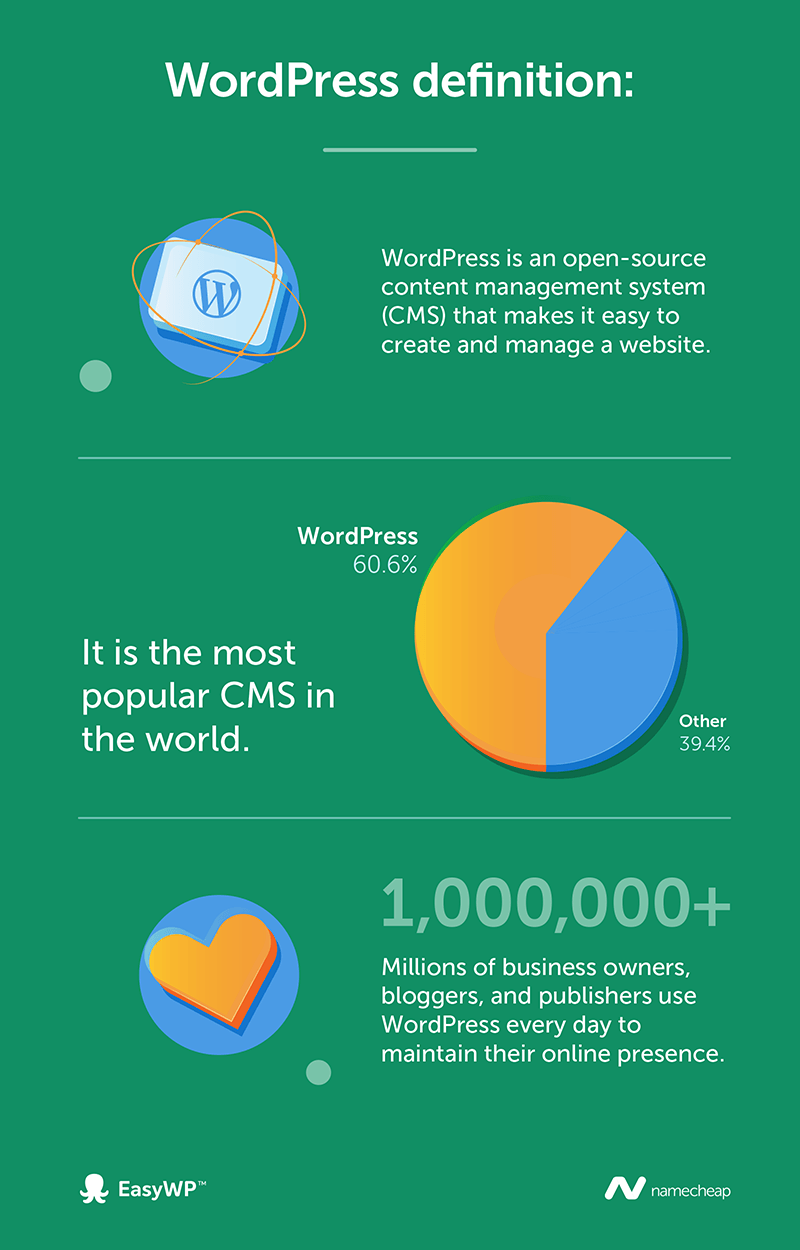
WordPress is a content management system (CMS). It helps you create, edit, and organize website content easily. It started as a blogging platform but now supports many types of websites.
You can use WordPress to add text, images, videos, and more. It gives control over your website’s look and functions with themes and plugins.
How WordPress Works
WordPress runs on a web server that stores your website files. When visitors open your site, the server sends the content to their browser. WordPress uses a database to save your posts, pages, and settings.
The system uses PHP and MySQL to create dynamic pages. Themes change how your site looks. Plugins add new features like contact forms or SEO tools.
WordPress.com Vs WordPress.org
WordPress.com is a hosted platform. It takes care of hosting and security for you. You get limited control but less technical work.
WordPress.org offers free software you install on your own server. You have full control over your site. You can customize themes and plugins without restrictions.
Choosing between them depends on your needs and skills. WordPress.com suits beginners who want simple setup. WordPress.org fits users wanting full freedom and advanced options.
Credit: www.namecheap.com
Setting Up WordPress
Setting up WordPress is the first step to creating your website. It involves choosing the right tools and making simple decisions. This process helps your site run smoothly and look great. Follow these key steps to get started quickly and easily.
Choosing A Hosting Provider
Your website needs a home on the internet. A hosting provider stores your website files and makes them available online. Choose a hosting service that is fast, reliable, and offers good support. Many providers specialize in WordPress hosting. They often include easy WordPress installation and security features. Picking the right host improves site speed and uptime, helping visitors have a better experience.
Installing WordPress
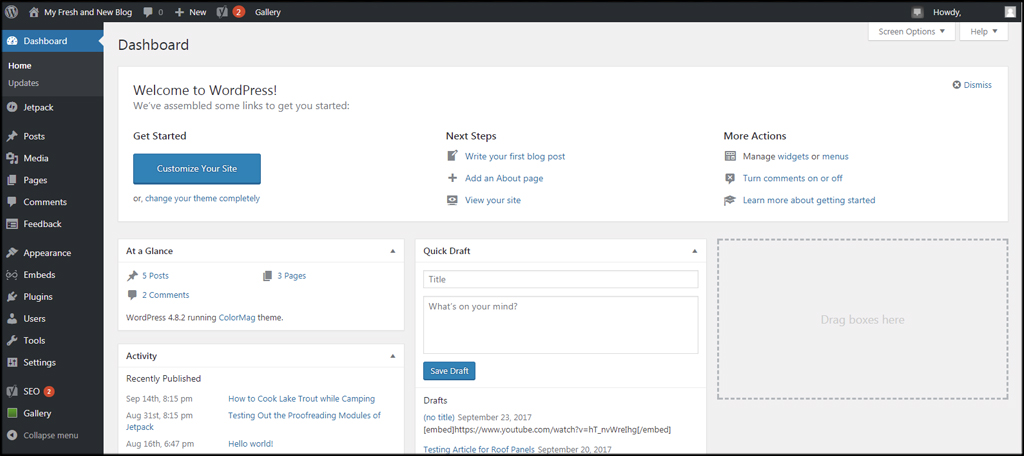
WordPress installation is usually quick and simple. Many hosts offer one-click WordPress installation tools. These tools set up the core software for you automatically. You just need to provide basic information like your site name and admin details. After installation, you can log into your WordPress dashboard. This dashboard is your control center for managing content, settings, and design.
Selecting Themes And Plugins
The look and function of your site depend on themes and plugins. Themes control your site’s design, colors, and layout. Choose a theme that fits your style and purpose. Plugins add extra features like contact forms, SEO tools, or security. Use plugins carefully. Too many can slow down your site. Start with essential plugins and add more as needed. Both themes and plugins can be found for free or for purchase in the WordPress directory.
Customizing Your Site
Customizing your WordPress site lets you create a unique online presence. You can change how your site looks and works without much hassle. WordPress offers many ways to personalize your site. From design to features, customization is simple and flexible. This section explores key methods to tailor your site to your needs.
Using Themes To Change Design
Themes control your website’s appearance. Choose from thousands of free and paid themes. Each theme changes colors, fonts, and layout. Installing a new theme is quick and easy. You can preview themes before applying them. Themes often include customization options to tweak headers, footers, and menus. This helps match your brand style. Themes keep your site fresh and modern.
Essential Plugins For Features
Plugins add new features to your site. They extend WordPress’s core functions. Need a contact form or SEO tools? Plugins can handle that. Many plugins are free and simple to install. Choose plugins carefully to keep your site fast. Popular plugins improve security, speed, and user experience. Regular updates keep plugins working well. They help your site do more without coding.
Basic Coding For Customization
Basic coding lets you fine-tune your site’s look and function. Small changes in CSS or HTML can alter styles and layouts. WordPress also supports PHP for advanced tweaks. Editing code requires caution to avoid errors. Use a child theme to protect your changes during updates. Learning simple code helps you personalize your site deeply. It gives control beyond themes and plugins.
Credit: www.youtube.com
Boosting Website Performance
Boosting website performance is vital for keeping visitors engaged. Fast and smooth sites improve user experience. WordPress offers many tools to enhance speed and efficiency.
Optimizing your WordPress site helps reduce bounce rates and improves search rankings. Small changes can make a big difference. Focus on key areas like page speed, images, and plugins.
Improving Page Load Speed
Page load speed impacts how users see your site. Slow pages cause visitors to leave quickly. Use caching plugins to store static versions of your pages. This reduces server load and speeds up delivery.
Choose a reliable web host with fast servers. Minimize the use of heavy scripts and large files. Use a content delivery network (CDN) to serve files closer to users worldwide.
Optimizing Images And Content
Large images can slow down your site. Compress images without losing quality using tools or plugins. Use the correct image format like JPEG for photos and PNG for graphics.
Keep text clear and concise. Break content into short paragraphs and use headings. This helps users scan pages quickly and improves readability on mobile devices.
Managing Plugins Efficiently
Plugins add features but can also slow down your site. Use only essential plugins and remove inactive ones. Regularly update plugins to improve performance and security.
Check plugin performance using tools to identify slow ones. Replace heavy plugins with lighter alternatives. Avoid using multiple plugins that do similar tasks.
WordPress Security
WordPress security is crucial for every website owner. The platform’s popularity makes it a common target for hackers. Protecting your site ensures your data and visitors stay safe. Understanding security risks and how to manage them helps keep your site strong and trustworthy.
Common Security Risks
WordPress sites face many security threats. Hackers often exploit outdated software and weak passwords. Malicious plugins or themes can introduce malware. Brute force attacks try many password combinations quickly. Ignoring these risks can lead to data loss or site downtime.
Updating Core And Plugins
Regular updates fix security holes in WordPress core, themes, and plugins. Updates improve performance and patch vulnerabilities. Running old versions increases the chance of attacks. Always back up your site before updating. Test updates on a staging site to avoid conflicts.
Best Practices For Protection
Use strong, unique passwords for all accounts. Limit login attempts to stop brute force attacks. Install security plugins that monitor and block threats. Enable two-factor authentication for extra security. Keep backups of your site to recover quickly after issues. Remove unused plugins and themes to reduce risks.
Maintenance Tips
Maintaining a WordPress site is essential for smooth performance and security. Regular care helps avoid downtime and data loss. Simple steps keep your website running fast and safe. Here are key maintenance tips every WordPress user should follow.
Regular Backups
Backups protect your website data from accidental loss or hacking. Schedule backups frequently to save your files and database. Store backup copies in different places, like cloud storage or an external drive. Use trusted plugins to automate the backup process. Restoring your site is easier with recent backups.
Handling Updates Smoothly
WordPress updates improve security and add new features. Update the core software, themes, and plugins regularly. Perform updates during low traffic hours to avoid user disruption. Test updates on a staging site before applying them live. Keep a backup before updating to prevent data loss from errors.
Monitoring Site Health
Check your website’s health to find issues early. Use tools to monitor uptime, speed, and security. Fix broken links, remove unused plugins, and optimize images for better performance. Review security logs for suspicious activity. Regular monitoring keeps your site reliable and user-friendly.
Limitations To Consider
WordPress is a popular platform but it comes with some limits. These can affect how well your site works and how easy it is to manage. Knowing these limits helps you make better choices for your website.
Performance Challenges
WordPress sites can run slowly if too many plugins are used. Each plugin adds extra code, which can slow down page loading. Slow sites may lose visitors and rank lower in search results. Proper optimization is needed to keep good speed.
Technical Skill Requirements
Basic WordPress use is simple, but advanced features need skills. Customizing themes or fixing errors often requires coding knowledge. Without these skills, managing a complex site can be hard. Some users may need to hire experts for help.
Platform Lock-in Issues
Once you build a site on WordPress, moving to another platform is tough. Content and design may not transfer easily. This lock-in can limit future options. Planning ahead helps avoid getting stuck with one system.
Cost Factors
Understanding the cost factors of WordPress helps in planning your website budget. WordPress itself is free, but other expenses may arise. These costs depend on your site’s size, features, and goals. Knowing what to expect keeps surprises away.
Free Core Vs Paid Add-ons
The WordPress core software is free for everyone. It offers basic features to create a simple website. Many themes and plugins are also free. Paid add-ons provide extra functions or premium designs. These can improve site performance and appearance. Choosing the right mix affects your overall costs.
Hosting And Development Expenses
Your website needs hosting to be live on the internet. Hosting prices vary based on speed, security, and server type. Shared hosting is cheap but less powerful. Dedicated hosting costs more but handles traffic better. Development expenses include custom coding and design work. These fees depend on the complexity of your site.
When To Hire Professionals
Some tasks require expert help. Setting up a complex website or fixing technical issues needs professionals. Hiring developers or designers adds to the budget. It saves time and ensures quality. For simple sites, you can manage without experts. Large or business sites benefit from professional support.
Maximizing WordPress Benefits
Maximizing the benefits of WordPress helps you build a strong online presence. This platform offers many tools and options that improve website performance and user engagement. Understanding these features allows you to use WordPress effectively and grow your site over time.
Leveraging Seo Tools
WordPress includes built-in SEO features that help improve your site’s visibility. You can add plugins to optimize keywords, meta descriptions, and site maps easily. These tools guide search engines to rank your content higher. Regularly updating SEO settings keeps your website competitive.
Engaging With The Community
WordPress has a large, active community ready to help. Forums, blogs, and groups provide support and advice. Joining this community helps solve problems faster and learn new tips. Sharing your experiences can also improve your skills and expand your network.
Expanding Functionality Over Time
WordPress allows adding new features with plugins and themes. You can start simple and add tools as your site grows. This flexibility lets you customize your website without major changes. Regular updates ensure your site stays modern and secure.
Credit: www.greengeeks.com
Frequently Asked Questions
What Is WordPress And Why Is It Used?
WordPress is a free, open-source content management system for building websites and blogs. It offers easy customization, plugin support, and SEO-friendly features. Users choose WordPress to create flexible, scalable sites without coding expertise. Its popularity ensures a large community and frequent updates.
What Are The Disadvantages Of WordPress?
WordPress faces security risks due to third-party plugins and frequent updates. It can slow down from plugin overload. Users need technical skills for advanced customization. Maintenance requires time and cost. Migrating content is difficult, and official dedicated support is lacking.
What Is WordPress With An Example?
WordPress is a free, open-source platform to build websites and blogs. Example: a personal blog or business site.
What Is WordPress Explained For Beginners?
WordPress is a free, user-friendly platform to create websites and blogs. It offers customizable themes and plugins for easy site building. Beginners can manage content without coding skills. It powers over 40% of all websites globally, making it the most popular content management system.
Conclusion
WordPress is a simple and flexible tool for building websites. It lets you create blogs, shops, and portfolios easily. Many themes and plugins help customize your site. Still, it needs regular updates and care to run well. Knowing some basics about WordPress helps you avoid common problems.
Overall, it offers a good start for anyone wanting to build a website without complex coding. Give it a try and see how it fits your needs.


