
Imagine having the power to manage every aspect of your website from a single, user-friendly dashboard. That’s exactly what WordPress Admin offers.
If you’re new to WordPress or just getting started with managing your own site, you might be wondering what WordPress Admin is and how it can make your life easier. This incredible tool is the heart of your WordPress site, where the magic happens.
Here, you can effortlessly customize your site’s design, add new posts, manage plugins, and so much more. By understanding WordPress Admin, you unlock the potential to control your online presence with confidence and ease. Ready to dive in and discover how you can harness this powerful tool to transform your website? Let’s explore what WordPress Admin is all about and how it can become your new best friend in the digital world.
WordPress Admin Dashboard
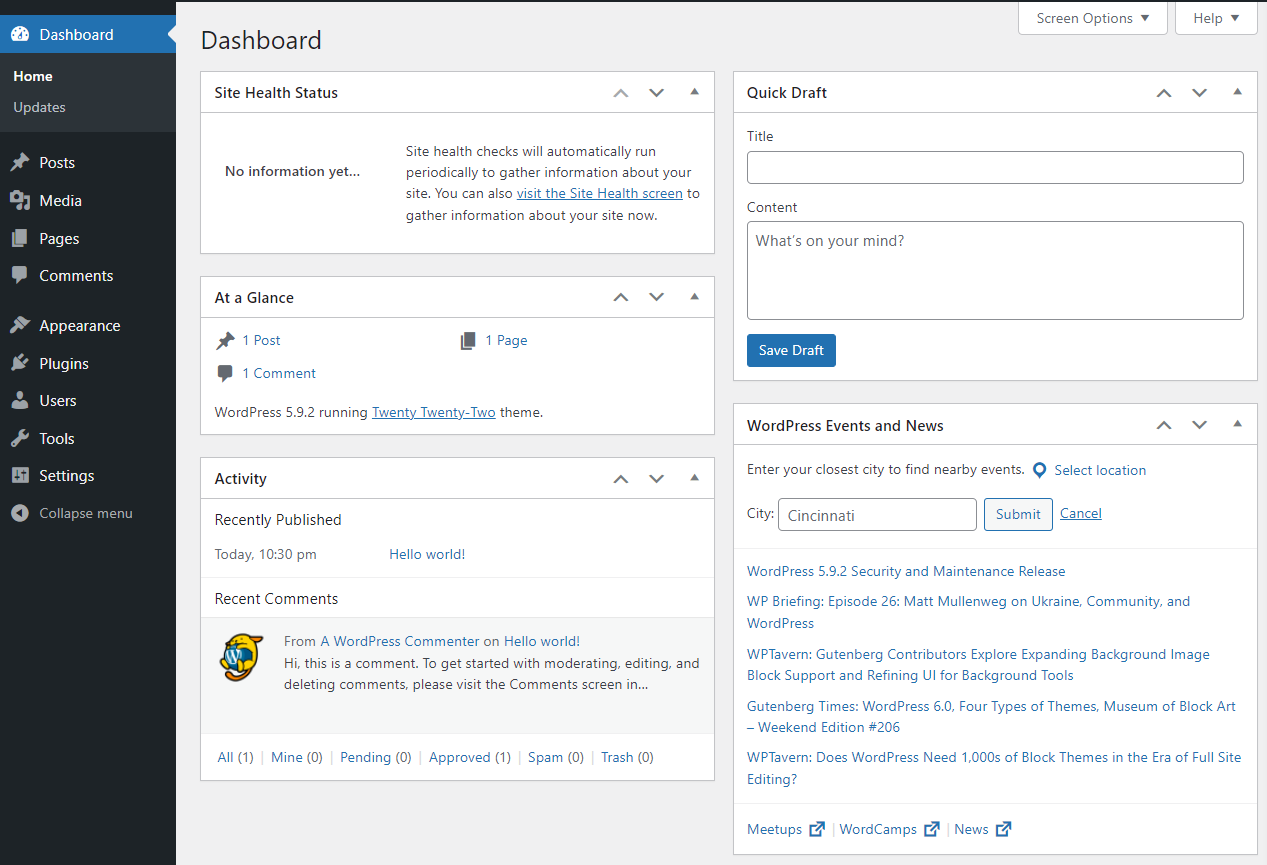
The WordPress Admin Dashboard is the control center. Here, you manage your website. It has a clean and simple user interface. This makes it easy for everyone to use. You can see your site’s status at a glance. Quick links help you do tasks fast.
User Interface Overview
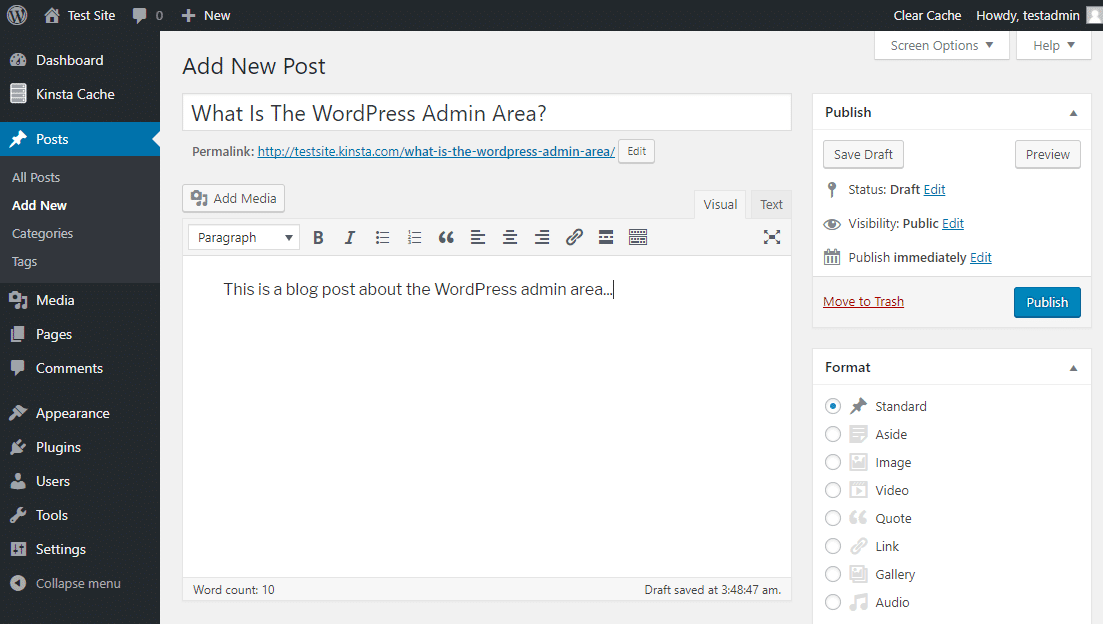
The interface shows important sections like Posts and Pages. You can create new content easily. The Media Library stores all your pictures and files. Customize your site with the Appearance settings. The Plugins section adds extra features to your site.
Credit: kinsta.com
Navigating The Admin Panel
The WordPress dashboard is your main control area. To access it, log in to your WordPress account. Use your username and password. Once logged in, the dashboard appears. It shows all your site tools. You can see stats, posts, and comments. This area is called the admin panel.
The admin panel lets you change the layout. You can drag and drop widgets. This helps you see what you need most. Want to add new widgets? Click on ‘Screen Options’ at the top. Check the boxes you want to add. Now, arrange them on the dashboard.
Managing Content
WordPress Admin is the dashboard where users manage their website content. It offers tools for creating posts, editing pages, and organizing media. Easy navigation and intuitive design help users handle website tasks efficiently.
Creating And Editing Posts
WordPress Admin helps you write new posts. It’s easy to use. You can add text, images, and links. Click “Add New” to start a post. Type your story in the text box. Use the toolbar to make words bold or italic. You can also add pictures by clicking “Add Media.” Save your work often. Use the “Save Draft” button. When done, click “Publish” to share your post.
Organizing Categories And Tags
Sorting posts is important. Categories help group similar posts. Tags give more details. Use them to help readers find topics. In WordPress Admin, go to “Categories” to create groups. Name each category clearly. Tags are like labels. Add them in the post editor. Use simple words for tags. This helps readers and search engines. Keep tags short and relevant. Use both tools to make your blog easy to read.
User Management
Adding new users in WordPress is simple. Go to the admin dashboard. Click on Users and then Add New. Fill in the required details like username and email. Choose a strong password for security. Make sure to inform the user about their new account. They can now log in and start working.
Each user has a role. Roles define what users can do. Some users can edit posts, while others can only view. Common roles are Administrator, Editor, and Author. Choose roles based on the user’s job. Permissions keep the site safe. Only give necessary access to users. This way, your site stays secure.
Site Appearance
WordPress offers many themes for your site. Themes change how your site looks. You can choose a theme that suits your style. Go to the Appearance section. Click on Themes. Browse through available themes. Pick one you like. Click Activate to use the theme. Some themes allow more changes. You can change colors and fonts. Themes can be free or paid. Choose what fits your needs.
Widgets add features to your site. They can show text, images, or links. To add a widget, go to Appearance. Click Widgets. Drag a widget to your chosen area. Menus help people navigate your site. Go to Appearance. Click Menus. Add pages to your menu. Arrange them in order. Save changes. Your site is now easy to use. Make sure your site looks good and is easy to explore.
Plugin Management
WordPress admin helps you add new plugins easily. First, click on “Plugins” in the menu. Next, press “Add New” to see options. Search for the plugin you need. Enter the name in the search box. Choose one from the list. Click “Install Now” to start. Wait for installation to finish. After that, activate the plugin. Press “Activate” to use it. It’s simple and quick.
Plugins need updates for best performance. Check regularly for updates. Go to “Plugins” section. Look for a message about updates. Click “Update Now” if needed. This keeps plugins secure and fast. Sometimes you must stop a plugin. Find it in the list. Click “Deactivate” to pause. Reactivate anytime if needed. Always keep plugins fresh.
Settings Configuration
WordPress Admin serves as the control panel for your website. It allows users to manage settings, content, and plugins. Navigate through its dashboard to customize your site’s appearance and functionality with ease.
General Settings
The General Settings in WordPress control basic site information. You can set your site’s title and tagline here. It’s important to choose a name that reflects your site’s purpose. You can also change the administrator’s email address. This is where WordPress will send notifications. Time zone and date format are also set in this section. They help display posts correctly. It’s simple yet vital for smooth site operations. Always save changes after updating settings.
Permalink Structure
Permalinks are the permanent URLs for your posts and pages. A good permalink structure helps with site navigation and SEO. WordPress offers different structures like plain, day and name, or post name. Choose a structure that is easy to read and understand. This improves user experience and search engine ranking. You can find this option under Settings in the dashboard. Remember, changing permalinks can affect old links. Always review before making changes.
Credit: jetpack.com
Security Measures
WordPress Admin is the control center for managing your website. It allows you to update content, install plugins, and customize themes. Ensuring strong security measures here is crucial to protect your site from unauthorized access and potential threats.
Regular Backups
Backing up your WordPress site often is crucial. It keeps your data safe. If your site crashes, you won’t lose everything. Use plugins to make backups easy. Some plugins offer automatic backups. Choose a reliable plugin. Store backups in different places. Cloud storage is a good choice. Your site will stay secure with regular backups.
Updating WordPress Core
Updating WordPress helps protect against threats. New updates fix security issues. Always use the latest version. Updates improve site speed and features. Check for updates regularly. Use the dashboard to update. It’s quick and simple. Updating plugins is also important. Keep everything up-to-date for security. Your site will run smoothly.
Troubleshooting Common Issues
Users often face login issues in WordPress Admin. Incorrect passwords are a common cause. Try resetting your password. Click “Lost your password?” and follow steps. Check your email for reset instructions. Sometimes, browser settings block login. Clear your browser cache and cookies. Ensure your browser is updated to the latest version. Disable browser extensions temporarily. They can interfere with login processes. Check your internet connection. A weak signal can cause login problems.
Plugins sometimes conflict with each other. This can cause errors. Deactivate all plugins to start troubleshooting. Reactivate them one by one. Identify the problematic plugin. Update all plugins regularly. Developers fix bugs in updates. Check plugin compatibility with your WordPress version. Some plugins may not work with older versions. Backup your site before making changes. This protects your data. Consult plugin support forums for help. Many users share solutions there.

Credit: wordpress.org
Frequently Asked Questions
What Is WordPress Admin Used For?
WordPress Admin is the backend dashboard that allows website owners to manage their site. It lets users create posts, manage plugins, update themes, and configure settings. It is the control center for all administrative tasks related to a WordPress site.
How Do I Access WordPress Admin?
Access WordPress Admin by navigating to your site’s URL followed by “/wp-admin”. Enter your username and password to log in. Once logged in, you’ll see the dashboard where you can manage your site.
Why Can’t I Log Into WordPress Admin?
There might be several reasons for login issues, such as incorrect credentials or plugin conflicts. Ensure your username and password are correct. If issues persist, try disabling plugins via FTP or check server settings.
What Are WordPress Admin Roles?
WordPress Admin roles define user permissions and capabilities. Common roles include Administrator, Editor, Author, Contributor, and Subscriber. Each role has different access levels, allowing control over what users can manage on the site.
Conclusion
WordPress Admin is your control hub. It’s where you manage your site. From posts to plugins, everything happens here. It’s user-friendly and intuitive. Even beginners find their way easily. You can customize settings, update themes, and track performance. Security features keep your site safe.
Learning WordPress Admin boosts your confidence. It empowers you to create and manage efficiently. Explore its features regularly for better results. Practice makes perfect, so keep experimenting. Your website’s success starts here. Embrace the power of WordPress Admin and watch your site grow.
It’s the heart of your online presence.


