
Imagine opening a door to a world where you can effortlessly manage and customize your website. That’s exactly what the WordPress Dashboard does for you.
Whether you’re a seasoned blogger or just starting your online journey, the dashboard is your control center. Here, you can tweak settings, monitor performance, and design your site to reflect your unique style. You might wonder why it’s essential or how it can benefit your website.
This introduction will guide you through its functionalities, helping you unlock its potential and make the most of your WordPress experience. Get ready to dive into the heart of your website’s operations, where simplicity meets efficiency, and discover how the WordPress Dashboard can transform your online presence.
WordPress Dashboard Overview
The WordPress Dashboard is the control center for your website. It helps manage all the site’s parts. You can add new posts and pages here. Checking site stats and comments is easy. It shows important updates and alerts. Editing your site’s appearance and settings is simple. You can add new plugins and themes. This enhances your site’s features. The dashboard keeps everything organized. It’s like your site’s main office. Even beginners find it friendly to use. It helps keep your site running smoothly. Everything starts from this central hub.
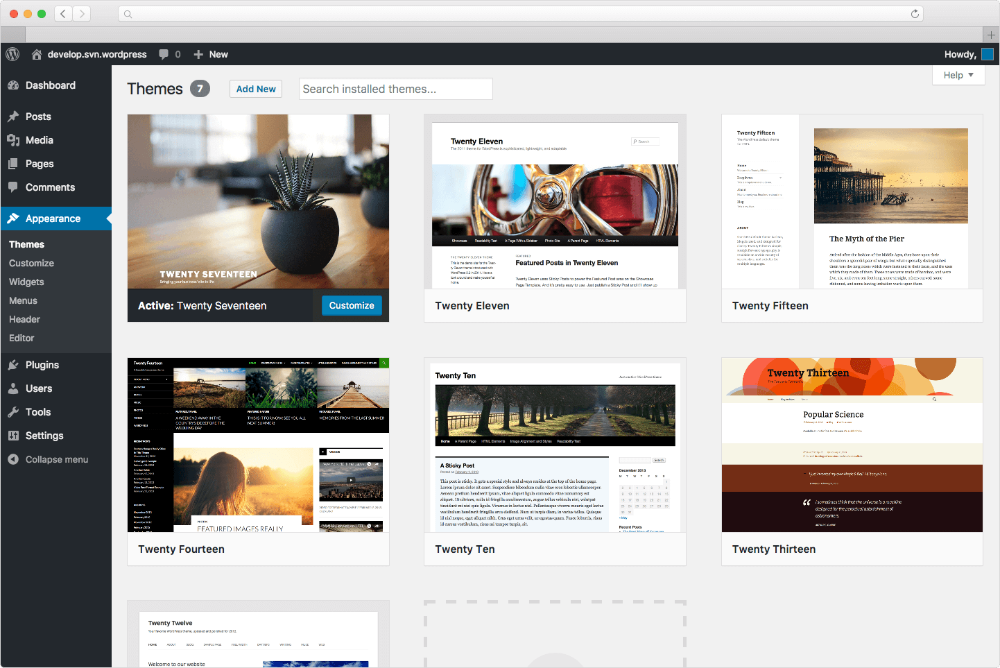
Credit: docs.presscustomizr.com
Navigating The Dashboard
The Main Menu is the heart of the WordPress dashboard. It shows options like Posts, Media, and Pages. You can click each to manage your site. It helps in organizing content.
The Admin Toolbar sits at the top of the dashboard. It’s a quick access tool. You can edit posts or visit the site from here. It saves time and clicks.
Screen Options are found at the top right. They allow customization of the dashboard view. You can choose which boxes to show or hide. This makes the workspace neat and tidy.
Customizing Your Dashboard
Widgets are tools on your WordPress dashboard. They show important info quickly. You see new posts, comments, and updates. They help you keep track of your site. You can move and arrange widgets. This makes your dashboard more useful.
Quick Links are shortcuts to important tasks. They save time. You can find links to create new posts or pages. They help you manage your site faster. These links are easy to use. They are on the dashboard for your convenience.
Personalized Settings
Settings let you change your dashboard. You can pick what you want to see. Choose the widgets you need. Hide the ones you don’t. Make your dashboard fit your needs. This helps you work better. You can change colors and layout too. These settings make the dashboard feel personal. It’s your space to manage your site.
Managing Content
The WordPress dashboard helps you create posts. Choose a title and start writing. Use tools to format text and add images. Preview before publishing. Save drafts and edit later. Organize with categories and tags.
Pages are different from posts. Create pages for important content like contact info. Use the dashboard to edit pages. Rearrange them as needed. Set a homepage and add menus. Keep pages updated and relevant.
Store images, videos, and files in the Media Library. Upload from your computer easily. Use the library to manage media. Organize with folders. Edit images and change names. Insert media into posts and pages.
User Management
Roles and Permissions in WordPress help manage users. Admins have the most power. They can change settings and themes. Editors control content. They can edit and publish posts. Authors can write and publish their own posts. Contributors write posts but can’t publish. Subscribers can only read posts.
Adding New Users is easy in the WordPress dashboard. Click ‘Users’ then ‘Add New’. Fill in the username and email. Choose a role for the user. Decide if they are an admin or editor. Click ‘Add New User’. Now, the user can log in. They will see the dashboard. They can start working right away.
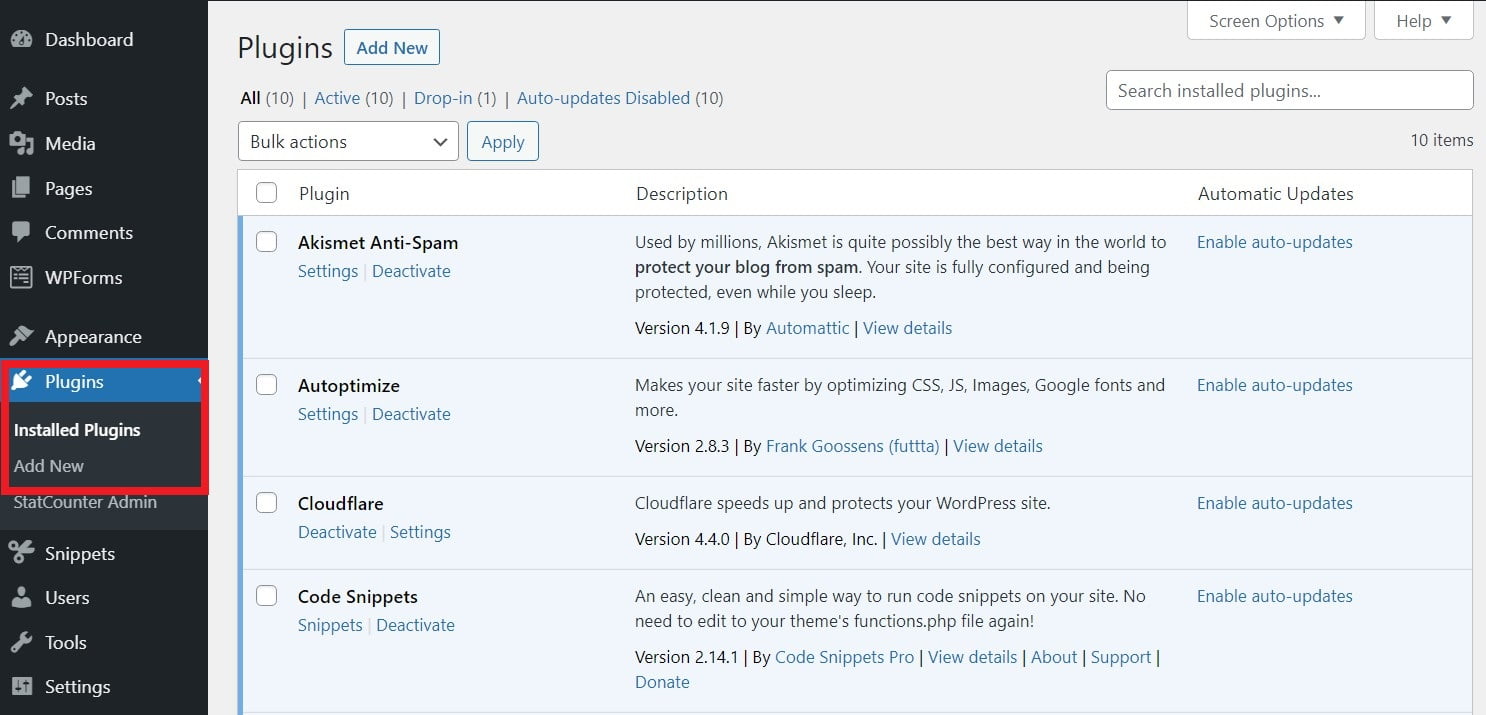
Credit: www.scalahosting.com
Site Appearance
Themes change how your site looks. They offer different styles and layouts. You can pick a theme that suits your taste. Customization lets you tweak the theme. You can adjust colors, fonts, and backgrounds. This makes your site unique. The dashboard has tools for these changes. You don’t need to code. It’s user-friendly and easy to use.
Menus help organize pages. They guide visitors around your site. You can add links to important pages. This helps people find what they need quickly. Widgets add extra features. They can display recent posts or social media links. Widgets make your site interactive. The dashboard allows you to drag and drop these items. It’s simple to make changes anytime. Your site becomes more engaging with these tools.
Plugins And Extensions
Plugins make websites better. They add new features. Installing plugins is easy. Go to the dashboard. Find the Plugins section. Click on “Add New“. Search for the plugin you need. Click “Install Now“. Wait a few seconds. Then, click “Activate“. Your plugin is ready to use. Be careful. Install only trusted plugins. They keep your site safe.
Extensions help you customize your site. They work like plugins. Managing extensions is simple. Go to the Plugins section. See all your installed plugins. Click “Deactivate” to stop a plugin. Click “Delete” to remove it. Update your plugins often. It keeps your site running well. Always check for new updates. Keep your site up-to-date.
Credit: tutorialsdojo.com
Settings And Configuration
The General Settings in WordPress change basic site settings. You can set your site title and tagline here. It’s also where you choose your timezone. You can set your date format and time format. These settings help keep your site organized. It lets visitors know about your site.
Permalinks are the URL structure for your posts. You can make URLs simple and clear. You can choose from different formats. This helps with SEO. It makes the links easy to understand. A clear link helps users find your content.
Privacy Settings protect user data. You can create a privacy policy page. It’s important for site security. You can let users know how you handle their data. This builds trust with your visitors. It shows your site cares about their privacy.
Security And Maintenance
The WordPress Dashboard serves as the control center for website security and maintenance. It allows users to monitor activity, update plugins, and manage settings efficiently. Regular updates from the dashboard help protect against vulnerabilities, ensuring a safe and smooth user experience.
Updates And Backups
Updating plugins and themes keeps your site safe. Regular updates fix bugs. They also add new features. Backups save your site information. If something goes wrong, you can restore it. Set automatic backups to avoid data loss. Backup files should be stored in different places. This protects your site from crashes.
Security Measures
Security measures protect your site. Use strong passwords. Change them often. Enable two-factor authentication for more safety. Install security plugins. These plugins scan for malware. They alert you about threats. Regularly check your site for vulnerabilities. Keep your site safe for users.
Frequently Asked Questions
What Is The WordPress Dashboard?
The WordPress Dashboard is the central control panel for managing your WordPress website. It allows users to create and edit content, manage themes and plugins, and customize site settings. The dashboard provides an overview of site activity, updates, and notifications, making website management efficient and streamlined.
How Do I Access The WordPress Dashboard?
Access the WordPress Dashboard by logging into your website’s admin area. Enter your website URL followed by “/wp-admin” in the browser. Provide your username and password to log in. Once logged in, you will be directed to the dashboard, where you can manage your website.
What Features Are Available On The Dashboard?
The WordPress Dashboard offers features like content management, theme customization, and plugin installation. Users can view site statistics, manage comments, and update settings. The dashboard also provides access to tools for SEO optimization, media management, and user role management, enhancing site functionality and performance.
Can I Customize The WordPress Dashboard?
Yes, you can customize the WordPress Dashboard to suit your needs. Use plugins to add or remove features, change the dashboard’s appearance, and create custom widgets. This flexibility helps tailor the dashboard to your workflow, improving efficiency and user experience.
Conclusion
The WordPress Dashboard is a powerful tool for website management. It offers easy access to settings, posts, and pages. Users can customize their site with themes and plugins. Monitoring site traffic becomes simple with integrated analytics. Managing comments and user roles is straightforward.
This platform is designed to be user-friendly. Beginners can navigate and make changes with ease. The dashboard enhances productivity and efficiency. It serves as the central hub for all website activities. By understanding its features, users can effectively manage their websites.
Explore the dashboard to unlock its full potential.


