
Have you ever found yourself struggling to upload an image to your WordPress site, only to be met with a frustrating error message? Or perhaps you’re worried that your images aren’t displaying at their best?
You’re not alone. Understanding the largest image dimension for WordPress can be the key to elevating your website’s visual appeal. By knowing the optimal size, you ensure that your images load quickly and look stunning on every device. Imagine your visitors being captivated by crisp, clear visuals that tell your story just the way you envisioned.
Dive into this article, and you’ll discover exactly how to choose the right image dimensions for your WordPress site. Unlock the secret to making your website not only visually appealing but also efficient and professional. Let’s get started!
Image Size Basics
Pixels are tiny dots that make up an image. More pixels mean a sharper image. High pixel count is great for large screens. Each image has a resolution. This means how many pixels are in a space. Bigger images need more pixels to look nice. Low resolution can look blurry. Always check pixel size when uploading images. It helps maintain quality.
Images come in different formats. Common ones are JPEG, PNG, and GIF. JPEGs are good for photos. They are small in file size. PNGs are great for graphics. They keep image quality high. GIFs can show animations. Each format has its own use. Choose the right one for your needs. This helps your website load faster. It also keeps images looking their best.
Credit: enginescout.com.au
WordPress Image Upload Limits
WordPress has some default size restrictions for image uploads. Images should not exceed a certain size. This is usually set to 2MB by default. Larger images might cause problems. They can slow down your website. This is not good for user experience. You can change these settings if needed.
Hosting providers also set limits on image sizes. These limits depend on your hosting plan. Some providers offer more space. Others limit the size more strictly. It’s important to check your hosting details. Always ensure your images are optimized. This helps in faster loading times.
Customizing Image Dimensions
Many themes have built-in options for image dimensions. These settings help you control the size of images. Find these options in the theme’s customizer. Some themes offer sliders for easy resizing. Others provide preset sizes. Explore these settings to make images fit your needs.
The functions.php file is a powerful tool. You can add custom image sizes here. Use the add_image_size() function. Define width and height in pixels. Give each size a unique name. This allows WordPress to generate different image sizes. Choose wisely. It’s important for website performance.
Impact On Website Performance
Large images can slow down a website. Load speed is crucial for user experience. Slow sites can lose visitors quickly. Images should be optimized for faster loading. Use the right size and format for images. Compress images without losing quality. Tools like TinyPNG can help with compression.
Image size affects load speed directly. Bigger images take longer to load. This can frustrate users. Fast websites keep visitors happy. They also rank better on search engines. Use images that are just the right size. Avoid using huge dimensions. Small adjustments make a big difference.
Large images can impact SEO negatively. Search engines prefer fast-loading pages. Optimized images help with better ranking. Use descriptive alt text for images. This aids in SEO and helps visually impaired users. Keep file names relevant to the image content. Proper image size helps in faster indexing.
Tools For Image Optimization
Many plugins help make images smaller. This saves space. Smush is a popular choice. It compresses images without losing quality. Imagify offers three levels of compression. Pick the one you need. TinyPNG is another tool. It supports both PNG and JPEG files. Using these plugins, your site will load faster. Visitors will be happy.
Services online can also help. Optimizilla is easy to use. It lets you upload up to 20 images. Adjust the quality with a simple slider. Compressor.io is another service. It offers lossless and lossy compression. This means images can stay sharp. Kraken.io allows bulk image optimization. It saves time and effort. These services work without installing anything. Perfect for quick tasks.
Best Practices For Image Dimensions
WordPress supports large image dimensions up to 2560 pixels wide and tall. This size ensures sharp visuals. For faster loading, consider optimizing images without losing quality.
Balancing Quality And Size
Choosing the right image size is important. Large images can slow down websites. Small images might lose details. Aim for a balance between size and quality. Use images that are clear but not too big. Keep file sizes under 1MB for faster loading. This helps the website perform better.
Responsive Design Techniques
Images should fit different screen sizes. Responsive design makes websites look good on all devices. Use CSS to adjust image sizes. Media queries help change images for different screens. This keeps images looking great everywhere.
Troubleshooting Common Issues
Understanding image dimensions for WordPress helps avoid display issues. The largest recommended size is 2560 x 2560 pixels. Keeping within these limits ensures optimal website performance and prevents slow loading times.
Handling Upload Errors
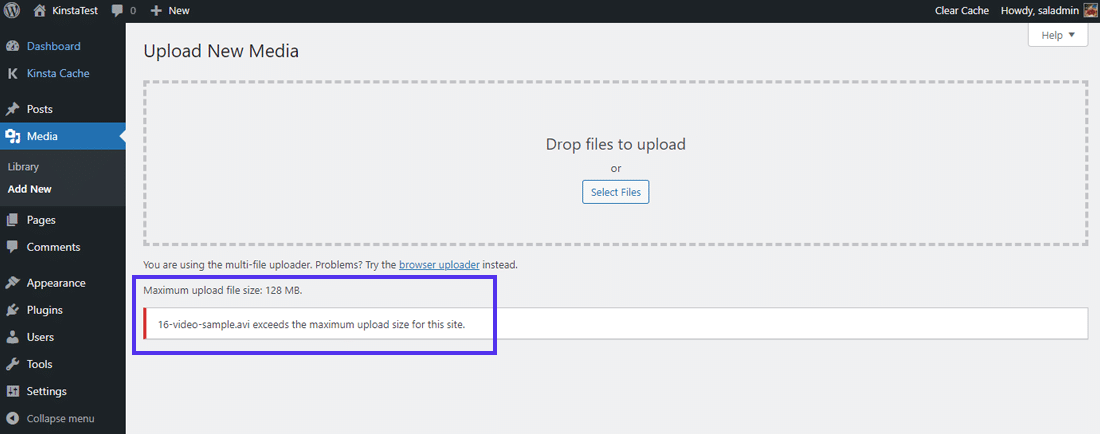
Sometimes, images are too big for WordPress. Reduce image size before uploading. Large images can cause upload errors. Make sure the file is not too large. Aim for files under 2MB. Check the image dimensions. 4,096 pixels is the maximum width. If the image is wider, it won’t upload. Resize it to fit. Use tools like Photoshop or online resizers.
Dealing With Display Problems
Sometimes images do not show well on screens. Check the dimensions. Too large images may look bad. They can break the layout. Always preview before publishing. Make sure the image is clear and fits well. Adjust the size if needed. Use the WordPress editor to resize images.
Credit: kinsta.com

Credit: wpmudev.com
Frequently Asked Questions
What Is The Maximum Image Size For WordPress?
The maximum image size for WordPress depends on your theme and hosting. Generally, images should not exceed 2560 pixels in width. Larger images may slow down your site. Always optimize images for web use to ensure faster loading times and better performance.
How Can I Resize Images In WordPress?
You can resize images in WordPress using the built-in media library. After uploading, select the image and click ‘Edit’. Use the ‘Scale Image’ option to adjust dimensions. Plugins like Smush or EWWW Image Optimizer can also help automatically resize and optimize images.
Why Is Image Dimension Important In WordPress?
Image dimensions affect website speed and user experience. Large images can slow down page load times. Properly sized images ensure your site is fast and responsive. They also improve SEO by enhancing performance and user engagement.
Can WordPress Handle Large Image Files?
WordPress can handle large image files, but it’s not recommended. Large files can slow down your website and affect performance. Compress and optimize images before uploading to improve speed. Use plugins or online tools for compression without losing quality.
Conclusion
Choosing the right image size is crucial for WordPress sites. Large images can slow loading times. Slow sites can frustrate visitors. Optimal dimensions balance quality and speed. Check your theme’s recommendations. Each theme may have different size needs. Keeping images optimized enhances user experience.
Also, it helps with SEO performance. Adjust image dimensions in your media settings. This ensures consistency across your site. Remember, a fast site improves visitor retention. It also boosts search engine rankings. So, optimize your images effectively. Your website will thank you.


