
Have you ever struggled with aligning headers in your WordPress website? You’re not alone.
Many WordPress users find themselves puzzled when it comes to perfecting the visual appeal of their site. Headers play a crucial role in grabbing attention and delivering your message, but if they’re not properly aligned, they can disrupt the flow of your design.
Luckily, a bit of CSS magic can solve this issue. Imagine having the power to make your headers look professional and polished with just a few lines of code. You’ll discover the CSS code to perfectly align headers in WordPress, making your site look sleek and organized. Let’s dive in and transform your website’s headers from chaotic to captivating!
Credit: nichetwins.com
Understanding Css In WordPress
CSS is like a magic tool for websites. It makes web pages look nice. In WordPress, CSS helps you change colors, fonts, and layouts. Without it, a website would look plain and boring. Designers use CSS to make sites look good on all devices. It’s important for a website’s style.
CSS decides how a webpage appears. It sets the style. For example, CSS can make text big or small. It can change the background color. It helps pictures fit well. Web designers use CSS to keep everything tidy. This makes sites easy to read and fun to visit.
Every WordPress theme has a structure. This structure includes files and folders. CSS files are part of this structure. They control the theme’s appearance. You can find these files in the theme’s folder. By editing them, you change how your site looks. This is how themes work in WordPress.
Credit: www.wpzoom.com
Aligning Headers Using Css
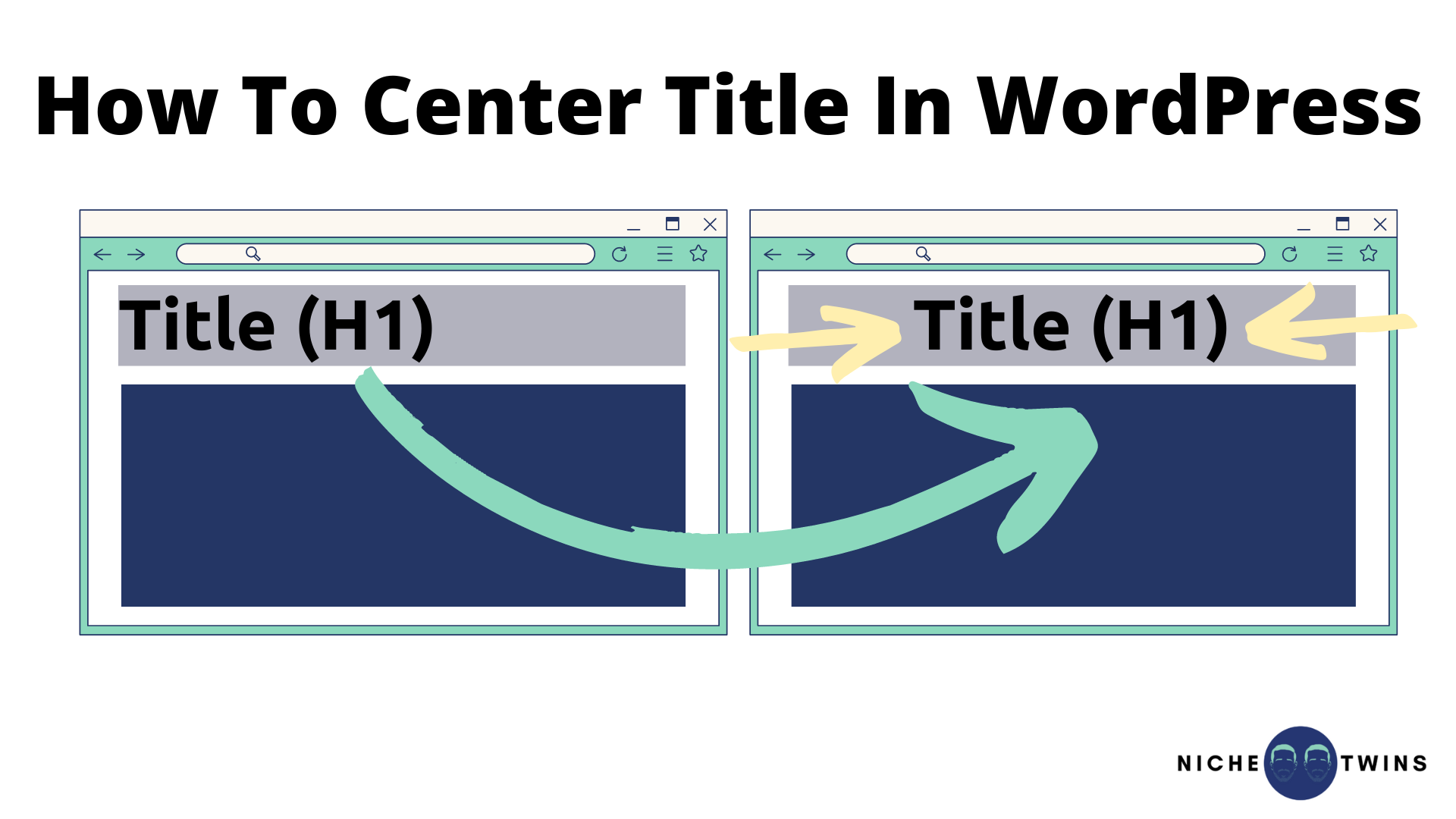
Aligning headers in WordPress can be easy with CSS. Use the text-align property to position text. It can be set to left, right, or center. For example, h1 { text-align: center; } centers the header. Another helpful property is margin. It adjusts space around an element. Set margin to auto for centering. For instance, h1 { margin: auto; }.
- Left Align: Default setting. Use
text-align: left;for left alignment. - Center Align: Use
text-align: center;for centering text. - Right Align: Use
text-align: right;to right-align headers.
Customizing Header Alignment
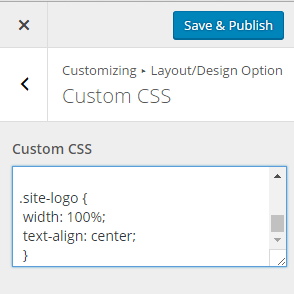
Access the WordPress dashboard first. Go to Appearance and click on Customizer. This tool lets you change your site. You can modify colors, fonts, and layouts here. It’s quite simple. Look for the Additional CSS section. That’s where you add your custom code.
Once in the Customizer, find the Additional CSS box. Type your CSS code here. Use text-align: center; to center headers. Use text-align: left; or text-align: right; to align left or right. Save your changes. Always preview your site. Check how it looks. Adjust if needed. Done! Your headers are now aligned.
Credit: www.acmethemes.com
Using Css Classes For Headers
To align headers in WordPress, find the CSS classes. These classes control the style of the headers. Each theme has different classes. Use your browser’s Inspect tool to locate them. Right-click on the header and select “Inspect”. The class name will appear in the tool. Write down this name for later.
Locating Header Classes
Open your WordPress dashboard. Go to “Appearance” and then “Customize”. Click on “Additional CSS”. Here, you can enter new styles. Use the class name you found. Write CSS rules to align the header. Example: .header-class { text-align: center; }. This code centers the header text.
Applying Css To Specific Headers
You can also style specific headers. Use tags like h1, h2, or h3. Example: h1 { text-align: left; }. This code aligns level-one headers to the left. Make sure to save changes. Refresh your site to see the new alignment. It should look neat and tidy.
Troubleshooting Alignment Issues
Headers often do not line up right. This looks messy. Check your CSS code. Look for margin and padding settings. These affect alignment. Sometimes, themes have their own styles. Override these styles if needed. Use !important in your CSS. This can help fix the issue.
Another problem is conflicting plugins. Deactivate one plugin at a time. Test your header after each. This helps find the problem. Once found, look for updates or alternatives for the troublesome plugin.
Browsers show things differently. Test your website on Chrome, Firefox, and Edge. Check if headers line up the same. Use browser tools to inspect the CSS. Adjust your code if headers are off in one browser. This ensures a consistent look for all users.
Tools For Css Editing
Recommended CSS Editors make styling easy. Some editors are friendly and simple. Notepad++ is popular. It is free and easy to use. Sublime Text is another choice. It has many features. Atom is also good. It is open-source and customizable.
Each editor has its own features. Some have color coding. Others have auto-complete. These features help write CSS code faster. Choose one that suits your needs. All these editors are great for beginners.
Using Browser Developer Tools can help a lot. These tools show live changes. You can experiment with styles quickly. Chrome and Firefox have built-in tools. These tools show how your CSS affects the page. Right-click and select “Inspect” to start.
Use these tools to test CSS changes. They help find errors easily. You see how your website changes in real-time. This makes fixing mistakes simple. Browser tools are a handy choice for testing CSS.
Best Practices For Css In WordPress
Keeping your CSS neat is important. It helps you find things fast. Use comments to mark sections. You can group related styles together. For example, put all header styles in one place. This makes edits quicker.
Mobile-friendly websites are a must. Use media queries to adjust styles for small screens. This way, your site looks good on phones. Test your site on different devices. Make sure text is easy to read.
Frequently Asked Questions
How To Align Headers In WordPress Using Css?
To align headers in WordPress, you can use custom CSS. Access your theme’s CSS file or use the Customizer. Add `text-align: center;` for centering, `text-align: left;` for left alignment, or `text-align: right;` for right alignment. Save changes to see the effect on your headers.
Can I Align Headers Without Plugins?
Yes, you can align headers without plugins by directly editing your theme’s CSS. Navigate to the Customizer or theme editor. Locate the header CSS code and modify it using `text-align` properties. This method provides more control and customization compared to using plugins.
What Is The Css For Centering Headers?
To center headers in WordPress using CSS, use the `text-align: center;` property. This aligns the header text centrally within its container. Add this CSS rule in your theme’s style. css or through the Customizer. Save the changes to apply the centering effect immediately.
Is It Possible To Align Headers Responsively?
Yes, aligning headers responsively is possible with media queries in CSS. Use media queries to adjust header alignment based on screen size. This ensures headers appear well-aligned on all devices. Implement responsive CSS rules in your theme’s stylesheet for a seamless experience.
Conclusion
Aligning headers in WordPress can seem tricky at first. But with CSS, it’s simple. Use the right CSS code to place headers perfectly. This improves your site’s look and user experience. Remember to test changes for the best results. Consistent header alignment boosts readability and aesthetics.
With practice, you’ll get comfortable with CSS adjustments. Keep experimenting and learning. Your WordPress site will benefit greatly. Happy coding and designing!


