
Have you ever found yourself tangled in the web of your WordPress site, wondering how to keep everything organized? If you’ve been trying to make sense of your site’s structure, you’re not alone.
Enter the concept of the “Parent Page” in WordPress—a simple yet powerful tool to help you tidy up your content and improve navigation for your visitors. By understanding what a Parent Page is, you can unlock the potential to streamline your site, making it more user-friendly and efficient.
We’ll unravel the mysteries of Parent Pages and show you how they can transform your site’s organization. Stick around, because mastering this concept might just be the key to taking your website to the next level.
Parent Page Concept
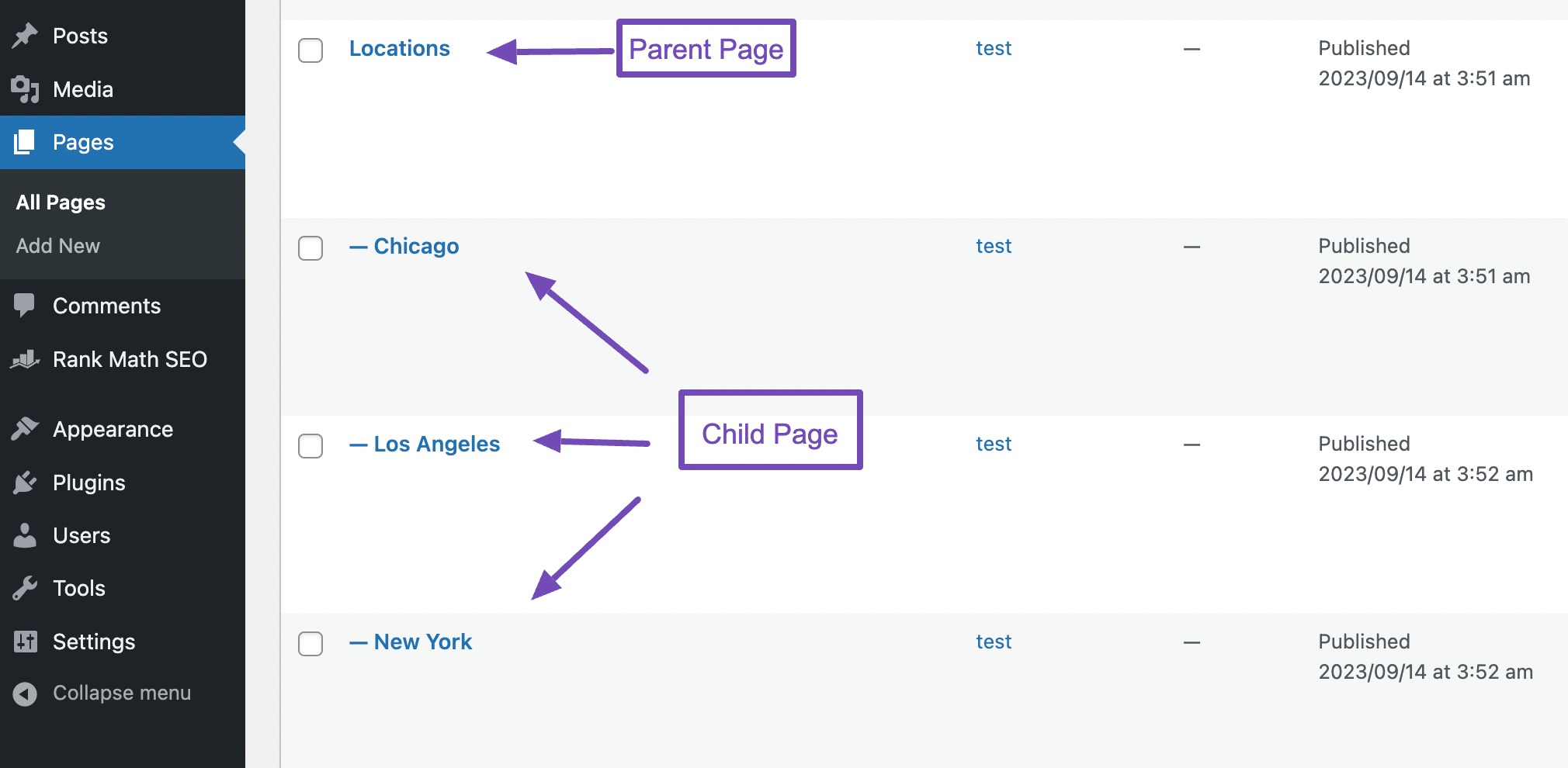
A parent page is like a big folder. It keeps other pages inside it. These inside pages are called child pages. This helps keep your website neat. Imagine a school. The school is the parent. Each class is a child page. This way, people find information easily. Parent pages make websites easy to use. They give structure to your website.
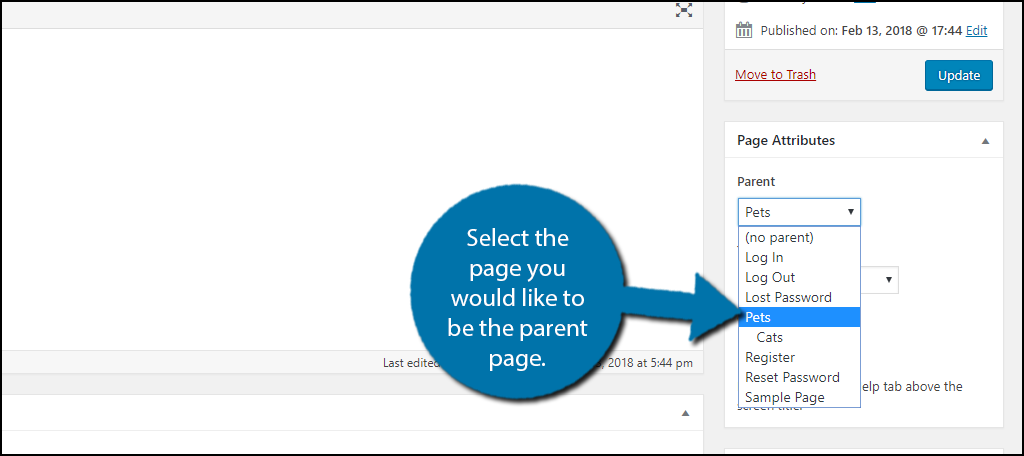
In WordPress, creating a parent page is simple. Go to the page editor. Find the “Page Attributes” box. Here, choose a parent page for your new page. This sets the hierarchy. With this setup, your website looks organized. It is like a family tree. Parent pages are the roots. Child pages are the branches.
Credit: rankmath.com
Role In Website Structure
Parent pages help organize your website. They act like a folder. They hold related pages together. This makes your site easy to navigate. Visitors find what they need fast. Parent pages keep the site tidy. It improves user experience.
For example, a parent page called “Blog” can have many child pages. Each child page can be a different blog post. This keeps all posts under one main section. This structure is clear and logical. It helps both users and search engines.
Parent pages also help in creating breadcrumbs. Breadcrumbs show users their path on your site. It helps them track where they are. This makes your site even more user-friendly.
Creating A Parent Page
First, log in to the WordPress Dashboard. This is where you can manage your site. Find the Pages section on the left side. Click it to see all your pages. To make a new page, click Add New. Now you can start creating your Parent Page. Give it a name that fits its role. This helps in organizing your site better.
After creating a new page, look for the Page Attributes box. This is usually on the right side. Here you can set the Parent Page option. If you want your page to be a parent, choose no parent. To make it a child, pick an existing page as its parent. This structure helps keep your site neat. Always remember to save your changes. Click Publish to make it live.
Advantages Of Parent Pages
Parent pages in WordPress help organize content, making navigation easier for users. They create a clear hierarchy, enhancing site structure. This improves user experience and aids search engines in understanding content relationships, potentially boosting SEO rankings.
Improved Navigation
Parent pages make website navigation easier. Users find information quickly. Clear structure helps visitors understand the site. They know where to go next. Organized pages lead to better user experience. Kids can easily follow steps. They do not get lost. Parents guide users to related pages. This keeps visitors engaged longer.
Enhanced Seo Benefits
Parent pages boost SEO. Search engines love organized content. They index pages faster. Related topics improve page rankings. Websites appear higher in search results. Simple structures help search engines understand. Keywords in parent pages enhance visibility. More people find the site. This increases traffic. Better traffic means more success.
Common Use Cases
Parent pages help in organizing content efficiently on a website. They act like folders to group similar pages together. This makes it easier for visitors to find related information. For example, a cooking site may have a parent page for recipes. Under this, there could be child pages for desserts, main courses, and salads. This structure helps keep the site tidy and user-friendly.
Organizing Content
Using parent pages is great for creating a clear website structure. It helps users navigate through different sections effortlessly. Each section can have its own parent page. This guides visitors to the specific content they seek. It also makes the site feel organized and professional.
Hierarchical Page Relationships
Parent pages form hierarchical relationships with child pages. This means a child page belongs to a parent page. This relationship helps in managing the pages better. It also aids in setting permissions and access levels. A structured hierarchy improves SEO by creating logical paths for search engines.
Credit: www.greengeeks.com
Managing Parent Pages
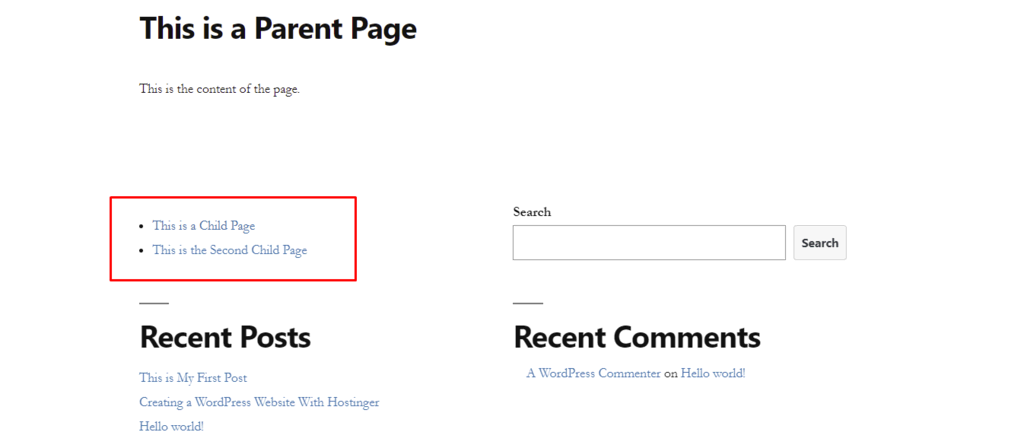
Editing Parent-Child Relationships is simple in WordPress. Find the “Pages” section in the dashboard. Click on the page you want to edit. In the “Page Attributes” box, choose a parent page. Save changes. This creates a parent-child link. Children pages will now show under the parent page.
Reassigning Parent Pages is also easy. Open the page editor again. Look for the “Page Attributes” section. Change the parent page. Click “Update” to save. The page moves to the new parent. This helps organize pages better. It makes navigation easy for visitors.
Troubleshooting Issues
Understanding the concept of a Parent Page in WordPress simplifies website organization. It acts as a primary page, grouping related subpages. This helps create a clear hierarchy, making navigation smoother for visitors.
Page Hierarchy Errors
Page hierarchy errors can confuse visitors. These errors make your site hard to use. Pages might not appear where they should. This happens if parent pages are set wrong. Always check your page settings. Ensure each page has the right parent. A simple mistake can create big problems.
Look at your site’s structure. Ensure it follows your plan. Fixing errors improves user experience. It makes navigation easier. Visitors find what they want faster. Happy visitors stay longer on your site.
Resolving Navigation Problems
Navigation problems can frustrate users. These issues often arise from incorrect links. Ensure all links work properly. Test them on different devices. A broken link can lead to a bad experience. Also, check your menu settings. Make sure all items are visible. Hidden items can confuse users.
Review your site often. Fix any link issues quickly. Clear navigation helps users find information easily. This keeps them returning to your site. Happy users are more likely to explore more pages.
Credit: www.hostinger.com
Tips For Effective Use
Parent pages help organize content. They create a clear hierarchy. This makes navigation easy. Each child page links to its parent. This connection improves user experience. It helps users find related content. It also helps search engines understand your site. Use parent pages wisely. They keep your site tidy.
Choose parent pages carefully. They should cover broad topics. Child pages should focus on specific details. Avoid using too many parent pages. This can confuse visitors. Keep the structure simple. Use descriptive titles. Help visitors know what to expect. Organize pages logically. This supports better SEO. It enhances site usability.
Frequently Asked Questions
What Is A Parent Page In WordPress?
A parent page in WordPress acts as a top-level page for other subpages. It helps in organizing your content hierarchically. This structure enhances site navigation, making it easier for users to find related content. Parent pages are useful for creating categories or sections within your website.
Why Use Parent Pages In WordPress?
Using parent pages helps in organizing content and improving site structure. It enhances the user experience by allowing for intuitive navigation. This structure also aids in SEO by creating clear content hierarchies. Parent pages are especially beneficial for websites with a lot of content or multiple sections.
How To Set A Parent Page In WordPress?
To set a parent page, go to your WordPress dashboard. Edit the page you want to categorize. In the “Page Attributes” section, select the desired parent page from the dropdown menu. Save your changes. This will nest the page under the chosen parent, organizing your site content.
Can A Parent Page Have Multiple Child Pages?
Yes, a parent page can have multiple child pages in WordPress. This allows for a structured content hierarchy. Organizing pages this way enhances user navigation and site structure. It’s useful for websites with complex content or various topics. Managing child pages is easy through the WordPress dashboard.
Conclusion
Understanding parent pages in WordPress is key for organizing your site. They create a clear hierarchy, making navigation easier. This structure helps users find information quickly. It’s especially useful for managing large sites. A well-structured site improves user experience. It can also boost your SEO efforts.
Remember to plan your page hierarchy carefully. It should reflect the content’s importance and relationships. Start by identifying main topics, then create subtopics. This thoughtful organization will benefit both users and search engines. Keep experimenting and learning. Your WordPress skills will grow over time.


