
Have you ever found yourself scratching your head, wondering, “What is my Page ID on WordPress?” If you’re diving into the world of WordPress, you’re not alone.
Understanding your Page ID is crucial, especially if you’re customizing themes, adding plugins, or tweaking your site for SEO. But here’s the thing: it’s not always obvious where to find it. It’s like a secret key that opens up a world of customization possibilities for your website.
Imagine the power of knowing exactly how to access this key, and how it can transform your WordPress experience from confusing to crystal clear. Stick with us, and you’ll not only uncover this hidden ID but also unlock new potential for your site. Ready to discover your Page ID? Let’s dive in and make WordPress work for you.
Understanding Page Ids In WordPress
Every page in WordPress has a unique number. This number is called a Page ID. Page IDs help identify pages easily. They are useful for managing content. You might need to find your Page ID sometimes. It helps with many tasks. Like customizing or troubleshooting your site.
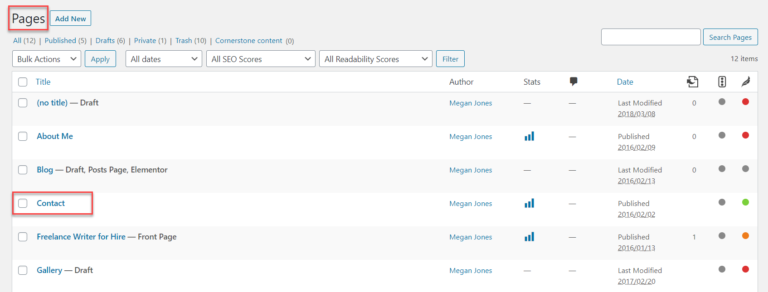
To find a Page ID, go to your dashboard. Click on “Pages”. Hover over the page title. Look at the URL. You will see a number. That is your Page ID. It’s simple to find and use. Now you know how to identify your pages.
Credit: pluginsforwp.com
Locating Page Id Via Dashboard
Go to your WordPress dashboard. Click on Pages. Then choose All Pages. You will see a list of all your pages. Hover over the page you need. You will see some options below it. Click on the Edit link. This will take you to the page editor.
Look at the web address in your browser. Find the part that says post=. The number after it is your Page ID. For example, if you see post=25, then your Page ID is 25. This number is important for plugins and customizations. It’s like a name tag for your page.
Finding Page Id Via Plugins
Several plugins help find your WordPress page ID. “Show IDs” plugin displays IDs in the admin panel. “WP Show IDs” is another tool. Both are easy to use. They make finding IDs simple.
Install plugins from the WordPress plugin store. Use search to find them. Click “install” and then “activate”. The ID appears in your admin panel. Check your pages list. IDs are visible next to page titles.
Credit: athemes.com
Using Browser Tools To Find Page Id
Browsers have tools that help you see page details. Right-click on your page and choose “Inspect.” You’ll find a box with many lines. Look for line numbers next to each detail. This shows how the page is built.
Find the ID by looking through the code. It’s marked as “id” followed by a number. This number is your page’s ID. Check each detail. Make sure it’s the right one. The correct ID helps in making changes. Finding it can be easy with practice.
Why Knowing Your Page Id Matters
Integrating with custom code can make your site special. Page IDs help you do this. They are like a secret key. You can use them to add special features. This makes your site work better. It also makes your site look good. You can add special buttons and boxes. This is important for making changes just to one page.
Enhancing theme customization is very useful. Page IDs let you change how a page looks. You can make one page different from others. This helps in keeping your site neat. You can change colors, fonts, or images. It helps in creating a unique style. Use Page IDs to make tiny changes.
Troubleshooting Common Issues
Sometimes, the page ID is not visible. This can be confusing. To find the ID, check the URL when editing a page. Look for numbers in the URL. These numbers are the page ID. If it’s still missing, you might need a plugin. Some plugins can show IDs easily. Always keep your site updated. Updates can fix missing ID problems. This helps make sure IDs appear correctly.
Wrong page ID can cause trouble. It may show errors in links. Check if the page ID matches the URL. If IDs are incorrect, try refreshing the page. Refreshing can help display the right ID. Plugins might also cause incorrect IDs. Disable plugins one by one to find the issue. Make sure your theme supports ID display. Themes can affect how IDs show up. Having the correct ID is important for website functions.
Credit: forum.tagdiv.com
Frequently Asked Questions
How Can I Find My Page Id In WordPress?
To find your page ID in WordPress, go to the Pages section in your dashboard. Hover over the page title, and the URL at the bottom of your screen will show a number. This number is your page ID. Alternatively, click the page title and check the URL in the address bar.
Why Do I Need My Page Id In WordPress?
Your page ID is essential for custom coding, theme customization, and plugin settings. It allows you to target specific pages for design changes or functionality tweaks. Knowing your page ID can help you manage your site more effectively, ensuring that modifications are applied correctly.
Are Page Ids Unique In WordPress?
Yes, page IDs in WordPress are unique identifiers assigned to each page upon creation. They ensure that every page can be individually addressed and modified. This uniqueness allows you to target specific pages for coding or design adjustments without affecting other pages.
Can I Change My Page Id In WordPress?
No, WordPress automatically assigns page IDs, and they cannot be changed. Page IDs are permanent and serve as a fixed reference for each page. If you want a different ID, you need to create a new page, but this will result in a different URL structure.
Conclusion
Finding your WordPress page ID is simple and useful. It helps you manage your site better. Whether customizing themes or adding plugins, knowing page IDs aids smooth operations. Now you can easily locate the page ID without hassle. Practice makes perfect, so try finding different IDs on your site.
This basic skill enhances your WordPress experience. Take time to explore more about WordPress functions. The more you learn, the more confident you’ll feel. Embrace the journey of mastering your site. Keep experimenting and discover new ways to improve your website.
Enjoy your WordPress adventure!


