
Imagine browsing through a website and suddenly encountering a sleek, eye-catching display that showcases images or videos in a captivating way. This is the magic of the Lightbox feature in WordPress.
If you’ve ever wondered how websites manage to create such engaging visual experiences, you’re in the right place. Lightbox WordPress is a powerful tool that transforms how your content is presented, making it more appealing and interactive. Whether you’re a blogger, a business owner, or a developer, understanding how to implement Lightbox can significantly enhance your site’s aesthetics and functionality.
Ready to discover how you can captivate your audience and keep them clicking through your content? Let’s dive into the world of Lightbox WordPress and unlock the potential of your website.
Understanding Lightbox In WordPress
A lightbox is a tool for viewing images. It makes them pop up on the screen. The background becomes dark. This helps you see the image better. In WordPress, a lightbox is a plugin. It helps add this feature to your site. Users can click an image. It will then appear in a larger view. This makes viewing fun and easy. The lightbox can also show videos. It works on many devices. This makes it very useful for websites. Lightbox plugins are easy to use. They have settings to adjust how they work. This makes them flexible and user-friendly.
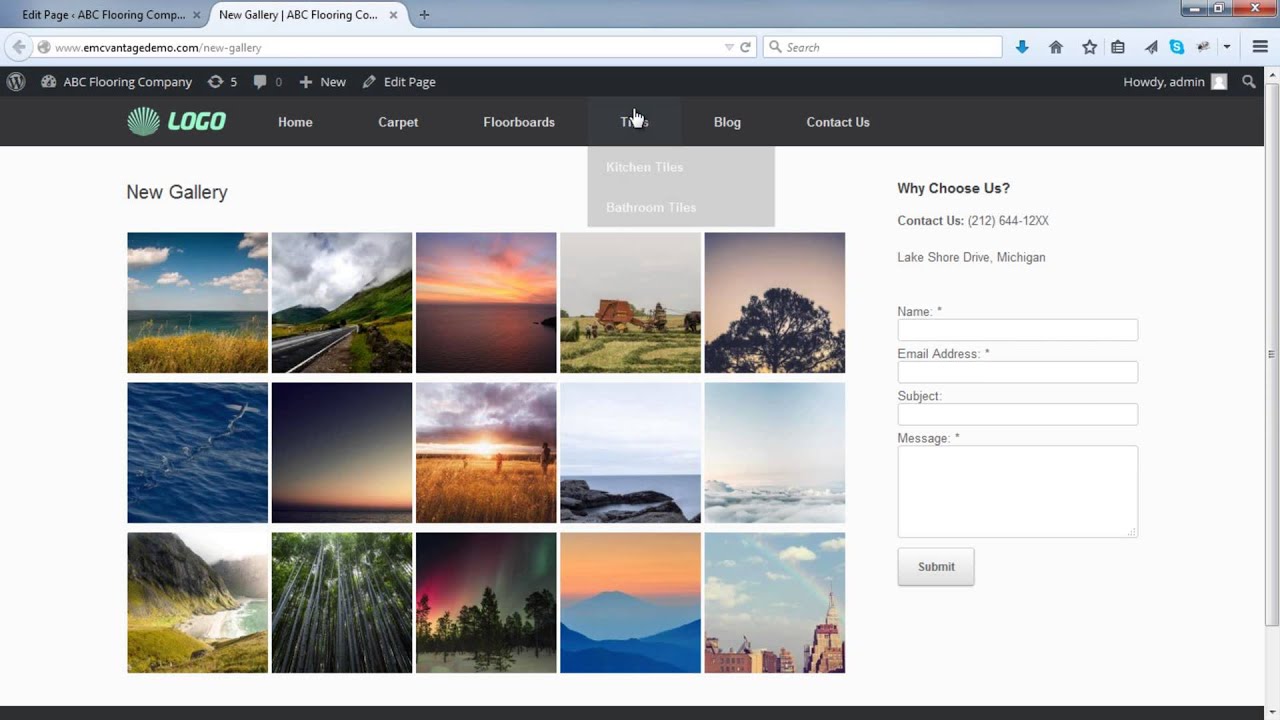
Lightboxes are used in photo galleries. They help showcase pictures in style. Blogs and portfolios use them too. They make websites look cool and modern. Lightboxes also help keep users on the page. This means more time spent on your site. They improve user experience. Images load quickly in a lightbox. This is good for site speed. Lightboxes are easy to install. Many plugins are free to use. This makes them a great choice for beginners.
Credit: www.youtube.com
Key Features Of Lightbox Plugins
Lightbox plugins work on all devices. They adjust to different screen sizes. This makes them perfect for phones and tablets. Users get a better experience. Images look great everywhere. No more squinting or zooming.
Change the look of your lightbox. Pick colors and styles that match your site. Add text or buttons. Make it your own. Simple settings allow easy tweaks. Even beginners can do it.
Lightbox plugins integrate with gallery plugins. Display your images in a neat way. Create slideshows or photo grids. Users click to see larger images. It feels smooth and professional. Great for photo blogs and portfolios.
Popular Lightbox Plugins
Lightbox plugins help make images bigger on websites. They make it easy to see pictures up close. Some popular plugins include FooBox, Simple Lightbox, and Responsive Lightbox & Gallery. These plugins work well with WordPress. They are easy to use. Many people like them.
| Plugin | Ease of Use | Customization | Responsive Design |
|---|---|---|---|
| FooBox | Very Easy | High | Yes |
| Simple Lightbox | Easy | Medium | Yes |
| Responsive Lightbox & Gallery | Easy | High | Yes |
Installation And Setup
First, go to your WordPress dashboard. Look for the Plugins section. Click on Add New. In the search bar, type Lightbox. Find the right plugin. Click Install. Wait for it to finish. Then, click Activate.
Once activated, go to Settings. You will see Lightbox settings. Adjust the settings as you like. Test it on your site. Ensure images open in a popup window. Make sure it looks good.
- Check if the plugin is activated.
- Clear your browser cache.
- Check for conflicting plugins.
- Ensure your theme supports Lightbox.
- Update the plugin to the latest version.
Enhancing User Experience With Lightbox
Lightbox makes pictures stand out. It opens images in a pop-up box. This feature makes the site look modern. Users see clear and big pictures. They can focus on details. It gives a clean view without leaving the page. The design becomes more attractive. It makes visitors interested in your content.
Lightbox keeps users engaged. They can click and explore images easily. This tool makes browsing more fun. Users spend more time on the site. They interact with the content more. It brings more attention to your pages. This can lead to more likes and shares. Users feel more connected to the content.

Credit: 10web.io
Best Practices For Using Lightbox
Lightbox WordPress is a tool that enhances user experience by displaying images in a pop-up overlay. To optimize its use, ensure images load quickly and adjust settings for mobile responsiveness. Customize appearance to match your site’s theme for seamless integration and increased engagement.
Optimizing Performance
Lightbox plugins can be heavy. This may slow down your site. Always choose a lightweight plugin. This helps your site load faster. Optimize images before uploading. Smaller images load quicker. Consider lazy loading for images. This loads images only when needed. It saves bandwidth. Use caching plugins. They store data to speed up your site. Regularly update your plugins. Updates fix bugs and improve speed.
Ensuring Accessibility
Accessibility is crucial for all users. Use alt text for images. This helps those who can’t see the images. Ensure your lightbox works with keyboards. Some users don’t use a mouse. Make sure buttons and links are clear. They should be easy to find and click. Test your lightbox on different devices. It should work on phones and tablets too. Use simple language and clear instructions. Everyone should understand how to use it.
Credit: elementor.com
Frequently Asked Questions
What Is A Lightbox In WordPress?
A Lightbox in WordPress is a tool that displays images or videos in a popup overlay. It enhances user experience by focusing attention on the media. Lightboxes are widely used for galleries and portfolios. They minimize distractions and keep users engaged on your site.
How To Add A Lightbox In WordPress?
Adding a Lightbox in WordPress involves installing a plugin. Popular plugins include Simple Lightbox and Responsive Lightbox. Install and activate your chosen plugin. Customize settings as needed and insert media. The Lightbox effect will be applied automatically.
Why Use A Lightbox For Images?
Using a Lightbox for images improves user interaction and site aesthetics. It allows users to view media without leaving the page. Lightboxes enhance image presentation, keeping visitors engaged. They also improve navigation, making it easy to browse multiple images.
Are Lightbox Plugins Mobile-friendly?
Most modern Lightbox plugins are mobile-friendly and responsive. They automatically adjust to different screen sizes. This ensures a seamless viewing experience across devices. Always check plugin descriptions and reviews for mobile compatibility before installation.
Conclusion
Exploring Lightbox in WordPress opens new creative possibilities. It helps display images and videos attractively. Users can enjoy a smooth browsing experience. Easy to install and customize, it suits all skill levels. Lightbox enhances website engagement, making content more appealing.
It’s a simple tool with powerful effects. Your website can look modern and professional. Consider using Lightbox for a better visual impact. It’s a popular choice for bloggers and businesses alike. Start today and see the difference it makes.


