Imagine visiting a website and instantly recognizing it just by a tiny image in your browser tab. This small graphic can make your site stand out and improve brand recall among visitors.
If you’re using WordPress, this little powerhouse is known as the “Site Icon. ” But what exactly is a Site Icon, and why should you care? Understanding its role can give your WordPress site a professional touch and significantly enhance user experience.
You’ll discover how this simple element can boost your brand identity and make your site memorable. Stick around, and we’ll dive into the essentials of WordPress Site Icons, showing you how to leverage them for maximum impact.
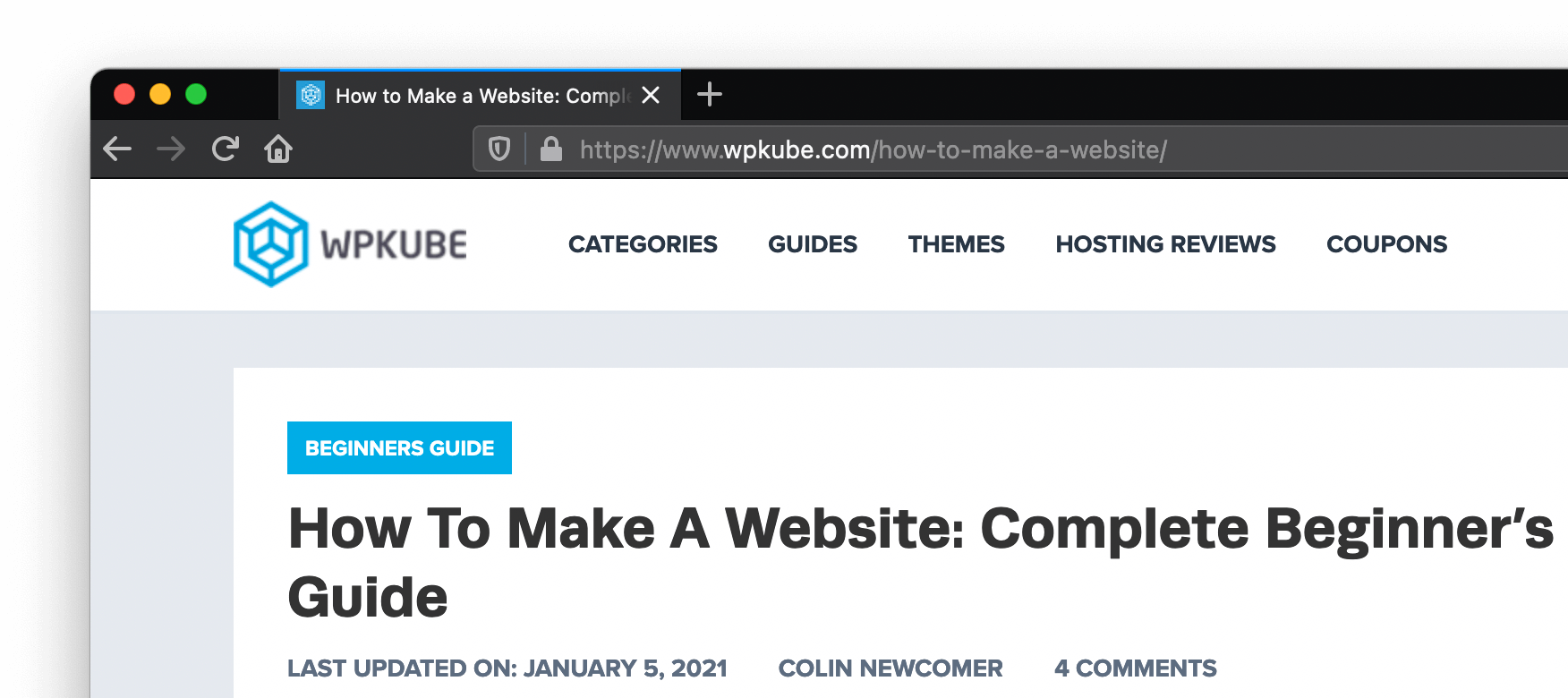
Credit: www.wpkube.com
Site Icon Basics
A site icon is a small image. It represents your website. This icon is also known as a favicon. It appears in the browser tab. It helps users find your site easily. The icon is usually a logo or symbol. It should be clear and simple. This makes it easy to recognize. A good site icon builds a strong brand image.
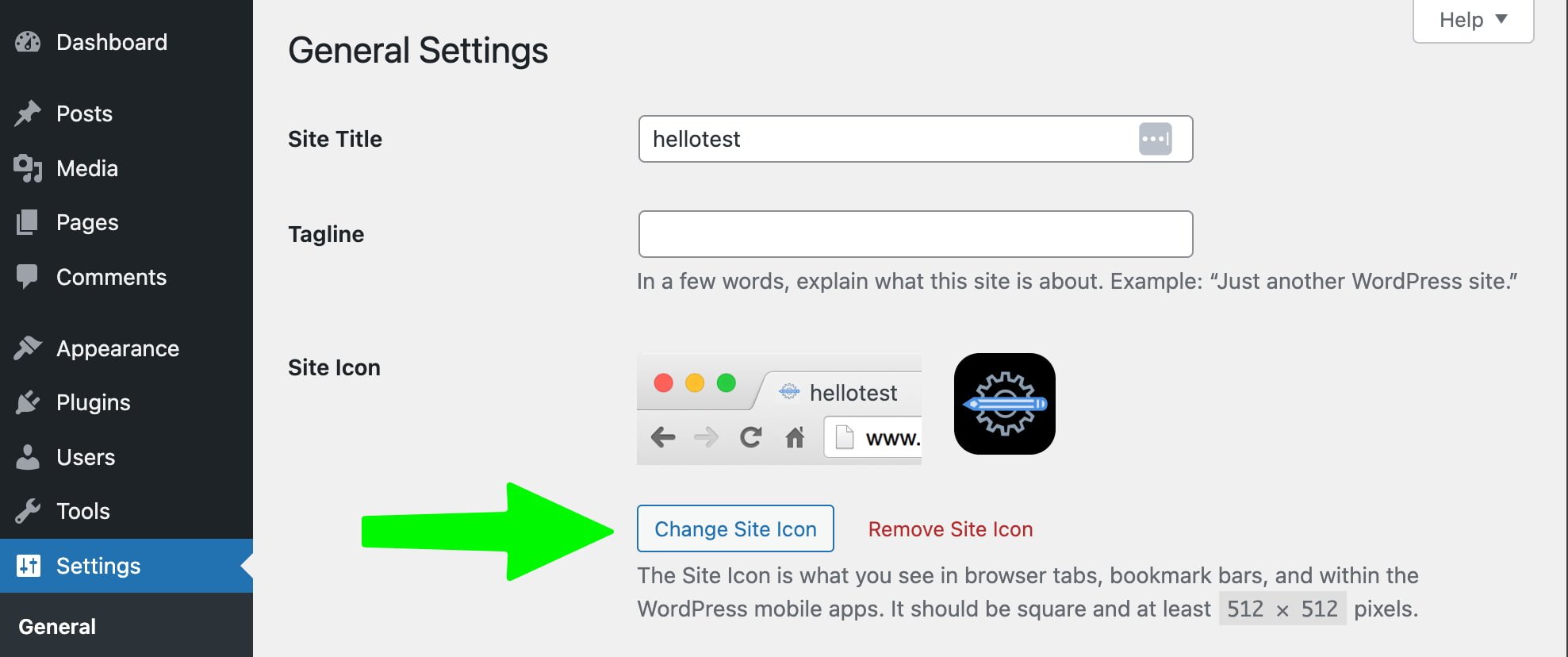
In WordPress, adding a site icon is easy. Go to your dashboard. Click on Appearance. Then select Customize. Next, click on Site Identity. Here you can upload your site icon. The icon should be 512 x 512 pixels. This size is recommended for best results. Once uploaded, it will show in various places. These include browser tabs and bookmarks.

Credit: www.youtube.com
Importance Of Site Icons
Site icons make websites easy to find. They show up in browser tabs. This helps users know your site at a glance. Brand identity is key. A good icon can improve your brand identity. It gives a professional look to the website.
These icons are also known as favicons. They are small but powerful. They help in creating a visual connection with visitors. Users can easily remember your site. This can lead to more return visits. A unique icon stands out. It sets your site apart from others.
Good icons load quickly. This helps with faster site performance. They are important for a better user experience. Simple designs work best. They should reflect your site’s theme. Choose colors that match your brand.
Designing An Effective Site Icon
A good site icon needs the right size and format. Icons should be clear at 512×512 pixels. This size works well on all devices. Use PNG or SVG formats. These keep the icon looking sharp. Check the icon on different screens. It should look good everywhere.
Colors matter a lot in icons. Pick colors that match your brand. They should be easy to see. Avoid using too many colors. Two or three are enough. The colors should show what your brand is about. Keep it simple and clean.
Simple icons are easy to remember. They should be easy to see. Avoid too much detail. Use a clear shape or symbol. This helps people know your brand fast. Simple icons are easier to recognize. They make your site stand out more.
Setting A Site Icon In WordPress
Open your WordPress dashboard first. Locate the Appearance section. Click on Customize. This opens the Customizer panel. You will see many options here. Look for the Site Identity option. Click on it to proceed. The Site Identity section lets you change the site’s look.
In the Site Identity section, find the Site Icon option. Click on it to upload your icon. Choose an image from your computer. Make sure it’s square. The ideal size is 512 x 512 pixels. After selecting, click Upload. You can crop the image if needed.
Once the icon is uploaded, preview it. The preview helps you see the changes. If you are happy, click Save & Publish. Your site icon is now live. Check your site tab to see it. The icon appears next to the title. It gives your site a unique identity.
Common Issues And Solutions
A site icon in WordPress is a small image representing your website. It appears in browser tabs and bookmarks. Common issues include incorrect sizing or blurry icons. Solutions involve ensuring the icon is 512×512 pixels and in PNG format for clarity.
Blurry Icons
Site icons can appear blurry if they are not the right size. Use icons that are at least 512×512 pixels. This size is recommended by WordPress. Smaller icons may lose quality. Make sure the image format is PNG or SVG. These formats help keep the icon sharp. Always check the icon on different devices. This ensures it looks clear everywhere.
Incorrect Display
Icons might show wrong due to cache problems. Clear your website’s cache. This refreshes the icon display. Sometimes, browser cache causes trouble. Ask users to clear their browser cache. A fresh upload of the icon helps too. Ensure the icon is set correctly in WordPress settings. Double-check the icon upload process. This can fix display issues.
Compatibility Concerns
Some icons don’t work on all browsers. Use a cross-browser compatible format. PNG and SVG are good choices. Test the icon on different browsers. This includes Chrome, Firefox, and Safari. WordPress updates may affect icons. Keep your WordPress version current. Ask your web developer for help if needed. They can ensure full compatibility.
Credit: yoast.com
Best Practices For Site Icons
A site icon should look the same everywhere. This means keeping it uniform on computers, phones, and tablets. Consistency helps users recognize your site easily. Use the same colors and design each time. This makes your site stand out and look professional.
Updating your site icon is essential. This keeps your site fresh and relevant. Check your icon often to ensure it matches your brand. Make changes if needed. A fresh icon can attract new visitors.
Test your site icon on many devices. This helps you see if it looks good everywhere. Ensure the icon is clear and easy to see. Adjust sizes if necessary. This ensures everyone has a good view of your site icon.
Frequently Asked Questions
What Is A WordPress Site Icon?
A WordPress site icon is a small image representing your website. It appears in browser tabs, bookmarks, and mobile screens. Often referred to as a favicon, it helps in brand recognition and improves user experience by making your site easily identifiable.
How Do I Add A Site Icon In WordPress?
To add a site icon in WordPress, go to Appearance > Customize. Then, click on Site Identity and upload your desired image. Ensure your image is square and at least 512×512 pixels for optimal display across different platforms and devices.
Why Is A Site Icon Important For My Website?
A site icon is crucial for brand identity and user experience. It helps users recognize your website in their tabs and bookmarks. A professional and consistent site icon enhances trust and makes your site memorable, contributing positively to your brand image.
Can I Change My WordPress Site Icon Anytime?
Yes, you can change your WordPress site icon anytime through the WordPress Customizer. Simply navigate to Appearance > Customize, select Site Identity, and upload a new image. Regular updates can keep your site icon aligned with your brand’s evolving identity.
Conclusion
A site icon in WordPress boosts your site’s identity. It appears in browser tabs, bookmarks, and on mobile screens. This tiny image plays a big role. It makes your site recognizable. It also helps in building trust with your audience.
Choosing a clear and relevant icon is essential. It should match your brand and message. Updating your site icon is simple in WordPress. Just go to the Customizer and upload your image. That’s it! Your site now looks more professional.
Remember, a good site icon enhances user experience. Make sure yours stands out.