
Imagine unlocking the potential of your WordPress.com content with just a few clicks. You’ve spent countless hours crafting posts, engaging with readers, and building your online presence.
Now, you’re considering exporting your content, but what really happens during this process? Is it as simple as it sounds? Or are there hidden steps and considerations that could impact your blog’s future? By diving into this article, you’ll uncover the intricacies of exporting your WordPress.
com content, ensuring that you make informed decisions without risking the integrity of your hard work. Whether you’re planning to migrate to a self-hosted platform or simply want to keep a backup, understanding this process is crucial. Keep reading to discover how exporting can transform your blogging strategy and safeguard your digital assets.
Credit: www.isitwp.com
Exporting Content Basics
Exporting content helps save your work. You might want to back up your posts. Or move them to a new site. It’s important to keep your data safe. When you export, you get a file. This file has all your content. It’s like a safety net for your website.
WordPress allows you to export many things. Posts and pages are included. Even your comments and tags. You also get your categories and custom fields. This means your website remains intact. You don’t lose any important parts. It’s a great way to keep everything together.
Credit: smartwp.com
Export Process
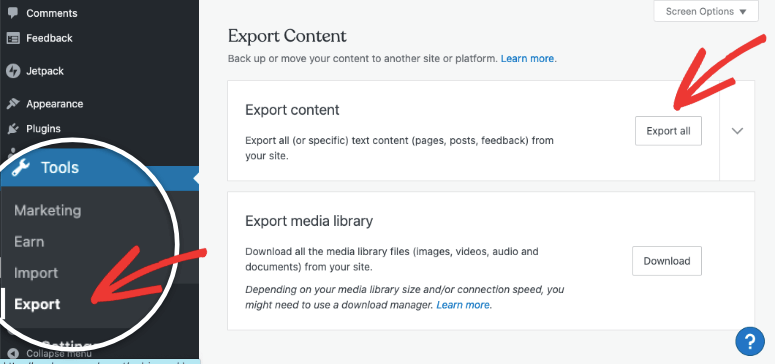
First, log in to your WordPress.com account. Go to the dashboard. Look for the Tools option. It’s usually on the left side. Click on it. Then, find the Export option. Click on that too. A new page will open up. Choose what you want to export. It could be posts, pages, or other content. Select your choice carefully.
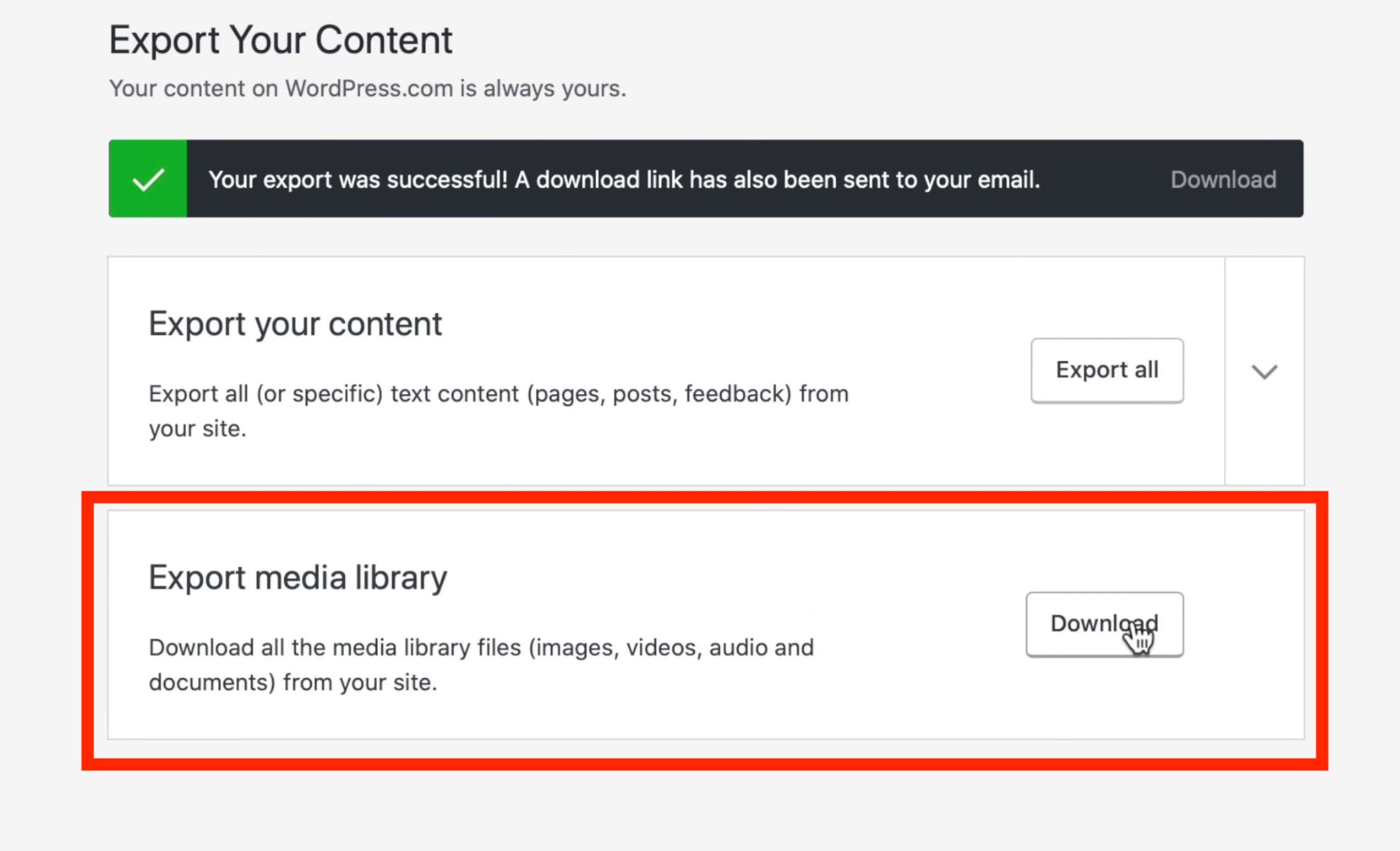
After selecting, click the Download Export File button. A file will be saved on your computer. This file is very important. It’s a backup of your content. Store it safely. You can use this file later. Especially, when you want to move content to another site. Or if you wish to restore your data. This makes managing your content easier.
File Formats And Structures
XML stands for Extensible Markup Language. It organizes data in a text format. This makes it easy to share between systems. Each piece of data is wrapped in tags. Tags are like labels. They tell what the data is. For example, a post title is in
Data in XML is structured. It is clear and organized. Every item is in a tag. This makes finding data simple. Tags are nested. Like boxes inside boxes. This helps group related data. An XML file can have many sections. Posts, comments, and categories are examples. Each section is different but follows the same rules.
Post-export Actions
Exporting from WordPress is just the start. Importing your content to a new platform is next. Each platform has its own steps. Follow these steps carefully. Check if your content matches the new format. Some platforms need extra plugins. These help in smooth imports. Make sure your images and links work fine. Fix any errors you see. Keep your content safe. Always back up before you start.
Once you move your content, check everything. Data integrity is key. Make sure your text is correct. Check all images and videos. They should show up right. Visit every link. None should be broken. Use tools to check data errors. These tools are often free. Fix any issues quickly. This keeps your site neat and safe.
Troubleshooting Common Issues
Export errors can be frustrating. Often, they happen due to file size limits. Try reducing the file size. Split the content into smaller parts. This might solve the problem. Check your internet connection. A slow connection can cause errors too. Ensure your browser is up to date. An outdated browser often leads to issues. Contact support if problems persist. They can offer more solutions.
Missing data after export is common. Check if all plugins are active. Sometimes, inactive plugins cause data loss. Make sure your content is saved properly. Go back and check each post. Confirm the export settings. Incorrect settings can lead to missing data. Review the export file carefully. Some data might be hidden in the file. Restart the export if needed. Often, the second attempt works better.
Credit: fluentforms.com
Best Practices
Backing up content often is very wise. It keeps your work safe. If something breaks, you can restore it quickly. Use plugins for easy backups. They help keep everything stored safely. Choose plugins that work well with your site. Always test your backups. Make sure they work properly before trusting them. Save backups in different places. This gives extra safety. Cloud storage is a good choice. It keeps files safe and easy to access. Regular checks are important. They make sure backups are complete and safe.
Exporting content needs careful checks. Make sure files work with new platforms. Different systems can have problems. Double-check formats before moving content. Some files need special changes. Plugins can help with this task. They ensure smooth transitions. Choose plugins with good ratings. They often work better. Test exported files. Make sure they open and look right. Fix any problems quickly. This keeps the process smooth and easy.
Frequently Asked Questions
What Does Exporting Content Mean On WordPress.com?
Exporting content on WordPress. com means downloading your site’s data. This includes posts, pages, comments, and media files. It’s useful for backups or moving to another platform. The process is straightforward and helps safeguard your content. Always ensure you have the latest export for peace of mind.
How Do I Export My WordPress.com Site?
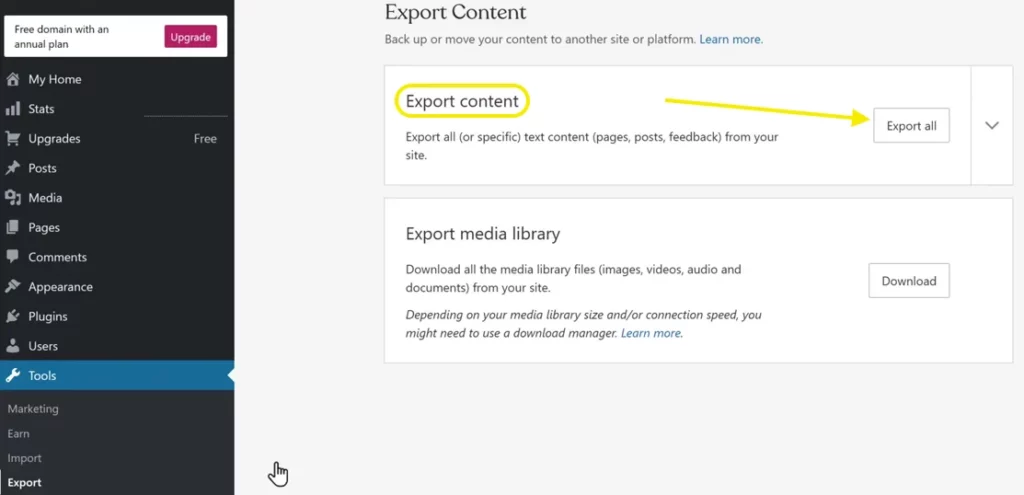
To export your site, go to your WordPress. com dashboard. Select “Tools” and then “Export. ” Choose “Export All” for a complete download. This will provide a ZIP file with your site’s data. It’s a simple process that ensures you have a backup.
Is Exporting Content From WordPress.com Free?
Yes, exporting content from WordPress. com is free. It allows you to download your site’s data without cost. This feature is part of your WordPress. com account. Use it to back up or move your site. It’s a valuable tool for site management.
Can I Export Media Files From WordPress.com?
Yes, you can export media files from WordPress. com. The export feature includes all your site’s media. This covers images, videos, and other uploaded files. It’s essential for complete site backups. Ensure you have enough storage for the downloaded files.
Conclusion
Exporting content on WordPress. com offers flexibility and control. Manage your data easily. Choose what to export. Preserve your site’s integrity. Ensure a smooth transition to new platforms. Protect your hard work with backups. Keep your SEO intact. Use the export tool wisely.
Stay organized during the process. Understand the steps involved. Don’t rush. Take your time to learn. Explore new possibilities with exported content. Maintain your site’s structure. Keep your audience engaged. Remember, exporting is just a step. A new beginning for your online presence awaits.


