
Imagine having the power to move your entire WordPress site with just a few clicks. Exporting WordPress is like packing up your digital belongings and setting off to a new adventure.
But what exactly happens when you export WordPress? Is it as simple as it sounds, or does it involve a labyrinth of steps you need to navigate? You’re about to find out. This guide will unravel the mysteries behind exporting your WordPress site.
You’ll discover what data gets exported, what stays behind, and how this process can benefit you, whether you’re migrating to a new host or creating a backup. Get ready to dive deep into the world of WordPress exporting, and uncover the secrets that will empower you to manage your site with ease and confidence.
Exporting WordPress Basics
Exporting WordPress means saving your website’s data. This data includes posts, pages, and comments. You can export this data to another site. This process helps when you want to move your site. It’s important to know what data gets exported. Posts and pages are usually included. But not all settings or themes transfer. You must set up those again on the new site. Export tools in WordPress make this easy. You need to go to ‘Tools’ then ‘Export’. Follow the steps. Save the file to your computer. This file is usually in XML format. It’s a small file. Easy to manage and store. You can use this file to import data into another site.
Data Included In Export
Posts and pages are the main content. They hold your stories and information. Every blog post you write goes here. Pages are different. They are usually for important info. Like your “About Us” or “Contact” page. Exporting makes sure you keep them safe.
Comments let readers talk to you. They share thoughts on your posts. Export keeps these safe too. Categories help organize your posts. Like folders in a computer. They make finding posts easy. Exporting saves these folders too.
Media includes pictures and videos. These make your posts fun. They show what words can’t. Export keeps these safe. Your media will not get lost. Pictures and videos stay with your posts.
Export Process
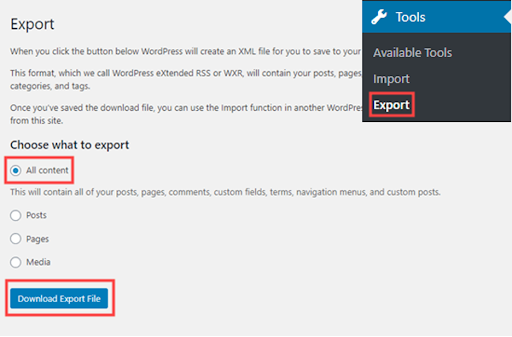
Start by logging into your WordPress dashboard. Navigate to the Tools section. Click on Export. This will open the Export tool. It’s easy to find.
Select what you want to export. You can choose posts, pages, or media. You can even select all content. Make sure to pick what’s needed. This step is important.
After selecting, click on Download Export File. This will save the file to your computer. Keep it safe. You might need it later. It’s in XML format. Easy to use.
Export File Format
The XML format is used when exporting WordPress content. It helps in storing data in a structured way. This format is easy to read for both humans and machines. XML files can include posts, pages, and comments. Even categories and tags are part of the export.
XML is compatible with many platforms. It makes moving content easier. You can use it to import data into other WordPress sites. Many CMS platforms support XML. This allows for flexible content migration. Always check the platform’s support for XML. This ensures smooth data transfer.
Limitations Of WordPress Export
WordPress export may not include all site parts. Some elements are left out. For instance, plugin settings do not get exported. This means you must set them up again. Themes are also not part of the export. You will need to install them manually. Widgets and customizations can be lost too. This affects site appearance and functionality.
There is a limit on file size during export. Large sites face challenges. Files over a certain size may not export well. This can lead to incomplete data transfers. Split large files into smaller parts if needed. This helps ensure everything exports smoothly.

Credit: www.webtoffee.com
Importing Exported Data
WordPress Importer is a handy tool. It helps to bring back your content. First, install the plugin. It is found in the WordPress dashboard. Next, click on ‘Tools’. Then select ‘Import’. Upload the exported file. Follow the simple steps shown. Your data will appear again. It includes posts, pages, and comments. Remember, settings and plugins are not included. This method is quick and easy. It suits small to medium sites.
Sometimes built-in tools are not enough. Third-party solutions come in handy. They offer more features. One popular tool is All-in-One WP Migration. It imports large files easily. Another tool is WP All Import. It lets you import complex data. These tools save time. They handle big websites well. Consider them for advanced needs. But read reviews before choosing. Ensure they fit your site needs.
Potential Issues And Solutions
Large files can cause problems. Exporting might stop suddenly. Your computer could become slow. Use a file splitter to break big files. This helps in managing them easily. Smaller files are simpler to upload. They save you time and stress. Always check your file size first. It prevents headaches later.
Import errors can be frustrating. They stop your work. Most errors happen due to incorrect file types. Ensure your files are in the right format. Convert them if needed. A plugin might be a good helper. It fixes many errors automatically. Keep your software updated. Updates solve many bugs and errors.
Credit: tlos.vt.edu
Tips For Successful Export
Always make a full backup of your WordPress site. This includes all files and the database. Use a reliable plugin to help you. Store backups in a safe location. Cloud storage can be a good option. This keeps your data safe from loss.
Check all files before exporting. Ensure all media and plugins are included. Verify your database for any errors. Fix them if needed. After export, review the data. Make sure everything is complete. Missing files can cause problems. Double-check to avoid issues later.

Credit: www.liquidweb.com
Frequently Asked Questions
What Is WordPress Export?
WordPress export is a feature that allows users to download their site’s content. This includes posts, pages, comments, and custom fields. It creates an XML file which can be imported to another WordPress site. It’s useful for backups and migrating content.
How To Export WordPress Site Easily?
To export your WordPress site, go to Tools > Export in your dashboard. Choose what content you want to export, such as all content, posts, or pages. Click the “Download Export File” button to get an XML file. This file can be imported to another WordPress site.
Does Exporting WordPress Include Themes?
Exporting a WordPress site does not include themes or plugins. It only includes content like posts, pages, and comments. To transfer themes or plugins, you need to manually download them from your site’s server. Use FTP or a backup plugin for a complete site transfer.
Can You Export WordPress Media Files?
WordPress export does not include media files. It only exports links to these files in the XML. You need to download media files separately. Use an FTP client or a plugin to download all media files from your WordPress uploads directory.
Conclusion
Exporting WordPress simplifies website management. It keeps your data safe. You gain control over your site’s content and structure. Backups ensure you avoid data loss. This process helps migrate your site effortlessly. It prepares your site for hosting changes. Exporting is straightforward with WordPress tools.
You save time with easy-to-use features. Always follow the steps carefully. This ensures a smooth transfer. Exporting WordPress is practical for any website owner. It’s essential for website maintenance. Now, you understand the benefits and the process. Ensure you export regularly for best results.
Your site will thank you.


