
Are you setting up your WordPress site with GoDaddy and feeling a bit puzzled about which FTP client to choose? You’re not alone.
With so many options available, it’s easy to feel overwhelmed. But choosing the right FTP client is crucial for seamless file management and updating your website effortlessly. Imagine having a tool that makes uploading, downloading, and managing your WordPress files a breeze.
The right FTP client not only saves you time but also reduces frustration, leaving you more room to focus on what truly matters—growing your website and engaging your audience. In this guide, we’ll explore the best FTP options compatible with GoDaddy WordPress, helping you make an informed choice that enhances your site’s performance. Let’s dive into finding the perfect FTP solution tailored just for you!
Choosing The Right Ftp Client
Many people use FileZilla. It is free and easy. Another option is Cyberduck. It works well on both Mac and Windows. For those who like paid tools, SmartFTP is a good choice. It has many features. WinSCP is popular too. It is great for Windows users. Each has pros and cons. Choose what fits you best.
- Ease of use is important. You need simple tools.
- Compatibility with your system matters. Some only work on Mac or Windows.
- Security features are key. Keep your data safe.
- Support and updates help. You want tools that stay up-to-date.
Credit: www.godaddy.com
Setting Up Ftp Access
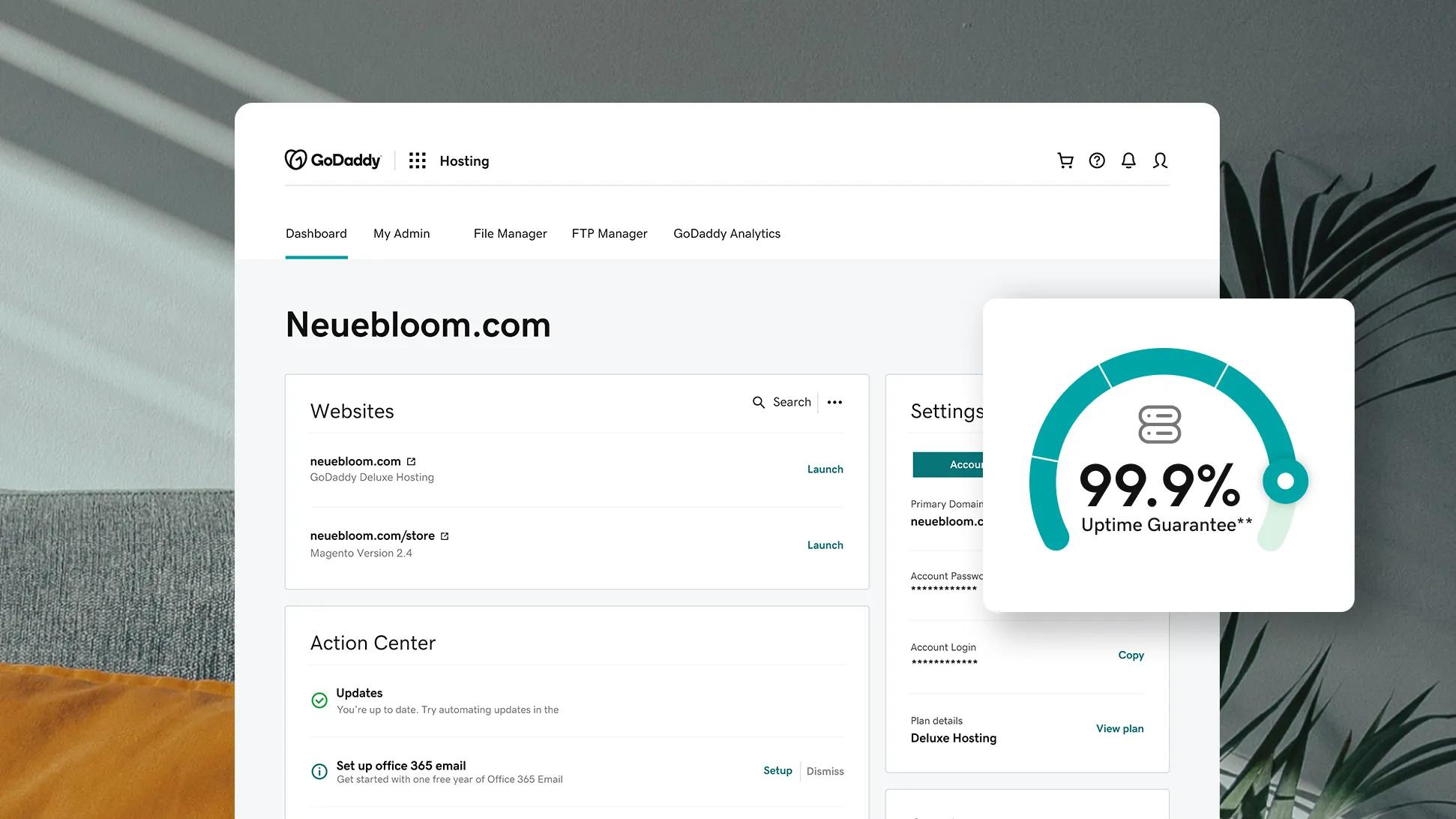
Start with your GoDaddy login. Find your hosting account. Look for the hosting dashboard. Here, see your account details. You need the IP address, username, and password. These details help in connecting via FTP. Keep this info safe. It is important for future use.
Go to your hosting dashboard. Click on FTP Accounts. Choose Create FTP Account. Enter a username. Set a strong password. Choose the directory for access. Click Create to save. Your FTP account is ready. Use these details to connect with an FTP client.
Configuring Ftp Client
Begin by opening your preferred FTP client. Look for the section where you can enter server information. It’s usually called “Site Manager” or “Connection”. Enter the server address provided by GoDaddy. This is often your domain name. Ensure you type it correctly.
Next, fill in your username and password. This information is given by GoDaddy. Keep these details safe. They are important for logging in. Use the default port number, which is usually 21. After entering all details, save the information. This will make it easy to connect next time.
Click the “Connect” button to start the process. The FTP client will try to connect to the server. A small window might pop up asking for confirmation. Make sure the server details are correct. If correct, click “OK” or “Connect”.
Wait for the connection to complete. Once connected, you will see your files. You can now manage your WordPress site files through FTP. If the connection fails, check your details again. Ensure your username and password are correct.
Credit: www.godaddy.com
Transferring Files
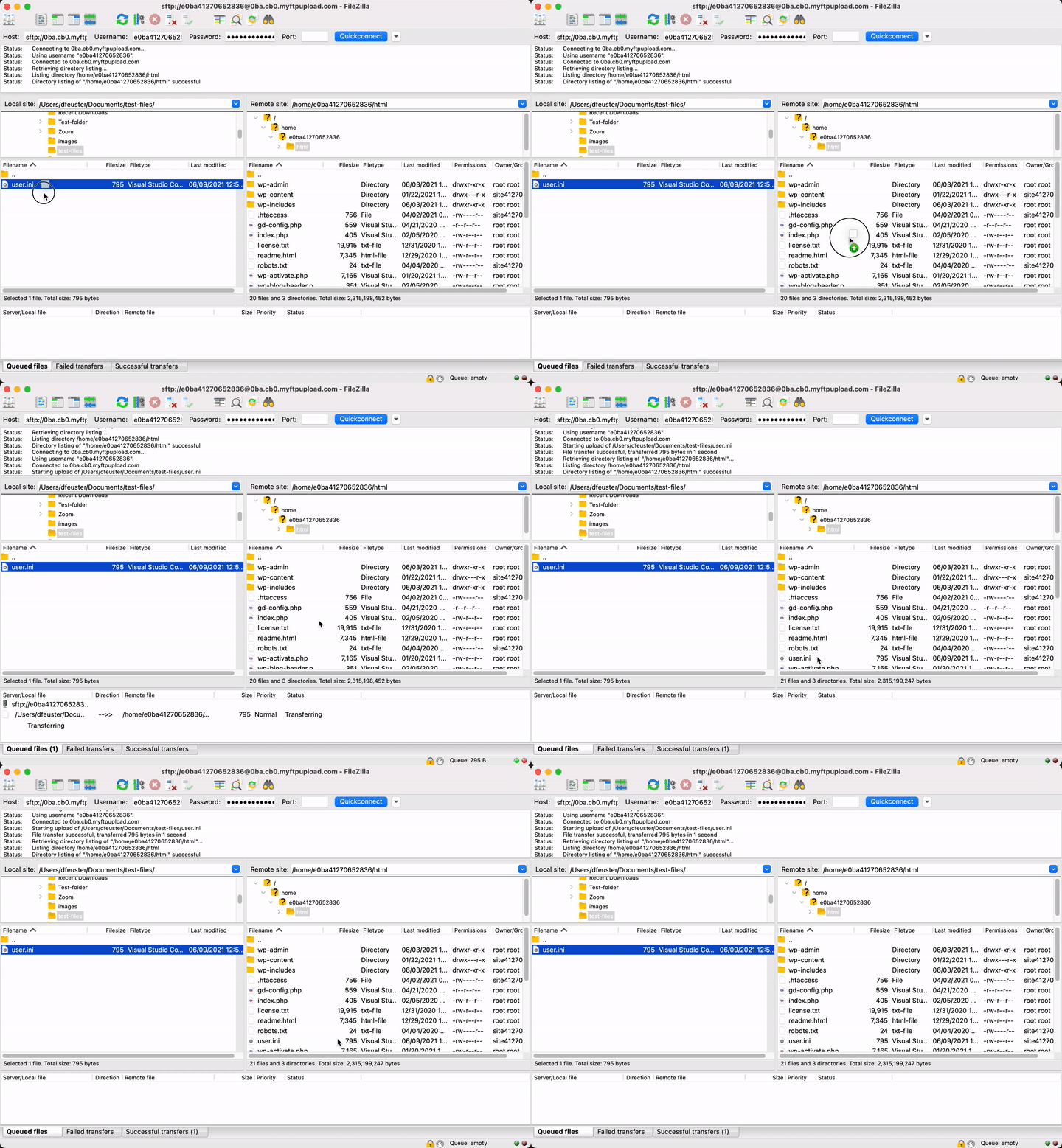
Use FTP to upload your WordPress files to GoDaddy. First, get an FTP client. FileZilla is a good choice. You need your FTP credentials. Find these in your GoDaddy account. Enter them in the FTP client. Then connect to the server. Drag your WordPress files into the server folder. Wait for the upload to finish. This can take a few minutes. Check all files are uploaded. If some are missing, upload again. Make sure everything is there.
File permissions are important for security. Check your files have the right permissions. Use your FTP client to change them. Folders need 755 permissions. Files need 644 permissions. These numbers keep your site safe. Wrong permissions can make your site vulnerable. Always double-check them. Your site will run smoothly with correct settings.
Troubleshooting Common Issues
Connection errors can be frustrating. First, check your internet connection. Is it stable? Next, verify your FTP settings. Are the username and password correct? Sometimes, firewalls block FTP access. Disable it temporarily to test. Also, check your port number. Default is 21. Some use SFTP with port 22. Ensure you use the right one. If all fails, contact Godaddy support. They help fix the problem.
File transfer issues happen often. Ensure your files are not too large. Large files take time. Sometimes, they fail. Try smaller ones first. Permissions might be wrong. Check if you can write files. If not, adjust permissions. Retry upload. Are your files named properly? Special characters can cause errors. Rename them to avoid problems. For consistent errors, reach out to support. They provide solutions.
Credit: www.godaddy.com
Enhancing Security
Using secure FTP is important for your website. It keeps data safe. Always choose FTPS or SFTP for your connections. They are better than normal FTP. These protocols protect your files during transfer. They make it hard for hackers to steal data. FTPS uses encryption to keep data private. SFTP uses secure shell to protect files. Both are good choices.
Use strong passwords for your FTP account. Change them often. Avoid using common words. Include numbers and symbols. Always update your FTP software. This fixes security bugs. Limit FTP access to trusted people only. Disable FTP accounts not in use. These practices keep your website safe.
Alternatives To Ftp
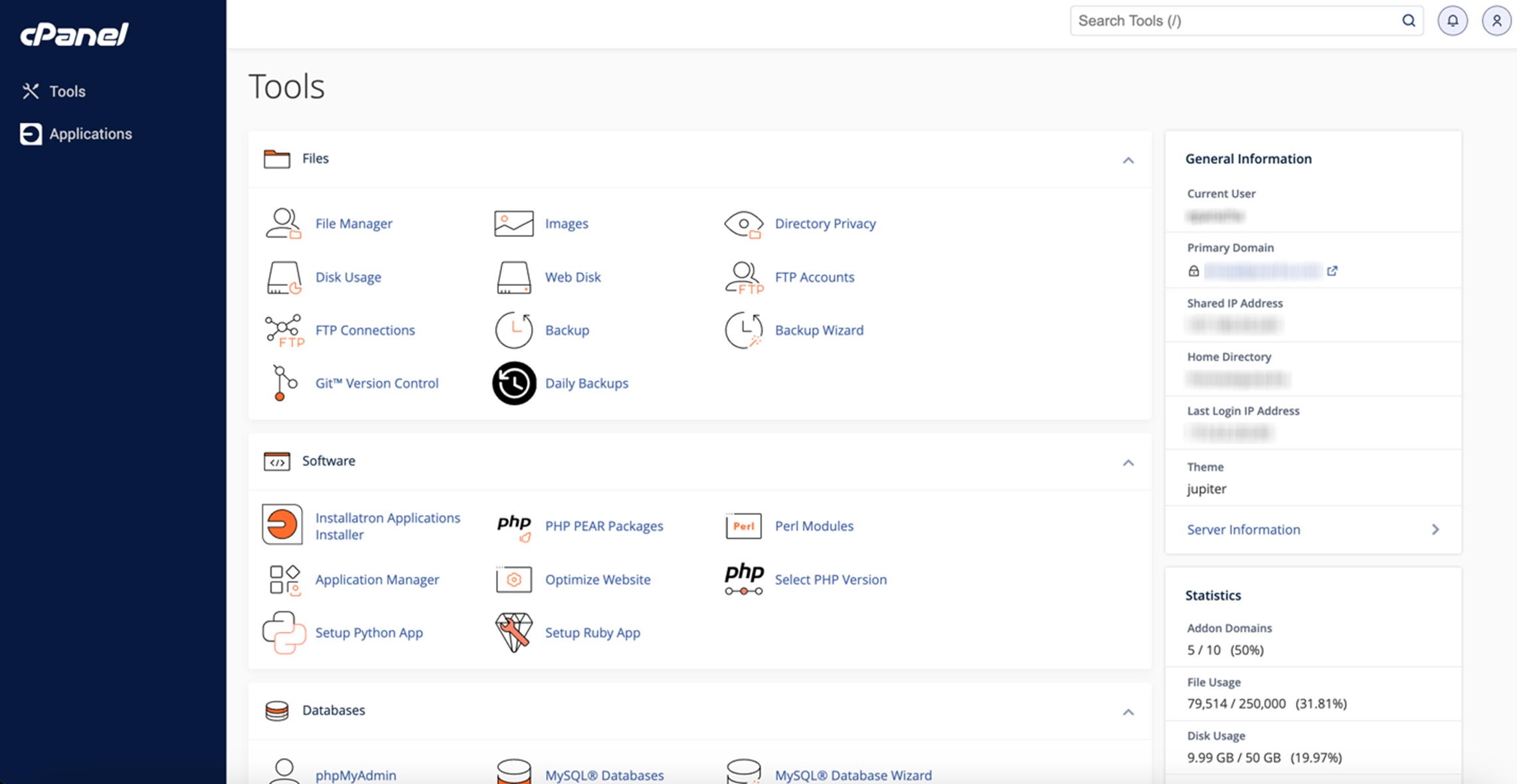
cPanel File Manager is a simple tool for managing WordPress files. It is available directly from your hosting account. You can upload, download, and delete files easily. No need to install any special software. Just log in to your hosting account. Then, find the File Manager. The interface is user-friendly and suitable for beginners. It is a safe and easy way to manage files without using FTP.
SFTP and FTPS are secure alternatives to FTP. They help keep your data safe. SFTP stands for Secure File Transfer Protocol. It uses SSH to encrypt data. FTPS stands for File Transfer Protocol Secure. It uses SSL/TLS for encryption. Both methods offer extra protection. Many prefer these over regular FTP. They are great for transferring files securely. These options are supported by most hosting providers, including GoDaddy.
Frequently Asked Questions
What Ftp Client Works Best With Godaddy?
FileZilla is a popular choice for GoDaddy users. It’s user-friendly and compatible with multiple platforms. FileZilla offers secure connections and easy navigation. It supports all major protocols for seamless integration. Additionally, it provides robust tools for managing files efficiently.
How Do I Set Up Ftp For WordPress?
Log into your GoDaddy account and navigate to hosting settings. Enable FTP access and create an account. Use the FTP client to connect using provided credentials. Ensure proper permissions for file editing. Follow your client’s instructions for uploading WordPress files.
Can I Use Sftp With Godaddy WordPress?
Yes, GoDaddy supports SFTP for secure file transfers. SFTP encrypts data, providing enhanced security. To use SFTP, enable it in your account settings. Set up your FTP client with SFTP credentials. Ensure your firewall allows SFTP connections.
Why Choose Ftp For WordPress Management?
FTP allows direct file access and editing. It’s essential for uploading large files and backups. FTP provides flexibility in managing WordPress themes. Easily troubleshoot errors and customize your site. It simplifies file transfers and management.
Conclusion
Choosing the right FTP for GoDaddy WordPress boosts efficiency. FileZilla stands out for simplicity and reliability. Its user-friendly interface suits beginners well. Compatibility with GoDaddy ensures smooth operations. Cyberduck offers great options for Mac users. Secure, with handy features. Always prioritize security when transferring files.
Regular updates protect your site from risks. Keep login credentials safe. Choosing the right FTP tool makes management easier. Focus on tools that match your needs. With the right choice, your WordPress site runs smoothly. Make informed decisions for best results.
Your website’s success depends on effective management.


