
Ever found yourself puzzled, trying to locate that elusive file that reveals your WordPress version? You’re definitely not alone.
This seemingly small detail can play a big role in the security and functionality of your website. Knowing your WordPress version helps you stay updated with the latest features and fixes, ensuring your site runs smoothly and securely. If you’ve been scratching your head, wondering where to find this information, you’re in the right place.
Unlocking this knowledge is simpler than you might think, and by the end of this article, you’ll have the power to easily pinpoint your WordPress version. Let’s dive in and demystify this process for you.

Credit: wpengine.com
Locating The WordPress Version File
The WordPress version is in a file named version.php. This file is hidden in the wp-includes folder. You can find it by using a file manager. This is part of your hosting account tools.
Open the public_html folder. Then, search for the wp-includes folder. Inside, look for version.php. This file holds the version details. It is vital for updates. Keep track of it.
Checking the version is easy. Open the file with a text editor. You will see a line starting with $wp_version. That line tells you the current version. Always make sure to check this line first. It ensures you run the latest version.
Purpose Of The Version File
The version file in WordPress has a special job. It helps you know the current WordPress version. This information is crucial for website updates. Updates keep your site safe and fast. They fix bugs and add new features.
Checking the version file is easy. You can find it in the root directory. The file name is usually wp-includes/version.php. It holds the version number. Knowing this number helps in troubleshooting. It also aids in plugin and theme compatibility.
Always keep your WordPress updated. It protects your data and improves performance. The version file is a small but important piece. It keeps your website in the best shape.
Steps To Access The Version File
Accessing the WordPress version is easy through the dashboard. First, log in to your WordPress admin area. Look for the “Updates” section. Here, you’ll find the version number displayed. This is the easiest method for most users.
For more control, use FTP or File Manager. Connect to your website’s files. Look for the wp-includes folder. Inside, find the version.php file. Open it to see the version information. This method is useful if you can’t access the dashboard.
Developers might prefer checking the version through code. Open your theme’s functions.php file. Add a small code snippet. The code will display the version on your site. This method is more technical but offers flexibility.

Credit: wpmarmite.com
Identifying The Version Number
The WordPress version number is easy to find. Open the file named version.php. This file is in the wp-includes folder. Look for the line that starts with $wp_version. The number next to it is your version. This number tells you which WordPress you have. Always check this file for the correct version. It’s simple and quick.
Some tools can help find the WordPress version. They are easy to use. Enter the website’s URL. The tool scans the site. Then, it shows the version number. This method is helpful if you can’t access the files. Always make sure the tool is safe to use. Check reviews before using any tool.
Updating WordPress Version
WordPress can update itself automatically
Manual updates offer more control. Users can update through the dashboard. First, backup your site data. Next, go to Dashboard and click Updates. Choose the latest WordPress version. Follow the instructions to complete the process. Manual updates need careful steps.
Regular updates protect your site. They fix bugs and enhance performance. New features get added to WordPress. Updates improve security against attacks. Outdated versions are risky. Keeping WordPress updated is crucial.
Troubleshooting Common Issues
To find out the WordPress version, check the ‘wp-includes/version. php’ file. This file contains the version details. Accessing it helps in troubleshooting and maintaining your website’s security. Understanding this simple step can save time and prevent potential issues.
File Not Found Error
Sometimes, the file is missing. This can cause errors. Check the wp-includes/version.php file. It holds the version number. If it’s not there, you might see an error. Replace it if needed. Download a fresh copy from WordPress.org. Place it in the same folder. This should fix the problem. Always back up files before changes. This keeps your site safe.
Incorrect Version Display
Sometimes, the wrong version shows up. The version.php file might be wrong. Check the line that starts with $wp_version. Make sure it matches your actual version. If it doesn’t, edit this line. Update it with the correct number. Save the file after changes. Check your site again. The version should now display correctly. Always remember to save your work.
Security Implications
Old WordPress versions have many risks. Hackers can find security holes easily. Your website might be at risk. They can steal important data. Hackers may change your site. Keeping WordPress updated is key. New versions fix security problems. You protect your site this way. Avoid old versions. They are not safe.
File integrity means files are not changed. It’s important for safety. Check files often. Make sure no one changed them. Use tools to help. Tools can find changes fast. This keeps your site safe. Protect your website by checking files. It’s easy and smart.
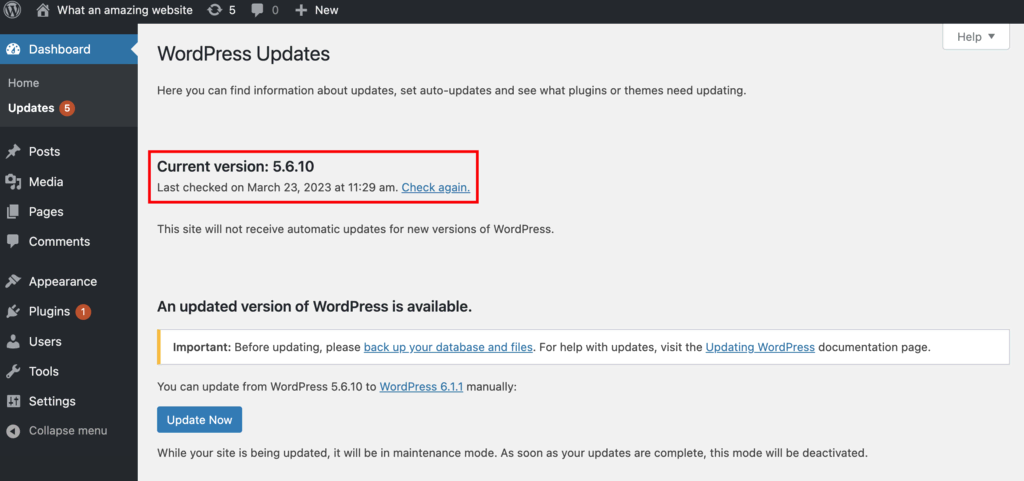
Credit: www.hostinger.com
Frequently Asked Questions
What File Shows The WordPress Version?
The WordPress version is located in the `wp-includes/version. php` file. This file contains a line of code specifying the version number. Checking this file is a reliable method to determine the exact WordPress version your site is currently using. Always ensure to access it securely.
How Can I Find WordPress Version Easily?
You can find your WordPress version on the dashboard. Simply log in to your WordPress admin area. The version number is usually displayed at the bottom of any admin page. This method is quick and does not require file access.
Is It Important To Know My WordPress Version?
Yes, knowing your WordPress version is crucial for security and compatibility. It helps ensure your plugins and themes are up-to-date. Keeping track of the version also helps in troubleshooting and maintaining the overall security of your site.
Can Plugins Show The WordPress Version?
Yes, certain plugins can display the WordPress version. Security and management plugins often include this feature. They provide detailed site information, including the WordPress version. This method is convenient, especially for users who prefer not to access files directly.
Conclusion
Knowing your WordPress version is important for site management. It helps in maintaining security and compatibility. The version file location is simple to find. Just look in the root directory for the “wp-includes/version. php” file. This file holds your WordPress version details.
Regularly checking your version keeps your site updated. It ensures smooth operation and enhances security. Keep your website safe and efficient. Stay informed and proactive. Regular updates are key. Always prioritize your website’s health and performance. Happy blogging!


