
Ever spent hours perfecting your blog post, only to accidentally delete a section you loved? If so, you’re not alone.
The good news is, WordPress has a built-in safety net for moments like these called “Restore Revision. ” This powerful feature can be your best friend when it comes to safeguarding your hard work. It might seem technical, but understanding how it works can save you time and stress.
Imagine the peace of mind knowing you can easily recover a previous version of your content with just a few clicks. Whether you’re a seasoned blogger or a WordPress newbie, mastering this tool can enhance your workflow and keep your content safe. Curious to learn how this feature can transform your blogging experience and give you control over your content like never before? Let’s dive in and explore the magic behind WordPress’s Restore Revision and how it can become your secret weapon in content management.
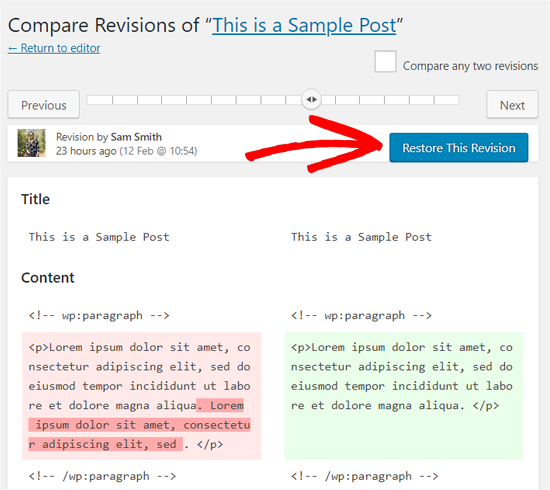
Credit: www.wpbeginner.com
Restore Revision Basics
Restore Revision is a useful tool in WordPress. It helps you bring back old versions of your posts. This feature saves changes automatically. You can find it under the post editor. It shows a list of past revisions. Click on a revision to see what changed. You can compare different versions. This helps you decide which version to keep. Restore the best version with just a click. It’s simple and quick. This feature is helpful if you make a mistake. You can easily fix it. This tool helps keep your content safe. No worries about losing important work. Everyone can use it easily. Even beginners find it helpful.
Accessing Revisions
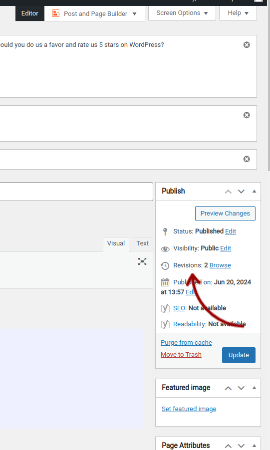
WordPress makes it easy to view old versions of your post. Each time you save, a new revision is made. You can find these revisions under the post editor. Click on the ‘Revisions’ link. This opens a screen showing changes. Use the slider to move between versions. You see what was changed in each save.
The restore revision feature is helpful. It lets you bring back an old version. Click ‘Restore’ to go back. Your post returns to how it was before. This feature is useful if you make mistakes. It can fix errors quickly.
How Revisions Work
WordPress saves changes as revisions. Each edit creates a new version. This helps track changes over time. Users can see what was added or removed. If needed, you can revert to a previous version. This is useful if a mistake was made. The history shows who made edits. It also shows when they were made. This keeps the content safe and organized.
WordPress has an autosave function. It saves your work automatically. This prevents data loss if the computer crashes. Autosave works quietly in the background. It saves every few minutes. You can continue working without worry. Autosave helps keep your ideas safe. Users can focus on creating content. It also helps if you forget to click ‘Save’. Your work is still there.
Restoring A Revision
In WordPress, you can go back to an old version. This is called restoring a revision. Find your old versions under the “Revisions” section. Click on “Browse” to see them. Choose the version you want. Then click “Restore”. This brings back the old content. Your changes will be saved automatically.
You can compare different versions. This helps in seeing what has changed. Click the “Compare” button. You will see two columns. One for the old version. One for the new version. Differences show in different colors. This makes it easy to spot changes. Make sure to save the version you like.
Benefits Of Using Revisions
Error Correction is vital in WordPress revisions. Mistakes happen easily. Revisions help fix them quickly. Users can go back to the previous version. This saves time and effort. No need to redo everything. It keeps content accurate. Ensures quality and reliability.
Content Experimentation becomes easy with revisions. Try different ideas without fear. Change styles or formats. Go back if it doesn’t work. Experiment freely and make your content better. Revisions make this safe and simple. Creativity is encouraged.
Limitations To Consider
Restoring a revision in WordPress can be helpful, yet it has limitations. Overwriting current content is a risk. Compatibility issues with themes or plugins may also arise. Always backup before restoring to avoid problems.
Storage Concerns
WordPress revisions can fill up storage space quickly. Each revision saves a copy of the post. Imagine having hundreds of revisions. Your database grows big. This might slow down your site. It’s important to manage revisions. Use plugins to limit the number of saved revisions. This helps keep storage space in check. You can also delete old revisions manually. Regular cleaning keeps your WordPress site running smoothly.
Potential Overwrites
Restoring a revision might overwrite current content. This can be risky. Important changes might get lost. Always check before restoring. Back up your content regularly. This ensures you have the latest version saved. If mistakes happen, you can recover easily. Being cautious prevents losing valuable content. Keep track of changes to avoid confusion. Proper management of revisions safeguards your work.
Optimizing Revision Use
Revision control plugins help manage your WordPress revisions. These tools let you limit how many revisions WordPress saves. This keeps your database clean and fast. Some plugins even allow you to delete old revisions. This saves space and improves performance. Plugins like WP-Sweep and WP-Optimize are popular choices. They are easy to use and set up.
WordPress stores revisions in the database. Too many revisions can slow down your site. Good database management helps prevent this. Use plugins to clean up unused revisions. This keeps your website running smoothly. Regularly check your database to make sure it’s optimized. A clean database is a fast database.
Credit: www.boldgrid.com
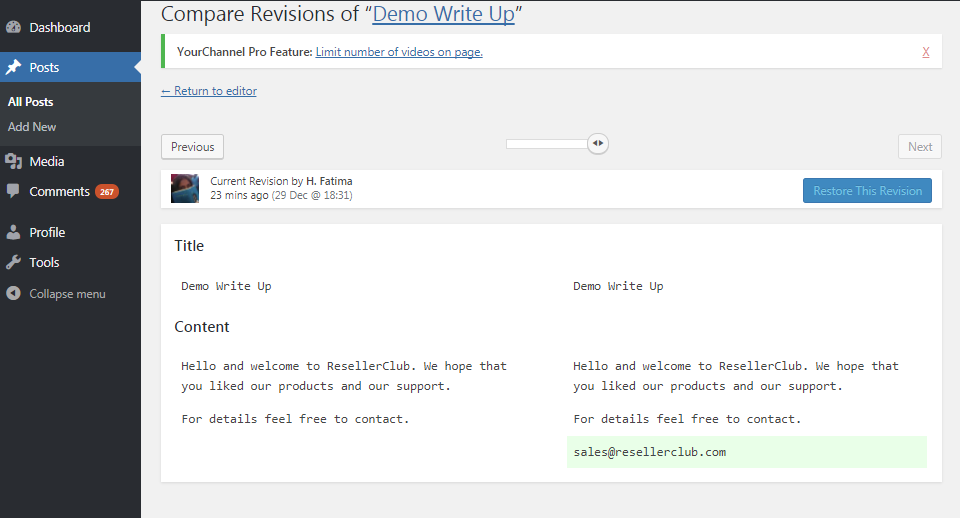
Credit: www.resellerclub.com
Frequently Asked Questions
How Do I Restore A Revision In WordPress?
To restore a revision in WordPress, navigate to the post or page. Click on ‘Revisions’ under the editor. Browse through revisions using the timeline. Select the version you want to restore. Click ‘Restore This Revision’ to make it live. This feature helps revert changes easily.
Where Can I Find WordPress Revisions?
WordPress revisions are found in the post or page editor. Look for ‘Revisions’ below the content area. Click on it to access the revision history. This feature allows users to review and restore previous versions of their content. It helps prevent loss of valuable data.
Why Use WordPress Revision Restore?
Using WordPress revision restore helps revert unwanted changes. It ensures content accuracy and protects valuable work. This feature saves time by restoring previous versions quickly. It’s a useful tool for managing content effectively, especially after accidental edits or errors.
Can Revisions Be Deleted In WordPress?
Yes, revisions can be deleted in WordPress using plugins or custom code. This action helps manage database size and improves site performance. Regularly deleting unnecessary revisions ensures efficient operation. However, proceed carefully to avoid losing important historical data.
Conclusion
Restoring revisions in WordPress keeps content safe and mistakes fixable. It saves time by recovering previous versions easily. This feature is a lifesaver for bloggers and editors. No more stress over accidental deletions. WordPress automatically saves your drafts. You can focus on creating quality content.
Make use of this handy tool. Keep your workflow smooth and efficient. Always have a backup plan with revisions. Understanding this feature boosts your confidence. Stay worry-free while working on your website. Embrace the simplicity WordPress offers. Happy editing!


