
You’ve just downloaded the WordPress zip file and are ready to dive into the world of website creation. But what’s next?
If you find yourself staring at that file, unsure of the next steps, you’re in the right place. This guide will walk you through the essential actions you need to take after downloading WordPress, ensuring you don’t miss a beat in setting up your site.
By understanding what comes after the download, you can turn your ideas into reality faster and more effectively. Imagine having your own website up and running, showcasing your thoughts, products, or services to the world. Excited? Let’s unravel the steps together and make your online presence shine. Stick around to transform that zip file into your dream website.
Extracting The Zip File
Choosing the Right Software is very important. Different programs can open zip files. Some popular ones are WinRAR, 7-Zip, and WinZip. These tools help you extract files easily. Many computers have built-in tools too. Check if your computer already has one. If not, you can download a free tool online. Remember to only download from trusted sites. This keeps your computer safe.
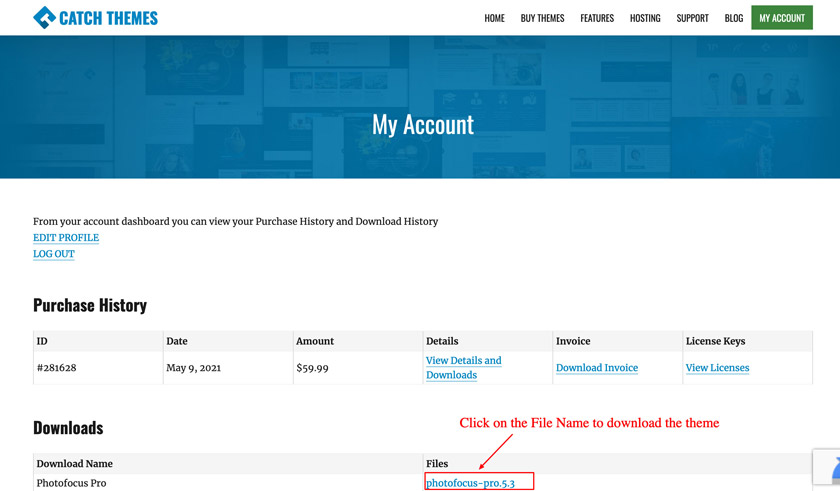
After choosing the software, find the locating the downloaded file on your computer. Most files go to the “Downloads” folder. This folder is easy to find. Open “My Computer” or “This PC” to look for it. Sometimes, files might be in other places. Use the search bar to find your WordPress zip file. Once you find it, right-click and choose “Extract.” This will open the files for you.
Credit: catchthemes.com
Setting Up A Web Server
Use localhost to test WordPress on your computer. First, unzip the WordPress file. Then, move it to the localhost folder. This folder is in your server software. Common server software includes XAMPP or WAMP. Next, start the server. Open your browser. Type “localhost/your-folder-name” in the address bar. Follow the setup instructions. This is a safe way to test WordPress. You can learn without risk.
Pick a hosting provider to make your site live. Consider cost and support. Look for providers with good reviews. Check if they support WordPress. Some popular choices are Bluehost and SiteGround. They offer easy WordPress setup. Compare features and prices. Choose what suits your needs. A good host makes a big difference.
Creating A Mysql Database
After downloading the WordPress zip file, setting up a MySQL database is crucial. This step allows WordPress to store and manage your website data efficiently. Create a database, username, and password through your hosting provider’s control panel to ensure WordPress operates smoothly.
Accessing Cpanel Or Phpmyadmin
First, find the cPanel in your hosting account. Click on it to open. Look for the PHPMyAdmin icon. Click to enter the tool. It helps you manage databases. You will see a list of options. Choose the one that says “Create Database“. Now you can start setting up your database. Make sure you remember all names you create. This will help when you connect WordPress later.
Setting Up Database Name And User
You need a unique name for your database. Click on “Create Database” and type the name. Next, create a username and password. Ensure the password is strong and safe. Write down these details. They will be needed later. Go to the section “Add User to Database“. Select your user and database. Click “Add” to link them together. Now your database is ready!
Uploading Files To Server
FTP stands for File Transfer Protocol. It helps move files to your server. First, download an FTP client like FileZilla. Open the software and enter your server details. Usually, these are hostname, username, and password. Connect to your server. Drag the WordPress files from your computer to the server. Wait as files upload. This might take a few minutes.
cPanel is a control panel. Many hosting services use it. Log into your cPanel account. Find the File Manager tool. Open it and go to your website’s root directory. Click the Upload button. Select your WordPress zip file. Wait for the upload to finish. Then, extract the files. Now, WordPress is on your server.
Configuring Wp-config.php
Open the wp-config.php file in a text editor. Find the section that says database name. Replace ‘database_name_here’ with your real database name. Next, locate database username. Change ‘username_here’ to your actual username. Lastly, find database password. Replace ‘password_here’ with your secure password. Save the changes before closing the file.
Authentication keys help keep your site safe. These keys are long and random. Visit the WordPress secret-key service online. Copy the keys it provides. Go back to your wp-config.php file. Find the authentication keys section. Replace the old keys with the new ones you copied. Save your changes again. Now your site is more secure.
Running The Installation Script
You have the WordPress files ready. Now, open a web browser. Enter the URL where you uploaded WordPress. This URL will start the installation script. You will see a welcome screen. Follow the instructions to install WordPress easily.
The next step is the setup form. First, choose a language for your site. Enter the database name, username, and password. These details are important. Then, choose a site title and set an admin username. Also, create a strong password. Finally, enter your email address. Review all details. Click to finish the setup. Now, your WordPress site is ready!
Choosing A Theme
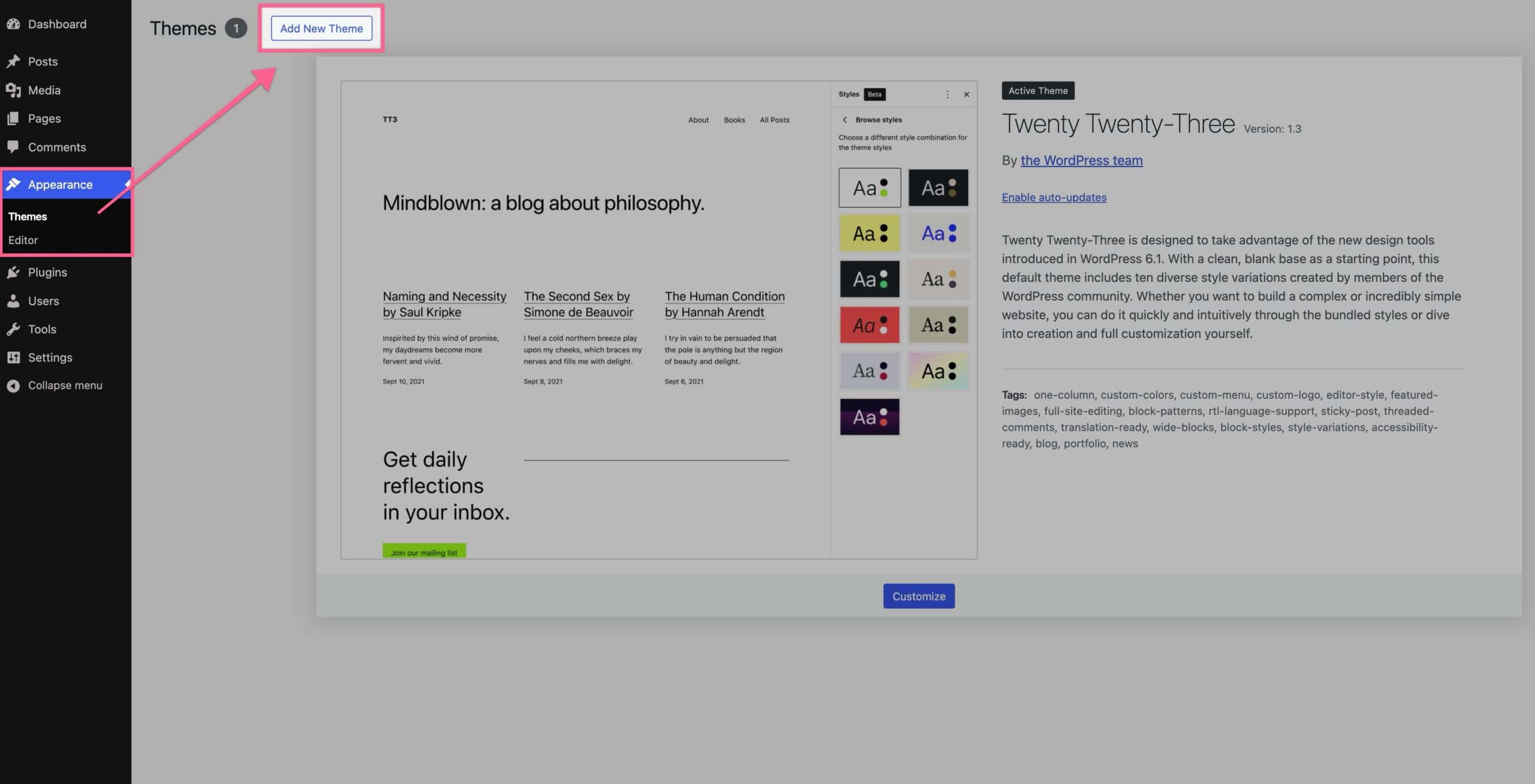
WordPress has default themes for you. These themes are free and easy to use. Default themes are simple and good for new users. You can find them in the Appearance tab. Click on “Themes” to view the choices. Try different themes and see which one you like. Each theme changes the look of your site. You can activate a theme to make it live. Make sure to check how it looks on your site.
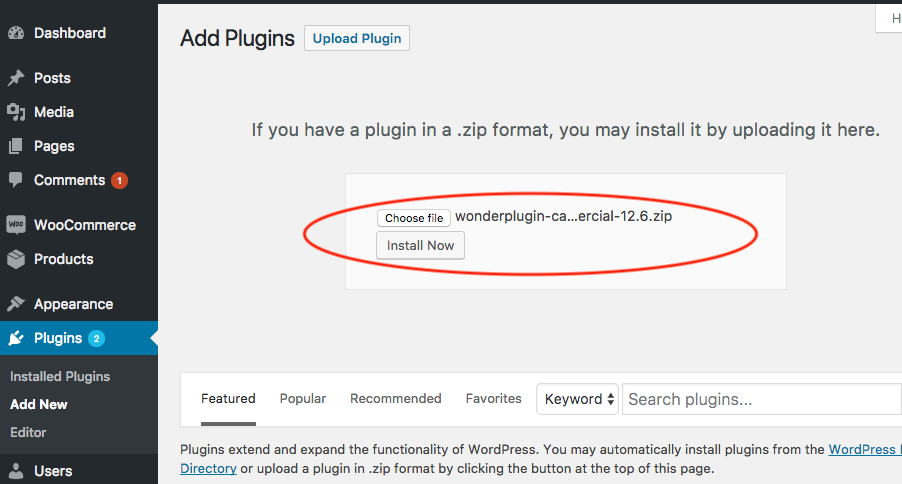
You can install new themes from the WordPress library. Go to the Appearance tab and click “Add New”. Search for themes by name or features. There are many free themes and paid themes. Choose the one that fits your needs. Click “Install” to add a theme. After that, click “Activate” to use it. Make sure the theme is compatible with your WordPress version.
Credit: www.wonderplugin.com
Installing Essential Plugins
Security is very important for your WordPress site. Install security plugins. They help keep bad people away. Plugins like Wordfence or Sucuri are good choices. They block harmful actions. They also check for strange activity. Your site stays safe with them.
Enhancing Security
Strong passwords are a must. Use plugins to make passwords stronger. Two-factor authentication is another layer. It makes logging in safer. Install plugins that offer these features.
Improving Site Performance
Fast sites are happy sites. Use plugins for speed. They make your site load quicker. WP Rocket and W3 Total Cache are good. They improve speed by storing data. This helps pages show up faster.
Also, check image sizes. Big images slow down sites. Use plugins to shrink them. TinyPNG is a great choice. Smaller images mean faster loading times.
Configuring Site Settings
Adjusting permalinks helps your site look neat. Choose a format that is easy to read. This makes links clear and simple. WordPress gives options. Pick the one that fits best. URLs should be simple too. Short and sweet is good. Avoid long links. Use keywords in URLs. This helps people find your page. It also helps search engines. Clear URLs are important. They make your site easy to use.
Protect your site’s privacy. WordPress lets you control who sees your site. Choose your audience wisely. Some sites need to be public. Others should stay private. You can hide pages if needed. Use settings to manage visibility. These settings are easy to change. Adjust them as you like. Keep your site safe. Make sure only the right people can see it. Privacy matters for your site.
Credit: www.kadencewp.com
Creating Initial Content
Start your blog with a welcome post. Introduce yourself to your readers. Share why you created the blog. Keep it friendly and engaging. Use a simple tone and clear words. Make your readers feel at home. Invite them to join the journey with you.
Begin with important pages on your site. Create an About page to share who you are. Add a Contact page for readers to reach you. You might also want a Privacy Policy. These pages help build trust with your visitors. Clear and honest information is key.
Frequently Asked Questions
How To Extract The Downloaded WordPress Zip File?
After downloading the WordPress ZIP file, locate it on your computer. Right-click the file and select “Extract All” or “Unzip Here” to extract its contents. This action will create a new folder with the WordPress files ready for installation or further configuration.
Where Should I Upload WordPress Files?
Upload the extracted WordPress files to your web hosting server. Use an FTP client, like FileZilla, to transfer files to your server’s public_html directory. This step ensures your WordPress site is accessible online and ready for configuration.
How Do I Set Up A Database For WordPress?
Log in to your web hosting control panel and navigate to the database section. Create a new MySQL database and user, then grant privileges. You’ll need these credentials during the WordPress installation process to connect your site to the database.
What Is The Wp-config.php File?
The wp-config. php file is crucial for WordPress installations. It contains your database connection details and other configuration settings. You must edit this file to include your database name, username, password, and host, ensuring WordPress can connect to your database.
Conclusion
After downloading the WordPress zip file, installation is the next step. Find a reliable web hosting service. Use the file manager to upload WordPress. Then, set up your database. Remember to keep your login details safe. Customize your site with themes and plugins.
Test everything thoroughly before launching. Regular updates ensure security and functionality. Engage with your audience through regular posts. Enjoy the process of building your online presence. Your WordPress journey begins now. Keep exploring new tools and strategies. Success requires patience and creativity.
You’re equipped to create a remarkable website.


