
Imagine you’re ready to publish a new post on your WordPress site, and just as you hit the button, you’re greeted with the dreaded HTTP 500 error. It’s frustrating, isn’t it?
You might feel overwhelmed, wondering what went wrong and how to fix it. You’re not alone. This error is a common issue that many WordPress users encounter, and it can disrupt your website’s functionality, affecting your audience’s experience and your peace of mind.
But don’t worry; understanding the causes can empower you to tackle it head-on. You’ll discover the reasons behind this pesky error, unraveling the mystery that might be holding your site hostage. Ready to regain control and ensure your site runs smoothly? Let’s dive in!
Common Causes
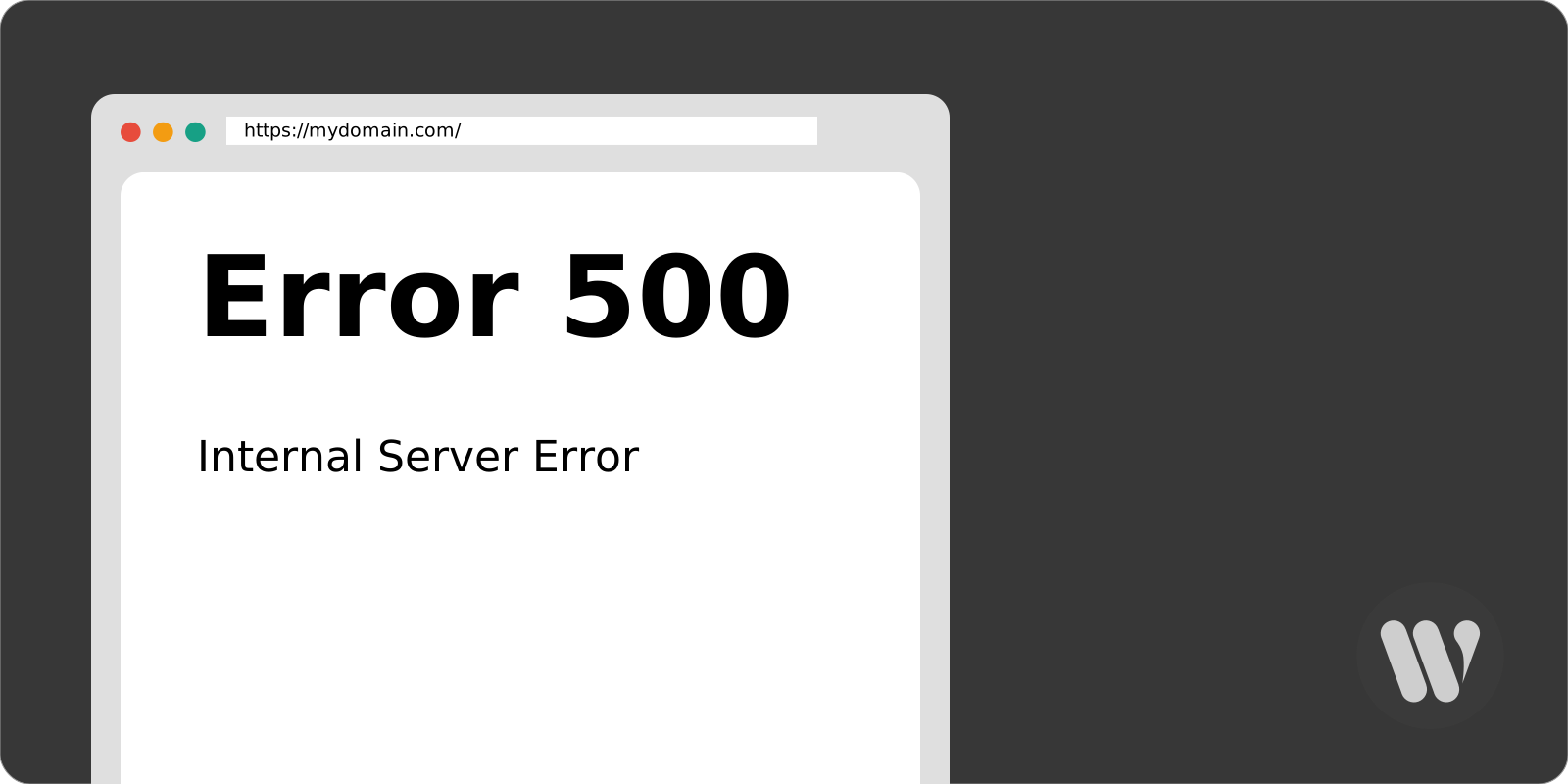
Plugin Conflicts are a frequent reason for the HTTP 500 error in WordPress. Some plugins don’t work well together. This can make your site crash. Always check plugins before adding new ones.
Theme Issues can also lead to this error. A theme might not be coded properly. This can cause problems with your site. Make sure themes are updated and compatible.
A Corrupt .htaccess File might cause the error. This file controls how your server behaves. If it’s broken, your site might not load. Fixing it can solve many problems.
PHP Memory Limits can impact your site. Your site needs enough memory to run smoothly. If it runs out, the HTTP 500 error appears. Increasing the memory can help.
Server Configuration Errors are another cause. Your server settings might be wrong. This can make your site fail. Check server settings to resolve these issues.
Credit: wetopi.com
Troubleshooting Steps
Experiencing an HTTP 500 error on WordPress can be frustrating. Common causes include plugin conflicts, corrupted. htaccess files, or exhausted PHP memory limits. To fix, try deactivating plugins, checking the. htaccess file, or increasing memory limits. These steps can help you restore your site quickly.
Deactivate Plugins
Many times, a faulty plugin causes an error. Deactivate all plugins to check. If the error goes away, reactivate them one by one. This helps find the problematic plugin.
Switch To Default Theme
A theme issue can also cause problems. Change to a default WordPress theme. If the error fixes, your theme might be the issue. Consider updating or replacing it.
Check .htaccess File
The .htaccess file may be corrupted. Rename it to something else. This helps WordPress create a new one. If the error is fixed, your file was likely the problem.
Increase Php Memory Limit
A low PHP memory limit often causes issues. Edit your wp-config.php file. Add or update the line: define('WP_MEMORY_LIMIT', '64M');. This increases memory and may fix the error.
Server-side Solutions
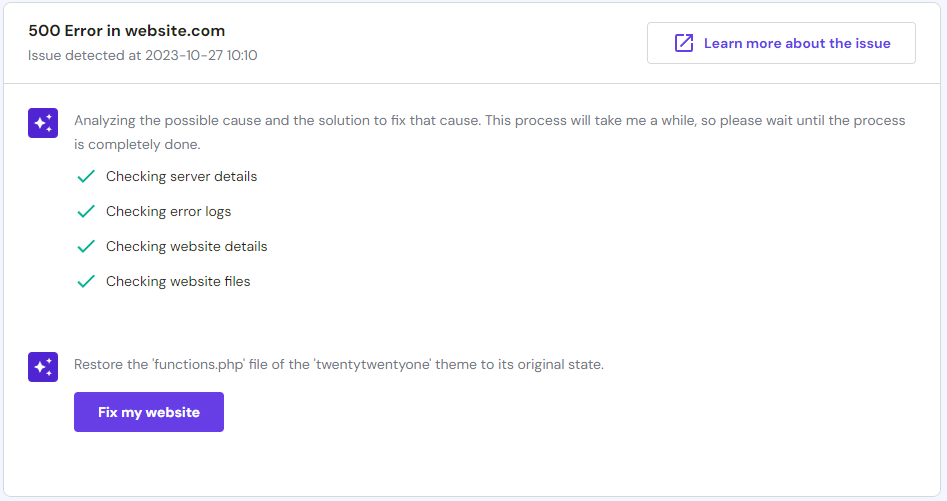
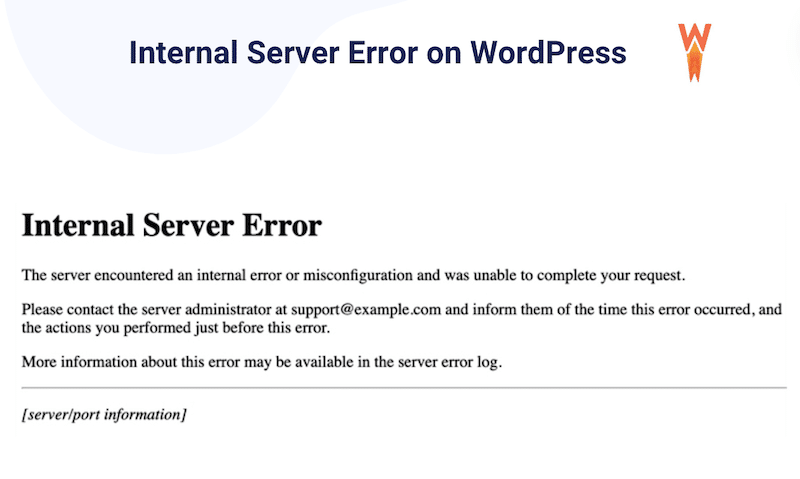
Error logs can show the exact problem. They help find what went wrong. Check the logs in your server’s control panel. Look for error messages. These messages give clues about the 500 error. Fixing these errors can solve the problem.
Hosting providers can help with server issues. Contact their support team. They have tools to find the problem. Tell them about the 500 error. They might know a quick fix. Sometimes, it’s a server issue they can handle.
File permissions need to be correct. Wrong settings can cause errors. Check the permissions for files and folders. They should allow the right access. This is important for the website to work. Fixing permissions can stop the error.
Credit: www.hostinger.com
Prevention Tips
Facing an HTTP 500 error in WordPress often stems from plugin conflicts or corrupted. htaccess files. Regularly updating plugins and themes minimizes these risks. Keeping backups ensures quick recovery, maintaining a smooth website experience.
Regular Backups
Make regular backups of your WordPress site. This is very important. Save your website data often. Use tools like UpdraftPlus or BackupBuddy. They help you save your work. If something goes wrong, you can restore it. This keeps your website safe and sound. It’s like having a safety net for your site.
Update Plugins And Themes
Always update plugins and themes. New updates fix old problems. They also make things run better. Old plugins can cause errors. So, check for updates often. Use the WordPress dashboard for this. It’s easy and quick. Keeping things updated is like giving your site a health check.
Use Quality Hosting
Choose quality hosting for your WordPress site. Good hosts offer better support. They keep your site running smoothly. They can also help prevent errors. Look for hosts with good reviews. Check if they offer 24/7 support. Quality hosting is like a strong foundation for your site.
Credit: wp-rocket.me
Frequently Asked Questions
How Do I Fix A 500 Error In WordPress?
A 500 error often indicates server issues. Start by checking your plugins and themes for conflicts. Disable them one by one to identify the culprit. Also, increase PHP memory limit and check. htaccess file. If unresolved, contact your hosting provider for assistance.
What Causes An Http 500 Error?
HTTP 500 errors are server-related. Common causes include corrupted. htaccess files, PHP memory limits, plugin or theme conflicts, and server configuration issues. Regularly update your WordPress site, plugins, and themes to minimize these errors.
Is A 500 Error A Server Issue?
Yes, a 500 error is a server issue. It means the server encountered an unexpected condition. This error is not specific to WordPress; it can occur on any site due to server problems or configurations.
Can Plugins Cause Http 500 Errors?
Yes, plugins can cause HTTP 500 errors. Conflicting plugins or outdated versions might trigger server errors. Disabling plugins one by one can help identify the problematic plugin. Always keep plugins updated and compatible with your WordPress version.
Conclusion
Fixing an HTTP 500 error on WordPress can be straightforward. Check your plugins and themes first. Sometimes, outdated ones cause issues. Next, verify your server settings and permissions. Misconfigured files might be the culprit. Don’t forget about memory limits. Increasing them can solve many problems.
Backup your data regularly. It protects you from unexpected errors. If problems persist, contact your hosting provider. They have tools to help. Understanding the root causes aids prevention. Keep WordPress updated. Stay informed and proactive. This maintains smooth and error-free performance.


