
Are you feeling bogged down by slow website performance? If your WordPress site isn’t as fast as you’d like, it might be time to consider clearing out some of those pesky caches.
You may not realize it, but hidden within your WordPress files, there are cached data that could be slowing things down. By knowing what caches you can safely delete via FTP, you can boost your site’s speed and improve your users’ experience.
We’ll guide you through the process, ensuring you take the right steps without risking your site’s integrity. Your journey to a faster, more efficient website starts here. Stay with us, and let’s unlock the secrets to optimizing your WordPress performance.
Understanding WordPress Cache
Cache helps your website load faster. It stores temporary data. This data can be images, scripts, or styles. When a user visits, the cache sends stored data. This speeds up the website. Cache reduces server load. It improves user experience. Users get quick access to your site. Cache is important for website performance.
Role Of Cache In Website Performance
Cache plays a key role. It boosts loading speed. Faster websites keep visitors happy. Search engines like fast sites. Fast sites rank higher. Cache makes your site more efficient. It saves bandwidth. It reduces server stress. Your site becomes more reliable. Visitors can browse smoothly.
Types Of Cache In WordPress
| Cache Type | Description |
|---|---|
| Browser Cache | Stores data on user’s browser. |
| Server Cache | Saves data on your server. |
| Object Cache | Speeds up database queries. |
| Opcode Cache | Improves PHP processing. |
Accessing WordPress Files Via Ftp
FTP means File Transfer Protocol. It’s a way to move files. You need an FTP client, like FileZilla. Download and install it. Open the FTP client. Enter your website details. You need the host name, username, and password. These come from your web host. Click connect. Now you can see your website files.
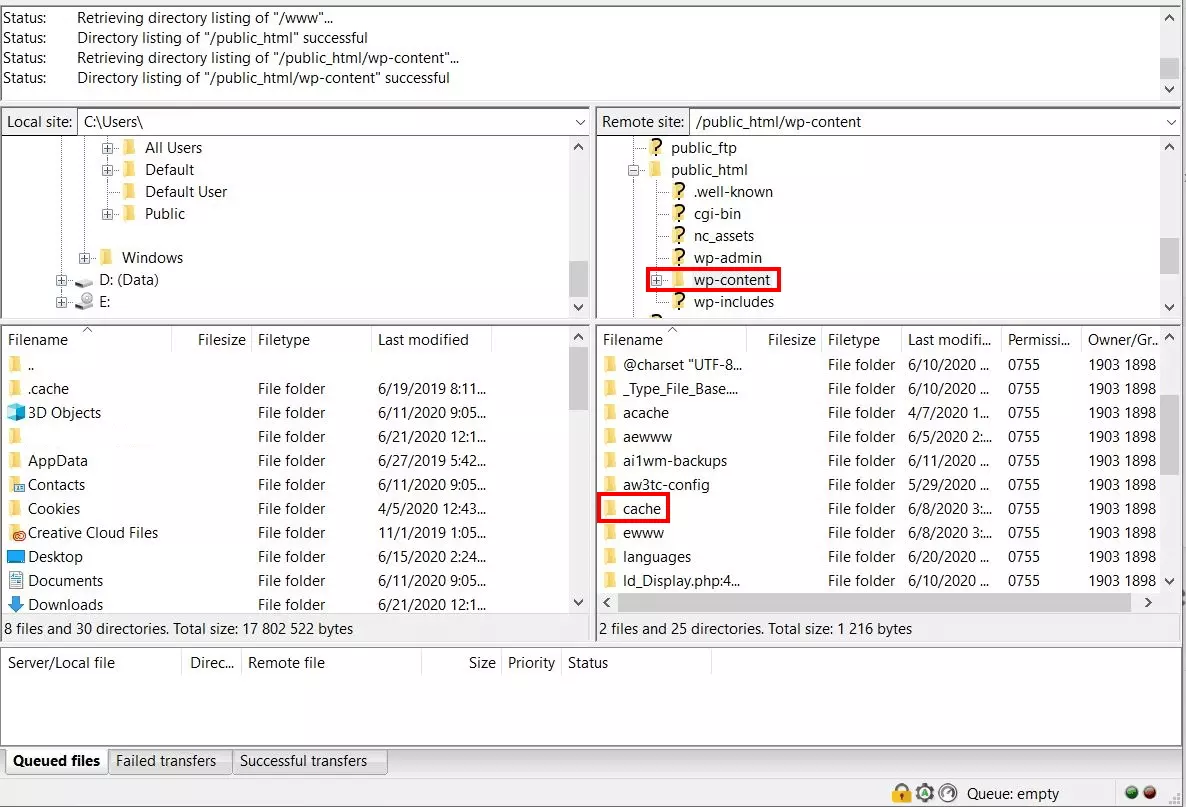
The files are in folders. Your main folder is called public_html. Inside, find the WordPress folder. It’s named after your site or called wp-content. Look inside. You see folders like themes and plugins. Cache files are in the cache folder. Delete these to clear cache. Be careful not to delete important files.
Identifying Cache Files
Cache files can hide in different places. Wp-content/cache is a usual spot. Plugins often store cache here. Wp-content/uploads/cache is another location. Sometimes, themes create cache files in this folder. Wp-content/cache/supercache might have files too. Supercache plugins use this place. Check these folders to find cache files.
Cache files come in various formats. HTML files are common. They store web pages for faster loading. CSS and JavaScript files might be cached too. They help style and animate pages. PHP cache files speed up server processes. Database cache files make queries quick. Knowing these formats helps identify cache files.
Credit: www.ionos.com
Deleting Cache Safely
Always backup your files first. This is very important. Use FTP software like FileZilla. Connect to your server. Find the wp-content folder. Inside, locate the cache folder. Right-click and select “Download”. This saves the files on your computer. Now, you have a copy. It’s safe to proceed.
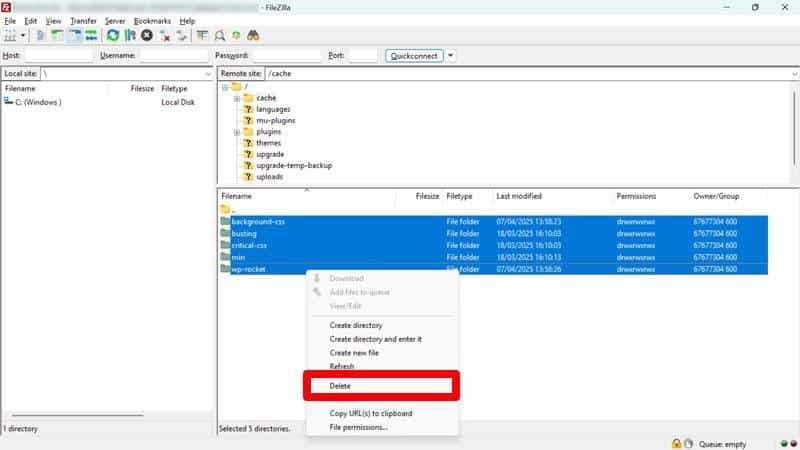
Open your FTP software. Find the wp-content folder. Look for the cache directory. You can delete files inside. Right-click each file. Choose “Delete”. Be careful not to delete important files. Only remove cache files. This helps clear space and improves site performance. Your WordPress site will still work fine.
Impact Of Cache Deletion
Deleting cache can improve website performance. Your site may load faster. Slow sites lose visitors. Fast sites keep them. Cache stores old data. This can slow your site down. Removing cache frees space. This helps your site run smoothly. Visitors see updates quickly. No more old content.
Cache files come back after deletion. WordPress creates them again. Fresh files are better. Old files can be problematic. They may cause errors. New files fix these. This is important for your website. It stays error-free. Users have a better experience. No broken pages or missing content.

Credit: wpmarmite.com
Tools For Cache Management
Many plugins help manage WordPress cache. They make tasks easier. W3 Total Cache is a favorite. It speeds up your site. WP Super Cache is another good choice. It offers simple settings. LiteSpeed Cache is also popular. It provides advanced features. These plugins help your site run smoothly. They are easy to use. Choose one that fits your needs.
Automating cache removal is handy. Plugins can do this for you. They clear the cache at set times. This keeps your site fast. WP Rocket automates cache clearing well. It works quietly. Cache Enabler is another option. It also automates the process. Save time with these tools. They make cache management simple.
Best Practices
Deleting caches regularly helps keep your site running smoothly. It’s important to know the frequency of cache deletion
It’s wise to clear caches after major updates. This includes plugin or theme changes. Doing this ensures new changes appear correctly. Weekly deletion is often enough for most sites. Sites with heavy traffic may need more frequent cleaning. Watch your site’s speed after clearing caches. Check loading times and responsiveness. Use tools like Google PageSpeed Insights. This helps you understand how cache affects performance. If your site runs slow, it may need more frequent cache clearing.Frequency Of Cache Deletion
Monitoring Website Performance
Credit: wp-rocket.me
Frequently Asked Questions
What Cache Files Are Safe To Delete In WordPress?
You can safely delete cache files from the wp-content/cache directory. This includes object cache, page cache, and browser cache. Clearing these files can help improve site performance and resolve loading issues. Always ensure you backup your site before making changes to avoid accidental data loss.
How Does Deleting Cache Affect Site Speed?
Deleting cache can temporarily slow down your site as new cache files are generated. Over time, it improves speed by optimizing data delivery. Regular cache clearing helps resolve conflicts and enhances the overall user experience. Always monitor your site post-deletion to ensure optimal performance.
Can Deleting Cache Fix Plugin Issues?
Yes, deleting cache can resolve plugin conflicts and improve functionality. Cache files sometimes store outdated data leading to errors. Clearing them allows plugins to load fresh data, ensuring smooth operation. Remember to clear cache after plugin updates for the best results.
Is It Necessary To Delete Cache Regularly?
Regular cache deletion is recommended to maintain site performance and resolve potential issues. It helps free up server space and prevents outdated data from affecting functionality. Consider setting up automatic cache clearing to ensure your site runs smoothly without manual intervention.
Conclusion
Deleting cache files via FTP keeps WordPress running smoothly. It frees up space. Improves website speed. Enhances user experience. Regular cache cleaning prevents issues. It’s a simple task. Anyone can do it. Just follow clear steps. Your website will thank you.
Fast load times matter. Visitors stay longer. Search engines rank you better. Remember, manage your cache regularly. Keep your WordPress site efficient. Happy site management!


