
Are you looking to showcase your stunning photos or artwork on your WordPress site? A captivating gallery page can be the perfect solution to grab your visitors’ attention and keep them engaged.
But what’s the best way to create a gallery page that not only looks fantastic but also enhances your website’s performance? In this guide, we’ll uncover the secrets to crafting an eye-catching and efficient gallery page that will make your content shine.
You’ll learn how to choose the right plugins, optimize your images, and design a seamless user experience that turns casual browsers into loyal fans. So, are you ready to transform your WordPress site and mesmerize your audience? Let’s dive in and discover how to create the perfect gallery page tailored just for you!
Credit: fooplugins.com
Choosing The Right Plugin
For creating a gallery page in WordPress, plugins are essential. There are many popular gallery plugins to choose from. Each has unique features. Some are free, while others are paid.
Some well-known plugins are Envira Gallery, NextGEN Gallery, and FooGallery. Envira is user-friendly and lightweight. NextGEN offers powerful features for professionals. FooGallery is great for beginners.
| Feature | Free Plugins | Paid Plugins |
|---|---|---|
| Basic Features | Limited | Extensive |
| Customization | Less | More |
| Support | Community | Professional |
Setting Up Your Gallery Page
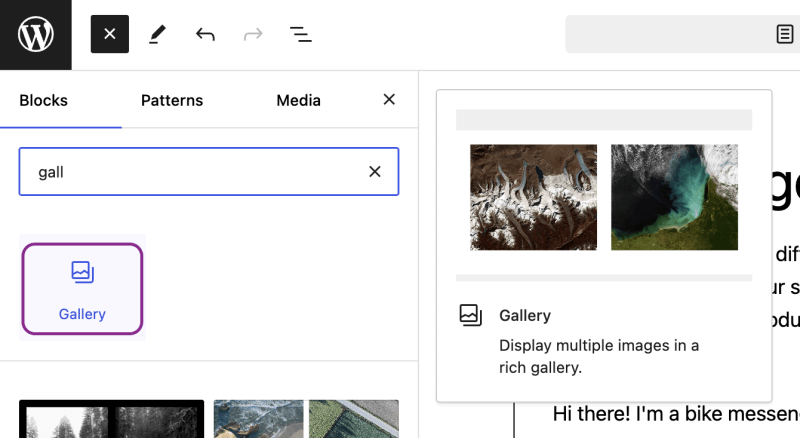
First, open your WordPress dashboard. Click on “Pages” on the left. Next, click “Add New”. Type the title for your new gallery page. You can call it “Gallery” or any name you like. In the main content area, you can write a short intro. This tells visitors about your gallery. Once done, click the “Publish” button. Now you have a new page ready.
Plugins help add more features to your site. Go to the “Plugins” section in your dashboard. Click on “Add New”. Use the search box to find gallery plugins. Popular ones are Envira Gallery or NextGEN Gallery. Click “Install Now” next to your chosen plugin. After installation, click “Activate”. This makes the plugin ready to use. Now, you can add pictures to your gallery page easily.
Designing The Gallery Layout
Choosing the right layout is important. Grid layouts are neat and tidy. They show images in rows and columns. This makes everything look organized. Masonry layouts are different. They show images in a more natural way. Each image keeps its original size. This creates a unique look. Both layouts have their own style. Decide based on what you like best.
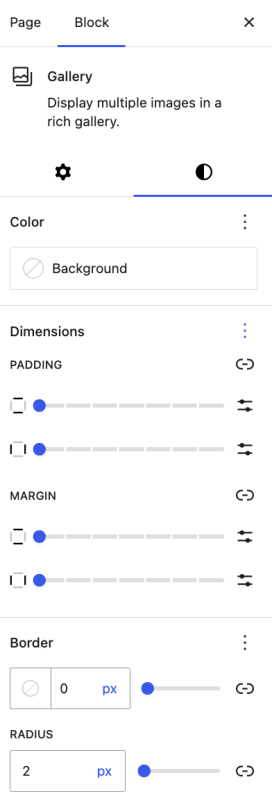
Making your gallery look special is fun. Change colors to match your style. Adjust borders to make images pop. Use different fonts for text. Add some shadows for depth. Little changes can make a big difference. It helps your gallery stand out. Customize until it feels just right.

Credit: www.youtube.com
Organizing Images Effectively
Grouping images makes your gallery clear. Categories help users find images fast. Tags add extra detail. Use simple tags like “birthday” or “beach”. This helps organize your images. Visitors will enjoy searching your gallery. Clear categories and tags make everything easy.
Large images load slowly. Compressing reduces file sizes. Use tools to make images smaller. Small images load faster. Fast loading makes visitors happy. They stay longer on your site. Quality is important. Make sure images still look good. Your gallery will shine with quick loading times.
Enhancing User Experience
Captions help users understand images better. Descriptions provide more context. This makes the gallery more engaging. Visitors can learn more from each image. They enjoy spending time on the page. Easy captions boost interest and engagement. Descriptions offer extra details. These details make the images interesting.
Lightbox features make images pop up. They enlarge the image view. Users can focus on one image at a time. It’s easy to navigate. Click to see the next image. This feature is fun and user-friendly. Lightboxes create a better experience. They make images look clearer. Everyone loves a simple gallery view.
Credit: fooplugins.com
Ensuring Mobile Responsiveness
Creating a gallery page in WordPress requires choosing a responsive theme. This ensures images adjust seamlessly on mobile devices. Plugins like Envira Gallery or NextGEN simplify the process. They offer mobile-friendly layouts, enhancing user experience.
Testing On Various Devices
Test your gallery on many devices. Use phones, tablets, and computers. Check how images look on each device. Use tools like Google Mobile-Friendly Test. Ensure images load fast. Slow images can frustrate users. Make sure buttons work well. Users should easily click them. A smooth experience keeps visitors happy.
Adjusting For Different Screen Sizes
Design your gallery to fit all screens. Use flexible layouts. Responsive design means content adapts to the screen. Avoid fixed sizes. They might not fit small screens. Use percentages instead of pixels. This helps images adjust size. Include breakpoints in your CSS. They change design at different screen widths. This ensures a good look on any device.
Seo Best Practices For Gallery Pages
Alt text is important for image SEO. It helps search engines understand images. Always describe the image clearly. Use simple words. For example, “A red apple on a table.” This helps users who can’t see the image. It also helps images appear in search results. Keep alt text short and descriptive. Avoid keyword stuffing. This can hurt SEO. Focus on clarity and relevance.
Fast loading pages are key for good SEO. Slow pages can make users leave. Compress images to make them smaller. Use tools like TinyPNG for this. Choose the right image format. JPEGs are great for photos. PNGs work well for graphics. Limit the number of images on a page. Use a caching plugin to speed up loading. Fast pages keep visitors happy. They also rank better in search engines.
Maintaining And Updating The Gallery
Regularly adding new content keeps the gallery fresh. It attracts more viewers. New images make the page exciting. Update weekly or monthly. Choose high-quality photos. Ensure they match your theme. Use captivating captions. Engage your audience. Keep them interested. A lively gallery boosts site visits.
Monitoring plugin updates is crucial. Plugins help manage your gallery. They add features and improve functionality. Regular updates fix bugs. They enhance security. Check for updates weekly. Update plugins promptly. This keeps your gallery safe. It ensures everything runs smoothly. Avoid outdated plugins. They cause problems. Keep your site up-to-date.
Frequently Asked Questions
How To Create A Gallery Page In WordPress?
Creating a gallery page in WordPress is simple. Use a plugin like Envira Gallery or NextGEN Gallery. Install and activate the plugin, then upload images. Customize your gallery settings, and insert the gallery into a page using shortcodes. Preview your page to ensure it displays correctly.
Which Plugins Are Best For WordPress Galleries?
Popular plugins for WordPress galleries include Envira Gallery, NextGEN Gallery, and FooGallery. Envira Gallery offers drag-and-drop functionality and responsive design. NextGEN Gallery is robust with advanced features. FooGallery provides easy setup and customization options. Each plugin has unique features, so choose according to your needs.
Can I Add Captions To My WordPress Gallery Images?
Yes, you can add captions to gallery images in WordPress. Most gallery plugins allow you to include captions during the image upload process. You can also edit captions later in the media library. Captions enhance user experience and can improve SEO by providing context to images.
Is It Possible To Make A Responsive Gallery?
Creating a responsive gallery in WordPress is achievable with modern plugins. Plugins like Envira Gallery and FooGallery offer responsive design options. These plugins ensure your gallery adapts to different screen sizes. Responsive galleries improve user experience on mobile and tablet devices.
Conclusion
Creating a gallery page in WordPress is simple and rewarding. Start with a clear plan. Choose the right plugin that fits your needs. Many options exist, so research carefully. Customize your gallery to match your site’s style. Use high-quality images for the best impact.
Keep the layout clean and easy to navigate. Regular updates keep the gallery fresh and engaging. Always test the page on different devices. This ensures a smooth user experience. With these steps, your gallery will shine and attract more visitors.
Happy creating!


