
Imagine you’re browsing through various WordPress templates, trying to find the perfect one for your site. You see stunning designs and layouts, but there’s one thing that keeps catching your eye—the intriguing little features on the side.
What are these side elements called, and why should you care about them? Understanding these components is crucial to optimizing your site’s functionality and aesthetics. They can make or break the user experience and, ultimately, your site’s success. Dive deeper into this article to unlock the secrets behind these essential elements of WordPress templates and discover how they can elevate your website to new heights.
Your curiosity won’t be disappointed.
WordPress Template Structure
WordPress templates have different parts. Side elements are important parts. They are called widgets. Widgets do many things. They show recent posts. They display popular tags. They often show social media links. These elements make sites interesting.
Widgets are easy to use. Drag and drop them. Customize them in many ways. Add or remove widgets quickly. They make sites special. They help users find what they need.
Widgets can be text boxes. They can be image galleries. They can be contact forms. Each widget has a unique purpose. They improve the look of the site. They enhance user experience.
Credit: wpdaddy.com
Role Of Side Elements
Side elements in WordPress templates are very useful. They help make your website look nice. These elements are often called widgets. Widgets can do many things. They can show recent posts, ads, or even a search bar.
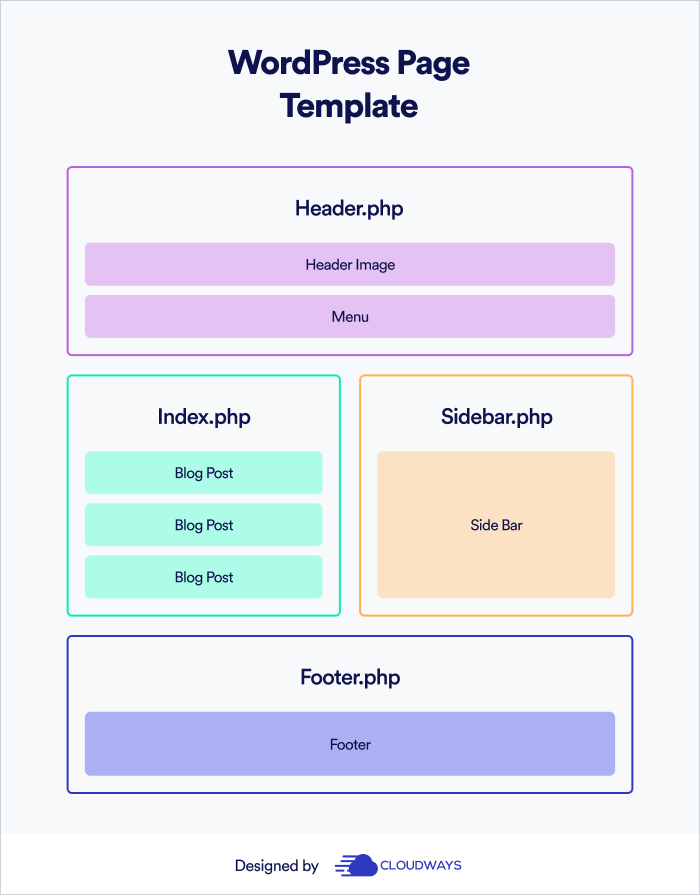
Widgets are usually placed in the sidebar of a website. The sidebar is a narrow vertical column. It is usually on the side of your main content. These elements help visitors find what they need quickly. They can be easily moved around by dragging and dropping. This makes them simple to use.
Side elements improve navigation on your site. They help keep your visitors happy. Happy visitors stay longer on your site.
Widgets
Widgets are small blocks on a site. They display specific content. Common types include text widgets, which show simple text. Image widgets display pictures. Video widgets let videos play on a site. Social media widgets connect to social accounts. Recent posts widgets show the latest blog posts. Calendar widgets display dates and events. Search widgets help find content fast.
Widgets can be changed easily. Go to the WordPress dashboard. Click on Appearance then Widgets. Drag and drop widgets where you want them. Change settings to fit your needs. Choose colors and fonts. Add links or change size. Make your site look good. Easy to do. Fun to try different styles. Be creative with your site.
Sidebars
Sidebars are important in WordPress templates. They are like helpers on a page. Users add widgets in them. Widgets can be links, ads, or other tools. Sidebars make websites interactive. They help users find information quickly. They also make the page look nice. A well-placed sidebar improves user experience. Having the right widgets in sidebars is key. Users should find what they need easily.
Adding sidebars is simple in WordPress. Use the WordPress admin panel. Go to the appearance section. Click on widgets. Drag and drop widgets into sidebars. Managing sidebars is easy too. Change widget order by dragging. Remove unwanted widgets by clicking remove. Keeping sidebars tidy is important. Too many widgets can confuse users. A neat sidebar helps users focus.
Menus
Menus help people move around your site easily. They show important links. You can add pages, links, and categories to your menu. It’s easy to do. Go to the WordPress dashboard. Select Appearance and then Menus. Click on the items you want to add. Arrange them as you like. Save your menu when done. Now, your menu is ready to use.
Menu locations decide where menus appear on your site. Themes have different locations for menus. Some have top, footer, or sidebar menus. Go to Appearance and then Menus. Find the Manage Locations tab. Choose where to show your menu. Set the menu for each location. Save your settings. Check your site to see the menu in place. It’s simple to manage.
Credit: www.cloudways.com
Custom Side Elements
Plugins help create side elements on WordPress. They are easy to use. Many plugins give options to add different widgets. Widgets can be used for social media links, calendars, or weather updates. Plugins make your site look better. They can be installed with few clicks. Some plugins are free. Others cost money. Check reviews before choosing a plugin. Reviews help find the best one. Plugins must be updated regularly. Updates keep them working well. Some plugins may slow down your site. Choose plugins wisely to keep your site fast.
Custom code can change how side elements look. It allows more control. With custom code, you can add special features. You need to know coding to use it. HTML and CSS are important for custom code. HTML helps structure content. CSS helps design the look. Custom code can make your site unique. It can be a good choice for special needs. Make sure to back up your site before using custom code. Backing up is important in case something goes wrong.
Responsive Design Considerations
Side elements on WordPress templates help in easy navigation. They adapt to different screen sizes. This is important for mobile users. Text and images should be clear. Buttons must be easy to click. Sidebars might change positions. Some might even hide on small screens. This keeps the design clean and user-friendly.
WordPress themes often come with responsive features. This ensures a seamless experience. Users can view content on any device. Elements like menus and widgets should resize automatically. This improves the site’s accessibility. Everyone can access the content without any trouble.
Testing on various devices is crucial. This helps identify any issues. Make sure everything works smoothly. Always check the loading speed. Faster sites keep users happy. They stay longer and explore more. So, responsive design plays a big role in user satisfaction.
Best Practices
Content and design must work well together. This makes your website look good. It also helps people read and understand it. Too much design can hide your content. This makes it hard for people to find what they need. Too much content can make your site look messy. Find the right balance.
Keep your website easy to use. Make sure people can find things fast. Use simple menus and clear links. Pictures should load quickly. Text should be easy to read. This makes users happy. Happy users stay longer on your site.

Credit: unlimited-elements.com
Frequently Asked Questions
What Are Side Elements In WordPress Templates?
Side elements in WordPress templates are typically referred to as “widgets” or “sidebar elements”. They are used to enhance website functionality and layout. Common side elements include social media links, recent posts, search bars, and advertisements. These elements are customizable and can be managed through the WordPress dashboard.
How Do I Add Sidebar Elements In WordPress?
To add sidebar elements in WordPress, navigate to the “Appearance” section in the dashboard. Select “Widgets” to view available options. Drag and drop widgets into the sidebar area to customize your site’s layout. You can configure settings for each widget to suit your design needs.
Can I Customize Sidebar Elements In WordPress?
Yes, you can customize sidebar elements in WordPress. Use the “Widgets” section under “Appearance” to modify settings. You can adjust widget placement, titles, and content. Some themes offer additional customization features for side elements. Consider using plugins for advanced modifications.
What Are Common Widgets In WordPress Sidebars?
Common widgets in WordPress sidebars include search bars, recent posts, and social media icons. Other popular widgets are calendar, categories, and custom text or HTML. Widgets enhance website functionality and provide quick access to information. They are customizable and can be easily managed through the WordPress dashboard.
Conclusion
Side elements on WordPress templates hold great importance. They enhance site navigation and user experience. Widgets, sidebars, and menus are common examples. These tools help visitors find content easily. Site organization improves with effective use of side elements. Choose elements wisely to match your website’s goals.
Customizing them can offer a unique look. Experiment with different configurations. Test what works best for your audience. Keep your design simple and user-friendly. Prioritize clarity and accessibility. Your website’s success depends on thoughtful design choices. Stay updated with WordPress features for optimal results.
Make your site engaging and easy to navigate.


