
Unlocking the secrets of your WordPress website can sometimes feel like solving a complex puzzle. You want your site to stand out, and you know that every detail counts, especially when it comes to your menu items.
The way your menus look and function can significantly impact your visitors’ experience. But how do you make those menus pop with style and precision? That’s where CSS classes come in. In this guide, you’ll discover exactly what CSS classes are available for menu items in WordPress and how you can use them to transform your site.
By understanding and applying these classes, you can enhance your website’s aesthetics and usability, ultimately keeping your audience engaged and eager to explore more. Ready to dive in and make your menus shine? Let’s get started!
Credit: presscustomizr.com
Understanding Css Classes In WordPress
CSS makes websites look good. It’s like clothes for websites. CSS classes help style many things at once. In WordPress, CSS classes are very important. They help change how a website looks. You can make menus look different with CSS. Each menu item can have its own style. You can use colors, borders, and fonts. These styles make menus easier to read. WordPress gives each menu item a class name. You can find these class names in your theme files. Use these class names in your CSS code. This helps you style menu items. Menu items can change size and color. They can look bold or simple. CSS is like magic for websites!
CSS makes menus look nice. Menu styling is important for users. It helps them find things easily. CSS can change menu colors. It can make text bigger or smaller. You can add borders to menu items. Borders make items stand out. CSS can also add spacing between items. Spacing makes menus neat. Menu items can have hover effects. Hover effects change color when touched. This makes using menus fun. CSS can make menus look modern or classic. It depends on what you want. You can style menus with CSS classes. Classes help you target specific items. Use CSS to make your menus great!

Credit: basicwp.com
Menu Item Css Classes
WordPress adds default CSS classes to menu items. These classes help with styling. Some common classes are menu-item and current-menu-item. The menu-item class styles the item itself. Current-menu-item highlights the active page. Menu-item-has-children shows items with submenus. These classes make menus look nice and work well.
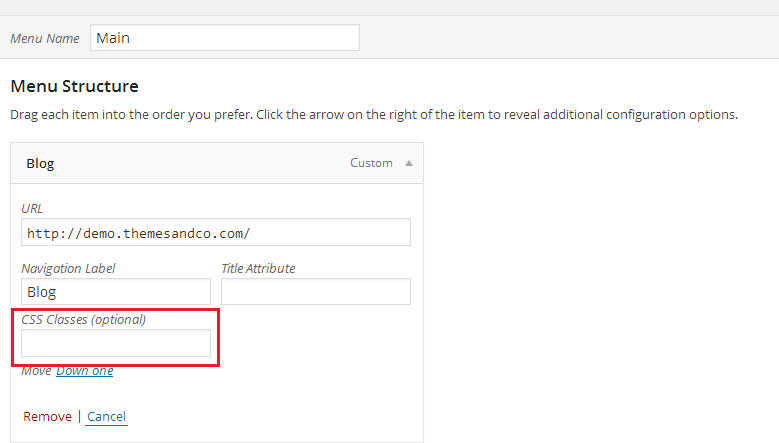
You can add custom classes to menu items. Custom classes allow unique styling. Go to the menu settings in WordPress. Edit the menu item. Look for the CSS Classes field. Add your class name there. Use this class in your stylesheet. This helps make menus look exactly how you want.
Commonly Used Css Classes
WordPress menus have special CSS classes. These classes help in styling links. Each link uses the class .menu-item. Another class is .menu-item-link. It targets the link itself. Use these classes to change colors or fonts. You can make the menu look different.
Menus have active and current states. Use .current-menu-item to style the current page. The .current-menu-ancestor is for parent items. These classes highlight the active page. It’s helpful for users to know their location.
Dropdown menus are common in WordPress. The .menu-item-has-children class shows a dropdown. It tells users there are more links. The .sub-menu class styles the dropdown items. These classes make menus interactive and user-friendly.
Customizing Menu Item Classes
WordPress menus can have custom CSS classes. These classes help style each menu item. Adding custom classes makes menus unique. Use the functions.php file to add these classes. This file is found in your theme folder. Open it with a code editor.
Add a function to create custom classes. Use wp_nav_menu_objects filter hook. This hook allows you to modify menu items. Inside the function, add your desired class names. Save changes and refresh the website. Check if new styles apply to menu items.
Custom classes give more control over design. They enhance the look of your website. Explore different styles. Make your menu stand out. Experiment with colors and fonts. Create a unique and attractive design.
Troubleshooting Css Issues
Menus might not look the way you want. This happens due to CSS conflicts. Sometimes, the CSS file doesn’t load. Other times, changes don’t show up. This can be frustrating. Broken links can cause issues too. Ensure all paths are correct. Double-check each link in your code. Incorrect CSS class names are common. Always use the right class names. Check WordPress documentation for this.
Use browser tools to find issues. Right-click on your page. Choose “Inspect” to open the tool. Look at the CSS properties. Find the ones affecting your menu. Note any unusual styles. Compare them to your intended design. Another way is to clear your browser cache. Sometimes old styles get stuck. Refreshing helps in this case. Lastly, disable plugins one by one. Some plugins interfere with CSS. Identify any causing trouble.
Best Practices For Css In WordPress
Group similar styles in one place. This keeps your CSS tidy. Use clear names for classes. Avoid confusion with vague names. Like .menu-item for items in menus. Separate classes for layout and design. Makes changes easy later.
Menus should look good on all screens. Use media queries to adjust for different devices. Hide or show menu items based on screen size. This helps users on phones and tablets. A toggle button can show or hide the menu on small screens. Keep menus simple. Don’t use too many items. This ensures a better user experience.
Credit: www.megamenu.com
Frequently Asked Questions
What Are Default Css Classes In WordPress Menus?
In WordPress, default menu items have classes like `menu-item`, `current-menu-item`, and `menu-item-has-children`. These classes help style menus effectively. They provide a basis for customizing menu appearance. You can target these classes in your CSS to enhance the menu’s design and functionality.
How Do I Customize WordPress Menu Css Classes?
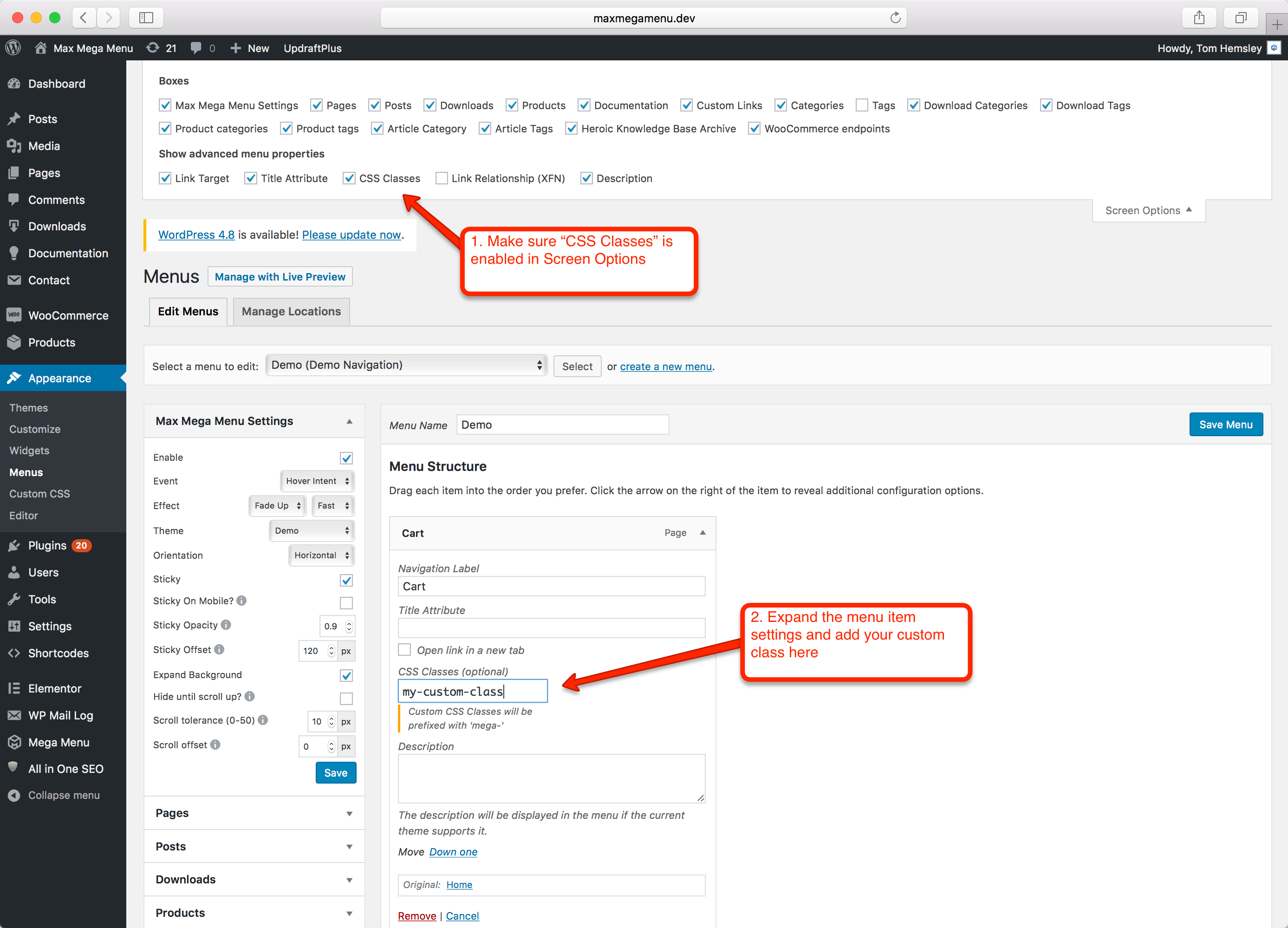
To customize menu CSS classes, use WordPress’s built-in menu editor. Navigate to Appearance > Menus, select your menu, and add custom classes. Use the “Screen Options” to enable CSS Classes input. Then, target these classes in your stylesheet to apply custom styles.
Can I Add Css Classes To Menu Items Manually?
Yes, you can add CSS classes manually. In the menu editor, ensure “CSS Classes” is checked in “Screen Options. ” Then, assign custom classes to individual menu items. This allows for specific styling and enhanced control over the menu’s appearance.
Why Are Css Classes Important For Menus?
CSS classes are crucial for styling and functionality. They allow for targeted styling, ensuring a cohesive design. By using classes, you can define specific styles for each menu item. This enhances user experience and aligns the menu with your site’s overall theme.
Conclusion
Understanding CSS classes for WordPress menu items simplifies website design. These classes help customize menus. You can easily adjust styles to fit your theme. This flexibility enhances user experience. WordPress offers straightforward options for styling. So, you can make your site unique.
Experimenting with CSS classes can lead to a more engaging layout. Dive into your WordPress dashboard and start exploring. Your menus can become more attractive and functional. This exploration helps in creating a visually appealing website. Remember, simplicity in design often leads to better results.
Happy styling!


