
Are you worried about the security of your WordPress site? File permissions might just be the hidden key to protecting your valuable content and data.
When set correctly, file permissions can act as a powerful shield, defending your website against unauthorized access and potential threats. But with so many numbers and configurations, it’s easy to feel overwhelmed. What do these numbers mean? And more importantly, what are the correct file permissions for WordPress?
You’re not alone in this puzzle, and unlocking these secrets is simpler than you might think. Dive into this guide to discover how to secure your WordPress site with the right file permissions, ensuring your site stays safe and sound.
Importance Of File Permissions
File permissions are crucial for WordPress security. Incorrect settings can expose your site to hackers. Files need proper permissions to control access. Permissions decide who can read, write, or execute files. This keeps sensitive data safe from unauthorized access. It also prevents accidental changes by users. Always set permissions carefully. Default settings often work best. Regularly check and adjust them for safety.
Security Implications
Incorrect permissions open doors to malware and attacks. Hackers exploit these weaknesses. They can inject harmful code into files. This compromises your site’s integrity. User data can be stolen. Financial losses might occur. Fix permissions to protect your site. Use tools to scan for vulnerabilities. Make security a priority.
Performance Impact
Permissions affect site speed. Poor settings slow down WordPress performance. Files need the right permissions to load quickly. Faster sites offer a better user experience. Visitors stay longer on fast sites. They bounce less. Search engines favor speedy sites. Check permissions for optimal speed. Adjust them to enhance performance.
Basics Of File Permissions
File permissions control who can do what with a file. There are three main actions: read, write, and execute. Read lets you see the file’s contents. Write allows you to change it. Execute makes it runnable. Each action is important for file safety.
Users and groups manage who can access files. A user is an individual with permissions. A group is a set of users sharing permissions. File permissions are set for the owner, group, and others. This helps keep files safe. Understanding this helps manage WordPress better.
Default WordPress Permissions
WordPress files need different permissions than directories. Files often use 644 permissions. These permissions allow the owner to read and write. Others can only read. Directories usually use 755 permissions. These permissions let the owner read, write, and execute. Others can read and execute.
File permissions help keep your site safe. Incorrect permissions can make your site open to attacks. Always check your settings. This ensures security. Proper settings protect your data.
Many WordPress sites use default settings. These are often safe. Files have 644 permissions. Directories have 755 permissions. These are common and recommended. Sometimes, plugins or themes change settings. Always check after installing new items. This helps maintain security.
Credit: solidwp.com
Recommended Permissions For Security
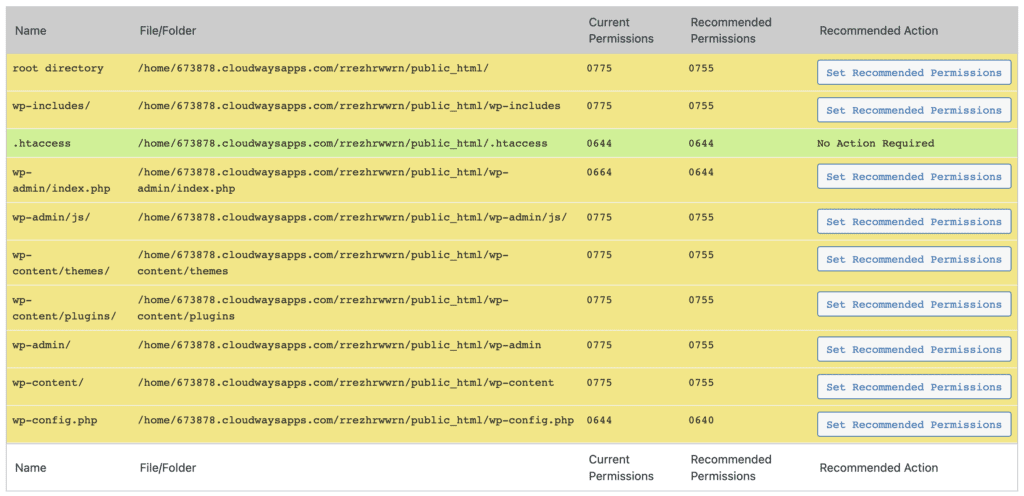
Setting the right file permissions is essential for WordPress security. Critical files like wp-config.php should have permissions set to 400 or 440. This keeps them safe from unwanted access.
Important directories like wp-content, wp-includes, and wp-admin need 755 permissions. This allows WordPress to function properly while staying secure.
Files like index.php and xmlrpc.php also need attention. Assign 644 permissions to these files. This ensures they are readable but not writable by the public.
Avoid setting directories to 777 permissions. This makes them open to all, increasing risk. Stick to recommended settings to keep your site safe.
Changing Permissions Safely
File permissions in WordPress are crucial for security. Incorrect settings can lead to hacks. Always set your files to 644 and folders to 755. These numbers tell the server who can read, write, or execute files.
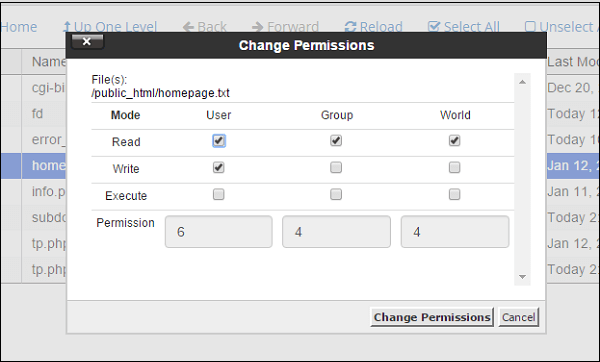
Using FTP Clients makes changing permissions easy. Connect to your server with an FTP client. Find the file or folder you need. Right-click and choose “File Permissions” or “Change Permissions”. Adjust numbers to 644 or 755. Save your changes and check your site.
Command Line Techniques are for tech-savvy users. Open your terminal and log into your server. Use the chmod command. For files, type chmod 644 filename. For folders, type chmod 755 foldername. Double-check each entry. Mistakes can make your site unsafe.
Troubleshooting Permission Issues
WordPress sometimes shows errors due to wrong file permissions. One common issue is the 403 Forbidden error. This means you cannot access a file or folder. Another frequent error is the 500 Internal Server Error. This error stops you from viewing your site. Lastly, Permission Denied messages appear when you try to upload files. These errors can be frustrating. They block you from using WordPress smoothly.
Start by checking your file permissions. Set folders to 755 and files to 644. This helps most problems. Use an FTP client to change these numbers. Next, ensure your .htaccess file is correct. A broken .htaccess file causes errors. Lastly, consider resetting ownership of files. This can solve tricky issues. Fixing permissions is key to running WordPress well.
Best Practices For WordPress Security
Checking your WordPress site often keeps it safe. Regular audits find weak spots. Fixing these spots stops hackers. Look at file permissions. They should be correct. Wrong permissions can be risky. Keep plugins updated. Old plugins are unsafe. Review user roles. Only trusted users should have access. Back up your site often. If something goes wrong, backups help.
Plugins and themes change how WordPress works. They add features. Some plugins are not safe. Always download from trusted sites. Check reviews before installing. Themes should be secure. Bad themes can harm your site. Update them often. Regular updates fix problems. Delete plugins you don’t use. They are not needed. They can make the site slow.

Credit: themeisle.com
Credit: www.malcare.com
Frequently Asked Questions
What Are Default File Permissions For WordPress?
Default WordPress file permissions are 644 for files and 755 for directories. These settings ensure proper security and functionality. Files need read and write access for the owner, while directories require execute permission for traversing. Adjusting these permissions can prevent unauthorized access and maintain site integrity.
How Do I Change WordPress File Permissions?
Change WordPress file permissions via FTP or your hosting control panel. Access the files, right-click, and select “File Permissions. ” Adjust numeric values to 644 for files and 755 for directories. Apply changes recursively for directories. Always back up files before making permission changes to avoid errors.
Why Are WordPress File Permissions Important?
WordPress file permissions are crucial for site security and functionality. They determine who can read, write, or execute files. Proper permissions prevent unauthorized access and potential hacking. Incorrect settings can lead to site errors, data loss, or compromised security. Always ensure your permissions are correctly configured.
Can Incorrect Permissions Affect WordPress Performance?
Yes, incorrect permissions can negatively impact WordPress performance. They might cause errors, prevent file uploads, or disrupt plugin functionality. Misconfigured permissions can also open vulnerabilities to hacking. Ensuring proper permissions (644 for files, 755 for directories) helps maintain optimal site performance and security.
Conclusion
Setting correct file permissions in WordPress is crucial. It keeps your site secure. Protects sensitive data from hackers. File permissions control who can access your files. Helps prevent unauthorized changes. Ensures your site runs smoothly. Regularly check and update permissions.
This simple step boosts security. Reduces risk of attacks. Always follow best practices. Use 755 for directories. Use 644 for files. These settings are recommended. They balance security and functionality. Keep learning about WordPress security. Stay proactive. Secure your site effectively.
Your efforts make your website safer.


