
Are you ready to unlock the power of building your own website? WordPress might just be the key you’ve been searching for.
As one of the most popular website platforms, WordPress offers a user-friendly experience that allows you to create stunning, professional-looking sites without needing to be a tech wizard. Whether you’re starting a blog, launching an online store, or showcasing your portfolio, understanding the basics of WordPress is your first step towards success.
Imagine the excitement of having full control over your online presence! Stay with us as we dive into the essential elements of WordPress, making sure you feel confident and inspired to build your dream website.
Getting Started With WordPress
First, download the WordPress package. Extract it on your computer. You need to upload the files to your web server. Use a tool like FTP for this task. Create a MySQL database for WordPress. Remember to keep your database name and password safe. Now, run the WordPress installation script. Open your web browser. Enter your site URL to start the installation. Follow the steps on the screen. Fill in the site title, username, and password. Your WordPress setup is now ready!
Selecting the right hosting provider is crucial. Look for a host with good uptime. Uptime means the time your site is online. A good host offers 24/7 support. This helps when you face issues. Check if they offer easy WordPress installation. Some hosts provide a one-click install option. Cost is also important. Compare prices and features. Ensure the host supports your website’s needs. Always read reviews. They help in making the right choice.
WordPress Dashboard
The WordPress dashboard is like a control center. You see your tools here. Menus are on the left. Posts, pages, and media are easy to find. Click to add or edit. The top bar has quick links. Visit your site or log out easily. The screen is simple. You can customize it too.
WordPress has many tools. The editor helps you write posts. Themes change how your site looks. Plugins add new features. You can add a contact form or a gallery. The settings let you control the site. Change the title or the time zone. Everything is easy to use. Kids can do it!
Themes And Customization
WordPress offers many themes for your website. Each theme has a unique style. Some themes are free, others cost money. Choose a theme that fits your site. Think about colors and layout. Look for themes with good reviews. Popular themes often have more features. Check if the theme updates often. Updates keep your site safe and fast.
After picking a theme, change its look. Use the customization tool. Change colors, fonts, and images. Add your logo for a personal touch. Adjust the layout to match your needs. Create a unique design for your site. Keep it simple and easy to read. Test your changes on different devices. Make sure it looks good everywhere.
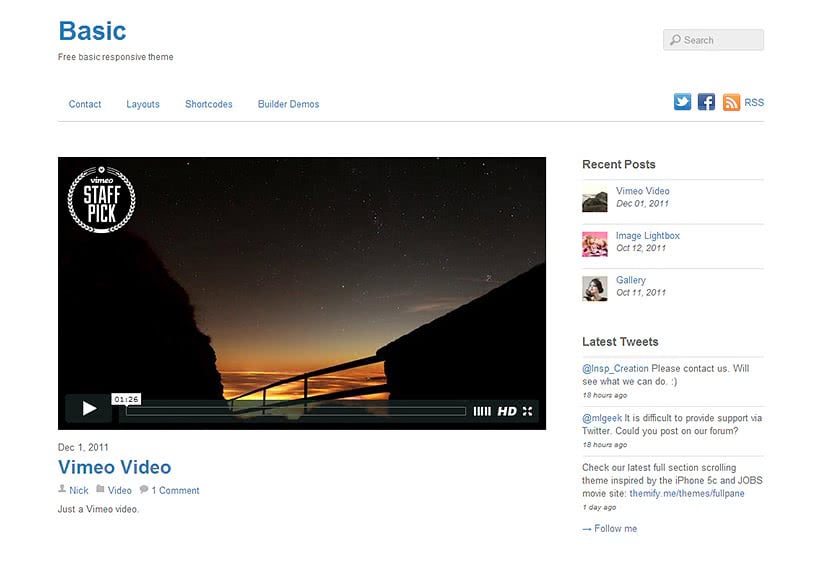
Credit: themify.me
Plugins And Extensions
Plugins and extensions are essential tools in WordPress, enhancing functionality and customization. They help users add features like contact forms, SEO tools, and social media integration. With thousands available, these tools make WordPress adaptable to various needs.
Essential Plugins
Plugins make WordPress more powerful. They add special features to your site. Some plugins are very important. These are called essential plugins. They help your website run smoothly. A few examples include security plugins to keep your site safe, backup plugins to save your data, and SEO plugins to improve search engine ranking.
These tools are easy to use. You install them with a few clicks. They come from the WordPress plugin library. This library has many options to choose from. Pick the ones that suit your needs best. Always keep them updated for best performance.
Enhancing Functionality
Extensions make your website even better. They add extra features to plugins. They can improve your website’s speed. Some extensions help with image optimization. Others support e-commerce functions.
Choose extensions wisely. Too many can slow down your site. Check user reviews before installing. This ensures you pick quality ones. Keep your website fast and user-friendly. A smooth site keeps visitors happy.
Creating And Managing Content
WordPress has two main types of content: Posts and Pages. Posts are for blog entries. They show up in a list by date. Pages are for static content. This includes content like “About Us” or “Contact”. Posts can have categories and tags. Pages don’t use these. Both posts and pages can have comments if you want. Posts are in your blog feed. Pages are not.
The Media Library holds all your images, videos, and files. You can upload items here and use them in posts or pages. Files can be organized by date. You can add titles and descriptions for each item. This helps with SEO. It also helps people find your content.
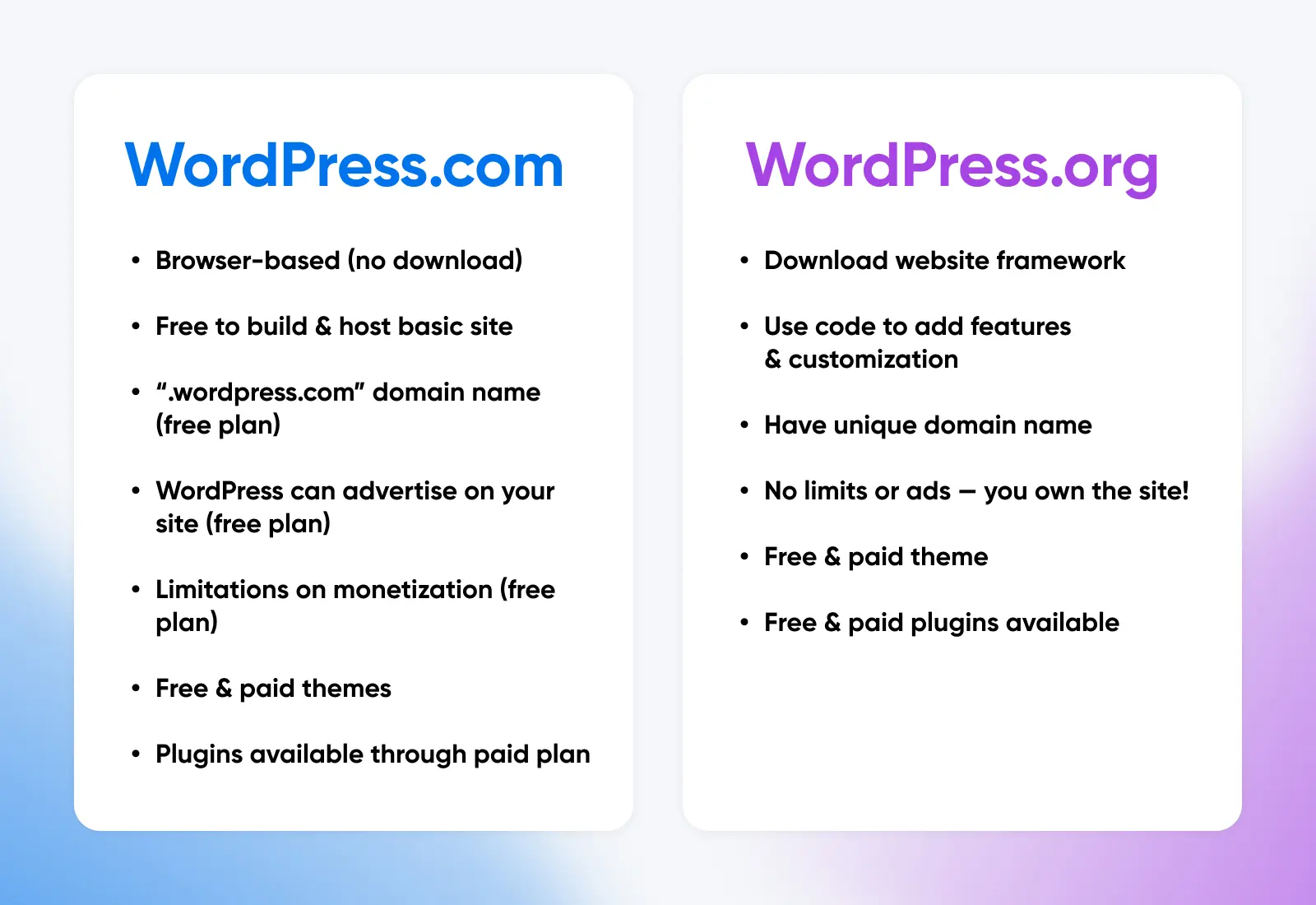
Credit: www.dreamhost.com
User Management
WordPress has different user roles. Each role has its own permissions. The main roles are Administrator, Editor, Author, and Subscriber. The Administrator can do everything. An Editor can edit and publish posts. The Author writes and publishes their own posts. A Subscriber can only read and comment.
To add a new user, go to the dashboard. Click on Users, then Add New. You need to enter the username and email. Choose a role for them. The new user gets an email with their login details. Make sure to give them the right role for their tasks.
Seo And Optimization
WordPress makes SEO easy. Use SEO plugins for help. They guide you. They suggest keywords. Keep content fresh. Update it often. Use simple URLs. They should tell about the page. Internal links help users. They connect your pages. Alt text for images is crucial. It helps search engines.
Fast sites are better. They keep visitors happy. Use light themes. Too many plugins can slow down. Choose important plugins only. Compress images to save space. Smaller images load faster. Use caching plugins. They store copies of pages. Less work for servers. Web hosting matters. Choose a good provider.
Security Measures
Keeping your WordPress site safe is very important. Use strong passwords. They make it hard for bad people to get in. Don’t forget to update your themes and plugins. These updates fix security holes. Install a security plugin. It will help guard against attacks. Limit login attempts to your site. This can stop hackers from guessing passwords. Always use a secure hosting provider. A good host will protect your site too.
Backups are like safety nets. They save your site’s data. If something goes wrong, you can restore it. Use backup plugins for this task. Set them to run automatically. Daily or weekly backups are best. Store backups in a safe place. Choose cloud storage or an external drive. This way, your data stays secure. And you can access it anytime.
Troubleshooting Common Issues
WordPress basics involve understanding its dashboard, themes, and plugins. Troubleshooting common issues often includes resolving theme conflicts and plugin errors. Simple fixes can enhance website performance.
Error Messages
Seeing an error message on WordPress can be confusing. Common errors include “Error Establishing a Database Connection” and “White Screen of Death.” These messages often mean a problem with your site. First, check your internet connection. Make sure it’s stable. Next, clear your browser cache. This can solve simple issues. If the error persists, look at your WordPress plugins and themes. Sometimes, they cause conflicts. Try deactivating them one by one. Refresh your site after each change. This can help find the problem.
Debugging Tips
Debugging makes fixing errors easier. Turn on WordPress Debug Mode. Open your `wp-config.php` file. Add the line: `define(‘WP_DEBUG’, true);`. This shows error messages on your site. Another tip is to use error logs. They provide details about issues. You can find them in your site’s root directory. Check the file permissions too. Incorrect settings can cause errors. Files should be 644, and folders should be 755. Always back up your site before making changes.
Credit: wp-space.de
Frequently Asked Questions
What Is WordPress Used For?
WordPress is a popular content management system (CMS) used for creating websites and blogs. It powers over 40% of all websites on the internet. With its user-friendly interface, it allows users to easily manage and customize their site. It’s ideal for both beginners and experienced developers.
How Do I Start Using WordPress?
To start using WordPress, first choose a web hosting provider. Then, install WordPress through your hosting account. Select a theme that suits your needs and customize it. Add essential plugins to enhance functionality. Finally, create and publish your content. WordPress’s intuitive dashboard makes managing your site straightforward.
Is WordPress Free To Use?
Yes, WordPress itself is free to use. It’s an open-source platform, meaning you can download and install it without cost. However, you may need to pay for web hosting, premium themes, and plugins. These additional costs depend on your website’s specific needs and desired features.
What Are WordPress Plugins?
WordPress plugins are tools that extend the functionality of your website. They allow you to add features like contact forms, SEO enhancements, and e-commerce capabilities. With over 58,000 plugins available, you can find solutions for almost any requirement. Installing and managing plugins is easy through the WordPress dashboard.
Conclusion
WordPress basics are simple and user-friendly. Perfect for beginners. Start with choosing a theme that fits your style. Customize it with widgets and plugins to enhance functionality. Regularly update your content to keep it fresh. Remember, a clean and easy-to-navigate site attracts more visitors.
Explore tutorials and forums for additional help. Practice makes perfect, so keep experimenting. Enjoy creating your WordPress site with confidence. Happy blogging!


