
Are you new to WordPress and eager to understand its powerful features? Or perhaps you’re a seasoned user looking to optimize your workflow?
Understanding what the admin menu looks like in WordPress is crucial for mastering this popular platform. Imagine having a roadmap that guides you efficiently through each task, saving you time and making your website management effortless. In this blog post, you’ll uncover the secrets behind the WordPress admin menu, discovering how it holds the key to unlocking productivity and boosting your website’s potential.
Get ready to transform your WordPress experience into a seamless journey where every click brings you closer to your goals. Dive in and see how knowing your way around the admin menu can revolutionize the way you work!
Admin Dashboard
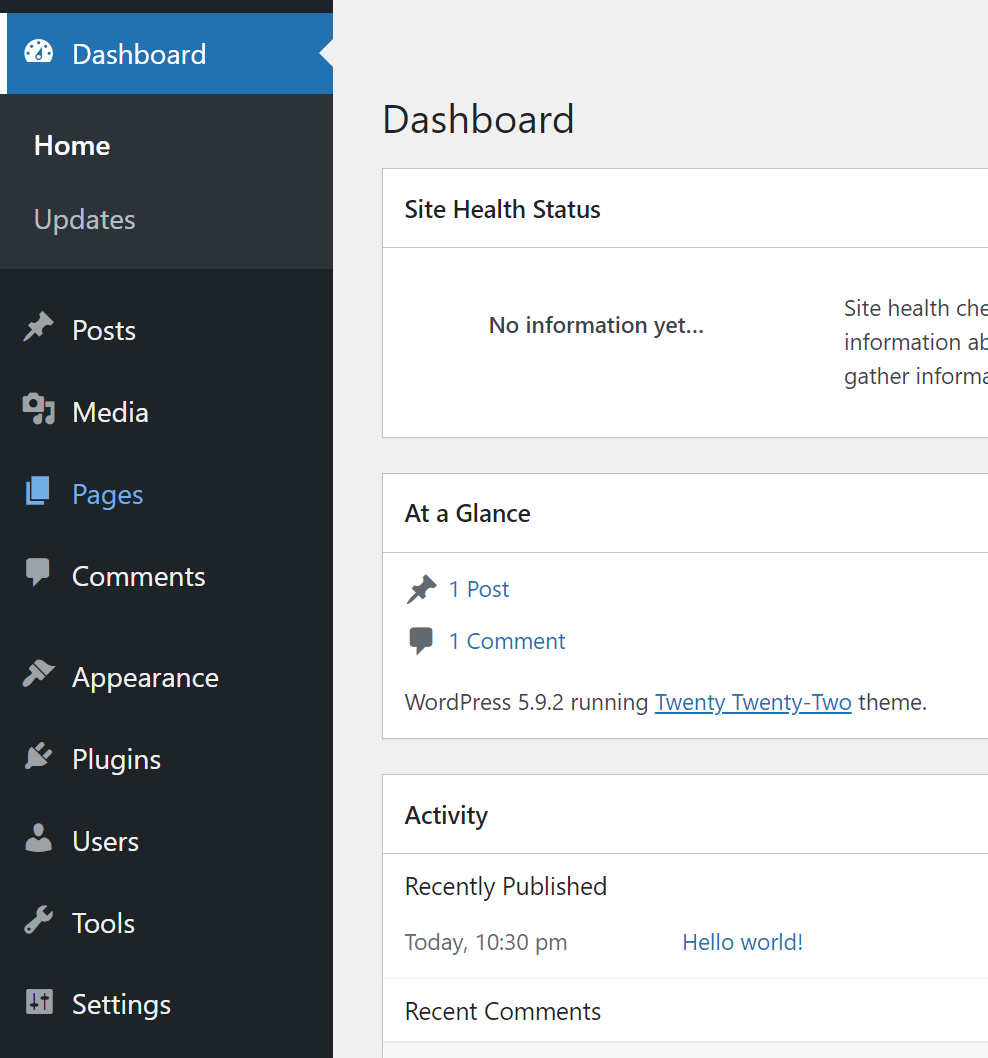
The WordPress Admin Dashboard shows many menus. Each menu helps you manage your site. The first menu is Dashboard. It gives an overview of your site. You see site stats here. You can find quick links too.
The Posts menu is next. It lets you write and edit posts. You can also manage categories. The Media menu helps you upload pictures. You can manage videos and files too. The Pages menu lets you create pages. You can edit pages here.
The Comments menu is where you see user comments. You can approve or delete comments. The Appearance menu lets you change your site’s look. You can pick themes and add widgets. The Plugins menu is for adding tools to your site. You can install or remove plugins.
The Users menu helps you manage user accounts. You can add or delete users. The Settings menu lets you change site settings. You can set your site title and tagline.

Credit: helpme.teamsnap.com
Posts Management
The admin menu has a section for Posts Management. This is where you create and manage posts. Click on “Posts” to see all your blog posts. You can add new posts by clicking “Add New”. It is easy to edit posts from this menu. Just click on the title of the post. You can also delete posts if needed. A quick look shows post status. Draft, published, or scheduled. It helps to keep track. Categories and tags are also here. They help in organizing content. Using these tools makes managing posts simple.
Media Library
The Media Library in WordPress holds all your pictures and files. Users can easily upload images or documents. Click the “Add New” button to upload. Files are stored here for easy access. You see thumbnails of the images. You can filter by type: images, audio, or video. Click an image to see more details. You can edit the image title and description. The library helps keep files organized. It is very useful for bloggers and site owners. Having a neat library saves time.
Credit: jetpack.com
Pages Setup
The Pages Setup in WordPress is easy to find. Click on “Pages” in the admin menu. You will see two options: All Pages and Add New. “All Pages” shows all the pages on your site. You can edit, view, or delete them. “Add New” lets you create a new page. Just click and start typing.
Use the editor to add text, images, and links. The editor is simple. You can see changes as you make them. Save your work often. Click “Publish” when you are ready. Your new page will show on your site.
Remember, pages are static. They do not change often. Use pages for important info like contact details. Pages setup is a key part of your website.
Comments Moderation
Comments moderation helps keep your blog safe and clean. Many users love to share their thoughts. Some comments might not be nice or safe. Moderation tools make it easy to manage these comments. You can approve or delete comments. It’s easy to mark spam too. This keeps bad comments away from your blog. Hold comments for review before they go live. This makes sure only good comments show up. Moderation tools give control over what appears. Readers trust a blog with clean comments. It’s important for a positive experience. Keep your blog friendly. Use comments moderation every day.
Appearance Customization
Themes change the look and feel of your site. Choose a theme you like. It will change the colors and fonts. You can also add pictures and logos. Each theme has its own settings. Explore them to make your site unique.
Widgets add extra features to your site. You can add a calendar or a search box. Many widgets are available to use. Place them in your sidebar or footer. It makes your site more interactive.
Menus help users navigate your site. Create a menu with important links. It makes finding pages easy. You can add links to posts and pages. Organize them how you want. It helps users find what they need.
Plugins Installation
Installing plugins in WordPress is easy. First, find the Plugins option in the admin menu. Click on it. Next, you will see an Add New button at the top. Click it. A page with many plugins will appear. Use the search bar to find the plugin you want. Once you find it, click on the Install Now button. Wait for the installation to finish. After that, click Activate to start using your plugin. Remember, plugins help add features to your site. Choose wisely and keep your site safe.
User Management
WordPress has different roles. Each role has its own permissions. The main roles are Admin, Editor, Author, Contributor, and Subscriber. The Admin can do everything. They manage the whole site. The Editor can edit all posts. They can’t change settings. The Author can write and publish their own posts. Contributors can write posts. But they can’t publish them. Subscribers can only read posts. They can leave comments.
Each role has specific permissions. Admins can add new users. Editors can edit pages. Authors can upload media. Contributors can save drafts. Subscribers can comment on posts. These permissions help keep the site safe. Each user gets only the access they need.
Settings Configuration
General settings affect your site’s basic information. Set the site title and tagline here. Adjust the timezone to match your location. Set the date and time format as you prefer.
The writing section is for post management. Choose the default post category. Decide on the default post format. Enable or disable email post updates.
Reading settings control what your visitors see. Choose between a static page or your latest posts as the homepage. Set the number of posts per page. Adjust the RSS feed settings.
Discussion settings manage comments. Enable or disable commenting. Set email alerts for new comments. Adjust comment moderation rules.
Media settings handle image uploads. Define thumbnail sizes. Set medium and large image sizes. Manage file upload settings.
Permalink settings affect URL structure. Choose a custom URL format. Set links to be SEO-friendly. Adjust settings for clean URLs.
Tools And Utilities
WordPress offers many tools in its admin menu. Users can find settings, plugins, and themes. Appearance helps change how the site looks. Plugins add new features to the site. Settings change the site’s behavior. Tools like import and export are very useful. Utilities help manage the site easily. Some tools clean the site. Others help with site backups. Site health checks are important for security. Admins often use these tools. They make site management simple. WordPress admin menu is easy to navigate. It helps users manage content. This menu is a vital part of WordPress.
Site Health
The Site Health tool in WordPress is vital. It checks your site’s performance and security. A bar shows your site health status. It’s easy to find in the admin menu. The tool gives suggestions. You can improve your site with them. It might suggest updating plugins or themes. It might point out security issues too.
Site Health is user-friendly. Even beginners can use it. Follow the advice it gives. This will help your site run better. Keeping your site healthy is important. It ensures fast and safe browsing for visitors. Regular checks are recommended.

Credit: www.youtube.com
Frequently Asked Questions
What Is The WordPress Admin Menu?
The WordPress admin menu is a sidebar that helps manage your website. It offers quick access to essential features like posts, pages, themes, and plugins. This menu is visible to users with administrative roles, providing tools to customize and maintain your site effectively.
How Do I Access The WordPress Admin Menu?
To access the WordPress admin menu, log in to your WordPress dashboard. Once logged in, the admin menu appears on the left side. From there, you can navigate through different sections to manage your website’s content and settings.
Can I Customize The WordPress Admin Menu?
Yes, you can customize the WordPress admin menu. You can rearrange, hide, or add menu items using plugins or custom code. Customizing the menu helps streamline your workflow and improve accessibility to frequently used features.
What Are Key Features In The Admin Menu?
The WordPress admin menu includes key features like Dashboard, Posts, Pages, Media, and Settings. Each feature provides specific functionalities for managing content, themes, plugins, and site settings. These tools help you efficiently operate and customize your WordPress site.
Conclusion
The WordPress admin menu is vital for easy site management. It provides quick access to important settings. Beginners find it user-friendly and straightforward. Each section has specific functions. From creating posts to managing plugins, everything is organized. Customization options help tailor the experience.
Understanding the menu boosts efficiency. It simplifies complex tasks. Regular updates keep features fresh and relevant. Exploring the admin menu empowers site owners. Knowledge of its layout enhances productivity. Mastering the menu is key to successful site management. Keep experimenting and learning.
Your site will benefit from it.


