
Are you ready to take your website live but unsure how to get it onto your host? You’ve worked hard designing and crafting content, and now it’s time to share it with the world.
Uploading your site to a host is the final step in making your web presence a reality. Whether you’re a beginner or just need a refresher, this tutorial will guide you through each step clearly and easily. Imagine the satisfaction of seeing your site online, accessible to anyone, anytime.
With our straightforward tips, you’ll gain the confidence to upload your site seamlessly. Let’s dive in and turn your website dreams into a live online experience!
Choosing A Web Hosting Provider
Selecting a web hosting provider is crucial for beginners learning to upload their website. Reliable hosting ensures smooth uploads and site performance. Choose a provider with user-friendly tutorials to simplify the process.
Types Of Hosting Services
Web hosting services come in many types. Shared hosting is common. It is cheap and easy to use. Dedicated hosting is for big sites. It gives more control. VPS hosting is a mix of both. It offers more power than shared hosting. Cloud hosting is flexible. It grows with your needs.
Factors To Consider
Price is important. Check the cost of the hosting plan. Look for uptime guarantees. Reliable hosts have high uptime. Customer support is key. Good support helps solve problems fast. Check bandwidth limits for your site. Security features are crucial. Secure hosts protect your data.
Preparing Your Website Files
Organize website files to ensure a smooth upload to your hosting provider. Compress files into a zip folder for easy transfer. Check file structure and naming conventions before initiating the upload process.
Organizing Files And Folders
Grouping your website files is important. Use folders for different sections. HTML files should be in one folder. CSS files in another. Keep JavaScript files separate too. Each image should be in an images folder. This makes finding files easy. It also helps when uploading them.
Optimizing Images And Media
Big images can slow down a website. Use tools to make them smaller. TinyPNG or JPEGmini work well. Rename images with clear names. Avoid numbers like img001.jpg. Use names like sunset.jpg instead. Make sure videos are in the right format. MP4 is a good choice. This keeps the site fast.
Setting Up A Domain Name
Choose a domain name that is easy to remember. Use a domain registrar to buy the name. Names like .com or .net are popular. Make sure your name is not taken. Check using the registrar’s search tool. Pay for the domain and keep a note of your login details.
Log in to your hosting account. Find the section for domain settings. Look for an option named “Add Domain” or “Domain Management”. Enter your domain name and save. Update DNS settings to point to your host. This step connects your domain to the server. Wait for changes to take effect. This might take a few hours.

Credit: www.streamcreative.com
Accessing The Control Panel
Start by finding the login page of your host. You will need your username and password. Enter them in the correct fields. Click on the login button to access your account. If you have forgotten your password, use the reset link. Once logged in, you will see the main dashboard. This is where you can manage your website.
Explore the features available in the control panel. Look for sections like file manager, database, and email settings. Each section has its own tools. Click on icons to see more options. The file manager helps upload your website files. The database section is for managing data. Email settings allow you to create email accounts. Understanding these features is important for managing your site.
Uploading Files Via Ftp
First, pick an FTP client like FileZilla or Cyberduck. Download and install it on your computer. These tools help move files to your host.
Open your FTP client. Enter your host name, username, and password. These details come from your hosting provider. Save the settings for easy access later.
Connect to your server using the FTP client. Drag and drop your website files into the server folder. Wait until all files are transferred. It’s important to be patient. Large files may take longer.

Credit: www.youtube.com
Using File Manager
Start by logging into your web hosting account. Next, find the control panel. This is where you manage your website settings. Look for an option called File Manager. It helps you manage files. Click on it to open. Here, you can see all your website files. You can also create and delete files. This is important for your website.
Use the upload button to add new files. Choose the files from your computer. Click ‘Open’ to start uploading. Watch as your files upload. Ensure all important files are uploaded. Check if they are in the right folder. This ensures your website runs smoothly. Uploading files directly is easy. Anyone can do it with practice.
Setting Up Databases
Start by logging into your hosting account. Find the database section. Click on the Create Database button. Choose a name for your database. It’s crucial to remember this name. You will need it later. After creating, note down the database details. These include username, password, and host.
Use phpMyAdmin for importing data. First, access your phpMyAdmin panel. Select your created database. Look for the Import tab at the top. Click it. Choose the file you want to import. Ensure it’s in the correct format. Usually, it’s a .sql file. Click on the Go button. Wait for the process to complete. It may take a few minutes. Your data is now imported.
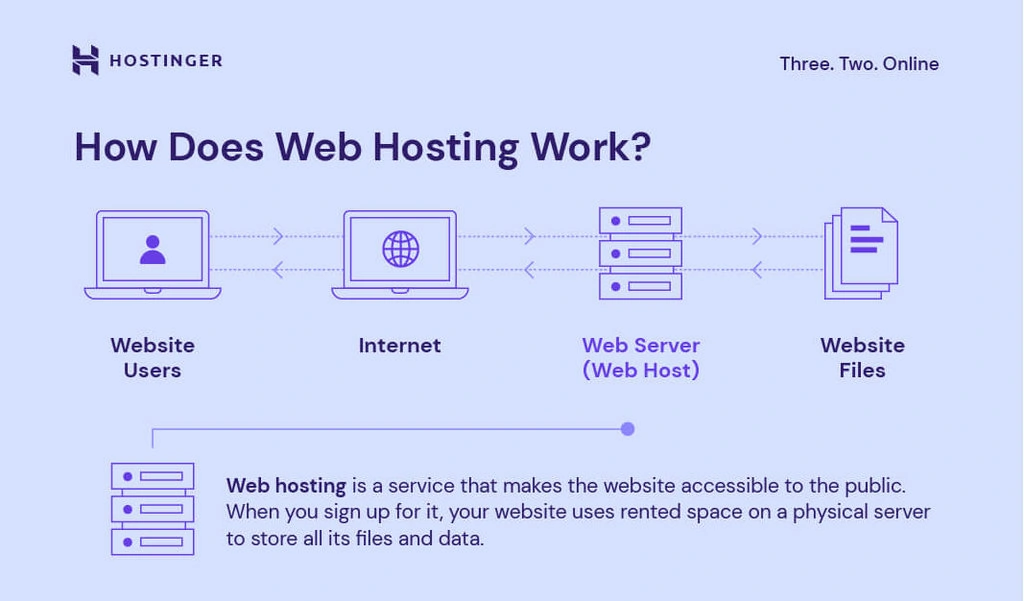
Credit: www.hostinger.com
Configuring Website Settings
Configuration files hold important settings. Open these files with a text editor. Look for lines that need changes. Replace placeholders with real values. These might be database names or passwords. Save your changes carefully. A small mistake can cause big issues.
Permissions decide who can access files. Use an FTP client to change them. Right-click on the file and select “Permissions”. Set permissions to read, write, or execute. Be cautious with write permissions. They can make files unsafe. Always double-check your settings. Ensure only trusted users have access.
Testing Your Website
Start by clicking every link on the site. Make sure each link works. Broken links can confuse visitors. Test buttons too. They must do what they say. Check forms on your site. Ensure they send data properly. A working site makes users happy.
Sometimes, things don’t go as planned. Images might not show. This can be due to wrong file paths. Ensure all files are uploaded. Double-check your code for errors. Fix any typos you find. Errors in code can break a site. Contact your host if problems persist. They can offer help. A quick fix is often possible.
Launching Your Website
Announcing Your Launch can be exciting. Share your site with friends. Use social media to spread the word. Tell your email list about the new website. Create a simple post. Explain the benefits of visiting your site. Encourage people to visit and explore. Make sure your site looks good on mobile.
Monitoring Performance is important. Check website speed often. Slow sites lose visitors fast. Use tools to see visitor numbers. Look at which pages are popular. Find out where people leave your site. This helps improve your website. Try to fix any issues quickly. Always keep your site updated.
Frequently Asked Questions
How Do I Upload A Website To Hosting?
Upload your website files using an FTP client like FileZilla. Connect to your hosting server with provided credentials. Navigate to the public_html directory. Drag and drop your files into this directory. Ensure your domain is pointing to the hosting server.
Check your website to confirm successful upload.
How Do I Deploy A Website To My Host?
Deploying a website involves uploading files to your hosting server via FTP or a control panel. Ensure all necessary files are included. Verify domain settings and database connections. Test the site thoroughly after deployment. Consult your host’s documentation for specific instructions.
How Can I Transfer My Website To Another Host?
Backup your website files and database. Choose a new host and set up your account. Upload the backup files to the new host. Update your domain’s DNS settings to point to the new host. Test your website to ensure everything works correctly.
How Do I Upload Files To A Host?
To upload files to a host, use an FTP client or your hosting provider’s file manager. Connect using your credentials, then drag and drop files into the desired directory. Always ensure files are in the correct format and location. Confirm upload completion by checking the host’s file directory.
Conclusion
Uploading your website to a host is simple. Follow each step carefully. Choose the right hosting provider. Check your files are ready. Use an FTP client for easy transfer. Test your site after uploading. Make sure everything works smoothly. Keep backups to avoid loss.
Regular updates ensure security. Enjoy your website being live online. Thank you for reading the tutorial. Happy hosting!


