
Are you looking to give your WooCommerce store a fresh look? Changing the price font color in your Storefront theme can make a significant impact.
You might not realize it, but the color of your pricing can influence your customers’ buying decisions. Imagine your prices standing out, catching the eye, and guiding your customers to make a purchase. In just a few easy steps, you can transform your store’s appearance and create a more engaging shopping experience.
Stick around, and you’ll discover a straightforward way to update your storefront’s price font color, making your products irresistible. Let’s dive in and give your online store the vibrant facelift it deserves.
Choosing The Right Theme Editor
The theme editor is a powerful tool. It helps change the price font color. Always pick an editor you find easy. Some editors show changes live. This is helpful to see what you’re doing. Appearance and customization tabs are your friends. They help access the editor.
Be sure to backup your site. This is important before making any changes. Mistakes can happen. A backup keeps your work safe. Explore different color options. Play around with shades. Choose a color that matches your brand. The right color can make prices stand out. It can also attract more buyers.
Accessing The Additional Css Section
Find your WordPress dashboard. Click on Appearance. Then, choose Customize. A new screen will appear. Look for Additional CSS on the left. Click it. You can see a box to type code. This section is for custom changes. Use it to change the price font color.
Ensure you know CSS basics. Typing the wrong code can cause issues. Always test changes on a small part first. Save your work often. Preview changes before publishing. This ensures your site looks right.
Identifying The Price Class
First, find the right class for the price. Open your WordPress dashboard. Go to the theme editor. Look for the style.css file. Here, you will see many classes. The price class is often named .price or .woocommerce-Price-amount. Use your browser’s inspect tool to confirm. Right-click on the price in your storefront. Select “Inspect”. This will show the HTML code. Check the class name for the price. It should be easy to spot. Write down the class name. You will use it to change the color.
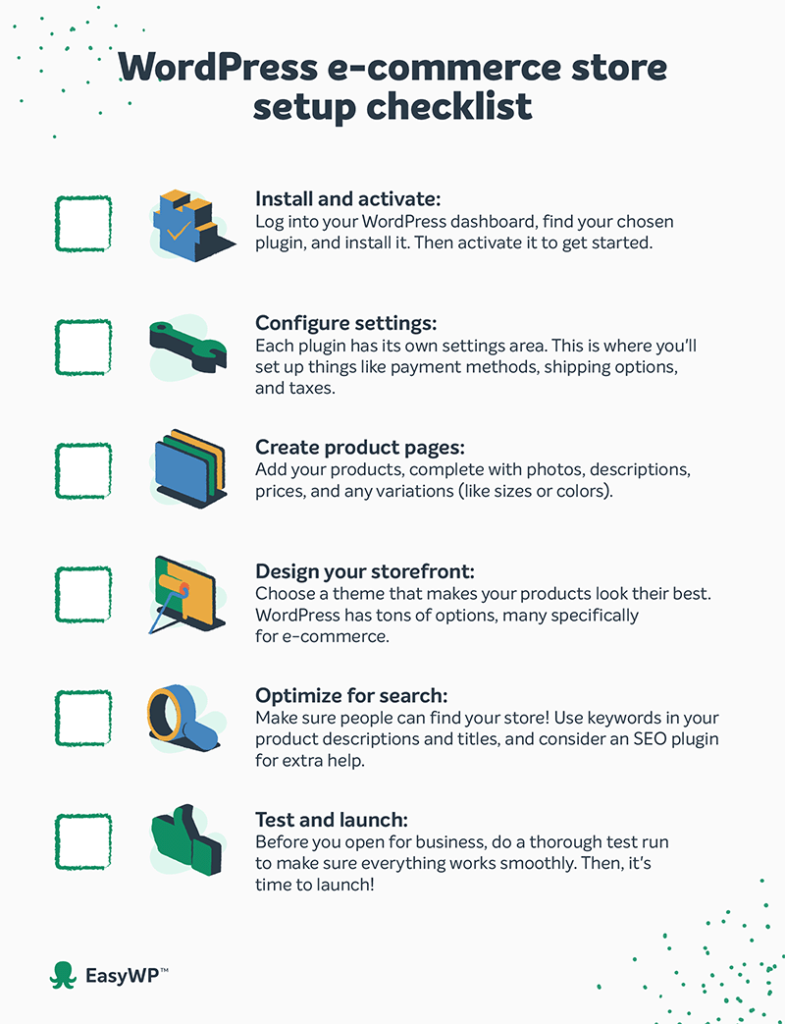
Credit: www.easywp.com
Writing Custom Css
Use CSS to change the price font color. First, open your WordPress dashboard. Go to Appearance and then Customize. Click on Additional CSS. Here, you can add your custom CSS code.
Type the following code:
.price { color: red; }
Replace red with any color you like. This changes the font color to red. Save your changes. Now, check your website to see the new color.
After saving, visit your storefront. Check if the price color changed. If not, try refreshing the page. Sometimes, browsers cache old versions. Clearing the cache can help. If the color still does not change, recheck your CSS code. Make sure there are no typos.
Using A Child Theme
Change the price font color in Storefront Theme WordPress by using a child theme. This approach keeps your customizations intact during updates. It ensures a consistent and personalized look for your online store.
Creating A Child Theme
A child theme is a small theme. It helps you change your site safely. First, make a new folder. Name it something easy. Inside, create a file called style.css. This file is important. Add this code to the file:
        /
        Theme Name: Storefront Child
        Template: storefront
        /
Now, your child theme is ready. You can start editing the styles.
Editing The Stylesheet
Open the style.css file. You can change the price font color here. Find the CSS class for price. It might look like .price. Add new color rules under this class. Use a simple code:
        .price {
            color: #FF0000; / This changes the price color to red /
        }
Save your changes. Check your site. The price font color should be different. You did it!
Utilizing Plugins For Customization
Many plugins can help change the font color. WooCommerce Customizer is one. It is simple and effective. YellowPencil allows for more design options. This plugin is user-friendly. It offers many styling choices.
First, find the plugin you need. Use the search bar in WordPress. Click “Install Now” to add the plugin. After installing, click “Activate”. Now, go to the plugin settings. Adjust the font color as you like. Save changes when done. Your storefront will look new and fresh!
Testing Changes On Different Devices
Changing the price font color can be fun. It is important to test on different devices. Phones, tablets, and computers all look different. A color might look good on one device. It might look bad on another device. Make sure to check all sizes. Different screens have different brightness. This affects how colors appear. Also, test in different light. Bright rooms and dark rooms change how colors look. Always check your changes.
Browser testing is important too. Different browsers show colors differently. Use popular browsers like Chrome and Firefox. This helps to ensure everyone sees the same color. Keep your audience in mind. Some people may have color blindness. Choose colors that are easy to see. Accessibility matters.

Credit: www.omegathemes.com
Troubleshooting Common Issues
Changing the price font color in a Storefront theme on WordPress can enhance your site’s appearance. Navigate to the customizer, select ‘Additional CSS,’ and insert the code to modify the font color. This tweak improves readability and adds a personal touch to your online store.
Css Not Applying
Sometimes, the price font color doesn’t change. You apply CSS, but nothing happens. This is frustrating. Check if the CSS is correct. Ensure there are no typos. The selector must match the element. Sometimes, plugins block CSS changes. Disable them temporarily. Try again. Still no change? Clear the browser cache. Refresh the page. This often works. If not, try another method. Use the !important tag. This forces the change. It overrides other styles. Be careful. It can affect other elements.
Reverting To Default Styles
Changes sometimes revert to default. This is annoying. Check for theme updates. Updates can reset styles. Always back up your settings. Restore them if needed. Also, check user permissions. Some roles can’t edit styles. Ensure you have admin access. Still reverting? Look at child themes. They sometimes override styles. Check the child theme settings. Adjust them if necessary. Don’t forget to save changes. This prevents reverting. Keep an eye on the dashboard. It shows recent changes. Monitor it regularly.

Credit: woocommerce.com
Frequently Asked Questions
How Do I Change Price Font Color In Storefront?
To change the price font color in Storefront, navigate to the WordPress Customizer. Select ‘Additional CSS’ and add custom CSS code targeting the price class. This allows you to specify your desired color, ensuring your store’s appearance aligns with your brand identity.
Can I Use Plugins To Change Font Color?
Yes, you can use plugins like ‘Simple Custom CSS’ to change font color in Storefront. These plugins allow you to add CSS without directly editing theme files, making it easier to manage and customize your store’s appearance.
Is Coding Necessary For Changing Font Color?
Basic coding knowledge is helpful but not necessary. WordPress Customizer and plugins offer user-friendly interfaces to change font colors. These tools simplify the process, allowing you to make changes without extensive coding experience.
What Is The Default Price Font Color In Storefront?
The default price font color in Storefront is typically set to match the theme’s overall design. This ensures consistency and readability across your store. However, customization options are available to adjust this to fit your specific branding needs.
Conclusion
Changing the price font color in Storefront is simple. Follow the steps carefully. Customize your store’s look to attract more attention. A distinct font color makes prices stand out. This small change can enhance your site’s appeal. Keep experimenting with different colors.
Find what suits your brand best. Stay consistent with your overall design. A cohesive look builds trust with visitors. Enjoy personalizing your WordPress store. Happy designing!


