
Have you ever tried installing a WordPress plugin only to be met with a compatibility error? It’s a common hurdle that many WordPress users face.
The culprit often lies in your PHP version. Knowing the PHP version required for your WordPress plugins can save you a lot of time and frustration. You might be wondering, “Why does this matter to me? ” Well, using the right PHP version ensures your plugins run smoothly, keeps your site secure, and even enhances your website’s speed.
Imagine having a site that operates without glitches and keeps your visitors engaged. You’ll discover how to easily check the PHP version requirements for your plugins and why keeping your PHP updated is crucial for your website’s success. Stick around to make sure your WordPress site is running at its best!
Credit: hackguard.com
WordPress And Php Compatibility
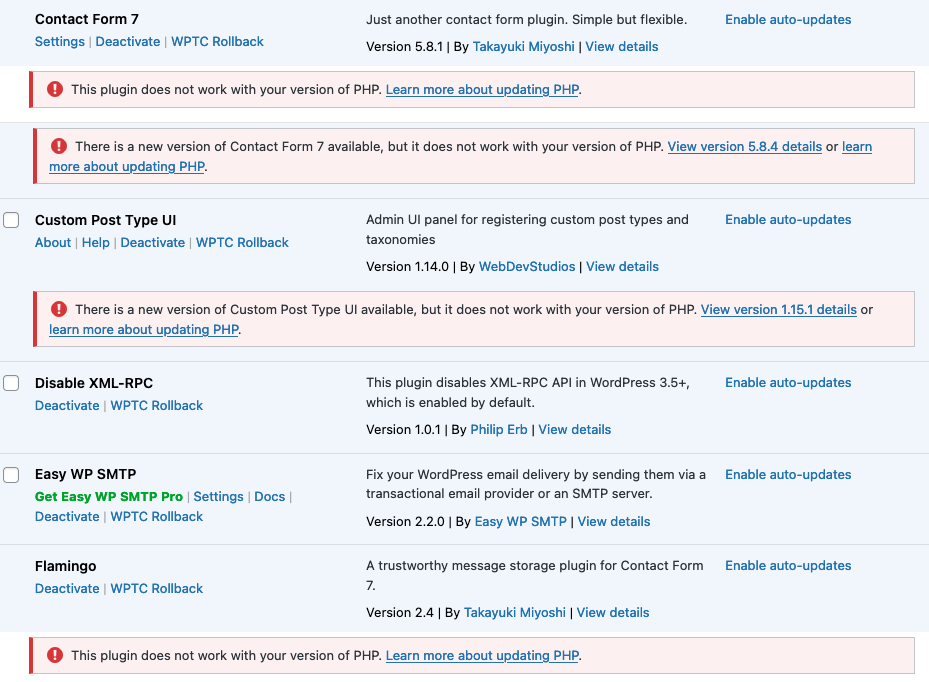
WordPress needs PHP to work well. Each plugin also needs a certain PHP version. If the version is too old, the plugin might not work. Check the plugin’s page to see the needed version. This helps avoid issues and keeps your site safe.
Some plugins need a newer version of PHP. Always make sure your hosting supports the needed version. Using the right version helps your site run smoothly. It also protects your site from bugs and errors.
Importance Of Php Version For WordPress
WordPress plugins rely on PHP for their functions. PHP versions affect how well plugins work. Older PHP might not support new plugins. Developers always improve plugins using latest PHP features. New features mean better performance.
Outdated PHP versions can lead to security risks. Hackers find weak spots in old PHP. New versions fix these weak spots. Keeping PHP updated protects websites from attacks. This ensures safe user data.
New PHP versions offer faster performance. Speed matters for websites. Slow sites lose visitors. Updated PHP makes sites load quickly. Fast loading boosts user experience.
Checking Current Php Version
To find the PHP version, first log into your hosting account. Next, locate the control panel or dashboard. Look for an option named PHP settings or PHP version. Click on it to view your current version. Most hosting services display this clearly. If it’s not visible, consult your hosting provider’s help section.
Alternatively, create a PHP file to check. Open a text editor and write: php phpinfo(); ?. Save it as phpinfo.php. Upload this file to your website’s root folder. Visit www.yourwebsite.com/phpinfo.php to see the PHP version. This page shows detailed information about your PHP setup.
Finding Php Requirements For Plugins
Many WordPress plugins need a specific PHP version. Knowing this is important. It helps the plugin work correctly. Developers often list these requirements. They do so on the plugin’s page.
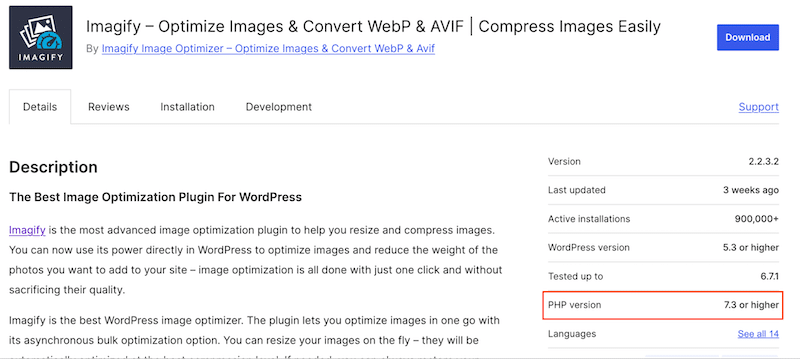
Go to the plugin’s page on WordPress.org. Look for the “PHP Version” section. You might find it in the “Details” tab. This information is crucial. It ensures your site runs smoothly.
Using the right PHP version is wise. It keeps the plugin up-to-date. It also protects your site from errors. Always check this detail before installing a plugin.
Where To Find Plugin Php Requirements
WordPress plugins have specific PHP version requirements. These requirements ensure the plugin works well. Always check the plugin’s page on the WordPress site. Look for the “Details” tab. It often lists the PHP version needed. This information helps avoid plugin issues.
Also, visit the plugin’s official website. Developers sometimes provide extra details there. Another place to check is the plugin’s readme file. This file often includes technical requirements. Knowing the correct PHP version saves time. It ensures smooth plugin performance.
Credit: wp-rocket.me
Common Php Version Issues
Many WordPress plugins need specific PHP versions to work. Using the wrong PHP version can cause errors. Some plugins stop working altogether. Always check the plugin requirements before installing. This helps avoid problems later.
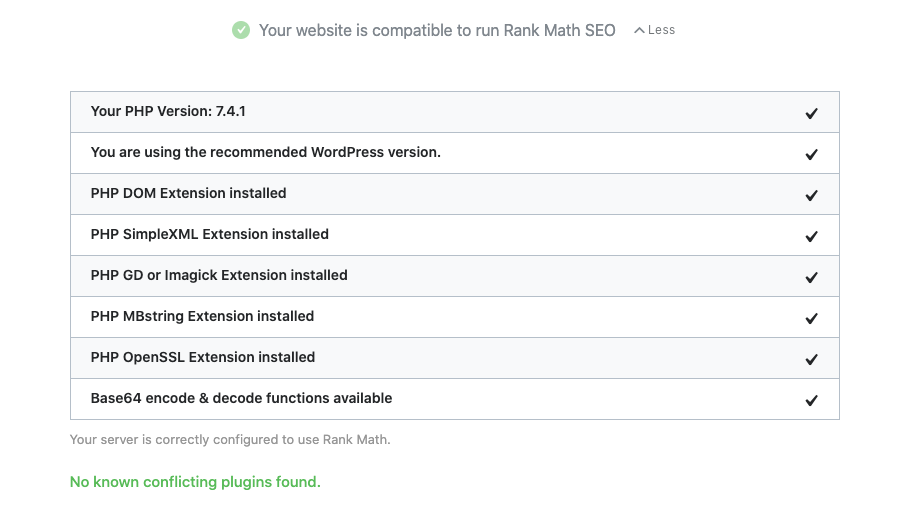
Older PHP versions might not support newer plugins. This can lead to security risks and bugs. Keeping PHP updated ensures your site runs smoothly. Most plugins need PHP 7.4 or newer. It’s important to know your site’s PHP version. You can check it in your WordPress dashboard.
Hosting providers often offer tools to update PHP. Use these tools to keep your site safe and fast. Regular updates prevent compatibility issues. Make sure your plugins are up to date too. This keeps your WordPress site secure and efficient.
Upgrading Php For Better Performance
WordPress plugins need the right PHP version. Upgrading PHP can boost speed. Many plugins need PHP 7.4 or newer. Older PHP versions may cause errors. Security improves with updates. Websites run smoother. Visitors enjoy faster loading times. Better performance helps SEO rankings.
Check PHP version in hosting panel. Update if needed. Always backup your site first. Consult your web host for guidance. Compatibility is crucial for plugins. Developers often list required PHP versions. Reading plugin details helps avoid issues. Staying updated ensures optimal function.
Credit: rankmath.com
Testing WordPress Site After Php Update
Check your WordPress site after a PHP update. Make sure all plugins work well. Plugins might break if they need a different PHP version. Look at your site’s main pages. Do they load without errors?
Visit the admin panel. Can you see everything clearly? If something seems wrong, try to disable plugins one by one. This helps find the problem. Updating plugins may fix issues. Keep them updated for the best performance.
Always backup your site before updates. This saves your data if anything goes wrong. Remember, a smooth site makes visitors happy. Happy visitors return often.
Tools To Check Plugin Compatibility
Many tools help check if a plugin works with your PHP version. One popular tool is the PHP Compatibility Checker. It scans your plugins and theme for issues. Another tool is Plugin Inspector. This tool checks for PHP errors in plugins. Both tools are easy to use.
Some plugins need newer PHP versions. Always check the plugin’s page. It shows the required PHP version. Use these tools to keep your site safe. They help avoid errors and crashes. Keeping your plugins updated is important. It ensures your site runs smoothly.
Best Practices For Managing Php Versions
Always check the PHP version needed for your WordPress plugins. Different plugins need different PHP versions. Use the latest PHP version for better security and performance. Older versions might cause problems. Make sure your hosting provider supports the PHP version you need. Update PHP regularly to avoid risks. Stay informed about PHP changes. This helps keep your site safe. Test plugins after updating PHP. This ensures everything works well. Backup your site before changes. This saves your site if things go wrong.
| PHP Version | WordPress Support |
|---|---|
| 7.4 | Yes |
| 8.0 | Yes |
| 5.6 | No |
Frequently Asked Questions
What Php Version Is Needed For WordPress Plugins?
WordPress recommends PHP 7. 4 or higher for optimal performance. Many plugins also require newer versions of PHP. Checking each plugin’s requirements ensures compatibility and functionality. Upgrading PHP helps with speed, security, and feature access. Regular updates to PHP version are essential for a seamless WordPress experience.
How To Check Php Version For WordPress Plugins?
You can find the PHP version by accessing your hosting control panel, often under ‘PHP Settings’ or ‘Server Info’. Alternatively, use a plugin like ‘Display PHP Version’ for quick insight. Always verify plugin documentation for PHP requirements to ensure compatibility and avoid errors.
Why Is Php Version Important For Plugins?
PHP version affects plugin functionality, speed, and security. Using outdated PHP may lead to compatibility issues, security vulnerabilities, and slower site performance. Updated PHP versions provide new features and optimizations. Ensuring your PHP version meets plugin requirements helps maintain a stable and secure WordPress environment.
Can Plugins Work On Older Php Versions?
Some plugins may function on older PHP versions, but it’s risky. Outdated PHP can cause compatibility issues and security vulnerabilities. Check plugin documentation for minimum PHP requirements. Upgrading PHP ensures better plugin performance, security enhancements, and access to new features, contributing to an improved WordPress experience.
Conclusion
Understanding PHP versions is crucial for WordPress plugins. Always check plugin requirements. This ensures smooth operation. Updated PHP versions enhance security and speed. Older versions might cause issues. Always keep your PHP up-to-date. Compatibility matters for better performance. Developers often mention required PHP in plugin details.
Reading these helps prevent errors. Choosing the right PHP version keeps your site running smoothly. Your site’s health depends on it. Stay informed, stay updated. This small step can make a big difference.


