

Are you struggling with your WordPress site running slow or crashing due to memory errors? Increasing your WordPress memory limit might be the simple fix you need to keep your site running smoothly and efficiently.
If your website is hitting memory limits, it can prevent plugins from working properly, slow down your pages, or even cause frustrating error messages. But don’t worry—you don’t have to be a coding expert to boost your site’s memory. You’ll discover easy, step-by-step methods to increase your WordPress memory limit and enhance your site’s performance.
Keep reading to unlock the secrets that will help your website handle more traffic and run without hiccups!
Memory Limit In WordPress
WordPress uses memory to run your website smoothly. This memory is called the memory limit. It controls how much memory WordPress can use for its processes. If the limit is too low, WordPress may stop working properly. Increasing this limit helps your site handle more tasks and plugins without errors.
What Memory Limit Means
The memory limit is the maximum memory WordPress can use. It is set in the server’s PHP configuration. This limit protects the server from using too many resources. Each WordPress installation has its own memory limit. If your site needs more memory, you may see performance issues. Raising the memory limit allows WordPress to use more resources safely.
Common Memory Limit Errors
One common error is the “Allowed memory size exhausted” message. It means WordPress reached its memory limit. This error stops some plugins or themes from working. Another issue is slow site speed or pages not loading. These problems happen because WordPress runs out of memory. Increasing the memory limit often fixes these errors quickly.
Check Current Memory Limit
Before increasing the memory limit in WordPress, it is important to know the current limit. Checking this value helps to understand if an increase is necessary. It also guides how much memory you can allocate safely. There are simple ways to find this information from the WordPress dashboard or server details.
Using Site Health Tool
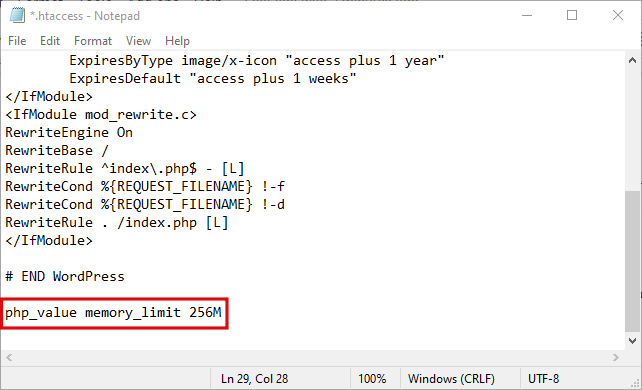
WordPress has a built-in Site Health tool. It shows key details about your website, including memory limit. To access it, go to the WordPress dashboard. Click on “Tools” and then “Site Health.”
Under the “Info” tab, scroll down to the “Server” section. Here you will see the current PHP memory limit. This method is quick and requires no extra plugins or coding.
Checking Via Php Info
Another way to check the memory limit is through the PHP info file. Create a new file in your website folder and name it phpinfo.php. Inside, add the following line:
php phpinfo(); ?
Upload this file to your server. Open it in your browser by entering your site URL followed by /phpinfo.php. This page shows all PHP settings. Find the “memory_limit” value to see the current limit.
After checking, delete the phpinfo.php file. Leaving it on the server can expose sensitive data to others.
Increase Memory Via Wp-config.php
Increasing the memory limit in WordPress can improve site performance and prevent errors. One effective way is by editing the wp-config.php file. This method is simple and works for most hosting environments. It allows WordPress to use more memory, which helps with heavy plugins and large themes.
Editing wp-config.php requires accessing your site files safely. This guide shows you how to find the file and add the necessary code to raise the memory limit.
Accessing Wp-config.php
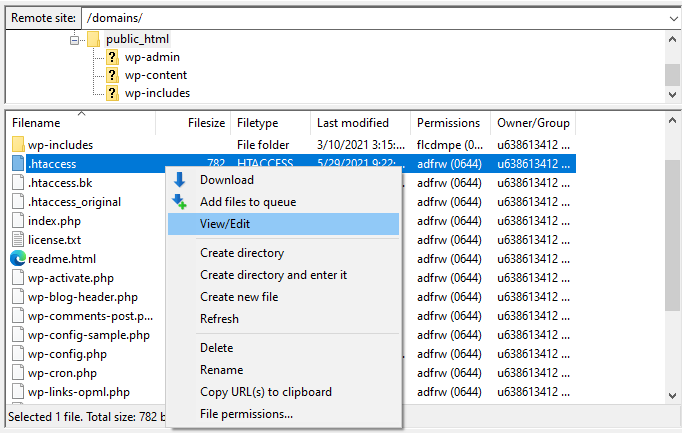
First, connect to your website files using an FTP client or the hosting control panel file manager. The wp-config.php file is in the root directory of your WordPress installation. It sits alongside folders like wp-content and wp-admin.
Download a copy of the file to your computer before making changes. This backup helps if something goes wrong. Open the file with a plain text editor, like Notepad or VS Code, to avoid formatting issues.
Adding Memory Limit Code
Find the line that says / That’s all, stop editing! Happy blogging. /. Insert the following code just before that line:
define('WP_MEMORY_LIMIT', '256M');This command increases the memory limit to 256 megabytes. You can change 256M to a higher or lower value depending on your needs and hosting limits.
Save the file and upload it back to your server, replacing the old wp-config.php. Clear your site cache and test if the memory limit has increased successfully.
Credit: www.hostinger.com
Modify Php.ini Settings
Modifying the PHP.ini settings is a direct way to increase the memory limit for your WordPress site. This method changes the server’s configuration, allowing WordPress to use more memory. It helps improve site performance and avoid memory-related errors. Understanding how to locate and edit the php.ini file is essential for this process.
Locating Php.ini File
The php.ini file controls many PHP settings, including memory limits. It usually resides in the root directory of your server or inside the PHP installation folder. You can find it by accessing your hosting control panel or using FTP to browse your server files. If you cannot locate it, contact your hosting provider for guidance.
Changing Memory_limit Value
Open the php.ini file with a text editor. Search for the line starting with memory_limit. It may look like memory_limit = 128M. Change the number to a higher value, such as 256M or 512M. Save the file and restart your web server to apply the changes. This adjustment increases the memory available for WordPress operations.
Adjust .htaccess File
Adjusting the .htaccess file is a simple way to increase WordPress memory limits. This file controls many server settings and can help fix memory errors. Editing it carefully can improve your site’s performance. Below are steps to edit the .htaccess file and add the memory limit directive.
Editing .htaccess
First, locate the .htaccess file in your WordPress root directory. Use an FTP client or your hosting file manager to access it. Before editing, create a backup of the file to avoid issues. Open the file in a text editor. Be careful not to change other parts of the file. This ensures WordPress and your server keep working properly.
Adding Memory Limit Directive
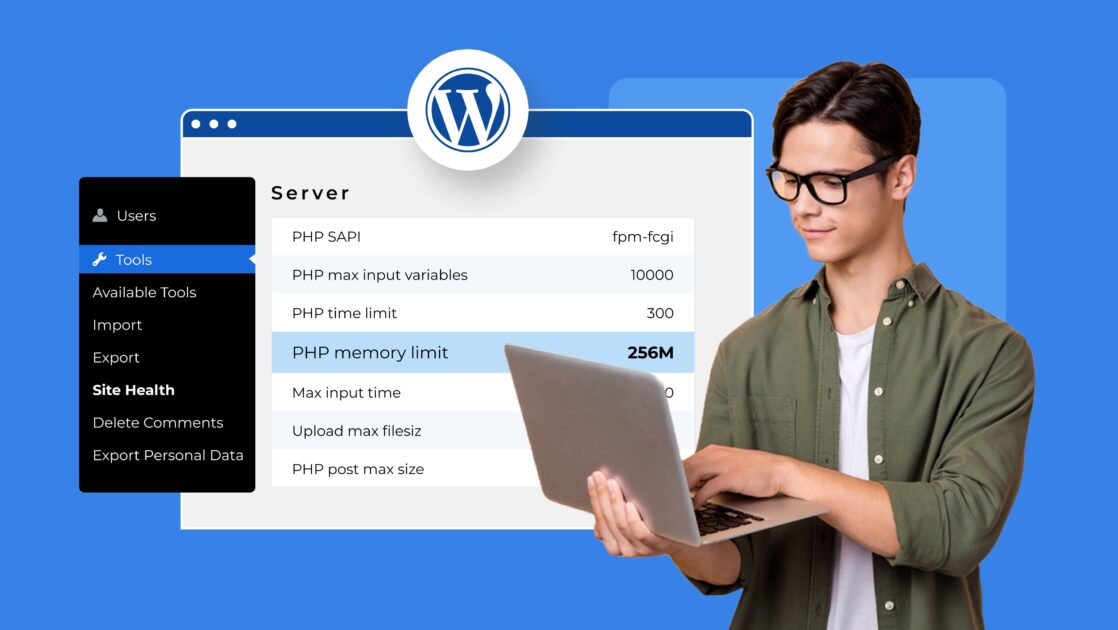
Add this line to the end of the .htaccess file:
php_value memory_limit 256M
This sets the memory limit to 256 megabytes. Adjust the number if needed. Save the changes and upload the file back to the server. Check your website to see if the memory error is resolved. Increasing the memory limit here often fixes common WordPress issues.
Credit: www.bluehost.com
Use Hosting Control Panel
Using the hosting control panel is a simple way to increase WordPress memory limits. Most hosting providers offer easy access to PHP settings through their control panel. Changing these settings helps manage memory and upload size without editing complex files. This method works well for beginners and those who prefer a visual interface.
Using Cpanel Php Options
Log in to your hosting cPanel. Find the “Select PHP Version” or “PHP Options” menu. Here, you can change memory limits by adjusting the memory_limit value. Set it higher than the current limit, for example, 256M or 512M. Save the changes to apply them immediately. This increases the PHP memory available for WordPress.
Updating Upload And Post Size Limits
In the same PHP options area, update upload_max_filesize and post_max_size. These values control the maximum size of files and posts you can upload. Increase them to match your needs, such as 64M or 128M. Save your settings after the update. This helps avoid errors when uploading large files in WordPress.
Plugins To Manage Memory
Managing WordPress memory is crucial for a smooth website experience. Plugins designed for memory management can simplify this process. They help monitor, control, and increase memory limits without manual coding. Using these tools reduces errors caused by memory shortages.
Recommended Plugins
WP Memory Manager is a popular choice for memory control. It displays current memory usage and allows easy adjustments. Another option is Memory Limit Increase, which helps raise limits quickly. Query Monitor also helps by identifying plugins that use excessive memory.
How Plugins Help
These plugins track memory use and show clear reports. They allow setting higher memory limits safely. Some plugins fix memory issues by optimizing resource use. They help avoid site crashes caused by low memory. Using plugins saves time and reduces technical risks.
Tips To Optimize Memory Usage
Optimizing memory usage in WordPress helps your site run smoothly. It reduces crashes and speeds up loading times. These tips focus on managing resources wisely. Simple changes can make a big difference in performance and memory use.
Disable Unnecessary Plugins
Plugins add features but use memory. Deactivate plugins you do not need. Keep only essential ones active. This reduces memory load and improves speed. Regularly review plugins and remove those unused.
Optimize Database
Your database stores all site data. Over time, it can get cluttered. Clean your database by removing old revisions and spam comments. Use database optimization plugins or tools. A tidy database uses less memory and works faster.
Use Lightweight Themes
Choose themes designed for speed and low memory use. Avoid themes with too many features you do not need. Lightweight themes load faster and use fewer resources. They improve user experience and reduce memory limits issues.
Troubleshooting Memory Issues
Troubleshooting memory issues in WordPress helps keep your site running smoothly. Memory problems can cause slow loading times or errors. Knowing how to find and fix these issues saves time and frustration.
Understanding what uses your memory and when to get help is important. This section guides you through identifying memory hogs and deciding when to contact hosting support.
Identifying Memory Hogs
Some plugins or themes use more memory than others. To find memory hogs, check which plugins you recently installed or updated. Disable them one by one to see if the memory issue improves.
Heavy themes with many features can also consume memory. Switch to a default theme temporarily to test if memory usage drops. Large images and media files increase memory use during upload and display.
Use tools like Query Monitor to track memory consumption. This plugin shows which parts of your site use the most resources. Knowing the culprits helps you decide what to remove or optimize.
When To Contact Hosting Support
If you cannot fix memory issues by yourself, contact your hosting support. They can check server settings and increase your memory limit if needed. Some hosting plans have fixed memory limits that only they can adjust.
Hosting support can also spot server errors or conflicts causing memory problems. Provide them with details about the error messages and steps you have taken. Clear communication speeds up the help process.
Do not hesitate to ask for help if your site crashes frequently or shows memory errors. Hosting experts have the tools and knowledge to solve deeper issues beyond WordPress settings.
Credit: www.hostinger.com
Frequently Asked Questions
Como Posso Aumentar O Limite De Memória Do WordPress?
Access your WordPress files and open wp-config. php. Add define(‘WP_MEMORY_LIMIT’, ‘256M’); before “That’s all, stop editing!” Save changes to increase memory limit.
Como Aumentar O Upload_max_filesize?
Increase upload_max_filesize by editing the php. ini file. Change upload_max_filesize and post_max_size values. Restart the server to apply changes.
Como Posso Aumentar O Tamanho Máximo Do Arquivo De Upload No WordPress?
Increase WordPress upload size by editing php. ini or. htaccess files. Change upload_max_filesize and post_max_size values. Alternatively, update these limits in the hosting control panel or via wp-config. php. Save changes and restart your server if needed.
Como Deixar O WordPress Mais Rápido?
Use a lightweight theme, optimize images, install caching plugins, disable unnecessary plugins, and choose reliable hosting to speed up WordPress.
Conclusion
Increasing WordPress memory limit improves your site’s performance. Edit the wp-config. php or. htaccess files carefully. Adjust PHP settings via your hosting control panel if needed. Higher memory helps run plugins and themes smoothly. Always back up your site before making changes.
Regularly monitor your site’s speed and error messages. Small tweaks can prevent big problems later. Keeping memory limits adequate supports growth and stability. Take these steps to keep your WordPress site running well.


