
Navigating the digital landscape can sometimes feel overwhelming, especially when you’re trying to manage your website. If you’re using Namecheap, one of the most trusted names in domain registration and web hosting, you may find yourself asking, “How do I get to cPanel?”
You’re not alone. Many users face this hurdle, but don’t worry—you’re in the right place. In this guide, we’ll show you exactly how to access cPanel through Namecheap, making website management a breeze. Imagine having all the tools you need at your fingertips, ready to enhance your site’s performance and streamline your tasks.
By the end of this article, you’ll feel empowered and ready to take control of your website with confidence. Stick with us, and let’s unlock the secrets of cPanel together.
Credit: www.namecheap.com
Accessing Your Namecheap Account
Easily access your Namecheap account by logging in with your credentials. Navigate to the dashboard and find the “Cpanel” link under the hosting section. Click it to enter the Cpanel and manage your hosting settings.
Accessing your Namecheap account is a simple process. It allows you to manage your domains and hosting efficiently. Whether you’re a beginner or have some experience, you’ll find it straightforward. This guide will walk you through logging into Namecheap and navigating the dashboard. Let’s dive in!Logging Into Namecheap
To start, visit the Namecheap website. Look for the “Sign In” button at the top right corner. Click it. You will see the login page. Enter your username and password. Double-check your credentials. Then, click “Sign In”. This will take you to your account dashboard.Navigating The Dashboard
Once logged in, you’ll see the dashboard. This is your control center. Here, you can view your domains and services. The interface is user-friendly. On the left, find the main menu. It includes “Dashboard”, “Domain List”, and “Hosting List”. Click “Dashboard” to return to the main page anytime. To access your cPanel, go to “Hosting List”. Find the domain you wish to manage. Click “Manage”. Then, you’ll see the option to log into cPanel.Finding Your Hosting Services
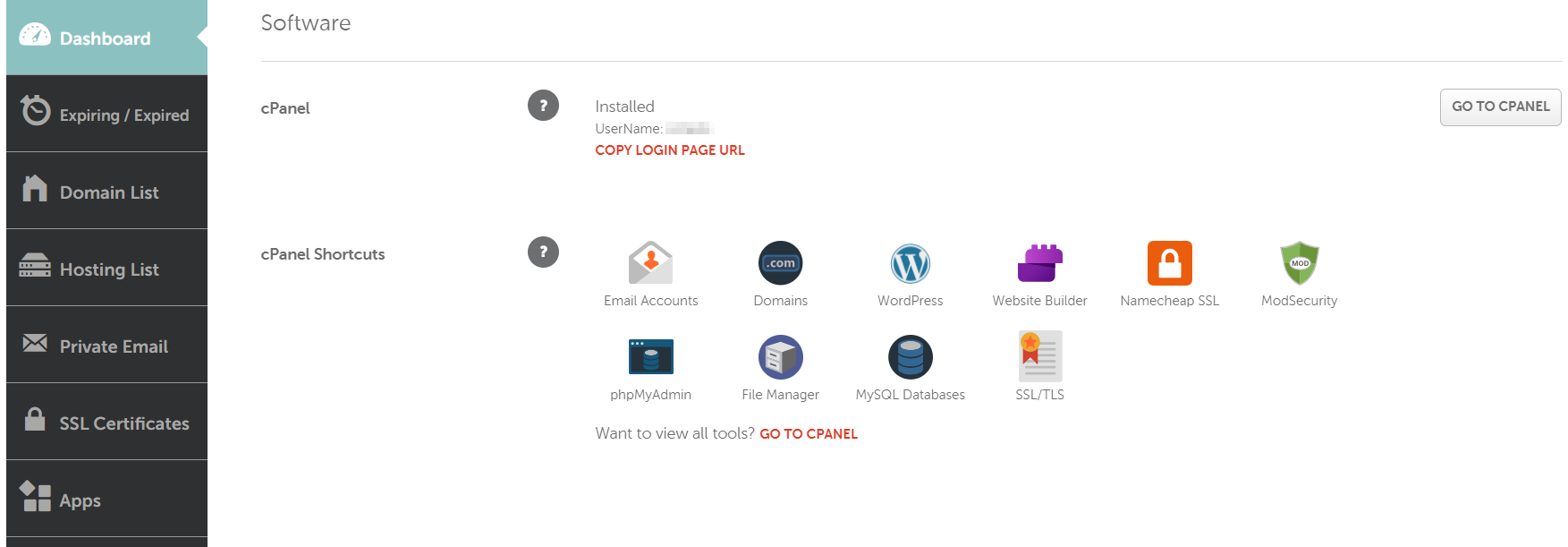
Accessing Namecheap’s cPanel is easy for managing your hosting services. Log into your Namecheap account and navigate to the dashboard. Select the hosting package, then click “Go to cPanel” for control.
Finding your hosting services with Namecheap is simple. This guide will help you access cPanel easily. You will learn how to locate your hosting packages and understand hosting details. Each step is straightforward and easy to follow.Locating Hosting Packages
First, log into your Namecheap account. Go to your dashboard. Look for the “Hosting List” tab. This tab shows all your hosting packages. You can find your active and expired services here. Click on the package you wish to access. This will show more details about your hosting services.Understanding Hosting Details
Once you select a hosting package, you will see its details. Information like expiration date and package type is displayed. You will also find your cPanel login details here. These details include the cPanel username and password. Keep this information secure. Use it to access your cPanel and manage your website efficiently.Quick Access To Cpanel
Accessing cPanel on Namecheap is simple and quick. Knowing the right steps is essential. Whether you’re a beginner or an expert, efficiency matters. This section will guide you through easy methods to get to cPanel. You’ll find these methods straightforward and user-friendly.
Cpanel Direct Login
Start by visiting your Namecheap account dashboard. Here, locate the “Product List” section. Find the domain associated with your hosting. Click on the “Manage” button next to it. Under the “Hosting Details,” you’ll see the cPanel login details. Use these details to access cPanel directly. This method is fast and secure.
Using Namecheap’s Cpanel Link
Another way is through Namecheap’s cPanel link. First, log in to your Namecheap account. Go to the “Dashboard” and find your hosting package. Click on “Go to cPanel.” This will redirect you to the cPanel login page. You won’t need separate login details. This method is convenient and saves time.

Credit: www.namecheap.com
Troubleshooting Access Issues
Accessing cPanel through Namecheap involves a few straightforward steps. Log into your Namecheap account. Locate the “Dashboard” and select “Hosting List. ” Click “Go to cPanel” next to your domain.
When trying to access Namecheap’s cPanel, you might encounter a few hiccups along the way. Troubleshooting these access issues can sometimes feel like navigating a maze. However, with the right guidance, you can quickly regain control. Let’s break down some common challenges and their solutions, ensuring you can manage your website effortlessly. ###Common Login Problems
One frequent issue is entering incorrect login credentials. Ensure your username and password are correct. Double-check for any typos or accidental use of the caps lock key. Another problem is using the wrong login URL. Always use the cPanel URL provided by Namecheap in your welcome email. Bookmarking it can save you from future confusion. Network issues can also prevent access. Try restarting your router or switching to a different network to see if that resolves the problem. ###Resolving Cpanel Access Errors
Sometimes, you might see error messages like “403 Forbidden” or “404 Not Found.” These errors often arise from incorrect file permissions. Adjust the permissions through your cPanel file manager, ensuring they are set correctly. If you face a “Server Unavailable” error, it might be due to server maintenance. Check Namecheap’s status page for any ongoing maintenance or outages. Have you cleared your browser cache lately? A cluttered cache can sometimes block access. Clear your cache and cookies, then try logging in again. If these steps don’t work, consider reaching out to Namecheap’s customer support. They can provide specific guidance tailored to your account. Have you ever found a simple solution to a complex problem? Sometimes, the answer is right in front of us, waiting to be noticed. Keep these tips handy, and you’ll manage your cPanel access like a pro.Tips For Efficient Cpanel Use
cPanel is a powerful tool that can streamline the management of your website, especially when you’re using Namecheap hosting services. But how do you make the most of its capabilities? Efficiency is key. Whether you’re a seasoned webmaster or a newcomer, understanding how to navigate and optimize cPanel can save you time and enhance your website’s performance. Here are some tips to help you use cPanel efficiently.
Exploring Key Features
cPanel is packed with features that can simplify your web management tasks. Familiarizing yourself with these is essential. You’ll find tools for managing your email accounts, databases, file management, and more. Spend a few minutes each day exploring different sections.
Focus on tools like File Manager for quick file uploads or Softaculous for easy app installations. These can significantly reduce the time you spend on manual tasks. Have you ever thought about how much easier life could be with automated backups? cPanel’s backup feature is there for you.
Optimizing Workflow
Once you’re familiar with cPanel’s features, it’s time to streamline your workflow. Create shortcuts for frequent tasks, like accessing the File Manager or checking web stats. This can speed up your daily operations.
Organize your dashboard to prioritize the tools you use most. You can customize the layout to keep important sections at your fingertips. How much time could you save by setting up email filters right from cPanel? It’s worth considering.
Efficiency is about using resources wisely. Utilize cPanel’s user-friendly interfaces to manage your tasks seamlessly. The more you practice, the quicker you’ll become. Wouldn’t it be satisfying to manage your website with just a few clicks?
Incorporating these tips into your routine not only saves time but also enhances your site’s performance. cPanel is more than just a control panel; it’s your key to efficient website management.
Additional Resources And Support
Namecheap offers various resources to help users access cPanel easily. Their support team provides guidance through tutorials and articles. These resources ensure even beginners can manage their hosting efficiently.
Navigating Namecheap’s cPanel can sometimes be a bit overwhelming, especially if you’re new to web hosting. But don’t worry, Namecheap offers a plethora of resources and support to help you out. Whether you’re stuck on a technical issue or simply want to learn more about maximizing cPanel’s features, the additional resources available can make your journey smoother and more efficient. ###Namecheap Support Options
Namecheap provides various support channels tailored to your needs. If you find yourself puzzled over cPanel settings, their 24/7 live chat is a quick way to get answers. You can interact directly with knowledgeable support staff who are eager to assist you. If you prefer a more detailed approach, consider submitting a support ticket. This allows you to describe your issue thoroughly and receive a well-thought-out response. Namecheap also offers a comprehensive knowledge base, filled with articles and tutorials. It’s like having a library at your fingertips, filled with guides on every aspect of cPanel use. Have you ever thought about joining a community of fellow users? Namecheap’s community forum is a great place to connect, share experiences, and learn from others. Sometimes, reading about someone else’s challenge can give you insights into your own. ###Cpanel Documentation
cPanel itself offers extensive documentation. This is an invaluable resource for understanding the intricacies of the platform. You can access official guides and manuals that cover everything from basic setups to advanced configurations. These documents often include step-by-step instructions with screenshots. This visual aid can be particularly helpful if you’re a visual learner. Imagine effortlessly setting up email accounts or configuring security settings just by following a well-laid-out guide. Do you ever wonder if there’s more to cPanel than meets the eye? The documentation is a treasure trove of tips and tricks that can enhance your web hosting experience. You might discover shortcuts or features that can save you time and effort. In the end, the goal is for you to feel confident and empowered in managing your website. With Namecheap’s support options and cPanel documentation, you’re not alone in this journey. What will you explore next?
Credit: www.namecheap.com
Frequently Asked Questions
How Do I Access My Cpanel On Namecheap?
Log in to your Namecheap account. Click “Account” then “Dashboard”. Select “Hosting List” and click “Manage”. Find the “cPanel” button and click it to access your cPanel.
How Do I Access To Cpanel?
Log in to your hosting account. Locate the cPanel link or icon. Click to access your cPanel dashboard.
How To Access Terminal In Cpanel Namecheap?
To access the terminal in cPanel on Namecheap, log in to your cPanel account. Navigate to the “Advanced” section and click “Terminal. ” This opens the terminal interface for command line access. Ensure SSH access is enabled for seamless operation.
Does Namecheap Come With Cpanel?
Yes, Namecheap provides cPanel with its hosting plans. Users can manage websites easily using cPanel’s intuitive interface. It includes features for email management, file handling, and database administration. CPanel is available with shared hosting, reseller, and WordPress hosting plans.
Conclusion
Accessing cPanel on Namecheap is simple and quick. Follow the steps outlined, and you’ll navigate easily. Remember to keep your login details secure. This ensures your website’s safety. Familiarize yourself with cPanel’s features too. They provide valuable tools for managing your site.
Regular updates and maintenance are essential. They keep your website running smoothly. If questions arise, Namecheap’s support team is ready to help. Don’t hesitate to reach out for guidance. With practice, accessing cPanel becomes second nature. Enjoy managing your website with confidence!


