
You’ve invested time and effort into building your online presence with Namecheap, but sometimes plans change. Whether you’re scaling down, moving your domain elsewhere, or simply re-evaluating your needs, canceling a domain might be the right step for you.
The process can seem daunting, but rest assured, it’s more straightforward than you might think. In this guide, you’ll discover the easiest and most efficient way to cancel your Namecheap domain without any hassle. By understanding the steps involved, you’ll gain control over your domain management and make informed decisions that align with your goals.
So, let’s dive in and simplify the process, ensuring you have all the knowledge you need right at your fingertips.
Accessing Your Namecheap Account
Navigating Namecheap is straightforward. To cancel a domain, log in and access your dashboard. Locate the domain management section, select the domain, and follow the cancellation steps.
Accessing your Namecheap account is the first step towards managing your domains effectively, including the cancellation process. Whether you’re downsizing your domain portfolio or simply need a fresh start, knowing how to navigate your account is crucial. Let’s make this process as smooth as possible. ###Login To Your Namecheap Account
Begin by visiting the Namecheap website. Look for the “Sign In” button, usually located at the top right corner. Enter your credentials carefully to ensure you access the right account. If you’ve forgotten your password, don’t worry. Use the “Forgot Password?” link to reset it. Make sure your new password is strong and secure. ###Locate Your Domain List
Once logged in, head to the “Dashboard”. This is your control center. Here, you can manage all your domains and services. In the dashboard, find the “Domain List” section. This is where all your registered domains appear. Spot the domain you wish to cancel and prepare for the next steps. ###Navigating The Account Panel
The account panel is user-friendly, but it’s normal to feel a bit overwhelmed. Take a moment to explore the tabs. Familiarize yourself with the various options available. When you understand the layout, you’ll feel more confident. This confidence makes managing your domains much easier. ###Check Your Domain Status
Before you proceed with cancellation, check the domain status. Is it locked or unlocked? Knowing this can prevent unnecessary hiccups. Unlock your domain if necessary. This is a simple step but crucial for a smooth cancellation process. ###Understand The Implications
Canceling a domain is a significant decision. Have you considered the impact on your projects or business? It’s essential to be clear on your reasons. Take a moment to ensure this is the right move. Sometimes, a pause for reflection can save you future regrets. ###Contact Namecheap Support
Need help? Don’t hesitate to reach out to Namecheap’s support. They are there to assist you with any issues or questions. A quick chat with support can clarify doubts. It’s better to ask now than to face challenges later. By understanding how to access your Namecheap account effectively, you empower yourself to manage your domains with ease. What steps will you take today to ensure smooth domain management?Navigating To Domain List
Finding the Domain List on Namecheap is simple. Log in to your account, navigate to your dashboard, and select ‘Domain List’. This section allows easy access to manage your domains and initiate cancellation if needed.
Navigating to the Domain List on Namecheap is crucial for managing domains effectively. Whether you need to make changes, review details, or start the cancellation process, accessing this list is the first step. With a few clicks, you can locate the domains you own and decide what action to take next. This straightforward process ensures you maintain control over your domain assets without hassle.Locating Your Domain List
Finding the Domain List on Namecheap is simple. Start by logging into your account. Once inside, look for the dashboard. This area holds all your domain information.Accessing The Dashboard
In the dashboard, locate the “Domain List” tab. This tab is usually on the left side. Clicking it takes you to a page showing all your registered domains. Each domain appears with essential details for easy navigation.Viewing Domain Information
The Domain List page presents each domain with relevant information. You can see renewal dates and other key details. This overview helps decide which domain needs attention or cancellation.Selecting The Domain To Cancel
Choosing which domain to cancel on Namecheap is an important step. It helps to ensure you do not mistakenly cancel a domain you wish to keep. Being cautious at this stage can save you from future hassles. Let’s guide you through selecting the right domain for cancellation.
Selecting The Domain From Your Dashboard
Log in to your Namecheap account. Navigate to the “Domain List” section. Here, you’ll see a list of all your registered domains. Carefully review this list. Identify the domain you want to cancel. Ensure it’s the correct one before proceeding.
Checking Domain Details
Click on the domain name to view its details. Confirm that this is the domain you intend to cancel. Take note of the expiration date and any active services. This information is crucial for your records. Double-check everything before moving forward.
Considering Domain Usage
Think about how you use the domain. Is it linked to a website or email? Ensure canceling it won’t disrupt your activities. Consider any potential impact on your online presence. Making an informed decision is key.
Initiating The Cancellation Process
Cancelling a domain at Namecheap requires a clear understanding of the process. It’s crucial to know where to find the cancellation options. Also, being aware of the terms associated with cancellation is important. These steps ensure a smooth and hassle-free experience.
Locating Cancellation Option
Start by logging into your Namecheap account. Once logged in, navigate to the dashboard. Here, you’ll find a list of your active domains. Click on the domain you wish to cancel. This will lead you to the domain management page. Look for the “Manage” button next to the domain. Click on it to open more options. In the new menu, find “Domain Cancellation” or a similar option.
Understanding Cancellation Terms
Before proceeding, review the terms of cancellation. Namecheap might have specific conditions. These terms detail any fees or penalties involved. Check if there is a refund policy in place. Understanding these terms helps avoid unexpected charges. Ensure you read all related documentation carefully. This knowledge aids in making an informed decision.
Completing The Cancellation
Canceling a domain on Namecheap involves a straightforward process. Log into your account, locate the domain, and follow the cancellation steps. Confirm your cancellation to finalize the process.
Completing the cancellation of your domain with Namecheap is straightforward. First, ensure you have all necessary information ready. You’ll need your account details and domain name. This process is simple, yet crucial for clarity.Confirming Cancellation
Double-check the details before proceeding. Ensure the domain name and registration info are correct. Mistakes here can lead to issues later. Carefully review your cancellation request. Accuracy is essential for a smooth process.Receiving Confirmation Email
After submitting the cancellation, you’ll receive an email. This email confirms your domain cancellation request. Keep an eye on your inbox. It’s vital to save this email for future reference. It serves as proof of your cancellation.
Credit: www.youtube.com
Potential Issues And Solutions
Cancelling a domain with Namecheap might seem simple. But you may face issues. These issues can be frustrating. Knowing potential problems and solutions is key. This helps smooth the process.
Troubleshooting Common Problems
Sometimes, domains won’t cancel easily. Check your account status first. Ensure your account is active. Look for any pending payments. Resolve them quickly. Verify your domain status too. It should not be locked. Unlock it if necessary. Follow the correct cancellation steps. Mistakes can halt the process.
Contacting Customer Support
If problems persist, seek help. Namecheap has a support team. Reach them via live chat. They respond quickly. Explain your issue clearly. Provide necessary details. This helps them assist better. You can also email them. Attach screenshots if needed. This gives clarity. Resolving issues becomes easier with their guidance.
Alternative Options To Consider
Deciding to cancel a domain can sometimes feel like an overwhelming task. However, it doesn’t always have to end with cancellation. There are alternative options that might suit your needs better and could save you from losing a valuable digital asset. Let’s explore some practical choices you can consider before taking the plunge.
Transferring Domain Ownership
Instead of canceling, consider transferring the domain to someone else. This option is excellent if you know someone who might benefit from the domain name. Namecheap makes this process straightforward. You can change the domain ownership within your account settings.
Picture this: a friend or colleague has been eyeing your domain for their upcoming project. By transferring it, you avoid wastage and help someone kickstart their venture. Simply navigate to your Namecheap dashboard, select the domain, and follow the transfer instructions.
Renewal And Expiration Considerations
Have you thought about renewing your domain instead? Sometimes we make hasty decisions when a domain is about to expire. A quick renewal buys you time to think through your options. It also ensures you don’t lose your domain unexpectedly.
Did you know that expired domains can become valuable assets to others? If you let it expire, it could be snatched up by someone else. Review your domain’s renewal settings in Namecheap. Consider setting up auto-renew to avoid accidental lapses.
Before canceling, ask yourself: Is there potential future use for this domain? Could it serve a purpose you haven’t yet realized? Exploring these alternative options can save you from potential regret. Plus, they offer practical solutions to make the most of your digital investments.
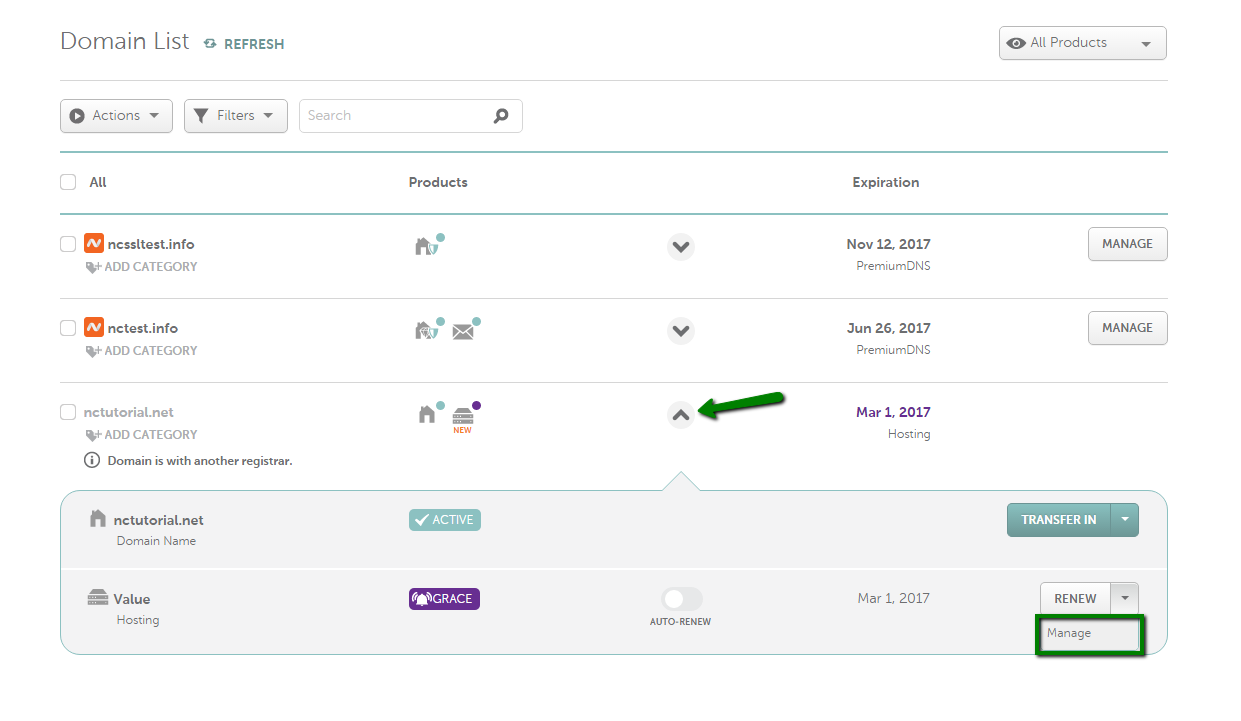
Credit: www.namecheap.com

Credit: www.youtube.com
Frequently Asked Questions
Can You Cancel A Namecheap Domain?
Yes, you can cancel a Namecheap domain. Log in to your account, access the “Domain List” section, select the domain, and follow cancellation instructions. Ensure you understand the refund policy before proceeding. Cancellation doesn’t guarantee a refund, and it may affect your website’s functionality.
How Do I Stop The Namecheap Domain?
To stop a Namecheap domain, log into your account. Navigate to “Domain List” and select the domain. Click on “Manage” and choose “Cancel Domain. ” Confirm your cancellation request. Ensure all settings are saved to prevent unwanted renewals.
How Do I Unsubscribe From My Namecheap Domain?
Log in to your Namecheap account. Go to the dashboard, select “Domains” tab, choose your domain. Click “Manage” and find “Auto-renew” settings. Disable auto-renewal to unsubscribe from the domain.
How Do I Terminate A Domain?
To terminate a domain, log into your domain registrar account. Locate the domain management section. Select the domain and choose the delete or cancel option. Confirm the termination. Ensure you back up any essential data before proceeding.
Conclusion
Canceling a domain at Namecheap is simple and straightforward. Follow the steps carefully to ensure success. Always double-check your actions to avoid mistakes. Namecheap provides support if needed. Remember, once canceled, the domain is not yours. Consider any future needs before proceeding.
Make sure to save all important information. This process ensures smooth management of your domains. Stay organized to prevent any issues. Managing your domains well can save time and stress. Thank you for trusting Namecheap for your domain needs.


