
Are you ready to elevate your online presence with a stunning website? Installing WordPress is your first step towards building a captivating digital platform.
But before you dive in, there’s an important decision to make: what directory should you choose for your WordPress installation? This choice can significantly impact your site’s performance and ease of management. By understanding this crucial step, you’ll save yourself from potential headaches and set your website up for success.
Stick around, and you’ll discover the best practices to ensure your WordPress site is not only functional but also optimized for growth. Let’s unravel the mystery of selecting the perfect directory for your WordPress journey!
Choosing The Right Directory
Installing WordPress can be confusing. It is important to choose the right directory. The two choices are root and subdirectory. Each has its own benefits and drawbacks.
| Option | Pros | Cons |
|---|---|---|
| Root Directory |
|
|
| Subdirectory |
|
|
Preparation Steps
Always keep a backup of your files. This is important. Use an external drive or cloud storage. Make sure all data is safe. You don’t want to lose anything important. Backups help you restore files later. It’s a safety net. A simple step that saves trouble.
Ensure your server meets WordPress requirements. It needs a specific PHP version. Check this first. Also, verify the MySQL version. Servers must support these. They help WordPress run smoothly. Always check these before installing. It avoids future issues. Servers should be ready and compatible.
Installing WordPress In The Root Directory
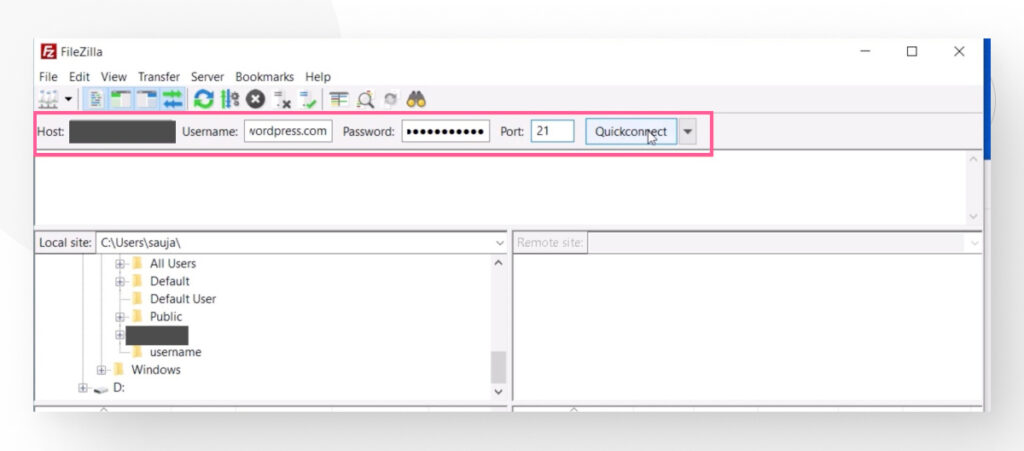
Start by downloading the WordPress zip file from its website. After downloading, unzip the file on your computer. Next, access your website’s hosting account. Use a file manager or FTP client like FileZilla. Find your root directory, often named “public_html”. Upload the unzipped WordPress files here. This step ensures WordPress operates from the main directory.
After uploading files, go to your website’s domain in a browser. Follow the installation wizard steps. Choose your language. Enter database details like username, password, and database name. Set the site title and admin details. Save these settings. Visit the settings page in WordPress. Ensure the URL settings match your domain name. This ensures your site functions properly.
Installing WordPress In A Subdirectory
Create a new folder within your main website directory. Name it something simple, like “blog” or “wordpress”. This is your subdirectory. It keeps your files organized and safe. Remember the folder name. You will need it later.
- Download WordPress from the official website. It’s free.
- Extract the files you downloaded. Use a program like WinRAR.
- Upload the files to your new subdirectory using an FTP client.
- Go to your website’s control panel. Find the database section.
- Create a new database for WordPress. Note the database details.
- Run the WordPress setup by visiting your site/subdirectory URL.
- Follow the setup prompts. Use your database details.
- Finish the setup. Your WordPress is now in the subdirectory.
Managing Multiple WordPress Installations
Organizing your files is key. Each site needs its own folder. Name each folder after the site. This keeps things clear. Inside each folder, add the WordPress files. This way, you avoid mix-ups. A neat structure helps in managing sites. It saves time and effort. Remember, clarity is crucial.
Each WordPress site needs its own database. This keeps data separate. Name databases clearly. Use names that match the site. This avoids confusion. Each database should have a unique prefix. This adds an extra layer of safety. Always back up your databases. It’s important. Data is valuable.
Credit: rankmath.com
Common Issues And Troubleshooting
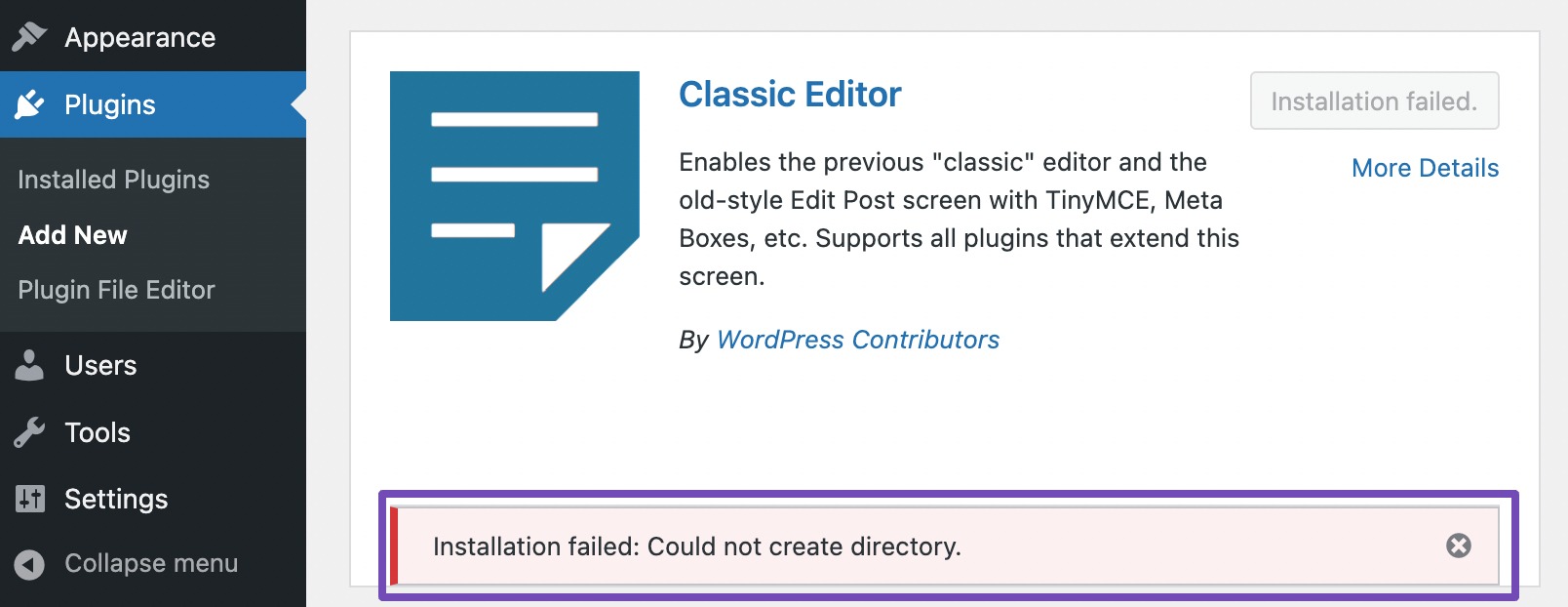
Installing WordPress often leads to confusion about the correct directory. Beginners struggle with selecting the right path. Misplacing files can cause site errors. Ensure proper directory setup for a seamless WordPress installation experience.
Url Redirect Problems
Sometimes websites may not open correctly. This happens when the URL redirects wrongly. Check your .htaccess file. Make sure it has the right settings. Also, look at your WordPress Address and Site Address in settings. They should match. If not, update them. A simple plugin might help too. Try installing a redirection plugin. It can fix many issues.
File Permission Errors
File permissions keep your site safe. But wrong settings cause errors. Check your file permissions in your hosting panel. Folders should have a permission of 755. Files usually need 644. Use an FTP client to change these settings. Be careful. Wrong permissions can break your site. Always back up before changing anything.
Best Practices For Directory Management
Keep all files neatly organized. Use clear folder names. This helps in finding files easily. Group similar files together. For example, images go in an “images” folder. Themes should be in a “themes” folder. This keeps everything tidy.
Always use lowercase letters in file names. Avoid spaces in names. Use dashes instead. This prevents errors. Regularly check and update your folders. Delete unused files. This frees up space.
Ensure your directory is secure. Use strong passwords. Change them often. Protect files with permissions. Only allow access to trusted users. This keeps your data safe.
Keep your WordPress updated. This fixes security bugs. Install security plugins. They add an extra layer of safety. Backup your files regularly. This helps in recovering lost data. Always stay alert and cautious.
Credit: wcanvas.com
Credit: verpex.com
Frequently Asked Questions
What Directory Should WordPress Be Installed In?
WordPress is typically installed in the root directory of your web server. This allows your website to be accessible directly via your domain. If you prefer installing it in a subdirectory, your site will be accessed using yourdomain. com/subdirectory. Choose based on your site’s structure and how you want users to access it.
Can I Install WordPress In A Subdirectory?
Yes, installing WordPress in a subdirectory is possible. This setup is useful for organizing multiple installations under one domain. It allows you to manage separate sites or sections easily. Ensure proper configuration of WordPress settings and your web server to avoid access issues.
Is The Root Directory Better For WordPress?
Installing WordPress in the root directory is often recommended. It offers a cleaner URL structure for your site, which can be beneficial for SEO. This setup simplifies access for visitors, as they won’t need to navigate to a subdirectory, enhancing user experience.
How Do I Change WordPress Installation Directory?
To change the WordPress directory, move files to the desired location. Update the ‘WordPress Address’ and ‘Site Address’ in the general settings. Adjust the. htaccess file and ensure all links are updated. Be cautious and backup your site before making changes.
Conclusion
Choosing the right directory for WordPress is crucial. It affects website accessibility and management. Many opt for the root directory. It ensures easy access and clean URLs. Others prefer a subdirectory. This offers better organization, especially for multiple sites. Consider your future plans.
Will you expand? Or keep it simple? Evaluate your needs. Think long-term. The right choice supports growth and efficiency. Always backup before making changes. This prevents data loss. Take your time. Make an informed decision. Your website’s success starts here.


