
You’ve just downloaded a WordPress theme. Exciting, right?
It’s the first step toward transforming your website into a stunning showcase. But now you’re staring at your screen, wondering what to do next. Don’t worry; you’re not alone. This moment of anticipation and uncertainty is common, but what comes next is crucial.
You’re about to unlock the potential of your website, and every decision you make will shape your visitors’ experience. Imagine your site’s visitors being captivated by its seamless design and intuitive navigation. You want them to stay, explore, and become loyal followers or customers. We’ll guide you through the essential steps after downloading your WordPress theme. We’ll help you avoid common pitfalls and show you how to make your website not just functional, but extraordinary. Ready to dive in and make your website shine? Let’s get started!
Initial Setup
Start by logging into your WordPress dashboard. Find the Appearance tab on the left side. Click on it. Then, select Themes. You will see an option to Add New. Click it. Choose the Upload Theme button. Browse and select your downloaded theme file. Click Install Now. Wait for the installation process to complete.
Once installed, activate the theme. Go to the Appearance tab again. Click on Themes. Find the new theme in the list. Click on the Activate button. Your new theme will now be live on your site. Check your site to see the changes. Customize if needed. Use the Customize option under the Appearance tab.

Credit: themeforest.net
Customizing Appearance
Start by opening the WordPress Customizer. It’s an easy tool. Here, you can see changes live. Adjust settings without coding. Choose from different options. Make your site look just right.
Change colors to match your brand. Click on the Colors section. Pick your favorite shades. Fonts give your site character. Select the Fonts option. Choose bold or simple styles. Your website will stand out.
The header is the top part. Add your logo or name there. The footer is at the bottom. Include contact info or links. Use the Header and Footer options in the Customizer. Keep it neat and easy to read.
Adding Content
Start by creating pages for your website. Pages are for static content. Home, About, and Contact are examples. Then, move to posts. These are for blogs or news. Choose a title for each post. Write your content. Keep it simple. Use easy words. Add images to make it nice.
Menus help people navigate your site. Go to the menu settings. Add your pages to the menu. You can create a main menu. Place it at the top. Make sure it is clear. Add only important pages. Use drop-downs for subpages. Check your menu. Make sure all links work.
Media makes your site lively. Add images, videos, and audio. Use the media library in WordPress. Upload your files there. Place them in your posts. Use alt text for images. It helps with accessibility. Videos should be short. Keep audio clear and easy to hear.

Credit: wpastra.com
Enhancing Functionality
Downloading a WordPress theme opens the door to customization. Start by exploring its features and settings. Enhance functionality by adding plugins for SEO, security, or social media integration. Tailor design elements to fit your brand, ensuring a cohesive and engaging user experience.
Installing Plugins
Begin by installing essential plugins to make your site better. Find the plugin section in your WordPress dashboard. Click on “Add New.” Search for plugins that fit your needs. Common plugins include forms, SEO tools, and security. Click “Install” and then “Activate.” Your site now has new tools to work with. Remember, too many plugins can slow your site. Choose wisely.
Optimizing For Seo
Help others find your site easily. Use an SEO plugin like Yoast. It helps with keywords and descriptions. Write simple and clear titles. Make sure each page has a focus keyword. Update your site often. New content keeps people coming back. Use good images and add alt text to them. This helps search engines understand your site.
Ensuring Mobile Responsiveness
Many people use phones to visit sites. Make sure your site looks good on mobile. Use a responsive theme. Test your site on different devices. Check if buttons are easy to click. See if text is easy to read. A good mobile site keeps visitors happy. They stay longer and return often.
Testing And Debugging
Broken links make users upset. Check each link on your website. Use tools for this. A tool can find broken links fast. Fix any link that doesn’t work. This improves user experience. Happy users stay longer on your site.
Websites look different on each browser. Test your site on Chrome, Firefox, and Safari. Make sure it looks good on all. Use browser testing tools. These tools show how your site appears. Fix any problems you see. This ensures everyone can use your site.
Slow sites lose visitors. Check your site’s speed. Use speed test tools. These tools show load times. Fast sites keep users happy. Optimize images and scripts. This improves speed. Faster sites rank better in search engines.
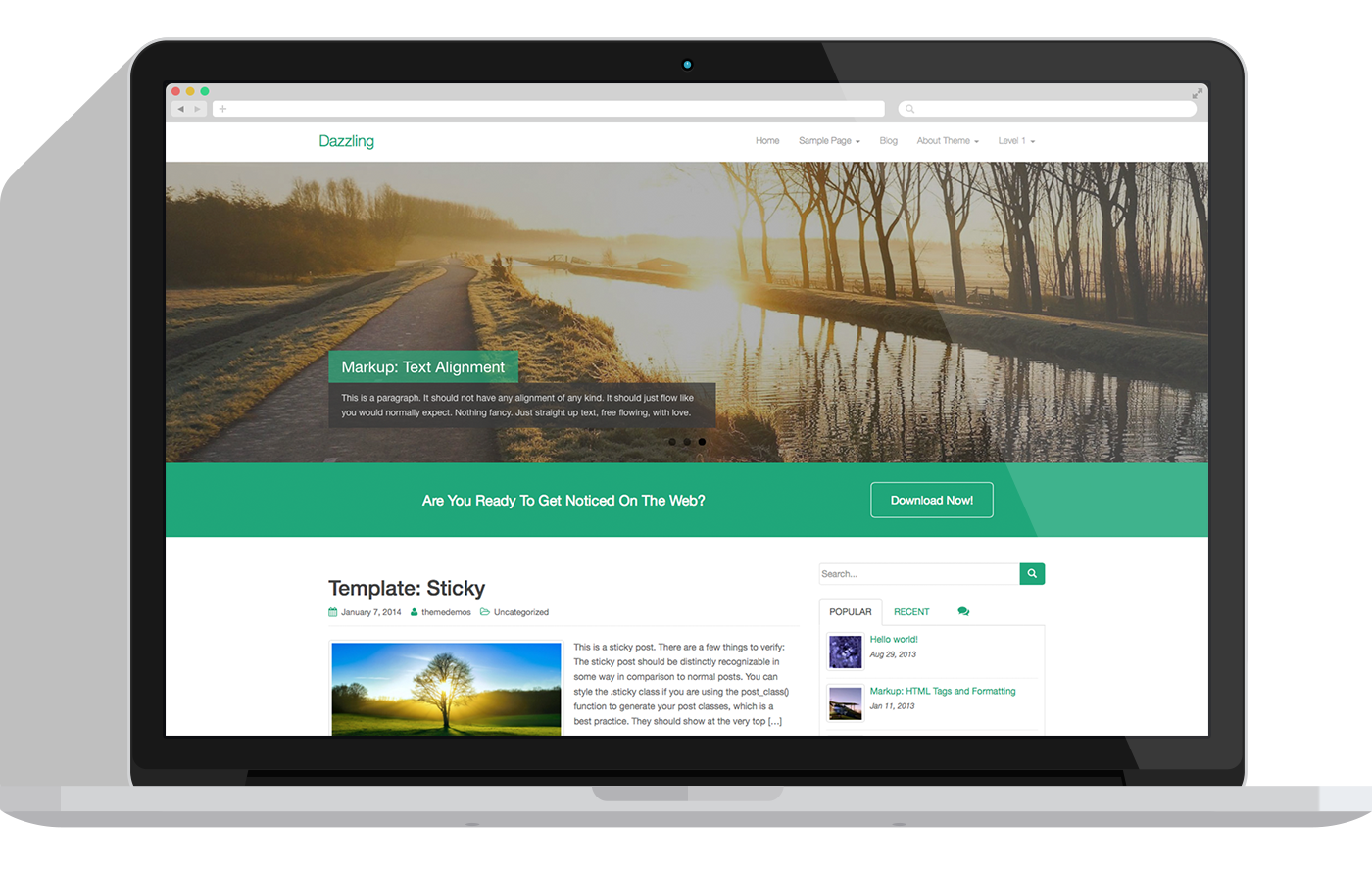
Credit: colorlib.com
Launching Your Site
Check all pages for errors. Ensure links work properly. Review spelling and grammar. Confirm images are in place. Test on different devices. Check for speed and performance. Ensure your contact forms work. Verify site security settings. Make sure your theme looks good.
Install Google Analytics on your site. Create an account if needed. Add the tracking code to your WordPress theme. Verify it is working. Check for real-time visitors. Set goals to track important actions. Review data to understand visitor behavior. Use insights to improve your site.
Share your site on social media. Tell friends and family. Write blog posts to attract visitors. Use keywords in your content. Join online communities related to your topic. Connect with influencers in your field. Consider guest posting on other sites. Email your list about your launch. Keep promoting regularly.
Frequently Asked Questions
How Do I Install A WordPress Theme?
To install a WordPress theme, log into your WordPress dashboard. Navigate to “Appearance” and click “Themes. ” Select “Add New” and upload your theme’s zip file. Click “Install Now” and then activate the theme. Ensure the theme is compatible with your WordPress version and plugins.
Always backup your site before making changes.
What Should I Do After Activating A Theme?
After activating a theme, customize it to fit your brand. Use the WordPress Customizer to adjust colors, fonts, and layout. Install necessary plugins that complement your theme. Test your site on different devices for responsiveness. Ensure all theme features work as expected.
Regularly update your theme to maintain security.
How Can I Customize My WordPress Theme?
Customize your WordPress theme using the Customizer found under “Appearance. ” Here, change colors, fonts, and layout settings. Use widgets to add functionality to your site. Consider using a child theme for advanced customizations. Ensure changes don’t affect site performance.
Regularly preview your site to ensure all customizations are effective.
Are Plugins Needed For My New Theme?
Yes, plugins enhance your theme’s functionality. Essential plugins include SEO, security, and caching tools. Some themes recommend specific plugins. Install only necessary plugins to avoid slowing down your site. Regularly update plugins for security reasons. Always check compatibility between plugins and your theme to prevent conflicts.
Conclusion
Now that you’ve downloaded a WordPress theme, start customizing. Explore its features. Change colors, fonts, and layouts to fit your style. Add essential plugins for enhanced functionality. Don’t forget to optimize images for faster loading. Test your site on different devices.
Ensure everything looks good and works smoothly. Regularly update your theme and plugins to keep your site secure. Seek help from online forums if you face issues. Enjoy the process and watch your site come alive. Your WordPress journey has just begun.
Keep learning and experimenting for the best results.


