
Ever found yourself tangled up in the web of technical jargon while trying to set up your website? You’re not alone.
Understanding the ins and outs of web hosting can be daunting, especially when it comes to the elusive FTP address. But don’t worry, you’re in the right place! In this guide, we’ll break down the mystery of your web host’s FTP address in simple, straightforward steps.
You’ll discover what it is, why it’s important, and most importantly, how to find it with ease. By the end of this article, you’ll feel confident and equipped to handle this aspect of web hosting like a pro. Ready to unlock the secrets of your FTP address? Let’s get started!
Credit: support.brother.com
Understanding Ftp
FTP stands for File Transfer Protocol. It helps move files from one computer to another. This tool is useful for sharing files and folders. With FTP, users can upload and download files easily.
Web hosting uses FTP to send files to a server. This process is important for making websites live. Users can upload HTML, images, and scripts using FTP. It helps website owners keep files safe and organized. FTP is simple to use with many web hosting services. It provides access to website directories and files.
Accessing Ftp Address
Your web host gives you an FTP address. This lets you upload files. Find this address in your hosting account. It is often in the dashboard. Some hosts email you this information. If you lose it, ask for help. The support team can resend it.
FTP addresses have a few common formats. One format is ftp.yourdomain.com. Another is ftp://yourdomain.com. Sometimes, it uses the IP address. This is a string of numbers. Always check the format with your host. Use the correct one to avoid errors.
Setting Up Ftp Client
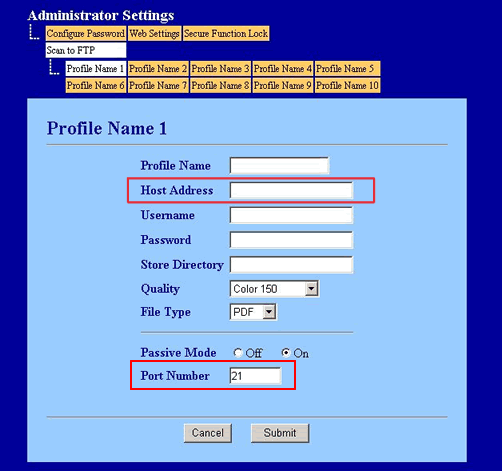
Setting up an FTP client enables users to access their web host’s FTP address effortlessly. Start by entering the host’s FTP address in the client settings. Then, input the provided username and password to connect securely and manage files with ease.
Choosing The Right Ftp Client
Selecting an FTP client is an important step. FileZilla is popular for many users. Cyberduck is another option. Each client has unique features. Look for easy-to-use and secure options. Consider your operating system. Some clients work better on Windows or Mac. Read reviews before choosing. This helps in making a good choice. Always choose a client that suits your needs.
Configuring Ftp Client Settings
After choosing a client, configure settings. Start by entering the FTP address. This is found from your web host. Next, enter your username and password. Check for connection type. Usually, it’s FTP or SFTP. SFTP is more secure. Choose passive mode if available. It works well for firewalls. Save settings once done. Test the connection. Ensure everything works. If errors appear, check details again.
Connecting To Ftp Server
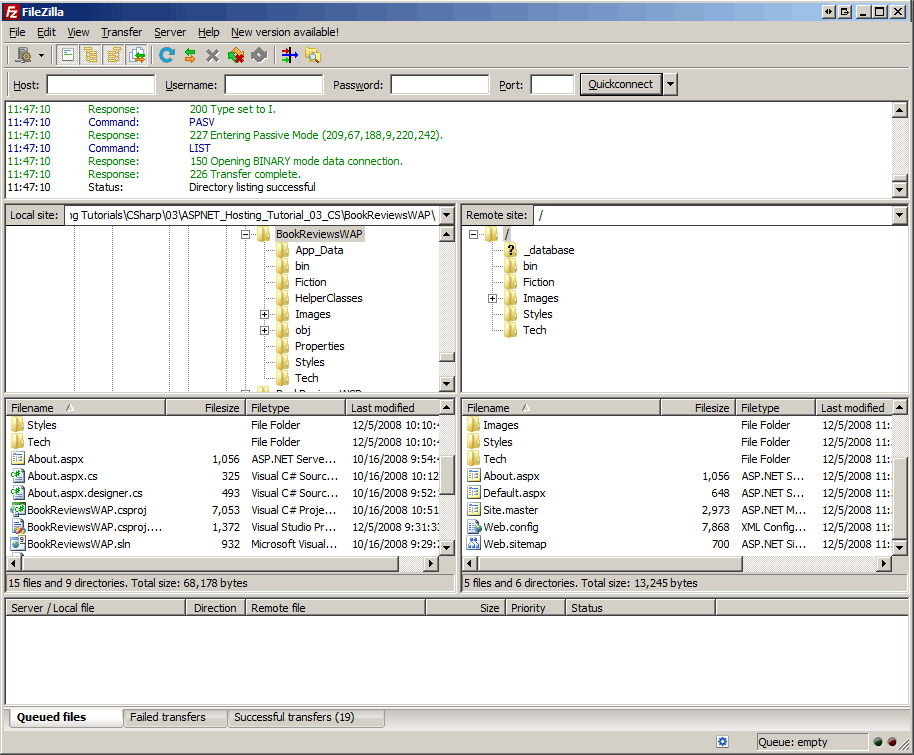
First, you need the FTP address. This is like a website address. Open an FTP program on your computer. Enter the FTP address there. You also need a username and password. Ask your web host for these if you don’t have them. Then, click connect. Wait a moment. Your computer talks to the server. Now, you can see files on the server.
If the connection fails, check the FTP address. It must be correct. Wrong details can stop the connection. Ensure the username and password are correct too. Sometimes, the server is down. Check with your web host. They can fix it. Also, check your internet connection. It must be stable. If all fails, ask your web host for help. They know the server best.
Managing Files Via Ftp
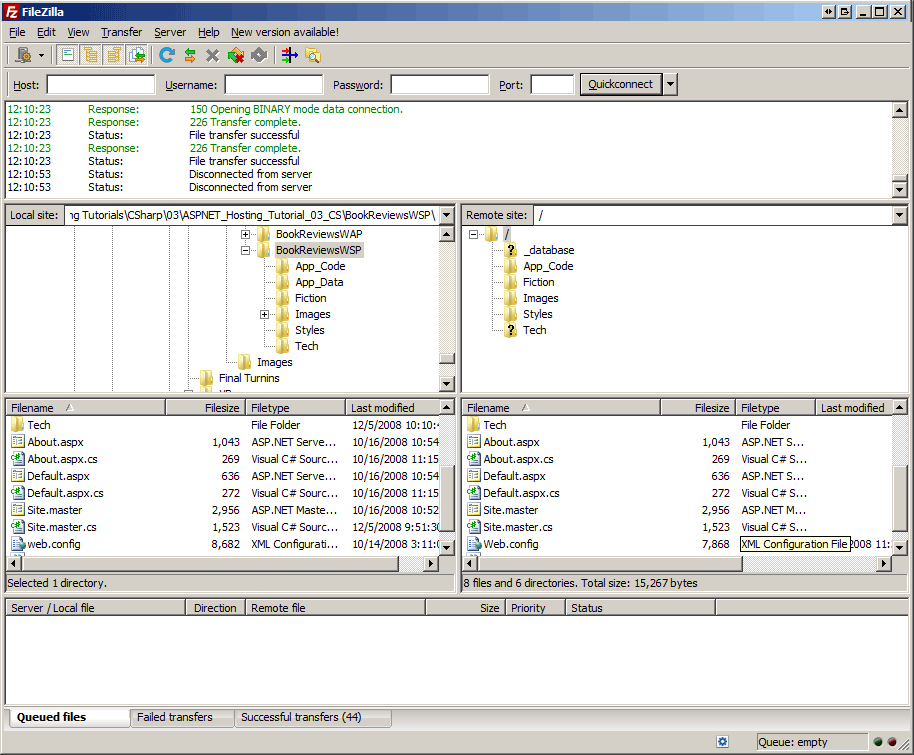
FTP lets you upload files quickly. Open your FTP client and log in. Choose the files you want to upload. Drag and drop them into the server folder. Wait for the upload to finish. Your files are now on the web server.
Downloading files is easy with FTP. Log into your FTP account. Find the files you want to download. Click to select them. Drag them to your computer. Wait as they download. Now you have your files.
Directories keep files neat. Create new folders for different files. Move files into the right folders. Rename folders for easy searching. Delete folders you don’t need. This keeps your server tidy.
Credit: learn.microsoft.com
Security Considerations
Secure connections keep your data safe. Always use FTP over SSL or SFTP. These methods encrypt your data. Hackers can’t read encrypted data. Regular FTP is not secure. Avoid using it. Use a strong password for extra safety. Don’t share passwords with anyone. Change passwords often. This keeps your account safe.
Protecting your FTP credentials is very important. Store passwords in a safe place. Don’t write them on paper. Use a password manager. It keeps all your passwords secure. Never email your passwords. Emails can be hacked easily. Make sure your passwords are hard to guess. Use numbers, letters, and symbols. This makes your password stronger.
Advanced Ftp Features
Explore advanced FTP features to enhance your web hosting experience. Easily manage your files and folders with secure connections. Streamline your workflow by automating routine tasks and ensuring efficient data transfers.
Automating Ftp Tasks
Automation saves time and makes work easier. Use scripts to automate file transfers. Schedule tasks with cron jobs on Unix or Linux. Windows users can use the Task Scheduler. These tools run tasks at specific times without manual input. Automation helps in managing large files efficiently. It ensures files are sent or received on time. Automating tasks can reduce human errors. Make sure to set up automation correctly for best results.
Using Ftp Commands
FTP commands help in managing files. Use basic commands like GET and PUT to transfer files. Use MKDIR to make new folders. DELETE removes unwanted files. LIST shows all files in a directory. These commands are easy to learn. Practice using them for better understanding. Always check command results for errors. Use HELP for command assistance. FTP commands are powerful tools for file management.
Credit: learn.microsoft.com
Frequently Asked Questions
How Do I Find My Ftp Server Url?
Locate your FTP server URL by checking your hosting provider’s email or control panel. It often starts with “ftp://”. Use your domain name if unsure. For accurate details, contact your hosting support directly.
How Do I Access An Ftp Url?
Open a web browser or FTP client. Enter the FTP URL in the address bar. Press “Enter” to connect. Input your username and password if prompted. Access the files and directories available on the server.
What Is My Ftp Host Address?
Your FTP host address is typically provided by your web hosting service. Check your hosting account dashboard or welcome email for details. If unsure, contact your hosting provider for assistance.
How Do I Open The Ftp Server Ip Address?
Open the FTP client software. Enter the server IP address in the host field. Provide necessary login credentials. Click connect to access the server. Ensure you’re using the correct port number, typically 21, for standard FTP connections.
Conclusion
Understanding your web host’s FTP address is crucial for website management. It helps with file transfers and website updates. A clear grasp of FTP addresses ensures smooth operations. Remember, each web host has unique settings. Check their documentation for specifics.
Practice using FTP tools for confidence. Regularly updating skills can prevent issues. Keep backup copies of important files. This step guards against accidental loss. Explore more to deepen your knowledge. The more you learn, the easier it gets. Stay informed and your web hosting tasks will be manageable.
Happy hosting!


