
Have you ever wondered what version of WordPress your website is running? Keeping track of your WordPress version is crucial for maintaining a secure and smoothly operating site.
Imagine all the exciting features you might be missing out on, or the potential security threats looming over your site due to outdated software. But don’t worry, you’ve come to the right place. You’ll discover quick and easy ways to verify your WordPress version.
By the end, you’ll not only know your current version but also understand why staying updated is so important. Let’s dive in and ensure your WordPress site is always at its best!
Credit: wedevs.com
Checking WordPress Dashboard
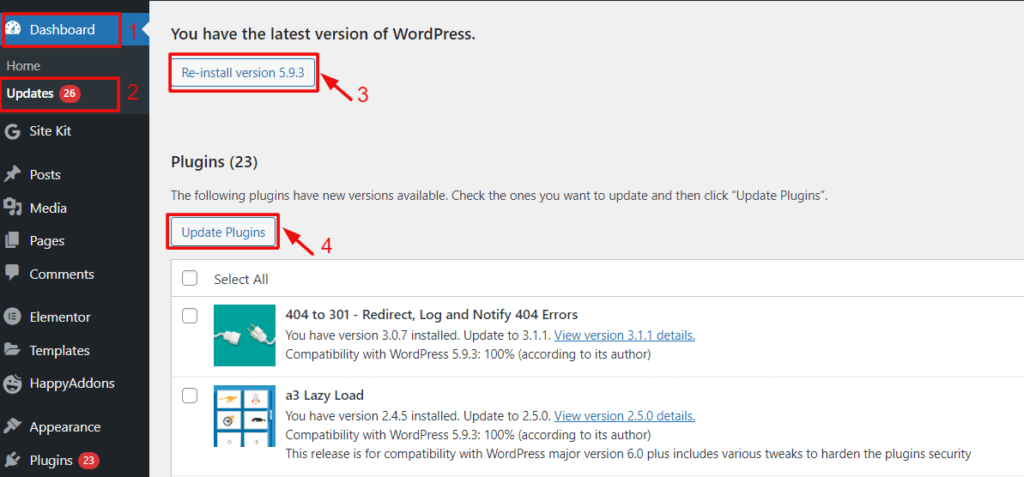
The WordPress dashboard is the main control panel. It contains important details. Locate the dashboard by logging into WordPress. Look for the left-side menu. Click on “Dashboard.” Then click “Updates.” Here, you will find the WordPress version. It is at the top of the page. Always check this section for updates. It ensures your site is secure.
The version number helps you know your WordPress version. It appears like this: 5.9.3. Each number has a meaning. The first number is the major release. The second is a minor update. The third is a small fix. Understanding these numbers is important. It helps maintain your website. Always keep WordPress up to date. It ensures the best performance and safety.
Credit: www.aapanel.com
Exploring Site Health
Visit your WordPress dashboard. Look for the Tools menu. Click on it. Find Site Health. This tool checks your site’s status. It provides useful info. Including WordPress version details.
Open the Site Health screen. A Status tab is visible. Click on the tab. Look for WordPress version. It shows your current version. This helps ensure your site is up-to-date. Keep your site safe.
Using Ftp Or File Manager
Accessing your website’s files via FTP or File Manager helps verify your WordPress version. Locate the “wp-includes/version. php” file. Open it to find the version number.
Navigating To WordPress Files
Access your website files through FTP or File Manager. You will see many folders. Find the ‘wp-includes’ folder. It has many important WordPress files. This folder is usually inside your root directory. Open this folder to see the files.
Identifying Version In Readme File
Inside the ‘wp-includes’ folder, look for a file named ‘readme.html’. This file tells you the WordPress version. Open it to find the version number. Usually, the version is near the top of the file. It is easy to find. This file helps you know your current WordPress version. Always check this file for the version.
Credit: fluentforms.com
Command Line Verification
WP-CLI is a tool to manage WordPress sites. It helps you know your WordPress version quickly. First, open your terminal. Make sure WP-CLI is installed. Type the command: wp core version. Press enter. The terminal will show your WordPress version. It’s very fast and easy. Sometimes, updates are needed. This command helps check if updates are missed.
WP-CLI is also helpful for other tasks. It can manage themes, plugins, and more. Many WordPress users find WP-CLI useful. It saves time and effort. Using commands is fun and fast. Remember, WP-CLI works only if installed. Always check installation before using commands.
Checking Source Code
Viewing the HTML source is a simple way to check your WordPress version. Right-click on your webpage. Choose “View Page Source” or “Inspect”. This opens the HTML code. Look for the meta tag in the head section. It usually starts with <meta name="generator" content="WordPress. The version number follows the WordPress name.
If you cannot find the meta tag, it might be hidden. Some site owners hide it for security reasons. In such cases, check your WordPress dashboard. The dashboard often shows the version at the bottom. Knowing your WordPress version helps you keep your site updated. Updates are important for security and new features. Always stay informed about your current version.
Utilizing Third-party Tools
Installing Plugins is easy and quick. First, visit the plugin store. Search for a plugin that checks the WordPress version. Click install. Activate the plugin after installation. Now, the plugin is ready to use. Some plugins show the version on the dashboard. Others need a few clicks.
Checking Version with Tools is simple. Use online tools to check your WordPress version. These tools are free. Go to the tool’s website. Enter your website URL. Click submit or check. The tool displays your WordPress version. Tools help when plugins are not available. They give fast results.
Manual Methods
Log into your WordPress admin area. Look for the Dashboard button. It’s usually on the left side. Click on it. This area shows your WordPress version. Check the top of the screen. The version number is near the top. Always ensure your site is secure. Knowing your version helps with this.
Scroll to the bottom of the admin page. This is called the admin footer. The footer often shows the WordPress version. If it’s not there, don’t worry. Some themes or plugins may hide it. Always keep your WordPress updated. New versions fix bugs and add features. This keeps your site safe.
Frequently Asked Questions
How Can I Check My WordPress Version?
To check your WordPress version, log into your admin dashboard. Look at the bottom right corner of the page. Alternatively, navigate to “Updates” under the “Dashboard” menu. Your current WordPress version will be displayed there.
Is There A Plugin To Find WordPress Version?
Yes, there are plugins like “Version Info” that display your WordPress version. Install and activate the plugin from the WordPress repository. It will show your version on the admin dashboard for easy access.
Can I Find WordPress Version Without Logging In?
Yes, you can find it without logging in by viewing the source code of your site. Right-click on your homepage and select “View Page Source. ” Search for “generator” to find the WordPress version in the meta tag.
Does WordPress Version Affect Site Performance?
Yes, your WordPress version affects site performance and security. Older versions might be vulnerable to security issues. Always keep your WordPress updated to the latest version for optimal performance and security enhancements.
Conclusion
Understanding your WordPress version is crucial. It helps keep your site secure. Knowing the version also aids in troubleshooting. This simple task ensures optimal performance. Regular checks are important. Don’t neglect them. Stay informed about updates. They often bring improvements and fixes.
Remember, a secure site protects your content. Keep your WordPress up-to-date. It’s a small effort with big benefits. Follow these steps regularly. Your website will thank you. Stay proactive and enjoy smoother WordPress management. Your blog deserves the best care.
Keep learning and growing with WordPress.


