
If you want your website to get noticed on Google, mastering Yoast SEO for WordPress is a game-changer. You might have a great site, but without the right SEO tools, your content can easily get lost in the crowd.
Imagine having a simple, powerful tool that guides you step-by-step to make your pages rank higher and attract more visitors. That’s exactly what Yoast SEO does for you. You’ll discover how to use Yoast SEO in WordPress to boost your site’s visibility, improve your content, and get more traffic—without needing to be an SEO expert.
Keep reading, and you’ll learn easy tips that you can apply right away.
Getting Started With Yoast Seo
Getting started with Yoast SEO is simple and quick. This tool helps improve your website’s visibility on search engines. It guides you to optimize your content and settings easily. Below are the first steps to begin using Yoast SEO on your WordPress site.
Installing The Plugin
Log in to your WordPress dashboard. Go to the “Plugins” section on the left menu. Click “Add New” and type “Yoast SEO” in the search box. Find the Yoast SEO plugin in the results. Click “Install Now” to start the installation process. Wait a few moments for the plugin to download and install.
Activating And Setting Up
After installation, click “Activate” to enable the plugin. You will see a new “SEO” menu on your dashboard. Open it to start the configuration wizard. Follow the wizard’s simple steps to set your site’s SEO preferences. Enter details like site type, company name, and social profiles. Finish the setup to enable Yoast SEO features immediately.
Configuring Basic Settings
Configuring the basic settings in Yoast SEO is the first step to improve your website’s search engine ranking. These settings help you control how your site appears in search results. They also allow you to connect your site with important tools that track performance.
Setting up Yoast SEO correctly saves time later. It helps your content get found more easily. The following sections explain the key parts of the basic setup.
General Settings
In the general settings, start by naming your website. This name shows in search results and browser tabs. Next, set whether your site represents a person or an organization. This affects how search engines display your brand.
Choose the default language for your site. This helps Yoast SEO optimize content for your audience. You can also enable or disable security features here, like allowing editors to access advanced SEO tools.
Features Overview
The features tab lists all active functions in Yoast SEO. You can turn on or off options like readability analysis and SEO analysis. These tools check your content and give improvement tips.
Other features include XML sitemaps, which help search engines find your pages quickly. Breadcrumbs improve site navigation. Activate only the features you need to keep your site fast.
Webmaster Tools Verification
This section allows you to verify your site with major search engines. Enter verification codes from Google, Bing, Baidu, or Yandex here. Verification lets these tools collect data about your site’s traffic and performance.
Copy the code from each webmaster tool and paste it into the correct box. Save your settings to complete verification. This step is crucial for monitoring and improving your SEO results.
Optimizing Content With Yoast
Optimizing content with Yoast SEO helps improve your website’s visibility on search engines. This tool guides you step-by-step to enhance your posts and pages. It checks important factors like keywords, readability, and metadata. Using Yoast makes SEO easier for everyone, especially beginners.
Using The Seo Analysis
Yoast SEO provides a clear analysis of your content. It shows green, orange, or red lights to indicate SEO quality. Green means good, orange suggests improvement, and red needs attention. The tool checks keyword usage, meta descriptions, and internal links. Follow its advice to make your content better for search engines.
Improving Readability
Readability is key for engaging visitors. Yoast highlights sentence length, passive voice, and transition words. It encourages short sentences and simple words. This helps readers understand your message easily. Clear writing keeps visitors on your site longer. Use the readability score to fix any issues.
Setting Focus Keywords
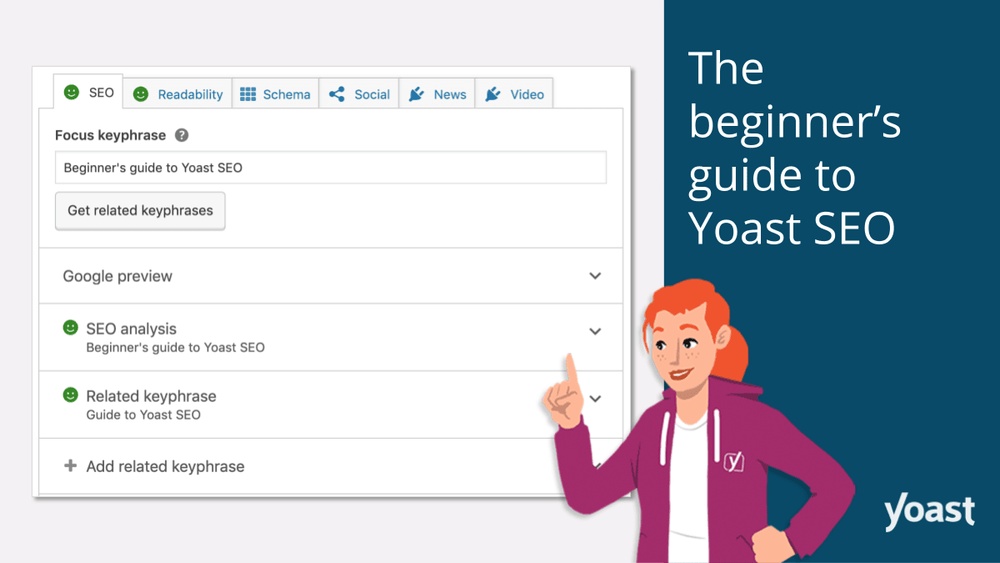
Focus keywords tell search engines what your content is about. Choose one main keyword per post or page. Enter it in the Yoast SEO box. Yoast checks if the keyword appears in titles, headings, and text. Proper use of focus keywords boosts your chances of ranking higher. Avoid keyword stuffing for better results.
Managing Titles And Meta Descriptions
Managing titles and meta descriptions is crucial for SEO success. These elements tell search engines and users what your page is about. Well-crafted titles and descriptions can increase clicks and improve your site’s ranking. Yoast SEO makes it easy to control these important details for each post and page.
Customizing Titles
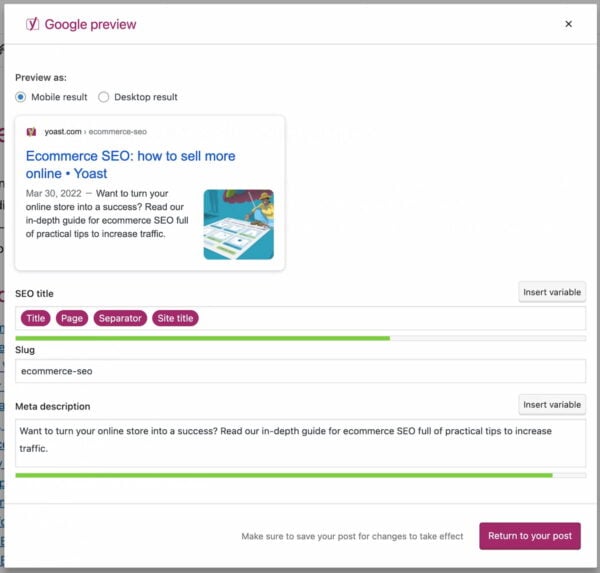
Yoast SEO lets you change the default title of your page or post. Click on the Yoast SEO box below the editor to find the title field. Type a clear, concise title that includes your main keyword. Keep titles under 60 characters to avoid being cut off in search results. Use words that attract attention and accurately describe your content.
Writing Effective Meta Descriptions
Meta descriptions provide a short summary of your page content. In Yoast SEO, enter your meta description in the designated field. Write between 120 to 160 characters for best display on search engines. Use simple language and include your main keywords. Make it interesting to encourage users to click on your link.
Utilizing Advanced Tools
Utilizing advanced tools in Yoast SEO improves your website’s visibility. These tools help search engines find and understand your content better. They make your site easier to navigate and share. Below are key features you should use to enhance your SEO.
Xml Sitemaps
XML sitemaps list all important pages on your site. They help search engines crawl your website efficiently. Yoast SEO creates and updates sitemaps automatically. You can find the sitemap URL in the Yoast settings. Submit this URL to Google Search Console. This ensures Google indexes your site quickly.
Breadcrumbs Setup
Breadcrumbs show a clear path of where users are on your site. They improve user experience by making navigation simple. Yoast SEO allows easy breadcrumbs setup. Enable breadcrumbs in the plugin settings. Then, add a small code snippet to your theme files. This helps both users and search engines understand your site’s structure.
Social Media Integration
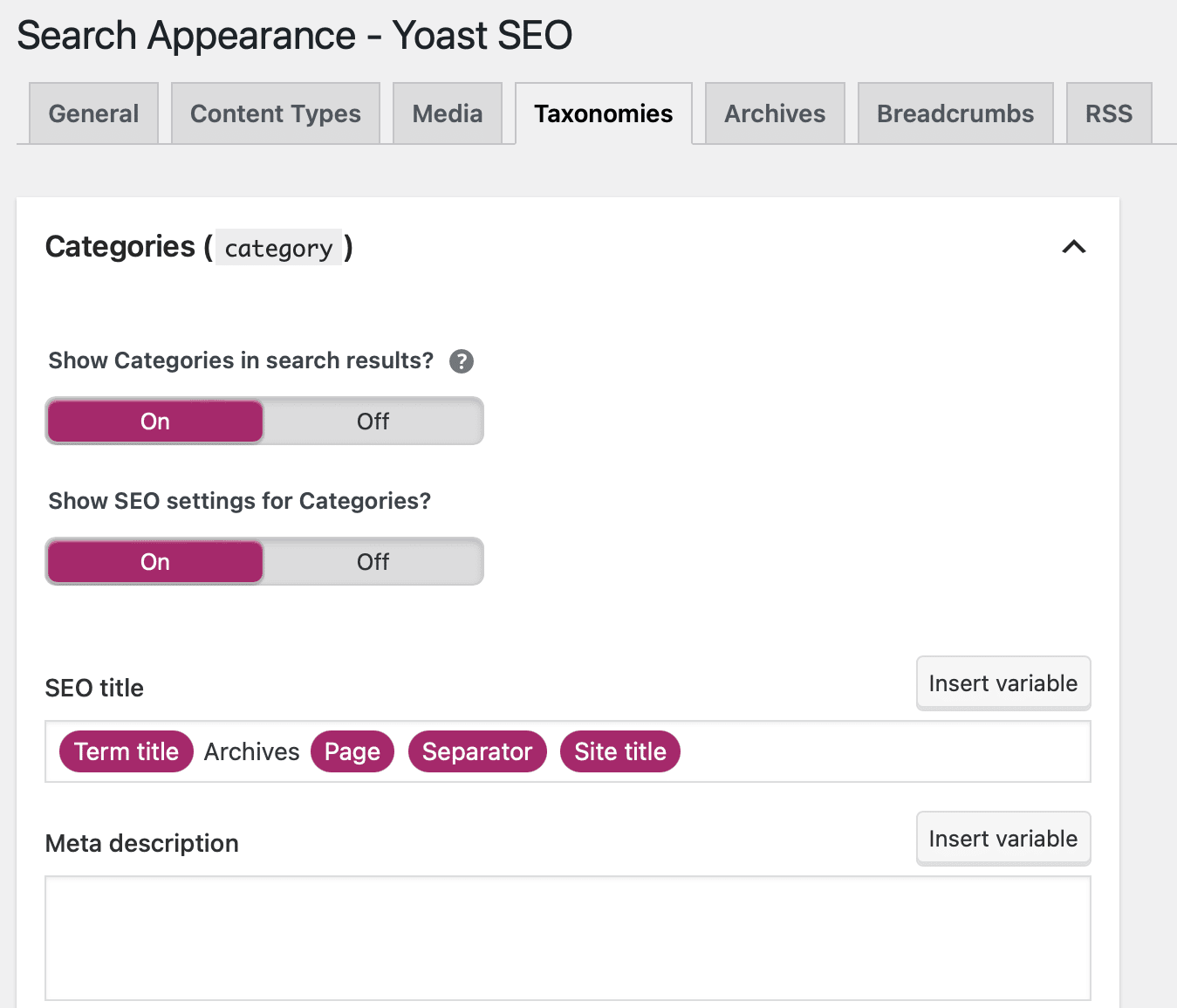
Social media integration connects your website with platforms like Facebook and Twitter. Yoast SEO lets you customize how your posts appear on these sites. Add titles, descriptions, and images for sharing. This improves click rates and drives more traffic. Fill out social profiles in the plugin to link your accounts.
Credit: yoast.com
Tracking And Monitoring Seo Performance
Tracking and monitoring SEO performance helps measure your website’s success. It shows what works and what needs change. Using tools like Google Analytics and Search Console gives clear data. This data guides your SEO efforts for better results.
Connecting Google Analytics
Google Analytics tracks visitors on your website. It shows how many people visit and what pages they like. Connect Google Analytics to your WordPress site through Yoast SEO for easy tracking. This connection helps you see user behavior and traffic sources. Use this data to improve your content and site structure.
Using Search Console Data
Google Search Console offers insights into your site’s search performance. It shows keywords, clicks, and impressions. Link Search Console to Yoast SEO to view this data inside WordPress. Watch your site’s ranking and spot issues like broken links or indexing problems. Fixing these issues improves your SEO and user experience.
Troubleshooting Common Issues
Yoast SEO is a powerful tool, but issues can arise during use. Troubleshooting is key to keep your SEO efforts on track. This section covers common problems and how to solve them. Stay focused to fix issues quickly and improve your website’s SEO.
Fixing Seo Score Problems
Sometimes, Yoast SEO shows a low score despite good content. Check if your focus keyword matches the main topic. Use simple keywords that readers search for. Make sure your text includes the keyword naturally. Add meta descriptions and titles that include the keyword. Avoid keyword stuffing; it can lower your score. Also, check readability suggestions. Short sentences and clear language help improve the score. Update your content regularly to keep it fresh and relevant.
Handling Plugin Conflicts
Yoast SEO may not work well with some plugins. Conflicts can cause errors or slow down your site. To find conflicts, deactivate other plugins one by one. Check if the issue disappears after each deactivation. Update all plugins to their latest versions. Sometimes, old versions cause problems. Use only necessary plugins to reduce conflicts. If a plugin causes issues, seek alternatives that work well with Yoast SEO. Clear your website cache to see recent changes.
Credit: kinsta.com
Credit: www.elegantthemes.com
Frequently Asked Questions
What Is Yoast Seo And Why Use It?
Yoast SEO is a WordPress plugin that optimizes your website for search engines. It improves content readability and SEO scores. Using it helps increase organic traffic and boosts your site’s ranking on Google.
How To Install Yoast Seo On WordPress?
Go to your WordPress dashboard, click Plugins > Add New. Search for “Yoast SEO,” then click Install and Activate. After activation, configure basic settings using the setup wizard for optimal SEO performance.
How To Optimize Content Using Yoast Seo?
Yoast SEO analyzes your content’s keywords, readability, and metadata. It gives real-time suggestions to improve SEO. Use focus keywords, write clear meta descriptions, and ensure your content is easy to read.
Can Yoast Seo Help With Xml Sitemaps?
Yes, Yoast SEO automatically generates XML sitemaps. These sitemaps help search engines index your site efficiently. You can customize sitemap settings in the plugin dashboard to suit your needs.
Conclusion
Yoast SEO helps improve your WordPress site’s search ranking. Use its tools to write better content and optimize keywords. Check readability scores to make posts clear and easy to read. Keep updating settings as your site grows. Small changes can bring steady traffic gains.
Practice using Yoast regularly for best results. Simple steps lead to better online visibility. Stay consistent and patient with your SEO efforts.


