

Are you ready to take control of your online presence? Learning how to use WordPress can open the door to building your own website, blog, or online store without needing to be a tech expert.
Whether you want to share your ideas, showcase your work, or grow a business, WordPress gives you the tools to make it happen. You’ll discover simple, clear steps to get started quickly and confidently. By the end, you’ll know how to set up your site, customize its look, and create content that grabs attention.
Let’s dive in and unlock the power of WordPress for your success!
Credit: wpengine.com
WordPress Basics
WordPress is a popular platform for building websites. It offers tools for beginners and experts. Understanding the basics helps you start your website quickly. This section covers essential WordPress topics to guide you.
What Is WordPress
WordPress is a software used to create websites. It is free and open source. You can build blogs, business sites, or online stores. It uses themes and plugins to customize your site. Many websites on the internet use WordPress.
WordPress.com Vs WordPress.org
WordPress.com is a hosted service. It takes care of hosting and security for you. You get limited control over your site. WordPress.org is self-hosted. You download software and install it on your server. It offers full control and customization options. Choose based on your needs and skills.
Choosing A Hosting Provider
Hosting stores your website files online. A good host ensures your site loads fast. Look for providers with good uptime and support. Many hosts offer one-click WordPress installation. Compare prices and features before selecting a host. Reliable hosting is key for website success.
Selecting A Domain Name
Your domain is your website address. It should be easy to remember and type. Use simple words related to your site topic. Avoid numbers and special characters. Check domain availability with registrars. A good domain builds trust and helps visitors find you.
Setting Up WordPress
Setting up WordPress is the first step to building your website. It involves installing the software and preparing it for use. This guide explains easy ways to set up WordPress. Follow these steps to get started quickly.
Installing WordPress Manually
Manual installation gives full control over the setup process. First, download the WordPress package from the official site. Next, upload the files to your web server using FTP. Create a database for WordPress using your hosting control panel. Run the WordPress installer by opening your site URL in a browser. Follow the on-screen instructions to connect the database and set up your site details.
Using One-click Installers
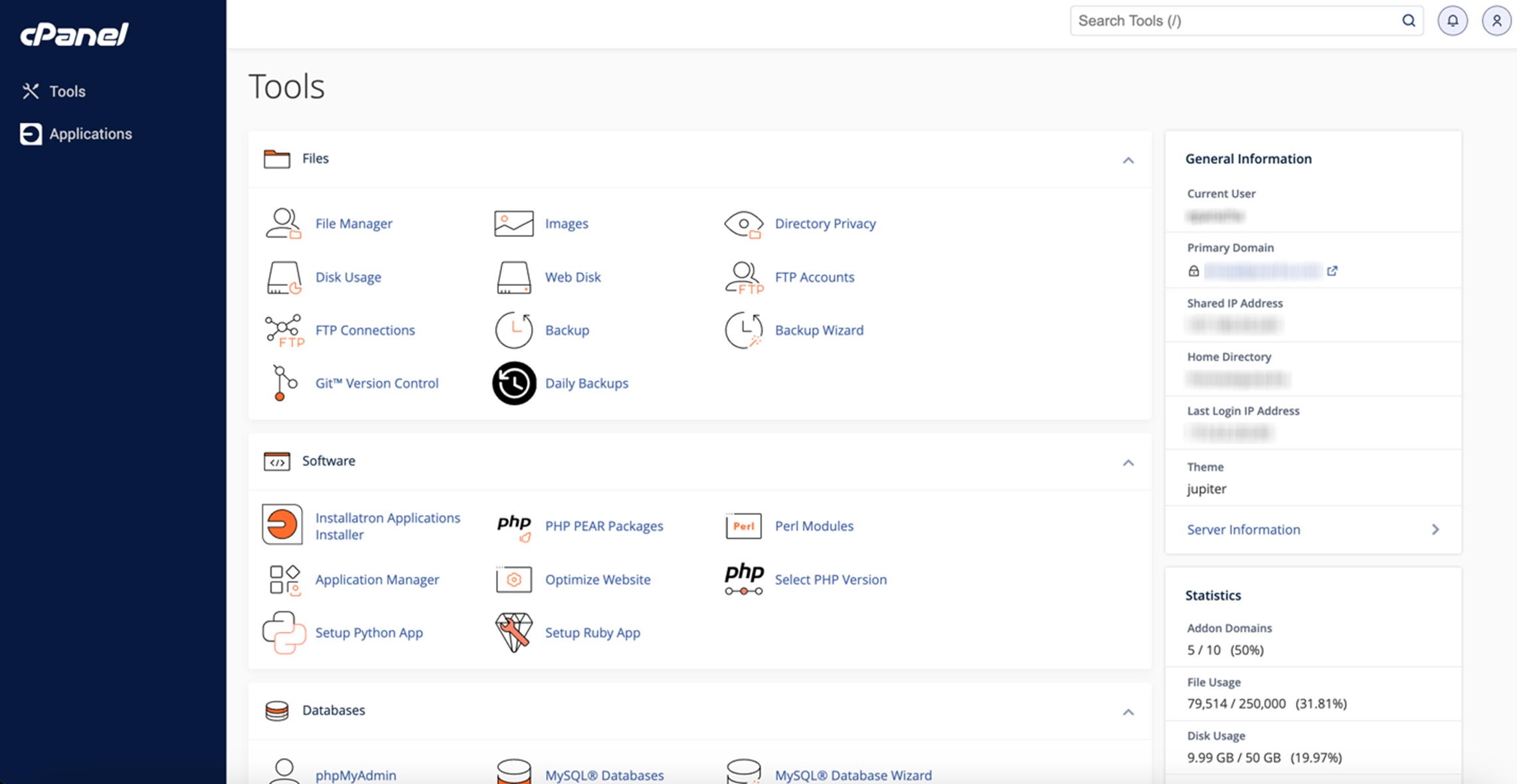
Many hosting providers offer one-click WordPress installers. This method is faster and easier for beginners. Log in to your hosting control panel. Find the WordPress installer tool and select it. Fill in your site information and choose your domain. Click the install button, and the system will set up WordPress automatically. Wait a few minutes, then access your new WordPress site.
Logging Into Admin Dashboard
After installation, access the WordPress admin dashboard to manage your site. Go to yoursite.com/wp-admin in a web browser. Enter your username and password created during installation. This dashboard is where you add posts, pages, and customize your site. Keep your login details safe and use strong passwords for security.
Configuring Basic Settings
Start by setting your site title and tagline under Settings > General. Adjust the timezone and date format to match your location. Set your preferred language for the dashboard. Go to Settings > Permalinks to choose how URLs appear. Save changes to make your site ready for content creation. Basic settings help your site work well and look professional.
Choosing Themes
Choosing the right theme is essential for a WordPress website. It sets the look and feel of your site. A good theme helps visitors enjoy your content and improves site usability. Themes can vary greatly in style, features, and flexibility. Understanding theme options helps you make the best choice for your needs.
Free Vs Premium Themes
Free themes are available in the WordPress theme directory. They offer basic features and designs. Many free themes are well-coded and updated regularly. Premium themes cost money but provide advanced features. These include more customization options and dedicated support. Premium themes often have better designs and extra plugins. Choose based on your budget and the features you want.
Installing And Activating Themes
To install a theme, go to your WordPress dashboard. Click on Appearance > Themes > Add New. You can search for free themes here. Click Install, then Activate to use the theme on your site. For premium themes, upload the theme file in the Add New section. After uploading, click Activate. Your site will now use the new theme.
Using Child Themes
Child themes let you change a theme without losing updates. They inherit the parent theme’s features and styles. This is safer for customization. Create a child theme folder and add a style.css file. Link it to the parent theme inside the file. Activate the child theme from the dashboard. Use it to make changes and keep the original theme intact.
Customizing Theme Appearance
Most themes support customization through the WordPress Customizer. Access it by clicking Appearance > Customize. Here, you can change colors, fonts, and layouts. Some themes add extra options like header images or widgets. Preview your changes live before saving. Customizing helps your site look unique and match your brand style.
Creating Content
Creating content is the heart of any WordPress site. It helps you share your ideas, stories, or products with visitors. WordPress makes content creation simple and flexible. You can write posts, build pages, and add images or videos easily. Understanding these basics will help you build a strong online presence.
Using The Gutenberg Editor
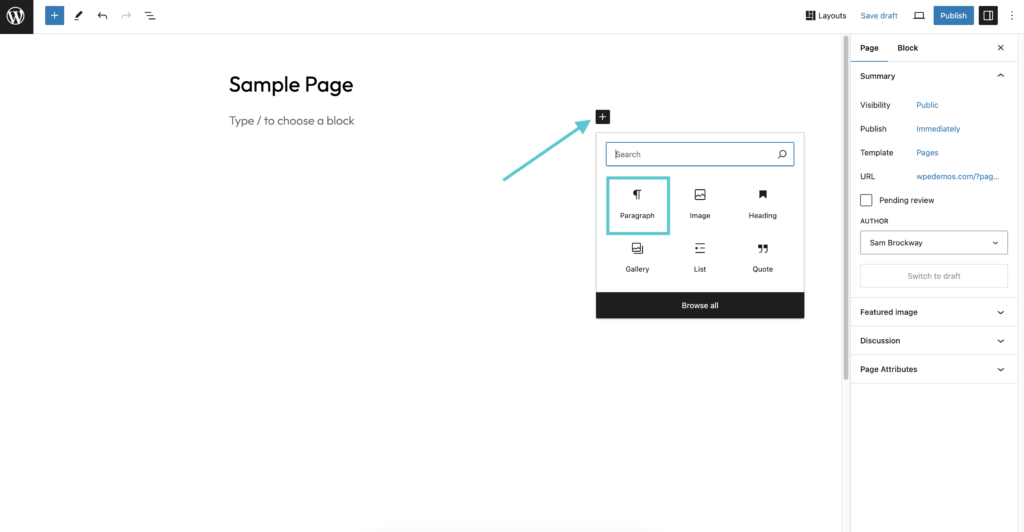
The Gutenberg editor uses blocks for content. Each block holds a different type of content like text, images, or videos. This block system gives control over layout and design without coding. You can move blocks up or down and customize each block’s settings. It helps make your content look clean and organized.
Writing And Publishing Posts
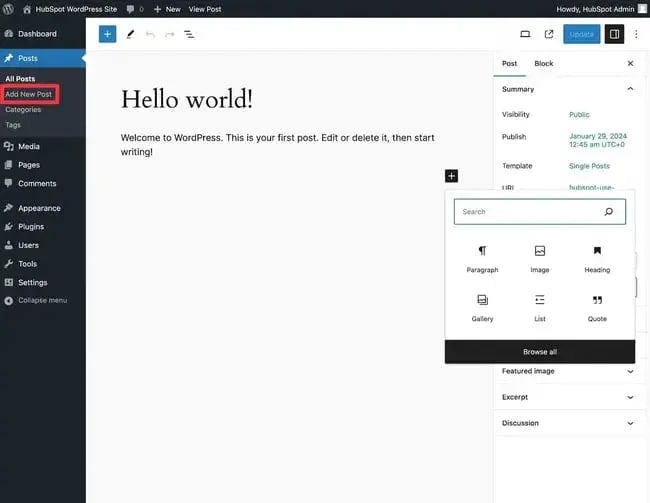
Posts are used for blogs or news updates. To write a post, go to the WordPress dashboard and click “Add New.” Enter your title and write your content in the editor. Use headings, lists, and links to make your post easy to read. When ready, click “Publish” to share your post with the world.
Creating Pages
Pages hold permanent content like About or Contact information. To create a page, select “Pages” then “Add New” in the dashboard. Add your content using the Gutenberg blocks. Pages don’t show up in blog feeds but are important for site structure. Publish the page once you finish writing.
Adding Media And Embedding Videos
Media includes images, audio, and video files. Click “Add Media” to upload files from your computer. You can insert images anywhere in your posts or pages. To add videos, paste the video URL or use the video block. WordPress supports many video platforms, making embedding quick and simple.
Organizing Your Site
Organizing your WordPress site helps visitors find content fast. A well-structured site improves user experience and search engine ranking. Clear organization guides your audience through your pages and posts.
Use WordPress tools to sort content into categories and tags. Build menus to display important links. Customize menus with special links. Manage widgets and sidebars to add extra features.
Creating Categories And Tags
Categories group your posts by main topics. They keep your site tidy and easy to browse. Tags add more details about each post. Use tags to connect related content across categories. Assign categories and tags when creating posts in WordPress. This helps visitors find similar articles quickly.
Building Menus
Menus show your site’s key pages and sections. Create menus in the WordPress dashboard under Appearance > Menus. Add pages, posts, categories, or custom links to menus. Arrange items by dragging them to the right spot. Save your menu and assign it to a location like header or footer.
Custom Menu Links
Custom links let you add URLs outside your site to menus. Use this for social media, partner sites, or special pages. Add a URL and link text in the menu editor. Place these links anywhere in your menu structure. This keeps navigation flexible and useful for visitors.
Managing Widgets And Sidebars
Widgets add blocks of content or features to sidebars and footers. Common widgets include search bars, recent posts, and calendars. Access widgets under Appearance > Widgets in your dashboard. Drag widgets to sidebars or footer areas. Customize each widget’s settings to suit your site’s needs.
Enhancing Functionality
Enhancing your WordPress site’s functionality can greatly improve user experience. Plugins are key tools that add new features. They help you customize your site without coding. Understanding how to install and manage plugins is essential for any WordPress user.
Installing Plugins
Go to the WordPress dashboard and click on “Plugins.” Select “Add New” to search for plugins. Use keywords related to the feature you want. Click “Install Now” on the chosen plugin. After installation, activate the plugin to start using it. Always choose plugins with good reviews and regular updates.
Essential Plugins For Beginners
Start with plugins that improve security, SEO, and site speed. Popular choices include Yoast SEO for search engine optimization. Use Wordfence to protect your site from hackers. WP Super Cache helps your site load faster. These plugins cover basic needs and are easy to use.
Managing Plugin Updates
Keep your plugins up to date to avoid security risks. Check the dashboard regularly for update notifications. Update plugins one at a time to prevent conflicts. Backup your site before updating plugins to save your data. Outdated plugins can slow your site and cause errors.
Security Best Practices
Use strong passwords and change them often. Limit the number of plugins to reduce vulnerabilities. Delete plugins you no longer use. Install a security plugin to monitor your site. Regularly update WordPress, themes, and plugins. These steps help keep your site safe and stable.
Design And Layout
Design and layout are key to making your WordPress site look professional and appealing. They guide visitors through your content and keep them engaged. A clean, clear design helps your message stand out. WordPress offers many easy tools to adjust colors, fonts, and layout. You can also add images that draw attention. This section explains how to customize these elements step-by-step.
Customizing Colors And Fonts
Colors and fonts set your site’s mood and style. Choose colors that match your brand or topic. Use the WordPress Customizer to change colors easily. Pick fonts that are easy to read on all devices. Limit your font choices to keep your site simple. Adjust font sizes to highlight headings and important text.
Adjusting Layout Settings
Layouts control how content appears on each page. WordPress themes offer many layout options. Select full-width or boxed designs depending on your style. Change the position of sidebars or remove them for focus. Use spacing settings to add margins and padding. These small changes improve readability and flow.
Adding Featured Images
Featured images show a preview of your posts or pages. They attract visitors and increase clicks. To add one, open the post editor and find the featured image box. Upload or select an image from your media library. Choose images that relate to your content. Make sure the images are clear and high quality.
Finding Free Images
Free images help you create a visual impact without cost. Use sites like Unsplash, Pixabay, and Pexels for quality photos. Search for images that match your topic and style. Download images and upload them to your WordPress media library. Always check the license to confirm free use. Proper images make your site more inviting and professional.
Credit: blog.hubspot.com
Seo And Performance
SEO and performance are key to a successful WordPress site. They help your site rank better and load faster. Visitors stay longer on sites that run smoothly. Search engines favor sites with good SEO and speed. Improving both increases traffic and user experience.
Basic Seo Tips
Use clear and simple titles for your pages and posts. Write short, descriptive meta descriptions. Include your main keywords naturally in the content. Use headings to organize your text. Add alt text to images for better search visibility.
Optimizing Site Speed
Choose a fast and reliable hosting service. Compress images before uploading them to your site. Use caching plugins to reduce load times. Limit the number of plugins to only what you need. Keep your WordPress version and plugins updated.
Using Seo Plugins
Install popular SEO plugins like Yoast SEO or Rank Math. These tools help optimize content and meta tags easily. They offer suggestions to improve readability and keyword use. Set up XML sitemaps for better search engine indexing. Monitor your SEO health regularly with plugin reports.
Mobile Responsiveness
Choose themes that work well on all devices. Test your site on phones and tablets often. Use responsive images that adjust size automatically. Avoid large elements that slow down mobile loading. Mobile-friendly sites rank higher in search results.
Launching Your Site
Launching your WordPress site is the final step before sharing it with the world. It involves setting up your domain, ensuring your site works perfectly, and making it accessible to visitors. Preparing carefully helps avoid common errors and gives your audience a smooth experience from day one.
Connecting Domain To Hosting
Connect your domain name to your hosting provider to make your site live. This usually means updating your domain’s DNS settings. Your hosting service provides the nameservers you need. Change these in your domain registrar’s control panel. The process can take a few hours to complete.
Testing Site Functionality
Test your site before launching to find and fix problems. Check all links and buttons to ensure they work. View your pages on different devices like phones and tablets. Test loading speed and adjust if your site is slow. Confirm contact forms and e-commerce features function correctly.
Launching Publicly
Remove any maintenance mode or coming soon page. Announce your site is live on social media or email newsletters. Double-check your SEO settings to help search engines find your site. Monitor your site closely in the first days for any issues. Be ready to fix problems quickly to keep visitors happy.
Promoting Your Website
Start promoting your website to attract visitors. Share content regularly on social media platforms. Use simple SEO strategies like keywords in titles and descriptions. Consider guest posting or collaborations to reach new audiences. Keep your website updated with fresh content to keep visitors coming back.
Credit: www.godaddy.com
Troubleshooting And Support
Troubleshooting and support are key parts of managing a WordPress site. Issues can arise at any time and knowing how to solve them saves time and stress. Support resources help you fix problems quickly. Backups protect your content from loss. Updates keep your site secure and running smoothly.
Common WordPress Issues
Some problems happen often on WordPress sites. These include slow loading pages, plugin conflicts, and broken links. Errors like the white screen of death or database connection failures can stop your site. Understanding these issues helps you fix them faster and keep your site live.
Using Support Forums
WordPress has many active support forums. These are places where users and experts share solutions. Posting your problem there often leads to quick answers. Reading past threads can also help. Forums cover topics from themes to plugins and security.
Backing Up Your Site
Regular backups are essential for safety. They save your site’s data and files. If something goes wrong, you can restore your site from a backup. Use plugins or your hosting provider’s tools to create backups. Store backups in multiple locations for extra security.
Keeping WordPress Updated
Updates fix bugs and improve security. WordPress core, themes, and plugins all need updates. Running outdated software makes your site vulnerable. Check for updates often and install them promptly. Updates also add new features and improve site speed.
Frequently Asked Questions
How To Use WordPress As A Beginner?
Start by choosing a hosting provider and installing WordPress. Select a theme, customize it, then create and publish your first post. Use plugins to add features and explore the Gutenberg editor for easy content creation. Regularly update your site to keep it secure and running smoothly.
Why Are People Moving Away From WordPress?
People move away from WordPress due to security risks, complex updates, slow performance, and the need for technical skills.
Is WordPress Hard For Beginners?
WordPress is beginner-friendly with many tutorials and themes. It has a learning curve but offers easy site creation and customization.
How Does WordPress Work Step By Step?
WordPress works by installing on a web server, choosing a theme, adding plugins, creating content, and publishing your site online.
Conclusion
Using WordPress can be simple and rewarding. Start by choosing a theme that fits your style. Add pages and posts to share your content. Customize your site with plugins for extra features. Keep your site updated to stay secure and fast.
Practice often to build your skills and confidence. WordPress helps you create a website without much hassle. Keep exploring its tools to improve your online presence. Your website can grow with your knowledge and effort.


