

If you’re ready to build a powerful website but don’t know where to start, using WordPress with GoDaddy could be the perfect solution for you. Imagine having a reliable host that takes care of updates, security, and backups, while you focus on creating content and growing your site.
Whether you’re a beginner or looking to switch hosts, this combination offers a smooth, hassle-free experience with tools designed to get your site up and running quickly. Keep reading, and you’ll discover exactly how to connect WordPress with GoDaddy step by step, so you can launch your website with confidence and ease.
Godaddy WordPress Hosting Plans
GoDaddy WordPress Hosting Plans offer a simple way to start a WordPress website. These plans are designed for users who want fast, secure, and easy hosting. GoDaddy manages the technical parts so users can focus on their content. Plans include features that improve site speed and security. They suit beginners and small business owners well.
Managed Hosting Features
GoDaddy manages updates and security for your WordPress site. They handle WordPress core updates automatically. Daily backups keep your data safe and easy to restore. The hosting includes a firewall and malware scanning to protect your site. Performance is optimized with built-in caching and a content delivery network (CDN). Support is available 24/7 from WordPress experts.
One-click WordPress Installation
Starting a WordPress site is quick with GoDaddy’s one-click install. No technical skills are needed to set it up. The process installs WordPress and configures the database automatically. Users can start building their site right away. This feature saves time and avoids common setup errors. It works well for beginners who want an easy start.
Site Migration Options
GoDaddy offers tools to move your existing WordPress site easily. The site migration wizard guides you step-by-step. It transfers your files, themes, plugins, and database safely. This reduces downtime during the move. You can switch hosting without losing your site’s content. The process is user-friendly and does not require coding knowledge.
Setting Up WordPress On Godaddy
Setting up WordPress on GoDaddy is a simple process that anyone can follow. It lets you build a website fast without technical skills. GoDaddy offers tools and hosting plans designed for WordPress users. This guide breaks down the key steps to get your WordPress site running smoothly on GoDaddy.
Choosing The Right Hosting Plan
Select a hosting plan that fits your website needs. GoDaddy offers shared, VPS, and managed WordPress hosting. Managed WordPress hosting is best for beginners. It includes automatic updates and security. Check how much traffic you expect. Pick a plan with enough storage and bandwidth. This ensures your site runs without slowdowns.
Using The One-click Installer
GoDaddy’s one-click installer makes WordPress setup quick. Log in to your GoDaddy account and find your hosting dashboard. Click the option to install WordPress. Enter your site name, admin username, and password. The installer handles the rest. You get a basic WordPress site ready in minutes. No manual downloads or uploads required.
Configuring Basic Settings
After installation, log in to your WordPress dashboard. Set your site title and tagline under “Settings.” Choose a simple theme to start with. Check your permalink settings for SEO-friendly URLs. Set your preferred language and timezone. Install essential plugins like security and backup tools. These small steps make your site safe and easy to manage.
Optimizing Site Performance
Optimizing your WordPress site on GoDaddy ensures faster loading and a better user experience. A well-optimized site keeps visitors engaged and lowers bounce rates. Simple steps can make a big difference in site speed and performance.
Enabling Content Delivery Network
A Content Delivery Network (CDN) stores copies of your site on servers worldwide. This helps users load your site faster from their location. GoDaddy often includes CDN services in its hosting plans. Activate the CDN from your GoDaddy dashboard or use a plugin like Cloudflare. A CDN reduces the load on your main server and improves global access speed.
Caching And Speed Enhancements
Caching saves a static version of your site to show visitors quickly. Use caching plugins such as WP Super Cache or W3 Total Cache. These plugins reduce server work and speed up page loading. Also, compress images and minimize CSS and JavaScript files. GoDaddy’s managed WordPress hosting may include built-in caching features to boost speed automatically.
Monitoring Site Performance
Track your site’s speed and uptime regularly to spot issues early. Tools like Google PageSpeed Insights and GTmetrix provide detailed reports. They suggest fixes for slow loading elements or heavy files. Use GoDaddy’s performance monitoring tools if available. Consistent monitoring helps maintain a smooth experience for visitors and improves SEO rankings.
Credit: www.godaddy.com
Security And Maintenance
Security and maintenance are vital for running a smooth WordPress site on GoDaddy. Protecting your site from threats keeps your visitors safe. Regular upkeep ensures your site runs fast and error-free. GoDaddy offers tools and services to help maintain your WordPress site securely and efficiently.
Automatic Updates And Backups
GoDaddy’s managed WordPress hosting includes automatic updates. Your WordPress core, themes, and plugins stay current without manual effort. This reduces security risks from outdated software. Backups are also automatic, saving copies of your site daily. You can restore your site quickly if something goes wrong. These features help keep your site safe and reliable.
Security Features And Scans
GoDaddy uses built-in security tools to protect your site. It scans for malware and suspicious activity regularly. Firewalls block harmful traffic from reaching your website. SSL certificates are included to encrypt data between users and your site. These features work together to prevent hacking and data theft.
Handling Security Incidents
If your site faces a security issue, GoDaddy provides support. Their team can help identify and fix problems quickly. They offer guidance on cleaning infected files or restoring backups. You also receive alerts about possible threats to act fast. Handling incidents promptly minimizes damage and downtime for your site.
Using Godaddy WordPress Plugins
Using GoDaddy WordPress plugins can enhance your website’s performance and features. GoDaddy offers several plugins designed to work seamlessly with WordPress. These plugins help with site speed, security, backups, and more.
Managing these plugins is simple, even for beginners. You can install, update, and configure them directly from your WordPress dashboard. Support and resources are available to guide you through any issues.
Popular Plugins Overview
GoDaddy offers popular plugins like GoDaddy Security, GoDaddy Email Marketing, and GoDaddy Online Store. Each plugin adds useful tools for website management. Security plugins protect your site from threats. Email Marketing helps build your contact list. The Online Store plugin supports e-commerce features.
Installing And Managing Plugins
Log in to your WordPress dashboard to install plugins. Go to the “Plugins” section and click “Add New.” Search for GoDaddy plugins by name and click “Install Now.” After installation, activate the plugin to start using it. You can manage settings in the plugin menu. Keep plugins updated to ensure security and performance.
Plugin Support Resources
GoDaddy provides detailed support pages for each plugin. Visit WordPress.org for user guides and troubleshooting tips. You can also find FAQs and forums for common questions. GoDaddy’s customer support is available if you need extra help. Regularly check support pages for updates and best practices.

Credit: wisdmlabs.com
Support And Troubleshooting
Support and troubleshooting are key when using WordPress with GoDaddy. Problems can arise, but help is available. Knowing where to find support saves time and frustration. GoDaddy offers various ways to assist users at different skill levels. Understanding common issues helps you fix problems quickly. Community resources add extra help beyond official support.
Accessing Godaddy Support
GoDaddy provides 24/7 customer support for WordPress users. You can reach them by phone, chat, or email. The support team can assist with hosting, installation, and account issues. Log in to your GoDaddy account to access personalized help. Use the support center for guides and troubleshooting tools. Support is available worldwide, ensuring help is near.
Common Issues And Fixes
WordPress on GoDaddy may face slow loading or plugin conflicts. Clear your browser cache to fix display problems. Update themes and plugins regularly for security and performance. Use the GoDaddy site migration wizard carefully to avoid downtime. Reset passwords through your GoDaddy account if locked out. Backup your site before making major changes to prevent data loss.
Community And Documentation
GoDaddy hosts a large knowledge base with easy-to-read articles. WordPress forums are a great place to ask questions and share tips. Many users post solutions to common WordPress and GoDaddy issues. Official WordPress documentation complements GoDaddy’s guides. Join online groups to connect with other GoDaddy WordPress users. Community support often helps solve unusual problems fast.
Scaling Your WordPress Site
Scaling your WordPress site with GoDaddy is essential as your website grows. Growth means more visitors, content, and features. Without proper scaling, your site may slow down or face downtime. Planning ahead keeps your site fast and reliable. GoDaddy offers tools and hosting options that help manage this growth smoothly.
Upgrading Hosting Plans
Start by choosing the right hosting plan on GoDaddy. Basic plans work for small sites. As traffic grows, upgrade to plans with more resources. Managed WordPress hosting offers better speed and security. Upgrading adds more storage, bandwidth, and processing power. This ensures your site handles more visitors without issues.
Managing Increased Traffic
Traffic spikes can slow your site or cause crashes. GoDaddy uses content delivery networks (CDNs) to speed up load times worldwide. Use caching plugins to reduce server load. Monitor your traffic regularly to spot trends. Adjust your hosting plan or resources to keep your site fast. These steps help provide a smooth experience for visitors.
Planning For Future Growth
Think beyond today’s needs. Plan for more pages, plugins, and media files. Regularly back up your site to avoid data loss. Test new features on a staging site before going live. Keep WordPress and plugins updated for security. GoDaddy’s tools can assist with backups and updates. Careful planning supports your site’s long-term success.

Credit: onesmartsheep.com
Pros And Cons Of Godaddy Hosting
GoDaddy hosting offers a mix of advantages and drawbacks. Understanding these can help you decide if it fits your WordPress needs. It suits many users but is not perfect for every scenario.
Benefits For Beginners
GoDaddy makes starting a WordPress site simple. It provides one-click WordPress installation, saving time. The managed hosting plans handle updates and security for you. Customer support is available 24/7 to answer questions. The control panel is user-friendly, easing website management. This ease helps beginners focus on content rather than technical tasks.
Performance Considerations
GoDaddy offers decent speed for most small to medium websites. They include a content delivery network (CDN) to boost load times globally. However, heavy traffic sites might experience some slowdowns. Performance may vary depending on the hosting plan chosen. Server uptime is generally reliable but not always perfect. Regular backups help protect your site data.
Cost And Renewal Factors
GoDaddy’s initial prices are often affordable, attracting new users. Renewal rates, however, can be significantly higher than the starting price. Some plans include extra fees for add-ons like SSL certificates. Monthly billing options add flexibility but might cost more in the long run. It is important to review the full pricing details before committing. Budgeting for renewal costs avoids surprises later.
Frequently Asked Questions
Does WordPress Integrate With Godaddy?
Yes, GoDaddy integrates with WordPress through managed hosting, one-click installation, site migration, and dedicated support features.
How To Link Godaddy With WordPress?
Purchase a GoDaddy hosting plan with WordPress support. Use the one-click WordPress installer in your GoDaddy account. Connect your domain by updating DNS settings to point to GoDaddy servers. Log in to WordPress dashboard to customize and manage your website easily.
Is Godaddy A Good WordPress Host?
GoDaddy offers user-friendly managed WordPress hosting with automatic updates, security, and 24/7 support. Performance may vary.
How Do I Upload WordPress To Godaddy?
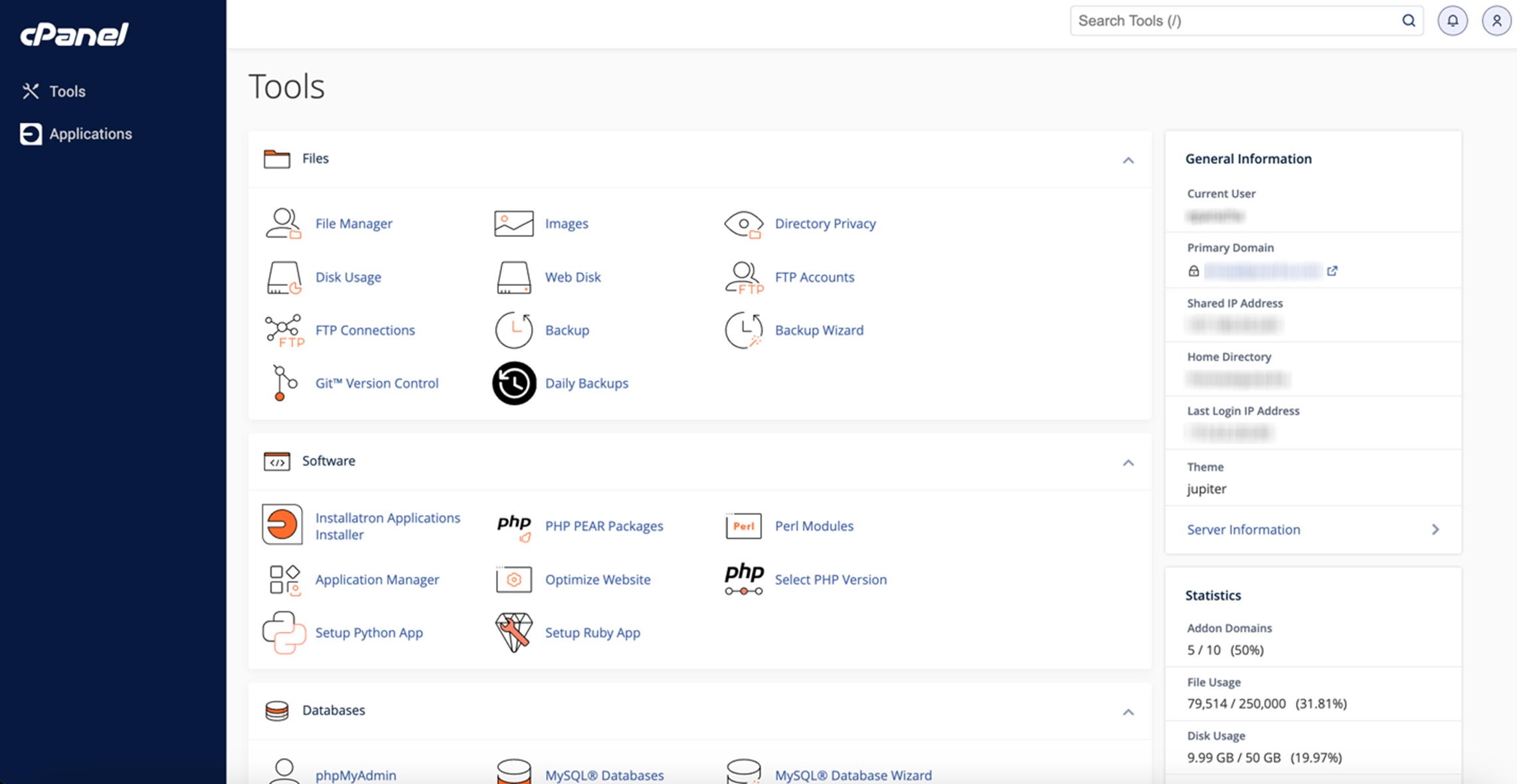
Log in to your GoDaddy account and access your hosting dashboard. Use the one-click WordPress installer to upload WordPress. Follow prompts to set site details and complete installation. Alternatively, manually upload WordPress files via FTP and configure the database through cPanel.
Conclusion
Using WordPress with GoDaddy makes website setup simple and fast. The one-click install saves time and effort. Managed hosting keeps your site updated and secure. You get good support if any problems arise. This combo suits beginners and small businesses well.
Start your site confidently and focus on your content. GoDaddy and WordPress work smoothly to help your online presence grow.


