
Are you looking to enhance your WordPress website’s user experience? The search bar embedded in your WordPress theme is a powerful tool that can make navigating your site a breeze for visitors.
Imagine your users effortlessly finding the content they crave, spending more time on your site, and eventually converting into loyal customers. This isn’t just a dream—it’s achievable with a few simple tweaks. In this guide, we’ll reveal the secrets to maximizing the potential of your WordPress search bar.
You’ll discover how to customize it to fit your brand’s style, improve its functionality, and ensure it’s working effectively to keep your audience engaged. Don’t miss out on unlocking the full potential of your site—read on to learn how you can make your search bar an integral part of your online success.
Choosing The Right Theme
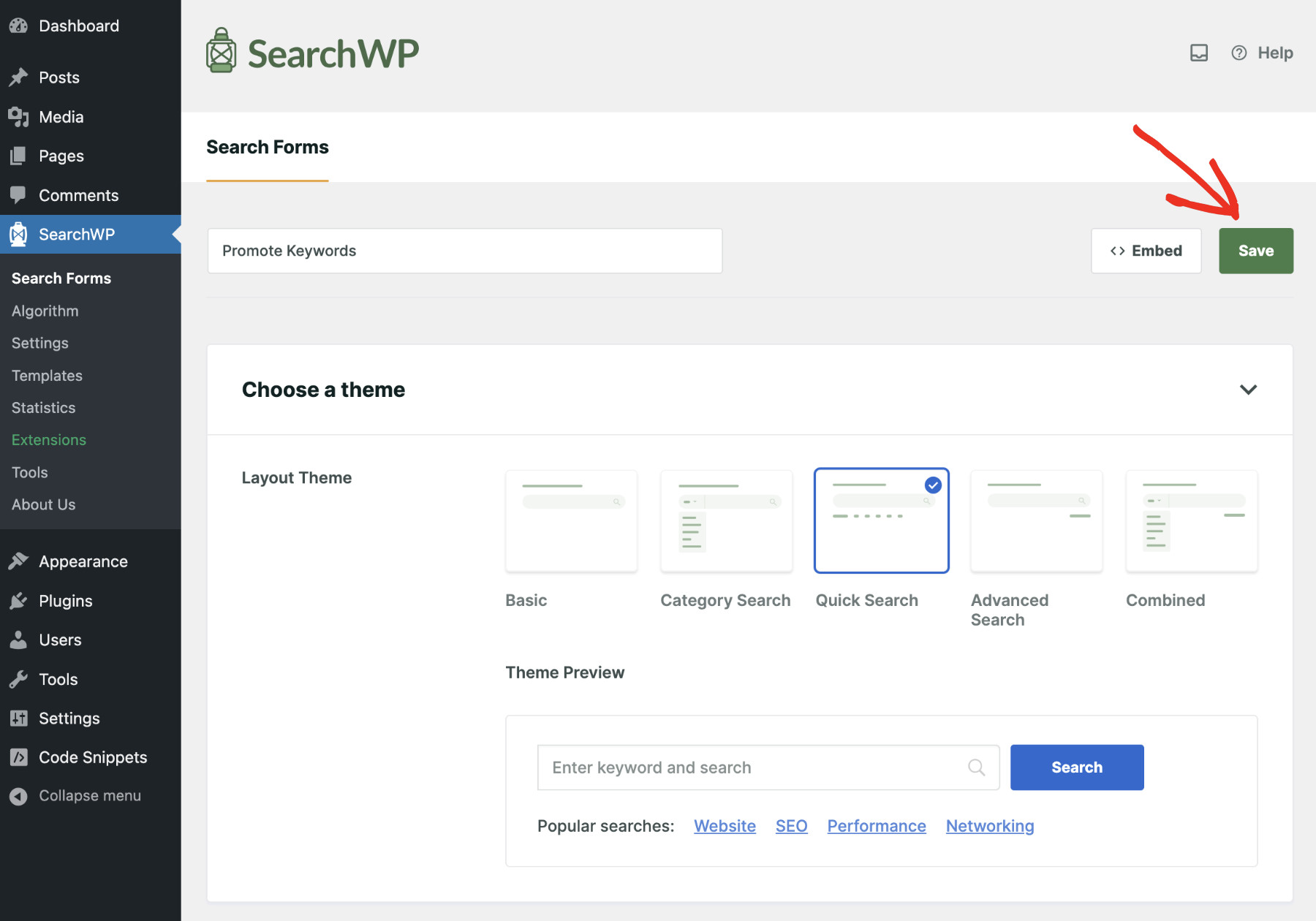
Search functionality is important for any website. Users find things quickly with it. A good theme has a clear search bar. Check if the search bar is easy to see. It should be at the top of the page. This helps users find it fast. The search bar should work well. Try searching for different things. See if it gives good results. A fast search saves time for users.
The theme must work well with search plugins. Some plugins make the search better. They give more options. Check if the theme supports popular plugins. This makes adding new features easy. Compatibility is key for smooth function. Always test the theme with your plugins. This ensures everything works well together. A compatible theme makes your site better.
Credit: searchwp.com
Activating The Search Bar
Explore the search bar feature embedded in WordPress themes to improve site navigation. Locate the search widget in the dashboard, then drag it to your desired area. This simple tool enhances user experience by allowing easy access to content.
Locating The Search Bar Option
Find the search bar option in the WordPress dashboard. Navigate to “Appearance,” then click on “Widgets.” Look for a widget named “Search.” Drag this widget to your desired area, like the sidebar or header. This activates the search bar on your site.
Adjusting Search Bar Settings
After placing the widget, adjust its settings. You can change its title and position. Customize how it appears to users. Make sure it’s easy to find. Test the search bar to ensure it works correctly. Adjust settings if needed. Keep the search bar simple. This helps visitors find content quickly. A well-placed search bar improves user experience.
Customizing The Search Bar
The search bar can look different. Change colors to make it match your site. Adjust size to fit better. Use CSS for more styles. Make it look neat and simple. This helps users find things easily.
Add special tools to your search bar. Autocomplete can suggest words. This helps users type less. Filters can sort search results. This makes finding things quicker. Choose features that help your visitors. Make searching easy and fun.
Enhancing Search Functionality
Adding a plugin makes the search bar smarter. Plugins can find results faster. They help users find what they need. Some plugins sort results by date. Others sort by popularity. This makes searching more useful.
Choose plugins that fit your site needs. Some plugins are free. Others cost money. Always check plugin reviews. They show if a plugin works well. Many users find plugins very helpful.
Make sure search results are clear. Use keywords in titles and tags. This helps the search bar find them. Try to keep keywords simple. Users find it easier this way.
Organize your site’s content. Good organization helps the search bar. Place important pages in easy-to-find places. This improves user experience. Happy users return to your site.
Troubleshooting Common Issues
Effortlessly navigate your WordPress site using the built-in search bar. Address common issues by checking theme compatibility and settings. Ensure plugins don’t interfere with search functionality for a smooth user experience.
Search Bar Not Displaying
The search bar might be missing due to theme settings. Check the widget section in your WordPress dashboard. Make sure the search widget is enabled. Sometimes, the search bar can be hidden in the customizer. Inspect the design settings there. If it’s still missing, consider plugin conflicts. Some plugins can interfere with theme features. Deactivate plugins one by one to find the culprit. If nothing works, the issue might be CSS styling. Custom CSS can hide elements. Look at your style files for any display commands. Seek developer help if it’s too complex.
Search Results Not Accurate
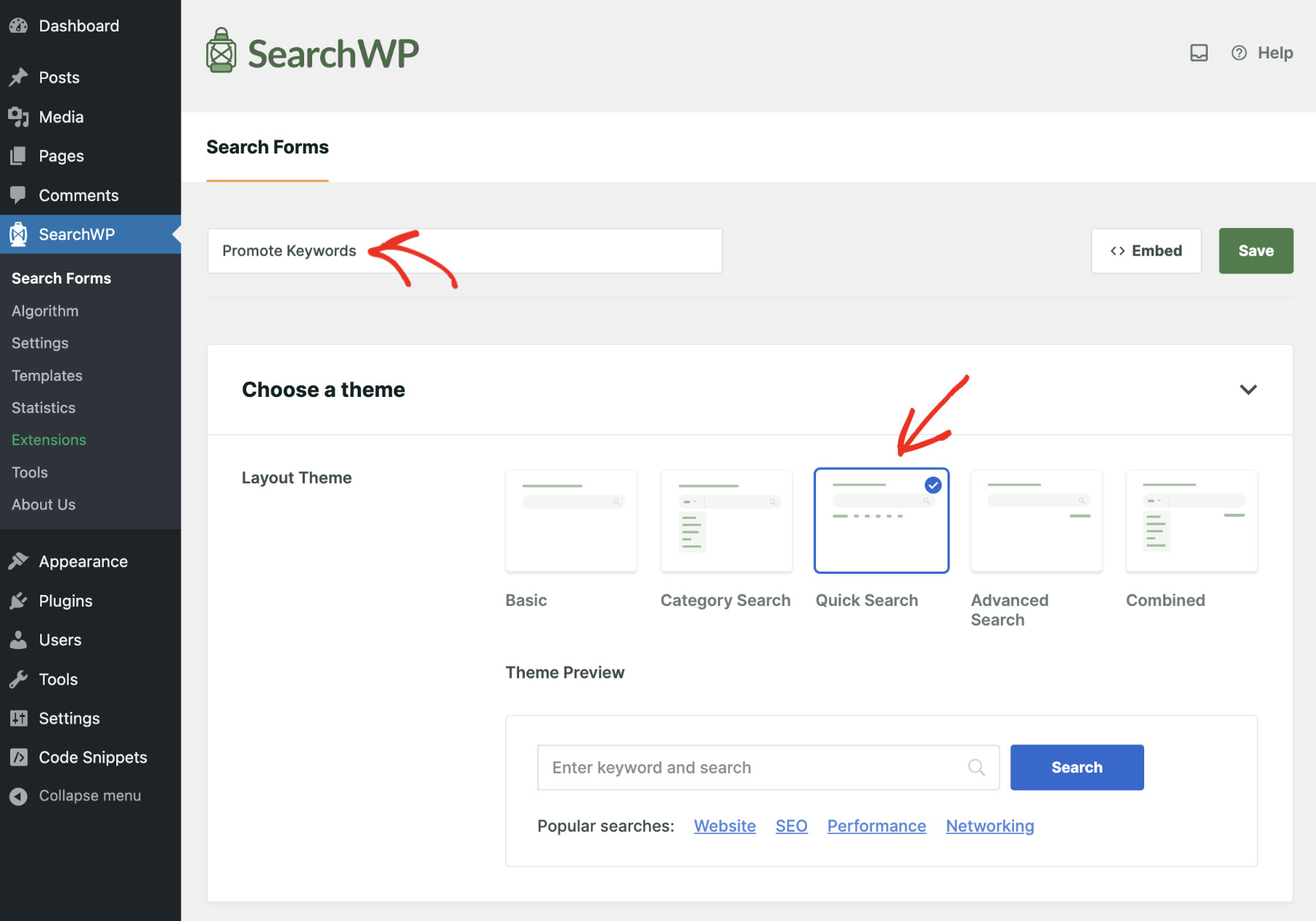
Search results can be incorrect if indexing is not proper. Ensure your content is visible to search engines. Check your site visibility settings. Sometimes, results can miss content due to cache problems. Clear your cache regularly. Review your SEO plugin settings. They can affect search accuracy. Use proper keywords in your content. This helps in better search results. Database errors can also cause issues. Repair your database using tools in your dashboard. Seek expert assistance for advanced problems.
Credit: searchwp.com
Best Practices For User Experience
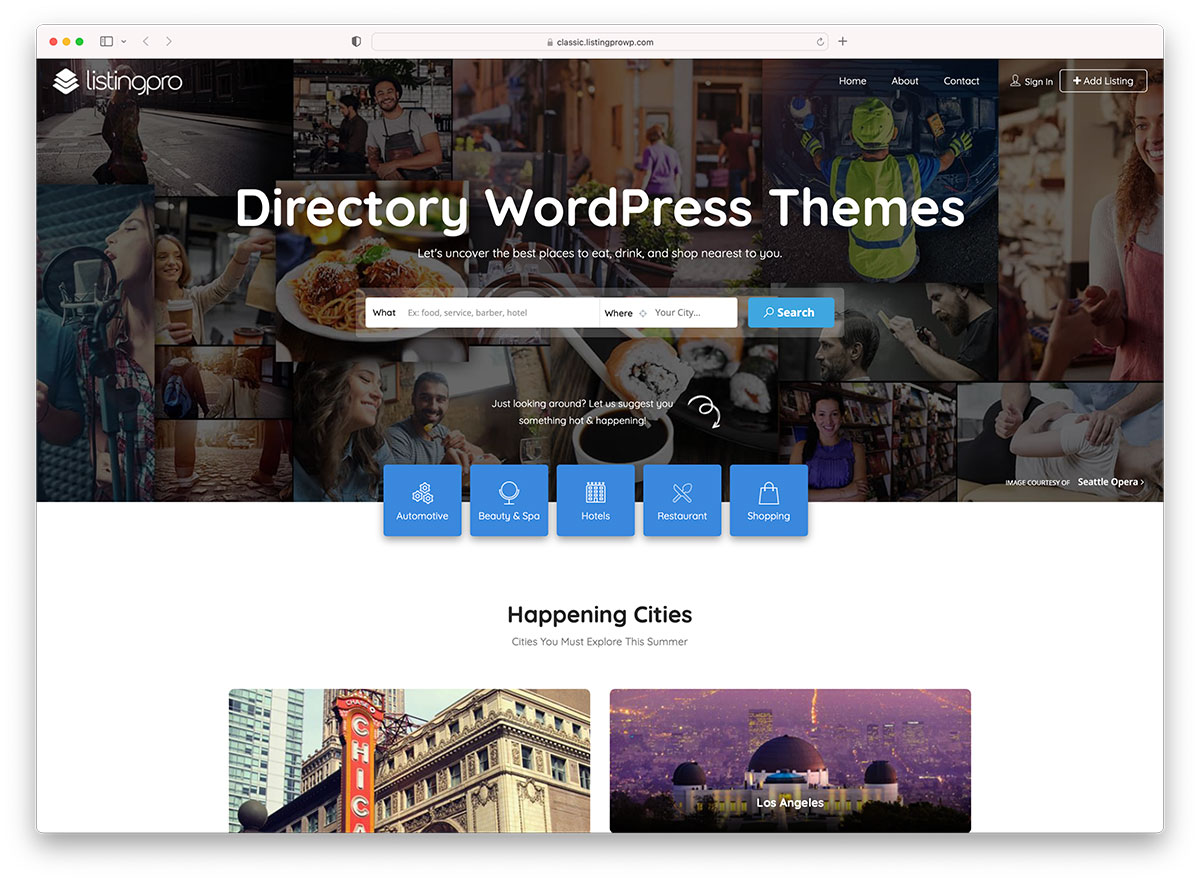
A search bar should be easy to find. Place it at the top. Users should see it without scrolling. Use a contrasting color to make it stand out. The size of the bar matters too. It should fit long search queries. A magnifying glass icon helps users understand its purpose.
Provide autocomplete suggestions. They save time and effort. Users get quick results. Make sure the search bar is responsive. It should work on phones and tablets. A good design increases user satisfaction. Happy users come back more often.
Fast search results are crucial. Slow results make users leave. Optimize your search engine for speed. Use relevant keywords in your content. It helps the search bar find the right results. Organize your content well. Group similar topics together. This helps users find what they need.
Display search results in a clear way. Use headings and short descriptions. This makes it easy for users to scan. Show the number of results found. Users like to know how much information is available. A well-functioning search bar improves user experience a lot.
Credit: colorlib.com
Frequently Asked Questions
How Do I Enable The Search Bar In WordPress?
To enable the search bar, go to your WordPress dashboard. Navigate to Appearance > Widgets. Add the search widget to your desired widget area. Customize its settings if needed. Save your changes. The search bar will now be active on your site.
Can I Customize The Search Bar Appearance?
Yes, you can customize the search bar appearance using CSS. Access the WordPress Customizer by going to Appearance > Customize. Locate the Additional CSS section. Add your custom CSS code to modify the search bar’s style, including colors, fonts, and sizes.
How Can I Improve Search Bar Functionality?
To improve functionality, consider using search plugins like Relevanssi or SearchWP. These plugins enhance search accuracy and offer advanced features. Install and activate the plugin via your WordPress dashboard. Configure settings for better search results, ensuring a more user-friendly experience.
Is Search Bar Important For User Experience?
Yes, a search bar enhances user experience by allowing quick content access. It helps visitors find information without navigating through multiple pages. Improved navigation boosts user satisfaction and engagement, making the search bar essential for any WordPress site.
Conclusion
Mastering the search bar in WordPress themes boosts user experience. Users find content quickly, enhancing your site’s efficiency. A streamlined search function saves time and increases engagement. Start exploring these features to elevate your site. Practicing with the search bar improves your skills.
It’s an easy way to enhance your website’s functionality. With consistent use, your audience will appreciate better navigation. Keep content organized and accessible. Your website becomes user-friendly and inviting. Embrace these steps and see positive changes. Your site will thrive with better search capabilities.
Enjoy the benefits of a well-integrated search bar.


