
Are you ready to take control of your web hosting like a pro? Setting up web hosting using SSH might sound complex, but it’s simpler than you think.
Imagine having the power to manage your website directly from your computer, quickly and securely. With SSH, that’s exactly what you can do. Whether you’re a seasoned developer or a curious beginner, mastering this skill can open up a world of possibilities for your website.
By the end of this guide, you’ll not only understand how to use SSH for web hosting but also feel confident doing it yourself. Curious about how SSH can transform your web hosting experience? Keep reading to discover the step-by-step process that will put you in the driver’s seat.
Ssh Basics
Setting up web hosting with SSH streamlines server management. It offers secure access to your hosting environment. This tool allows you to transfer files, manage databases, and configure settings efficiently.
What Is Ssh?
SSH stands for Secure Shell. It’s a network protocol. It allows safe connections between computers. People use SSH for secure file transfers and remote login. SSH makes sure data stays private. It’s like a secret code between computers. Many web developers use SSH every day. It’s important for web hosting.
Benefits Of Using Ssh
SSH offers strong security. It keeps hackers away. SSH is very fast. It works over the internet easily. With SSH, files are moved safely. SSH is reliable. It rarely breaks down. Developers trust it. SSH is easy to learn. It saves time. Many people use SSH for web hosting.
Preparing For Ssh Access
Picking a good hosting provider is important. A reliable provider makes your website fast and safe. Look for good customer support. This helps when you have questions. Check for high uptime guarantees. This means your site stays online. Make sure they offer SSH access. Not all providers do. Read reviews from other users. This gives you a better idea of their service. Your choice matters, so choose wisely.
To use SSH, create a key pair. The pair has two parts: public key and private key. Keep the private key safe. Share the public key with your host. This key helps you connect without a password. Use tools like PuTTY or Terminal to make keys. Follow simple steps. First, open the tool. Then, follow the guide to generate keys. Save your private key securely. It’s important for safe connections.
Connecting To Your Server
Open the Terminal application on your computer. It’s a simple tool for typing commands. You can find it in the Applications folder or use the search feature. Once open, you will see a blank screen waiting for your instructions. Type ssh followed by your username and server address. It looks like this: ssh user@yourserver.com. Press the Enter key to start the connection. The terminal will ask for your password. Type it in carefully. You might not see anything as you type. Don’t worry, that’s normal. Press Enter again after typing your password. You will now be connected to your server.
Use the ssh command to connect to your server. Make sure to replace user with your username. Also, replace yourserver.com with your server’s address. The command should look like this: ssh user@yourserver.com. You need to type your password when prompted. The connection starts once you enter the correct password.

Credit: www.nexcess.net
Server Configuration
Utilize SSH to configure web hosting efficiently. Establish secure connections to servers and manage files remotely. Simplify server tasks with straightforward commands.
Navigating File System
SSH helps you explore your server files. Use commands to move around. Type ls to list files. To go inside a folder, type cd foldername. Always remember the file path. It tells you where files live. If lost, type pwd. It shows your current location. Be careful with commands. Wrong commands can delete files.
Managing Permissions
Permissions control who can access files. Use chmod to change them. Files have three types: owner, group, others. Each can read, write, or execute. Numbers like 755 set these permissions. Always check before changing. Wrong settings can lock you out. Keep your files safe and secure.
Uploading Files
SCP helps move files securely between computers. Install SCP on your computer first. Type the command in the terminal. The command format is: scp source_file user@host:destination. Replace source_file with your file name. Change user@host with your server details. Use SSH keys for more safety. SCP works well with big files. Many people use SCP for backup.
Automate uploads with scripts. Scripts save time and work. Cron jobs help run scripts automatically. Write a script using a text editor. Save it on your computer. Test the script before automating. Use cron to schedule. Set the time for uploads in cron. Check the script regularly. Automation makes uploads easier.
Installing Software
Setting up web hosting requires installing necessary software. First, use package management tools. They help manage software installations easily. Popular tools include APT for Debian systems and YUM for Red Hat systems. These tools download and install packages automatically. It’s important to keep your software updated. Updates fix bugs and improve security. Always check for updates regularly.
Package Management Tools
There are different tools for different systems. APT is used on Ubuntu and Debian. It handles packages well. YUM works with Red Hat and CentOS. It manages packages smoothly. Both tools have simple commands. Use commands to install, update, or remove software. Learning these commands helps manage your server easily.
Common Web Hosting Software
Web hosting needs specific software. Apache or Nginx are popular web servers. They serve websites to users. MySQL or MariaDB are database systems. Databases store website data. PHP is a scripting language. It helps create dynamic web pages. All these software are essential for hosting a website.
Securing Your Server
A firewall is like a shield for your server. It helps block bad traffic. First, make a list of trusted IP addresses. Only let these IPs connect to your server. Next, set rules to allow or deny traffic. Use tools like iptables or ufw. They are simple to use. Test the firewall rules regularly. This keeps your server safe.
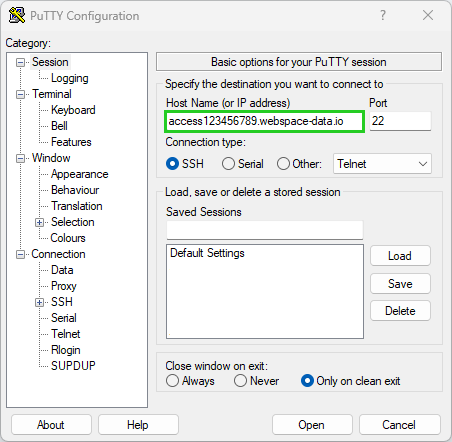
Keeping your server updated is important. Security updates fix bugs and holes. Always check for updates weekly. Use commands like `apt-get update` or `yum update`. These commands are easy. They help keep your server strong. Updates protect against new threats. Don’t skip them. Your server needs them to stay secure.
Credit: www.ionos.com
Troubleshooting Ssh
SSH can be tricky. Sometimes, connections fail. Network settings might be wrong. Firewall rules can block SSH. Wrong credentials stop access too. Check if the host address is correct. Ensure the port number is right. SSH keys must match. Fix them if they don’t.
Errors confuse many. First, check the error message. It often shows the problem. Use SSH logs. They help find clues. Permission denied errors are common. Set the right permissions. Timeout errors mean the server is slow. Try reconnecting. Sometimes, a simple restart fixes issues. Always keep your software updated. Updates solve many problems.
Credit: www.godaddy.com
Frequently Asked Questions
How To Connect To Hosting Via Ssh?
Open your terminal. Type `ssh username@hostname`. Enter your password when prompted. You’re connected via SSH.
What Is Ssh In Web Hosting?
SSH in web hosting allows secure remote access to servers. It encrypts data, enhancing security during communication. Users can manage files, execute commands, and perform administrative tasks safely. SSH is essential for developers and system administrators needing secure server management.
How Do I Enable Ssh Access On Godaddy?
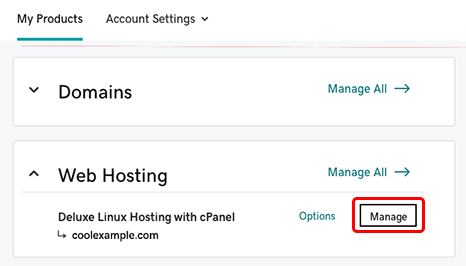
Log in to your GoDaddy account. Navigate to the “My Products” page, select your hosting account, and click “Manage”. Go to “Settings”, find “SSH Access” and toggle it on. Follow on-screen instructions to complete SSH activation. Always ensure your SSH client is correctly configured for secure access.
How To Create Ssh Configuration?
Open the terminal and locate the SSH configuration file at ~/. ssh/config. Create or edit this file using a text editor. Add Host, HostName, User, and IdentityFile details for each connection. Save the changes and ensure proper file permissions with chmod 600.
Test the configuration by connecting via SSH.
Conclusion
Setting up web hosting with SSH is straightforward. Start by installing SSH on your computer. Connect securely to your server using SSH keys. This ensures safe data transfer. Remember to configure your server settings carefully. Regular updates keep your server secure and efficient.
SSH commands simplify server management tasks. Practice these steps for smooth web hosting setup. Keep learning and exploring new SSH features. With patience, you will handle web hosting confidently. SSH is a valuable tool for web administrators. Enjoy the process and enhance your hosting skills.


