
Are you looking to create a stunning website without breaking the bank or pulling your hair out over complex design tools? Namecheap’s Website Builder might just be the perfect solution for you.
With its user-friendly interface and powerful features, you can craft a professional-looking site in no time. Imagine having full control over your website’s look and feel, all while enjoying the simplicity that Namecheap offers. Ready to dive in and discover how you can transform your online presence effortlessly?
Stick around as we guide you through the process step-by-step, ensuring your website stands out and captures attention. Let’s unlock the potential of your creativity together!
Credit: www.namecheap.com
Getting Started With Namecheap Website Builder
Getting started with Namecheap Website Builder is easier than you might think. Whether you’re a seasoned tech enthusiast or a beginner dipping your toes into website creation, this tool offers a user-friendly experience. Imagine having the power to create a stunning website without needing advanced technical skills. Intrigued? Let’s dive into the initial steps to get you on your way.
Creating Your Account
First things first, you’ll need a Namecheap account. It’s as simple as visiting their website and clicking on the “Sign Up” button. Fill in your details—email, password, and other necessary information. Don’t forget to use a strong password to keep your account secure.
Once your account is set up, you’re ready to explore the vast features Namecheap offers. You might wonder, “What makes a good account setup?” The answer lies in simplicity and security. Ensure your email is active and reliable, as it will be your main point of contact.
Accessing The Website Builder
With your account ready, accessing the website builder is your next step. Log in to your Namecheap account and navigate to the dashboard. Here, you’ll find various options and tools—look for the “Website Builder” section.
Clicking on it opens a world of possibilities. Don’t hesitate to take a moment to explore the interface. It’s designed to be intuitive, guiding you through each step. What features catch your eye? Jot them down as you proceed, as they could be crucial in your website development journey.
Starting with Namecheap Website Builder is not just about creating a website; it’s about creating an online presence. Imagine the impact your site can have on your audience. Are you ready to begin? The tools are at your fingertips, and the process is straightforward. Dive in and let your creativity shine.
Credit: findstack.com
Exploring The Dashboard
Navigate the Namecheap Website Builder dashboard with ease. Find tools and features neatly organized for quick access. Customize your website effortlessly, using simple drag-and-drop options.
Exploring the dashboard in Namecheap Website Builder is a crucial step. This interface is where you control your website’s design and functionality. Understanding the dashboard helps you build and maintain an effective website.Navigating The Interface
The interface is user-friendly and intuitive. On the left, you see the main menu. It provides access to all major sections. The top bar offers quick access to important actions. This includes saving or previewing your site. You can easily switch between different modes.Overview Of Tools And Features
The dashboard hosts a variety of tools. Each tool serves a unique purpose. Drag-and-drop options simplify the design process. You can add text, images, and videos. The settings panel lets you customize appearance. You can adjust colors, fonts, and layouts. SEO tools are also available. They help improve your site’s visibility. Understanding these features helps you create an impressive website. Start exploring and make your website stand out.Choosing A Template
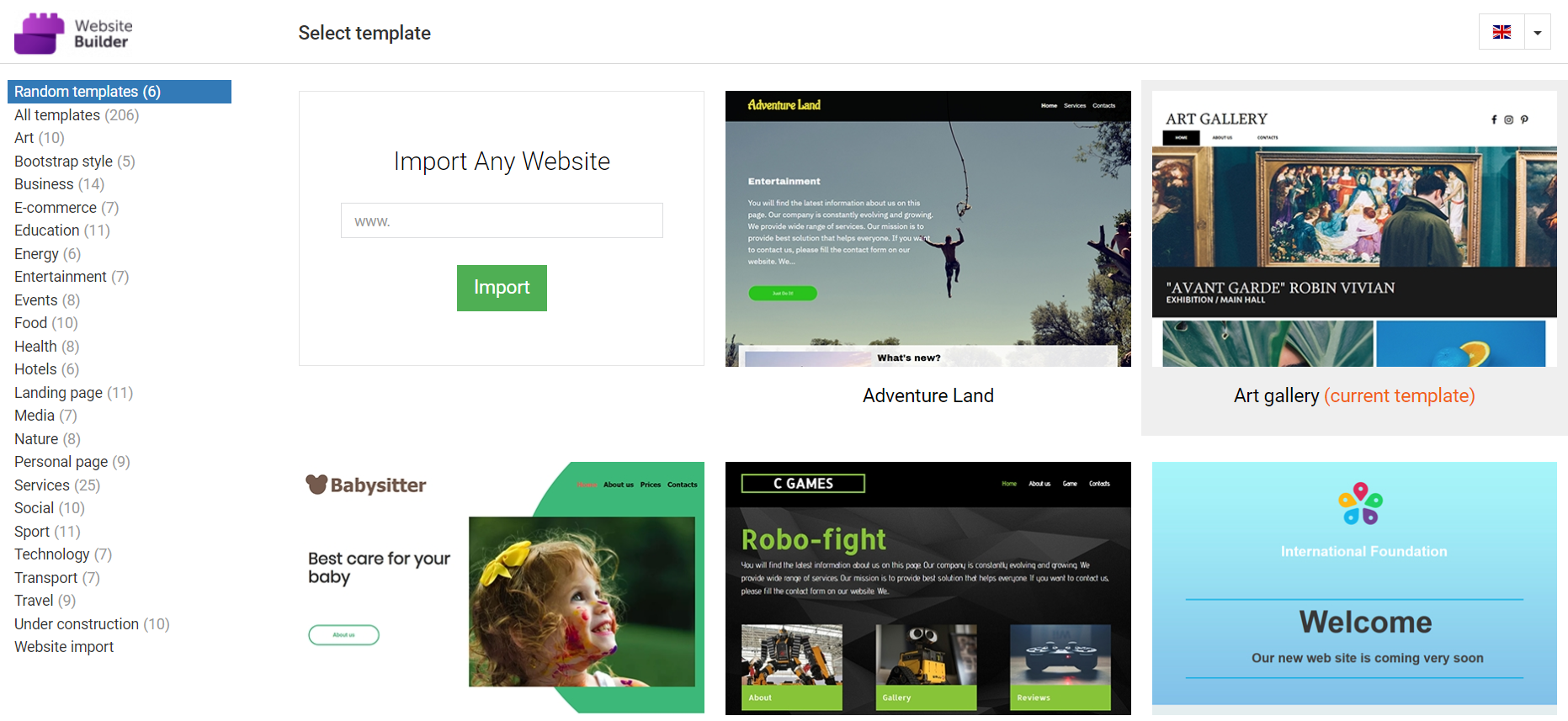
Choosing the right template is crucial for your website’s success. Templates shape your site’s look and feel. They also influence user experience. With Namecheap’s Website Builder, you have many options. Each template can cater to different needs. Whether you’re building a blog or an online store, there’s a design for you.
Understanding Template Options
First, explore the wide range of templates available. Namecheap offers designs for various industries. From business to personal sites, you have plenty of choices. Each template comes with unique features. Some focus on visuals, while others on text content. Consider what your site needs the most. Look for templates that match your style and purpose.
Customizing Your Template
Once you choose a template, customization begins. Namecheap’s Website Builder offers easy tools. Change colors, fonts, and images. Tailor each element to fit your brand. Adjust layout for better navigation. Personalize content sections for unique appeal. Make sure your website reflects your personality and goals.
Building Your Website
Discover the ease of building your website with Namecheap Website Builder. This tool offers user-friendly features, simplifying the process with drag-and-drop options. Create your online presence effortlessly.
Building your website with Namecheap’s Website Builder is an exciting journey. You get to craft every element to represent your vision and purpose. Whether it’s a personal blog or a business site, this intuitive tool empowers you to make your online presence shine. Let’s dive into how you can effectively build your website, starting with adding pages.Adding Pages
Creating pages in Namecheap’s Website Builder is straightforward. After choosing your template, the next step is to decide what pages you need. Do you want a homepage, an about section, or a contact page? Click the “Add Page” button, and you’ll see options to customize each page’s layout. Think about the flow of your site—what do you want visitors to see first? Adding new pages is as simple as naming them and selecting a style. Keep your navigation clear to guide users effortlessly. A well-organized site helps visitors find what they’re looking for quickly.Incorporating Text And Images
Text and images are crucial for engaging visitors. When adding text, keep it concise and direct. Use headers to break up content and make it scannable. Consider what message you want to convey with each section. Adding images is equally vital. Choose high-quality visuals that complement your text. Namecheap’s builder allows you to drag and drop images easily, adjusting their size and placement. Balance is key—don’t overload pages with text or images. Imagine you’re visiting your site; what grabs your attention? A clean, visually appealing layout can make your message more impactful.Utilizing Widgets
Widgets are powerful tools to enhance functionality. Namecheap’s Website Builder offers various widgets, including social media buttons, contact forms, and maps. These elements can make your site interactive and user-friendly. Think about what features your audience might appreciate. Are you a restaurant owner? A reservation widget could be beneficial. Adding a contact form can encourage visitors to reach out, boosting engagement. Experiment with different widgets to see how they fit into your site’s design. Be strategic—each widget should serve a purpose. As you build, ask yourself: what do visitors need to engage more deeply with my content? By focusing on these aspects, you can create a dynamic and inviting website. Your site is a reflection of you, so make it count! What will you create today?Enhancing Functionality
Enhancing your website’s functionality boosts user experience. It keeps visitors engaged. Namecheap Website Builder offers tools for this purpose. These tools are easy to use. They can make your site more interactive and efficient.
Integrating Social Media
Social media integration is vital. It connects your website with popular platforms. This allows visitors to share content easily. It also helps in reaching a wider audience.
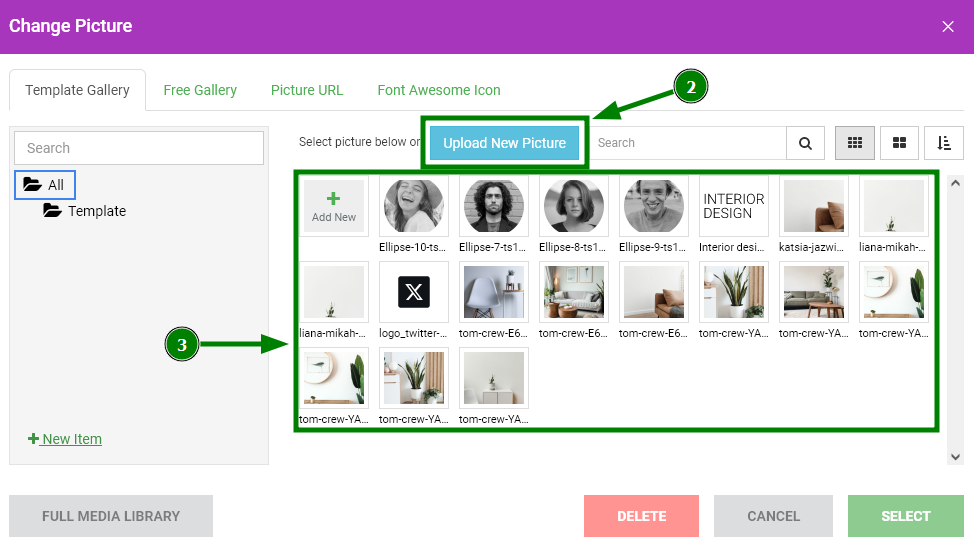
To integrate social media, use the builder’s widgets. Drag and drop them onto your page. Customize icons to match your website’s design. Link these icons to your profiles. This makes it simple for users to connect with you.
Setting Up Contact Forms
Contact forms allow visitors to reach you. They are essential for communication. With Namecheap, setting them up is straightforward.
Select the contact form feature from the menu. Choose a template that fits your needs. Customize fields like name, email, and message. Ensure your form is easy to use. Users should find it simple to fill out.
Once set up, test your form. Make sure it works correctly. This ensures you receive messages from visitors. Good communication builds trust and improves user experience.

Credit: www.youtube.com
Optimizing For Seo
Optimizing for SEO is crucial when creating a website with Namecheap’s builder. Proper SEO techniques enhance visibility and attract more visitors. You want your site to rank well on search engines. This section delves into practical steps for optimizing your website.
Using Seo Tools
Namecheap’s website builder offers various SEO tools. These tools help analyze and improve your site’s performance. Use them to track rankings and identify areas for improvement. SEO tools give insights into your site’s traffic. They show which pages get the most views. This data helps you make informed decisions.
Implementing Keywords
Keywords are vital for search engine optimization. They help search engines understand your content. Choose keywords that match your audience’s interests. Keywords should be relevant and specific. Don’t overload your pages with keywords. Maintain a natural flow of text. Place keywords in titles, headings, and meta descriptions. This practice boosts your site’s visibility. It helps your content rank higher in search results.
Preview And Publish
Previewing and publishing your website is a crucial step in web development. Using Namecheap Website Builder makes this process simple and efficient. This step ensures your site is ready for visitors. It allows you to see the final version before sharing it with the world.
Reviewing Your Site
Start by checking every page for errors. Ensure all links work correctly. Look at images and text alignment. Make sure everything appears as intended. Use the preview feature to see your site live. This helps identify any issues early.
Check the mobile view as well. Many users browse sites on phones. Ensure your site looks good on all devices. Examine fonts and colors. They should be consistent across the site. This creates a professional appearance.
Going Live
Once your site is perfect, it’s time to publish. Namecheap Website Builder offers a straightforward publishing process. Click the publish button when ready. Your site will be visible to everyone online. Double-check your site’s appearance after publishing. Ensure it matches the preview.
Remember to promote your site after publishing. Share it on social media platforms. This increases your site’s visibility. Keep an eye on site performance. Make adjustments as needed. Regular updates keep your content fresh.
Managing Your Website
Managing your website effectively ensures it stays fresh and relevant. Namecheap Website Builder offers user-friendly tools for this purpose. You can easily update content and monitor analytics. This helps in maintaining an engaging site for your visitors.
Updating Content
Updating content keeps your website current and engaging. Use Namecheap’s intuitive editor for this task. It allows easy changes to text, images, and videos. Drag and drop elements where you want them. You can preview changes before publishing. This ensures everything looks perfect.
Regular updates improve user experience and SEO. Fresh content attracts more visitors and search engines. Highlight new products, services, or announcements. This keeps your audience informed and interested.
Monitoring Analytics
Monitoring analytics is crucial for understanding your audience. Namecheap Website Builder provides tools to track site performance. You can view visitor numbers, page views, and bounce rates. Analyze this data to improve your site’s effectiveness.
Identify popular pages and content types. Adjust your strategy based on these insights. This data helps in making informed decisions. Improve user engagement and conversion rates by understanding trends. Analytics are key to optimizing your website.
Frequently Asked Questions
Is Namecheap A Good Website Builder?
Yes, Namecheap offers a decent website builder for beginners. It provides user-friendly tools and affordable pricing. Templates are customizable, making it easy to create professional websites quickly. While not as advanced as some competitors, it suits small businesses and personal projects well.
Consider your specific needs before choosing.
How To Use A Website Builder?
Choose a website builder, sign up, and select a template. Customize design elements and add content. Preview your site, then publish it once satisfied.
How To Manage A Website On Namecheap?
Log into your Namecheap account. Access the “Dashboard” to manage domain settings, hosting, and SSL certificates. Use the “cPanel” for website files, databases, and email accounts. Regularly update and back up your site for security. Utilize Namecheap’s customer support for assistance.
How To Edit A Website Through Namecheap?
Log into your Namecheap account, access the “Domain List” tab, and select your domain. Click “Manage” and use the built-in website builder or edit DNS settings to point to your web hosting service. Save changes to update your website effectively.
Conclusion
Building a website with Namecheap is simple and efficient. The tools are user-friendly. Even beginners can create professional sites. Choose your template. Customize it to match your style. Add content that speaks to your audience. Publish with just a click.
Namecheap offers flexibility and ease. Your online presence grows effortlessly. Start today. Explore the features and possibilities. Enjoy the process. Watch your website come alive. With practice, you’ll get better. Create a site that truly represents you. Namecheap makes it possible.
Ready to see your ideas online? Go ahead and build your dream website.


