
Unlocking the full potential of your online presence involves more than just having a website; it requires a professional and secure email solution. If you’re using Namecheap, you’ve likely encountered Namecheap Private Email.
But how exactly do you make the most of it? Whether you’re a business owner, freelancer, or someone who values privacy and professionalism, understanding how to effectively use Namecheap Private Email can set you apart. Imagine having an email that not only matches your domain but also keeps your communications secure and organized.
In this guide, you’ll discover step-by-step instructions on setting up, configuring, and maximizing the features of Namecheap Private Email. Let’s dive in and transform how you communicate online.
Credit: www.namecheap.com
Setting Up Your Account
Create your Namecheap Private Email account swiftly. Begin by accessing the Namecheap dashboard. Navigate to the Private Email section and choose ‘Create Account’. Follow the prompts to enter your details and configure your settings. Enjoy seamless, secure communication tailored to your needs.
Setting up your Namecheap Private Email account is a straightforward process that empowers you with a professional communication tool. Whether you’re a small business owner looking to establish credibility or an individual seeking a reliable email service, Namecheap offers a simple yet efficient way to get started. Let’s dive into the steps of creating your account and purchasing the Private Email service.Creating A Namecheap Account
First, you need a Namecheap account to access their services. Visit the Namecheap website and click on the “Sign Up” button. It’s a quick process—just provide your name, email, and password. Once registered, you’ll receive a confirmation email. Click the link in the email to verify your account. This is your gateway to managing domains, hosting, and of course, your Private Email. Remember, your Namecheap account is the hub for all your services, so keep your login details safe. Have you ever wondered how much easier it is to have everything in one place?Purchasing Private Email Service
After creating your account, the next step is to purchase the Private Email service. Navigate to the Namecheap Private Email page and explore the available plans. Each plan is designed to cater to different needs, from personal use to business requirements. Add the chosen plan to your cart and proceed to checkout. Payment is simple, with various options available to ensure convenience. Once purchased, your Private Email service will be activated. Consider how having a professional email can enhance your business image. Are you ready to make that leap? By following these steps, you can seamlessly set up your Namecheap Private Email account, paving the way for efficient and reliable communication.
Credit: privateemail.com
Configuring Your Domain
Setting up your domain with Namecheap Private Email is crucial. It ensures smooth email delivery. Proper configuration links your domain to your email service. This process involves accessing domain settings and updating DNS records. Each step is straightforward. Follow the guide below to configure your domain.
Accessing Domain Settings
First, log into your Namecheap account. Locate the “Dashboard” tab. Click to view your domains list. Choose the domain you want to configure. Click on “Manage” next to the domain name. This opens the Domain Management page. Here, you can access the settings needed for configuration.
Updating Dns Records
Updating DNS records is vital for email functionality. Navigate to the “Advanced DNS” tab. You’ll find options to edit DNS settings. Add or modify the MX records for Namecheap Private Email. Ensure they match the provided settings from Namecheap. Save changes after updating. This step connects your email service to your domain.
Email Account Creation
Email account creation is a key step for effective communication. Namecheap Private Email offers a straightforward way to set up your email accounts. This process ensures you can manage your professional and personal emails with ease. By creating an email account, you gain access to a reliable and secure email service. Let’s explore the steps involved in creating your email account.
Navigating To Private Email
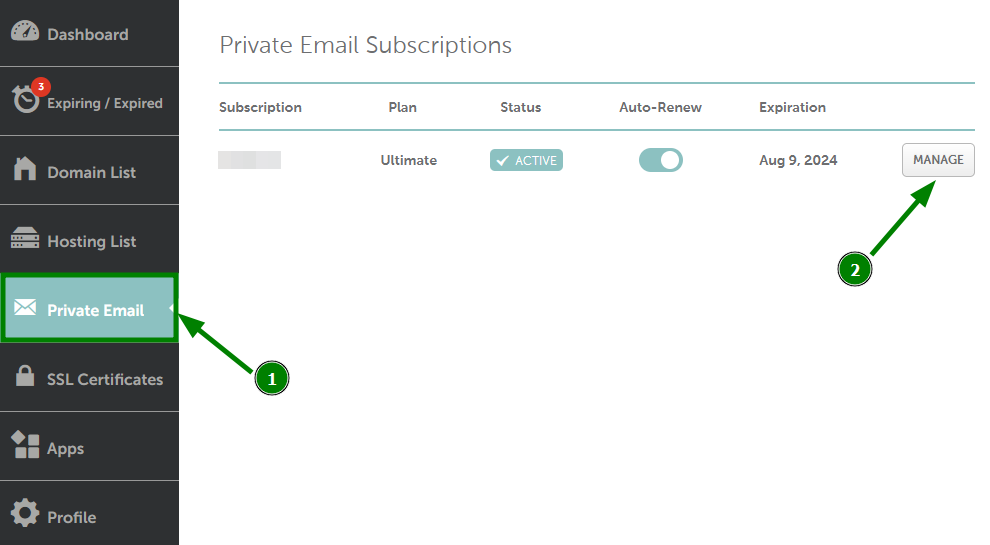
Start by logging into your Namecheap account. On the dashboard, find the “Private Email” section. Click on it to open your email management page. This page is where all your email settings are located. It’s the control center for your email accounts.
Setting Up Mailboxes
Once you’re on the Private Email page, locate the “Mailboxes” option. This is where you can create new email accounts. Click on “Add Mailbox” to start the process. Enter the desired email address in the provided field. Choose a strong password for security. Confirm the details and save your new mailbox.
Using The Webmail Interface
Using the Webmail Interface of Namecheap Private Email is straightforward and user-friendly. It offers a seamless experience for managing your emails efficiently. This interface provides all necessary tools to keep your communications organized. Explore the features to enhance your email productivity.
Logging Into Webmail
Accessing the Namecheap Webmail is simple. Begin by visiting the Namecheap website. Locate the ‘Webmail’ option on the homepage. Click on it to open the login page. Enter your email address and password in the respective fields. Click ‘Login’ to access your inbox. Ensure your credentials are correct for a smooth login experience.
Customizing Email Settings
Once logged in, you can customize your email settings to suit your needs. Navigate to the settings icon located in the top menu. Click on it to explore various customization options. Adjust your email signature, set up auto-replies, and manage folders. Choose notification preferences to stay updated. Tailor your experience for optimal email management.
Email Client Integration
Discover how to set up Namecheap Private Email with ease. Follow simple steps to integrate it with your email client. Enjoy seamless communication and manage your emails effectively.
Integrating your Namecheap Private Email with various email clients can significantly enhance your productivity. Whether you’re using a desktop or mobile device, having your emails synced across platforms allows for seamless communication. Imagine responding to an important email from your desktop, only to later pick up where you left off on your smartphone. This flexibility is the cornerstone of efficient email management.Configuring Desktop Clients
Setting up Namecheap Private Email on your desktop client is straightforward. Start by opening your preferred email client, like Outlook or Thunderbird, and navigate to the account settings. Input your Namecheap email credentials, ensuring the server settings match those provided by Namecheap. These typically include IMAP or POP for incoming mail and SMTP for outgoing mail. Once configured, test the setup by sending yourself an email. This step confirms that your desktop client is correctly receiving and sending emails. It’s that simple!Connecting Mobile Devices
Your smartphone can be a powerful tool when connected to your Namecheap Private Email. Open your email app, usually found in settings or under accounts. Enter your email address and password, then adjust the server settings as needed. Namecheap provides specific instructions to ensure a smooth setup. Check for email synchronization. Send and receive emails to verify everything is working. You’ll have your email at your fingertips, wherever you go. Have you ever missed an important email because it didn’t sync properly? Integrating your email across devices can prevent this. Make sure your setup allows for real-time updates and notifications. By investing a few minutes in configuration, you can save hours in email management. The convenience is worth it. How do you handle email integration? Share your tips for staying organized!Troubleshooting Common Issues
Easily manage your email with Namecheap Private Email by following simple troubleshooting steps. Resolve login issues by checking your internet connection. Ensure correct email settings for seamless communication.
Troubleshooting common issues with Namecheap Private Email can sometimes feel like trying to solve a puzzle. You may experience hiccups, but understanding how to tackle these challenges can make your email experience smooth and enjoyable. Whether it’s login problems or email delivery issues, knowing what steps to take can save you time and frustration. Let’s dive into some practical solutions.Resolving Login Problems
Login issues can be irritating, especially when you’re in a hurry. If you find yourself unable to access your account, check your internet connection first. A weak connection might be the culprit. Ensure you’re entering the correct username and password. Mistyping is a common mistake, so double-check your entries. If your credentials are correct but you’re still facing issues, try resetting your password. You might be surprised how often a fresh start can resolve the problem. Have you cleared your browser cache recently? Sometimes old data can interfere with login processes. Clear the cache and attempt to log in again.Fixing Email Delivery Issues
Email delivery problems can disrupt your workflow. If your emails aren’t reaching their destination, first verify the recipient’s email address. A minor typo can cause major headaches. Check your spam or junk folder. Occasionally, legitimate emails end up there due to spam filters. Adjust your filter settings to prevent this in the future. If your email is stuck in the outbox, it might be due to large attachments. Try reducing the file size or using cloud storage links instead. Consider the timing of your email sending. Sending during peak hours might delay delivery due to server congestion. Experiment with sending emails at different times and observe the results. What strategies have you found effective in overcoming these email obstacles? Sharing your experiences can help others navigate similar issues.Advanced Features
Namecheap Private Email offers advanced features for efficient communication. Explore custom filters for organized inbox management. Utilize calendar integration to streamline scheduling and stay on top of tasks.
When it comes to managing your email efficiently, Namecheap Private Email offers advanced features that can streamline your day-to-day tasks. These features are designed to enhance productivity and keep you organized. Let’s dive into some of these features and see how they can make a difference in your workflow.Setting Up Email Filters
Email filters are like having a personal assistant that sorts your messages for you. Setting them up is straightforward and can save you a lot of time. You can create filters to automatically move emails from specific senders into designated folders. Imagine receiving multiple newsletters daily. By creating a filter, you can direct them straight to a “Newsletters” folder instead of cluttering your main inbox. This way, you only have to check them when you have time. Plus, filters can flag important emails, ensuring you never miss a crucial message.Utilizing Calendar And Contacts
The calendar and contacts features in Namecheap Private Email aren’t just there for show. They are powerful tools to manage your schedule and connections. The calendar allows you to set up events, reminders, and even share events with others. Think about those times when you missed a meeting because you forgot to set a reminder. With the calendar, you can get notifications on your phone or desktop, ensuring you stay on top of your commitments. On the other hand, the contacts feature is great for keeping all your important email addresses in one place. You can group contacts, making it easy to send group emails without having to enter each email address individually. This can be a game-changer when organizing events or collaborating on projects. How do you think these features could change how you handle your emails? Consider giving them a try, and you might find your email management becoming more seamless and efficient.
Credit: privateemail.com
Frequently Asked Questions
How To Access Private Emails On Namecheap?
Log into your Namecheap account. Navigate to “Email” under the “Products” tab. Select your domain to access private emails. Follow on-screen instructions to manage your inbox. Ensure your email hosting is active. Use the webmail option for easy access. Contact support for assistance if needed.
How Do I Open A Private Email?
To open a private email, log into your email account using your credentials. Navigate to the inbox and click on the email you wish to open. Ensure you have the correct password for secure access. Always log out after reading to maintain privacy.
How Much Is Private Email On Namecheap?
Namecheap private email pricing starts at $0. 91 per month for the Starter plan. The Pro plan costs $2. 46 monthly. Business plan is priced at $3. 33 per month. All plans include essential features like email management, spam protection, and calendars.
Visit Namecheap’s website for detailed information.
Does Namecheap Private Email Have An App?
Namecheap Private Email doesn’t have a dedicated app. Access it via webmail or sync it with email clients like Outlook or Apple Mail. Integration with mobile devices is possible using IMAP, POP3, or SMTP settings, ensuring seamless email management on the go.
Enjoy efficient communication and organization.
Conclusion
Mastering Namecheap Private Email is simple with practice. The steps are easy. Start by setting up your account. Explore features like custom domains and secure access. Keep your communications organized. Manage your emails effectively for business or personal use. Always remember to regularly check for updates.
This keeps your email service running smoothly. Secure your data with Namecheap’s reliable features. Enjoy the benefits of a streamlined email experience. Whether it’s for work or leisure, Namecheap Private Email offers a user-friendly solution. Happy emailing!


