
Are you looking to streamline your communication and manage your emails more efficiently? Namecheap Email is a powerful tool that can help you do just that.
Imagine having a professional email address that not only enhances your brand image but also keeps your correspondence organized and secure. Whether you’re a small business owner, a freelancer, or someone who just wants a reliable email service, Namecheap Email offers a user-friendly solution tailored for you.
In this guide, we’ll walk you through the steps to set up and use Namecheap Email effectively, so you can focus more on what really matters. Ready to transform the way you handle emails? Let’s dive in!
Setting Up Namecheap Email
Setting up your Namecheap email is a straightforward process. It allows you to manage your communications effectively. Follow these simple steps to get started quickly. You’ll soon be on your way to enjoying your new email service.
Creating An Account
First, visit the Namecheap website. Click on the ‘Sign Up’ button. Fill in your details like name and email address. Choose a strong password. Then, click ‘Create Account’. An email confirmation will be sent to you. Click on the link in the email to verify your account. Your Namecheap account is now ready.
Accessing The Dashboard
After creating your account, log in to your dashboard. Enter your email and password. Click ‘Login’. The dashboard gives you access to all your email settings. From here, you can set up your email preferences. Explore the dashboard to familiarize yourself with its features.
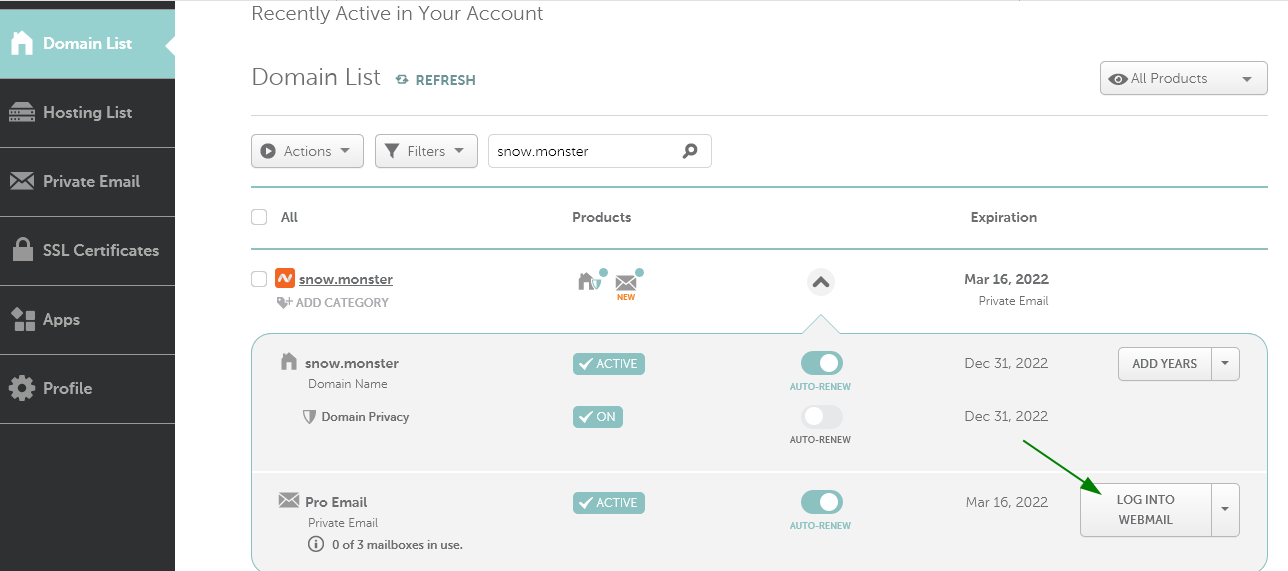
Credit: www.namecheap.com
Configuring Email Settings
Set up Namecheap email easily with a few clicks. Access your account, navigate to email settings, and input the required details. Enjoy seamless communication in no time.
Configuring your email settings with Namecheap can transform your digital communication experience. It’s not just about sending and receiving emails; it’s about tailoring them to suit your needs and ensuring they are secure. Whether you’re managing a business or personal account, customizing your preferences and tightening security settings can save you time and protect your information. Let’s dive into how you can make the most of Namecheap’s email configuration.Customizing Email Preferences
Imagine opening your email and seeing only what matters to you. With Namecheap, you can set your email preferences to match your workflow. You can adjust your inbox layout, set up folders, and create rules to filter incoming emails. Want to reduce clutter? Organize your emails by sender or subject. You can make your inbox a productivity hub by prioritizing essential messages. Consider setting up notifications for specific contacts or topics to stay informed without being overwhelmed.Security Settings
Your email security is paramount. Namecheap offers robust security settings to protect your data from unauthorized access. Enable two-factor authentication for an extra layer of security. It’s like having a lock and key for your digital mailbox. Are you aware of who is accessing your emails? Regularly update your password and review login activity to spot any unusual behavior. It’s essential to ensure your emails are secure, especially when dealing with sensitive information. By customizing your email settings and enhancing security, you can create a streamlined and safe communication environment. How will you use these tools to optimize your email experience? Remember, every tweak you make can lead to a more efficient and secure digital life.Using Namecheap Email Features
Using Namecheap Email Features offers a streamlined experience for managing your emails. This service provides tools that simplify communication and organization. With intuitive features, you can enhance productivity and maintain a clutter-free inbox. Explore how you can efficiently use these features to improve your email management.
Composing And Sending Emails
Compose emails with ease using the straightforward interface. Write clear and concise messages. Attach files easily to provide additional information. Preview your message before sending to avoid errors. Send emails quickly with a simple click. Manage drafts to save unfinished messages for later.
Managing Contacts
Organize contacts efficiently with Namecheap Email. Add new contacts with essential details like name and email. Group contacts into categories for better organization. Search contacts swiftly using the search bar. Edit contact information to keep details up-to-date. Delete outdated contacts to maintain a clean list.

Credit: www.linkedin.com
Advanced Email Management
Discover the ease of managing emails with Namecheap. Set up filters to organize your inbox efficiently. Customize your settings for a streamlined communication experience.
Managing your email effectively can greatly enhance your productivity, especially when using a robust platform like Namecheap Email. Advanced email management features are often overlooked, yet they offer powerful tools to streamline your communication. By mastering these features, you can ensure that your emails work for you, not the other way around. ###Email Forwarding
Email forwarding is like having a personal assistant filter and redirect your messages. You can set it up to automatically send emails from one address to another. This is particularly useful if you manage multiple email accounts. Imagine receiving all your business inquiries in a centralized inbox while keeping your personal email separate. It’s a smart way to stay organized. To set up email forwarding on Namecheap, navigate to your Email Dashboard, select the account you want to forward from, and enter the destination email address. Think about how much time you could save by not having to check multiple inboxes. Why not give it a try and see the difference it makes? ###Setting Up Auto-responders
Auto-responders can be a lifesaver when you’re swamped with work or on vacation. They send automatic replies to incoming emails, letting senders know you’re unavailable or will get back to them soon. This keeps your contacts informed without leaving them hanging. Setting up an auto-responder with Namecheap is straightforward. In the Email Dashboard, choose the account, find the auto-responder option, and craft your message. You might write something like, “Thank you for your email. I am currently out of the office and will respond to your message by [date].” This feature not only manages expectations but also maintains professionalism, even when you’re away. Have you ever been frustrated waiting for a response? Auto-responders can prevent your contacts from feeling the same way. Incorporating these advanced features into your email routine can transform how you manage communications. Take a moment to explore these options. You’ll find they offer more control and efficiency in your daily email tasks.Troubleshooting Common Issues
Namecheap Email setup can sometimes be tricky. Users might face login troubles or email delivery issues. Follow simple steps to resolve these common problems easily.
Navigating the digital landscape can sometimes be tricky, especially when you encounter unexpected hiccups. Using Namecheap Email is no exception. Whether you’re a seasoned pro or a newbie, running into issues can be frustrating. This guide will help you troubleshoot common issues, ensuring a smooth experience with Namecheap Email. ###Email Delivery Problems
Email delivery issues can halt productivity. You might find emails sitting in your outbox or missing from your inbox. First, check your internet connection. A weak signal can disrupt email delivery. Verify your email settings. Ensure that your SMTP server settings are correctly configured. Spam filters might mistakenly flag your emails. Check your spam folder for any misfiled messages. Have you exceeded your storage limit? Clear out unnecessary emails to free up space. ###Login Issues
Struggling to log into your Namecheap Email account can be a real headache. Ensure your credentials are correct. Even a small typo can lead to login failures. Have you forgotten your password? Use the password recovery option to reset it. Sometimes, a browser cache can cause login issues. Clear your cache and try again. Is your account locked? This can happen after multiple failed login attempts. Wait a while before trying again or contact support if needed. Have you ever found yourself locked out because of a simple typo? Remember, details matter. By addressing these common issues, you can ensure your Namecheap Email experience is seamless. Don’t let small problems derail your productivity. What other issues have you encountered, and how did you solve them? Share your experiences below!
Credit: www.youtube.com
Frequently Asked Questions
Is There An App For Namecheap Email?
Namecheap doesn’t offer a dedicated email app. Access Namecheap email via any email client supporting IMAP/SMTP, like Outlook or Apple Mail. Use webmail for direct access.
Does Namecheap Provide Email?
Yes, Namecheap provides email hosting services. They offer private email solutions for personal and business use. With various plans, users can choose options that suit their needs. Namecheap’s email service includes features like calendar, contacts, and collaboration tools, enhancing productivity.
It’s reliable and easy to set up.
Is Namecheap Email Pop3 Or Imap?
Namecheap email supports both POP3 and IMAP protocols. Users can choose either for managing their emails effectively. POP3 downloads emails locally, while IMAP syncs across devices, offering flexibility and accessibility. Ensure your email client settings match your preference for seamless communication.
How To Authenticate Namecheap Email?
Authenticate your Namecheap email by configuring DNS records. Add SPF and DKIM records in your domain’s DNS settings. This verifies your email’s legitimacy and helps prevent spoofing. Access Namecheap’s dashboard, navigate to DNS settings, and input the provided SPF and DKIM values.
Save changes to complete the authentication.
Conclusion
Using Namecheap Email is simple and effective. It provides reliable communication for businesses and individuals. The setup process is straightforward, ensuring quick access to emails. With Namecheap, organizing your emails becomes easier. You can manage contacts, folders, and settings efficiently.
Plus, the service offers great support for any issues you face. By following the steps outlined, you can maximize your email experience. Whether for work or personal use, Namecheap Email stands as a solid choice. Start today and enjoy a seamless email experience.
It’s all about keeping your communication smooth and hassle-free.


