
Are you tired of juggling multiple services to keep your website running smoothly? Imagine a world where your web hosting is reliable, scalable, and cost-effective.
Amazon S3 could be the solution you’ve been looking for. Known for its robust storage capabilities, Amazon S3 offers more than just a place to store your data—it can also be a powerful tool for hosting your website. But how exactly do you harness this potential?
It may sound complex, yet with the right guidance, you can master it in no time. We’re going to walk you through the step-by-step process of using Amazon S3 for web hosting. You’ll discover practical tips and insider tricks that make the whole setup feel like a breeze. Stay with us, and by the end, you’ll wonder how you ever managed without it. Your website deserves the best, and you’re just a few clicks away from achieving it.
Setting Up Amazon S3
Start by visiting the AWS website. Click on the “Create an AWS Account” button. Fill in your personal details. Enter your email and a strong password. Choose the “Basic Plan” if available. This option is usually free. Complete the registration process. You will need to verify your email. Then, log in to your new account.
Navigate to the S3 service in the AWS dashboard. Click on “Create Bucket”. Choose a unique bucket name. Pick a region close to your users. This helps in faster loading. Leave the default settings. Click “Next” and then “Create Bucket”. Your bucket is now ready. You can upload files and host websites.
Uploading Website Files
Grouping files is important. It keeps your website tidy. Use folders for different types of files. For example, images go in one folder. HTML files go in another. This helps you find things easily. It makes your site run well too. Clean structure is vital for easy access.
AWS Console is a tool. It helps you manage your files. Log in to your AWS account first. Click on S3 service. Choose your bucket. Upload files by dragging them. You see files appear quickly. AWS Console is user-friendly. It shows you where files are stored. You can delete or move them easily.
Command Line is powerful. It helps upload files fast. Use commands to move files. Type commands carefully. Make sure you know the right syntax. Command Line is precise. It requires attention. Use it for bulk uploads. It saves time. Learn basic commands first.
Configuring Bucket Permissions
Amazon S3 buckets need the right settings for access. Public Access Settings are important. They control who can see your files. Always check these settings. Make sure you don’t share too much. Or too little. There are four main settings. Block public access to buckets and objects. Block public access to new buckets. Block public access to both buckets and objects. Block public access to new objects. Choose the best for your needs.
Policies are like rules for your bucket. They say who can do what. Access Control Lists (ACLs) are lists. They list who can read or write. Use both for better control. Policies cover many users at once. ACLs are for specific users. Combine them for safety. Always review and update them. Safety first.
Enabling Static Website Hosting
First, open your Amazon S3 console. Find and click on the bucket you want. Go to the Properties tab. Look for the Static website hosting option. Select it to enable hosting. Choose the Use this bucket to host a website option. This will allow you to use S3 for web hosting.
Set your index document. This is the main page of your site. Common choices are index.html or home.html. Next, set an error document. This shows when a page is not found. Name it error.html or 404.html. These settings help guide users on your site.
Custom Domain Setup
Buy a domain from a trusted domain registrar. Popular options include GoDaddy and Namecheap. Prices can vary based on the domain name. Ensure the name is easy to remember. Keep it short and simple. Avoid special characters in the name.
Use Amazon Route 53 for DNS settings. It helps link your domain to your website. First, log into your AWS account. Then, navigate to Route 53. Create a hosted zone for your domain. Add DNS records to connect to S3. This step allows your domain to point to your website. Check everything to make sure it works. Your site should be live in a short time.
Enhancing Website Performance
Amazon CloudFront makes websites load faster. It uses servers close to the user. This helps deliver content quickly. Speed is very important for websites. Users don’t like waiting. CloudFront also saves data bandwidth. This means less cost for the website owner.
Security is another big plus. CloudFront protects data with encryption. This keeps user information safe. The setup is simple. Just a few clicks and it’s ready. Easy and fast!
Websites have images, videos, and files. These need to load fast. Amazon S3 helps with this. It stores content in a special way. This is called caching. Caching keeps copies of files. Users get the nearest copy. This reduces load time.
It’s important to keep files small. Smaller files load faster. Use compression to make files smaller. This also saves space. Faster websites mean happy users!
Security Best Practices
SSL/TLS keeps your data safe. It protects information from bad people. Your website needs a certificate. This certificate tells browsers your site is safe. Amazon S3 helps with certificates. It can work with Amazon CloudFront. CloudFront helps make your site faster and safer. Always use HTTPS for secure connections. This keeps user data secret.
Keep an eye on who uses your data. Logging helps you watch access. Amazon S3 has access logs. These logs show who looked at your files. Set up alerts for strange activity. This helps stop bad actions quickly. Regular checks keep your data safe. Use audit tools to find weak spots. Fix weak spots soon. This keeps your site strong.
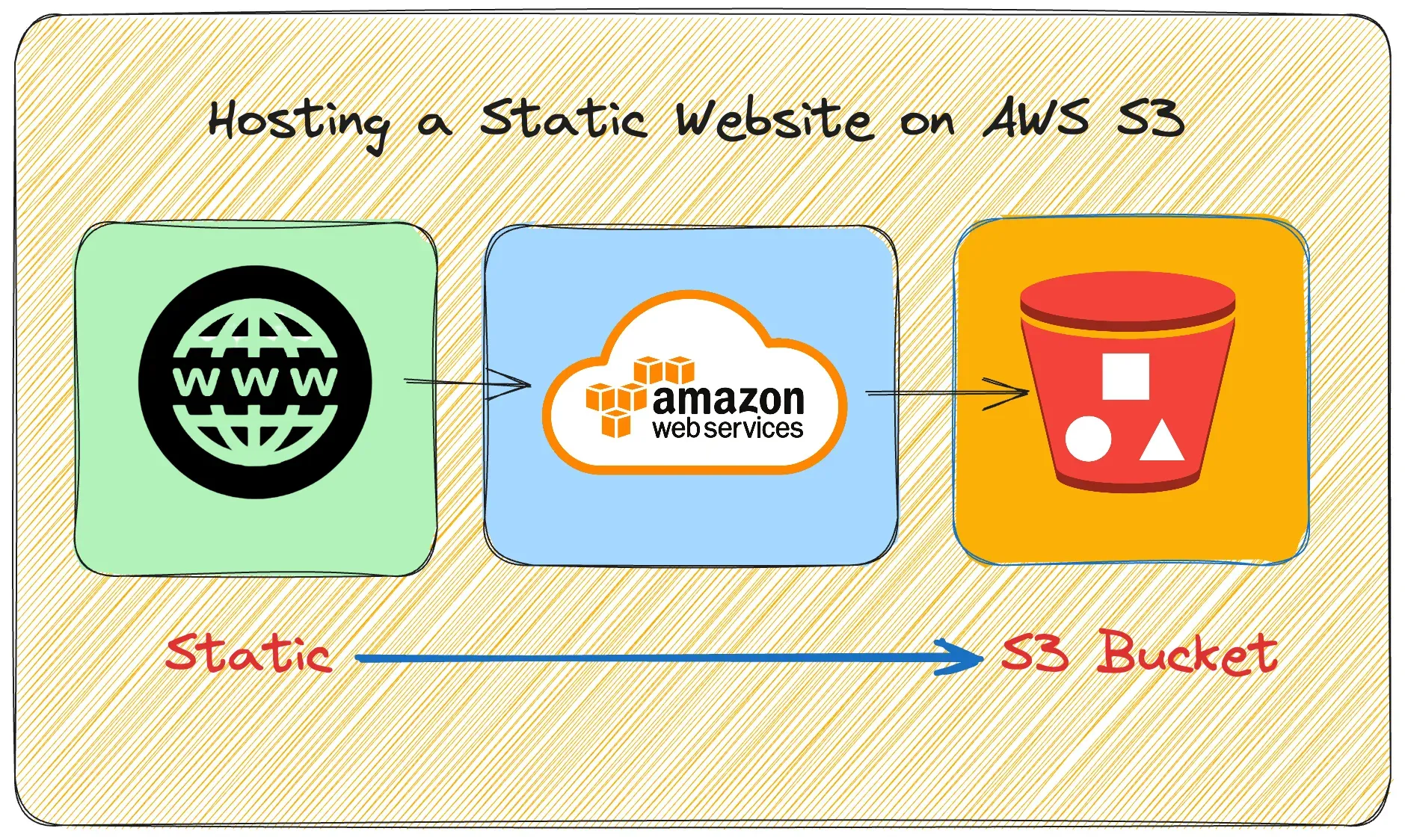
Credit: community.aws
Cost Management
Amazon S3 offers a cost-effective solution for web hosting. With its scalable storage, users can efficiently manage expenses while maintaining site performance. Utilizing S3’s features allows control over budget, ensuring affordability without compromising quality.
Understanding S3 Pricing
Amazon S3 charges based on storage, requests, and data transfer. Storage costs depend on the size of your files. The more files, the higher the cost. Requests refer to how often you access or change your files. Every time you do this, it counts as a request. Data transfer involves moving your files to and from S3. This is also priced separately. Knowing these basics helps manage your budget better.
Cost Optimization Strategies
Use lifecycle policies to move old data to cheaper storage. This can save money. Enable versioning to keep track of file changes. Delete old versions when not needed. This prevents unnecessary costs. Monitor usage regularly with AWS tools. Set up alerts for unexpected cost spikes. Always review your needs and adjust storage options. This ensures you’re not overpaying.
Troubleshooting Common Issues
Setting up Amazon S3 for web hosting involves various steps. Common issues include incorrect bucket permissions and misconfigured DNS settings. Ensure the bucket policy allows public access and verify your DNS records for correct routing.
Resolving Access Denied Errors
Access denied errors often occur with Amazon S3. Check your bucket permissions first. Ensure your files have the right permissions. Use the Amazon S3 console to review permissions. Always use the correct access policies. This helps prevent errors. Also, verify your IAM roles. They must have the right access. Sometimes, a policy change can fix the issue. Double-check all settings carefully.
Fixing Incorrect Content Types
Files might display incorrectly due to wrong content types. This happens often. First, check the content-type metadata in Amazon S3. Ensure the type matches your file. For example, `.html` files should have `text/html`. Use the S3 console to update the metadata. Correct types help your files display properly. Always verify your settings. This ensures smooth performance.
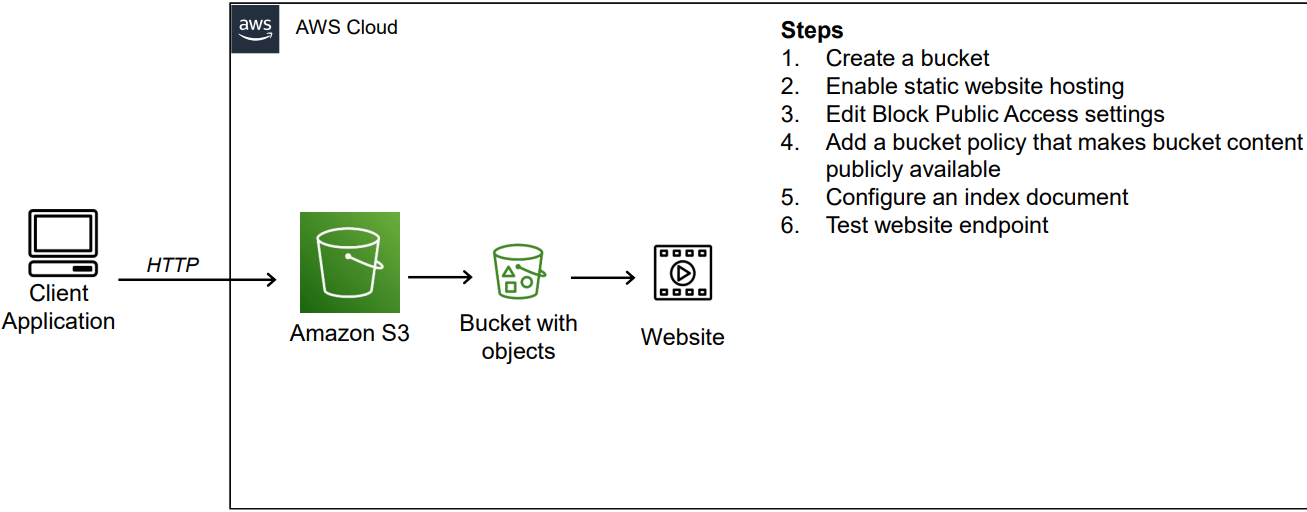
Credit: medium.com

Credit: www.linkedin.com
Frequently Asked Questions
Can S3 Be Used To Host A Website?
Yes, Amazon S3 can host static websites. It provides scalable, secure, and cost-effective storage. Users can upload HTML files, images, and CSS for their site. S3 supports custom domain names and SSL certificates. It’s ideal for hosting websites with low to moderate traffic.
Consider integrating with CloudFront for faster content delivery.
Can Amazon S3 Be Used For Dynamic Web Hosting?
Amazon S3 is suitable for static web hosting, not dynamic. It serves static files like HTML, CSS, and JavaScript. For dynamic hosting, consider using AWS services like EC2 or Lambda.
Can I Use Aws To Host My Website?
Yes, AWS can host your website. It offers scalable solutions like EC2, S3, and Lightsail. AWS provides reliable performance, global reach, and security features. You can choose the services that best fit your website needs. AWS is suitable for both small and large-scale websites.
Which Steps Must Be Taken To Use Amazon S3 As A Web Server?
To use Amazon S3 as a web server, create a bucket and upload your website files. Enable public access and configure the bucket as a static website. Set permissions and define the index and error documents. Finally, use the S3 website endpoint to access your site.
Conclusion
Amazon S3 offers a simple web hosting solution. It’s cost-effective and scalable. Setting it up requires basic technical skills. You can host static websites easily. No server management needed. Focus on your content. Amazon S3 handles the storage. It’s reliable and secure.
Many businesses trust it for hosting. Follow the steps outlined. Your website will be online quickly. Enjoy seamless performance and flexibility. Amazon S3 adapts to your needs. It’s a versatile choice for web hosting. Explore its features today. Make your web presence stronger.
Enjoy peace of mind with Amazon S3.


