
Are you ready to take your online presence to the next level? Choosing the right web host is a crucial step in ensuring your website runs smoothly and efficiently.
Imagine having a reliable, secure, and fast platform that helps you showcase your brand or share your passions with the world. But how do you navigate the myriad of options available and make the best choice for your needs? In this guide, you’ll discover simple, actionable steps on how to use a web host effectively.
Whether you’re launching a personal blog or managing a business website, these insights will empower you to make informed decisions and maximize your online impact. Dive in and unlock the secrets to a seamless hosting experience that keeps your visitors engaged and coming back for more.
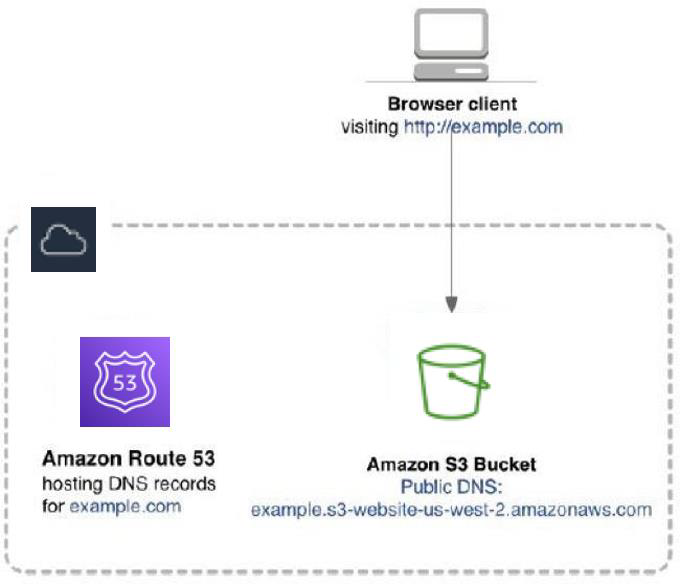
Credit: docs.aws.amazon.com
Choosing The Right Web Host
Understand what your website needs. Is it a blog or a store? Check how much space you need. Will you have a lot of pictures? Think about traffic. Do you expect many visitors? Knowing these helps you pick the right host.
Shared hosting is like renting a room. It’s cheap but shared. VPS hosting gives you more space. It’s like having your own apartment. Dedicated hosting is owning a house. Full control but costs more. Choose based on your budget and need.
Look for good customer support. Problems can happen anytime. Check if the host has backups. Safety first! See if they offer SSL. It keeps your site safe. Features matter for a smooth experience.
Setting Up Your Account
Start by visiting the web host’s site. Locate the sign-up button. Fill in your email and create a password. Check your email for a verification link. Click the link to activate your account. Ensure your password is strong. Use numbers and symbols. Keep it safe and private.
Look for a plan that fits your needs. Basic plans are cheaper. Good for small sites. Advanced plans offer more features. Better for large sites. Compare prices and features carefully. Choose a plan that fits your budget. Ask friends for advice if unsure.
Choose a unique domain name. Check if it’s available. Avoid long names. Keep it simple. Register your domain through your host. Pay a small fee yearly. Your domain is your online address. Make it memorable. Protect your domain with privacy options.
Uploading Your Website
FTP clients help upload files to your web host. Download a free FTP tool like FileZilla. Enter your host details in the tool. Drag files from your computer to the host. Uploading starts quickly. Watch for errors. Fix them if needed. Always save changes.
Many hosts have a dashboard. It shows your website files. Log in with your details. Click on the file manager option. Upload files directly from here. Easy and quick. No special tools needed. Use this if FTP seems hard.
Keep files organized in folders. Use clear names for files. Helps find them later. Check for extra or old files. Delete if not needed. Always backup important files. This keeps your website safe.
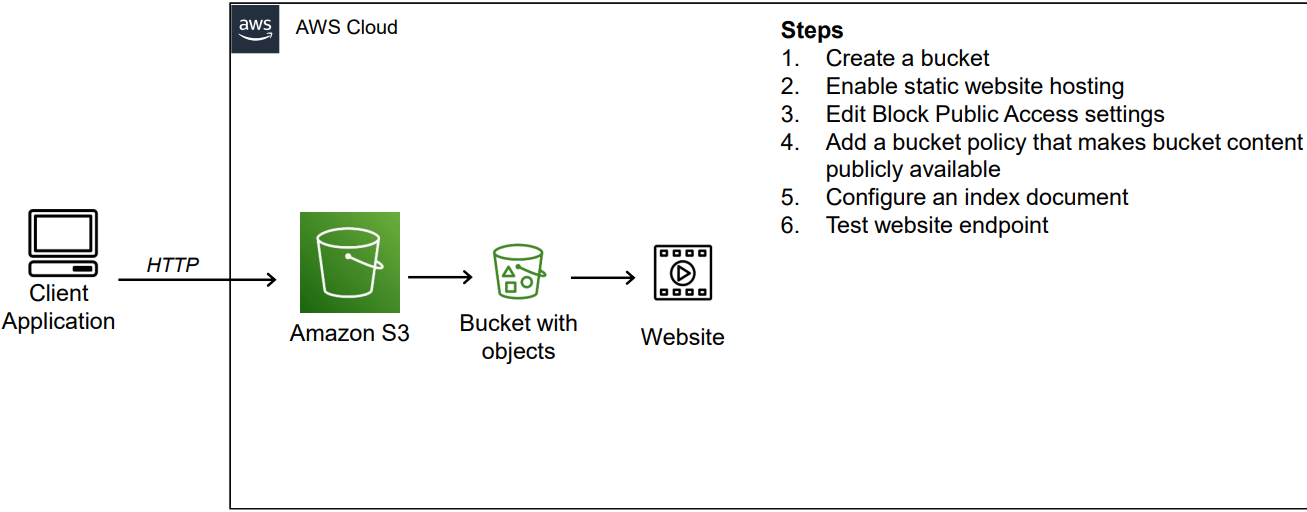
Credit: medium.com
Configuring Website Settings
Security is very important for your website. Make sure to enable firewalls. They help block unwanted access. Use strong passwords for all accounts. This keeps them safe. Regularly update your software. Updates fix security holes. Backup your website data often. This helps if something goes wrong.
Create email accounts linked to your domain. This looks more professional. Access your web host’s email settings. Follow the steps to add a new account. Choose a username and password. Use a simple and memorable username. Set up email forwarding if needed. It sends emails to another account.
Adjust domain settings to suit your needs. Point your domain to your web host. This connects your domain to your site. Use the DNS settings for this. Change your domain’s name servers if needed. Customize your domain privacy settings. This hides your personal info from public view.
Monitoring Performance
Check your website’s traffic data often. Use tools like Google Analytics. It shows how many people visit your site. Track the peak times when most visitors come. This helps plan better. Know which pages get the most views. Improve pages with less traffic. Look at the bounce rate. It tells how fast users leave your site. Lower bounce rate means users like your site.
Uptime is when your site is live. Downtime means your site is down. Use tools to track both. Many web hosts offer these tools. Aim for 99.9% uptime. That’s good for any site. Alert systems notify when the site goes down. Fix problems fast to keep visitors happy. Regular checks help maintain uptime.
Fast load speed keeps users on your site. Use smaller images for quicker loading. Compress files to make them smaller. Less data means faster pages. Use caching to store data. It speeds up load times. Choose a server location close to your audience. This reduces load time. Check speed with tools like GTmetrix.
Troubleshooting Common Issues
Connectivity problems can be frustrating. Check your internet connection first. Restart your modem or router. This often fixes simple issues. Ensure your cables are connected properly. Use a different device to test the connection. This helps identify if the issue is device-specific. Consider contacting your web host for help if problems persist.
Server errors can happen sometimes. Refresh the page first. It might solve temporary issues. Check your website’s error logs. This can show the cause of the error. Clear your browser’s cache and cookies. These can sometimes cause errors too. Reach out to your web host for further support if needed.
Website security is very important. Use strong and unique passwords. Change them regularly. Update your software to the latest version. This helps protect against threats. Enable a firewall for extra security. Consider installing security plugins. These can prevent unauthorized access. Contact your host if you notice anything unusual.
Exploring Advanced Features
SSL certificates keep your website safe. They protect data between users and servers. This helps to build trust with your visitors. Green padlock symbols show your site is secure. Most web hosts offer free SSL certificates. Use them to keep your site safe and secure. They also help improve your website’s search ranking. Always ensure your SSL certificate is active.
Content Delivery Networks, or CDNs, make websites load fast. They store copies of your website. These copies are closer to your visitors. This reduces loading times for your site. CDNs also handle large amounts of traffic. This helps during peak times. Many web hosts offer easy CDN setups. Use them to improve your website’s speed.
Third-party applications add more features. They can improve your website’s functionality. Popular apps include chat tools and email marketing. They can also include analytics tools. These apps help you understand your visitors. Most web hosts allow easy integration. Check if your host supports the app you need. Make sure these apps are secure.
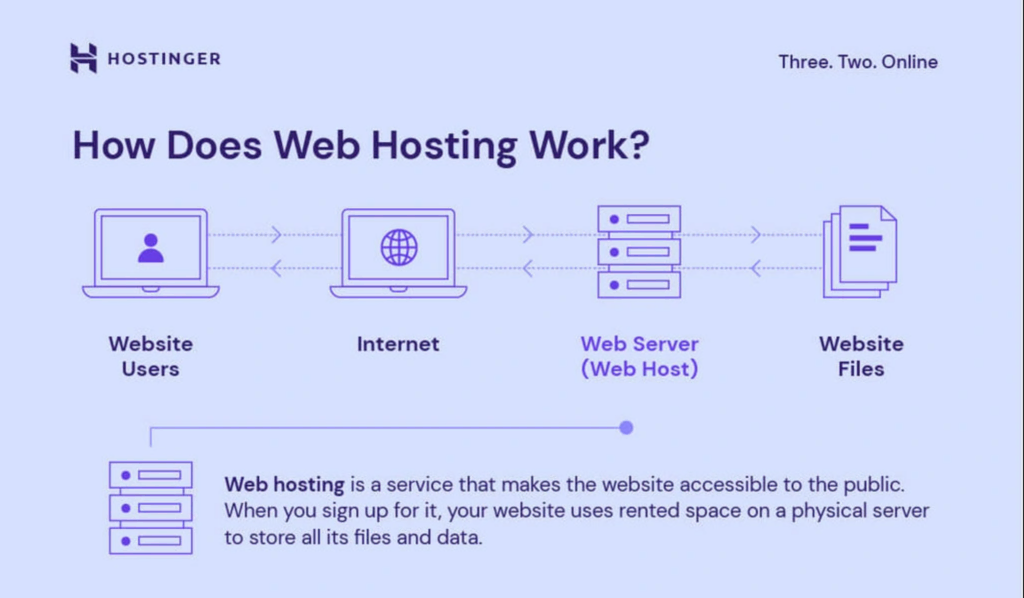
Credit: www.hostinger.com
Frequently Asked Questions
How Does A Web Host Work?
A web host stores your website’s files on its servers. It makes your site accessible online. It provides the necessary technology and support, ensuring your site runs smoothly. Web hosts offer various services like storage, security, and technical support to maintain your website’s performance.
How To Host And Run A Website?
Choose a domain name and register it. Select a reliable hosting provider. Use a content management system like WordPress. Upload your website files. Test and launch the website.
How Do I Start Using My Hosting?
Log in to your hosting account and access the control panel. Set up your domain and email accounts. Install necessary software, such as WordPress, using one-click installers. Customize settings and upload website files via FTP. Ensure security by updating plugins and setting strong passwords.
How Do I Run A Local Host Website?
To run a local host website, install a local server like XAMPP or WAMP. Configure your website files in the server’s designated directory. Start the server and access your website by entering “localhost” in your browser. Ensure all necessary dependencies and configurations are properly set for smooth operation.
Conclusion
Mastering web hosting can boost your online presence. Choosing the right host is crucial. Simple setup makes your site accessible to visitors. Regular updates keep your site secure and fresh. Monitor your site’s performance to ensure smooth operation. Check support options for any technical issues.
Always back up your data to prevent loss. Understanding these basics helps you manage your site effectively. Start your journey with confidence. Explore hosting options that fit your needs. Keep learning and adapting to new tools. Your website deserves the best care and attention.


